1. Introduzzjoni
This manual provides detailed instructions for the setup, operation, and maintenance of your Blackmagic Design ATEM SDI Pro ISO Live Stream Switcher. The ATEM SDI Pro ISO is a compact live production switcher designed for professional broadcasting, streaming, and recording. It features 4 x 3G-SDI inputs, an integrated control panel, and advanced audio mixing capabilities.

Figure 1.1: ATEM SDI Pro ISO Live Stream Switcher in a production environment.
Il-karatteristiċi ewlenin jinkludu:
- Kwalità Superjuri tal-Vidjo: 4 x 3G-SDI inputs with frame rate and format converters.
- Konnettività Affidabbli: Direct streaming via Ethernet or shared mobile internet via USB-C, supporting RTMP.
- Twaqqif u Kontroll Faċli: Built-in control panel and ATEM Software Control for Mac and Windows.
- Versatile Audio Mixing: 6-input audio mixer with Fairlight audio enhancements.
- Low Latency Performance: Hardware-based, real-time color space conversion and 10-bit color precision.
2. Prodott Aktarview
2.1 Kontrolli ta' Front Panel
The front panel provides direct access to essential switching, audio, and effects controls.

Figure 2.1: ATEM SDI Pro ISO Front Panel.

Figure 2.2: Front Panel Control Diagram.
2.2 Konnessjonijiet tal-Panew ta' wara
The rear panel houses all input and output ports for video, audio, control, and power.

Figure 2.3: ATEM SDI Pro ISO Rear Panel.

Figure 2.4: Rear Panel Connection Diagram.
3. Setup
Follow these steps to set up your ATEM SDI Pro ISO switcher.
- Konnessjoni tal-Enerġija: Connect the included power adapter to the 'POWER' input on the rear panel and plug it into a suitable power outlet.
- SDI Video Inputs: Connect your SDI cameras or other video sources to the 'SDI INPUTS' (1-4) on the rear panel. The switcher automatically converts formats.
- Inputs tal-Awdjo: Connect microphones or other analog audio sources to the 'MIC 1' and 'MIC 2' 3.5mm stereo inputs.
- Konnessjoni tal-Kontroll:
- Ethernet: Connect an Ethernet cable from the 'ATEM CONTROL' port to your network router or directly to a computer for ATEM Software Control.
- USB-C: Connect a USB-C cable from the 'USB A' port to your computer. This connection allows the ATEM SDI Pro ISO to function as a webcam for streaming and provides access for recording to external drives.

Figure 3.1: USB-C Connection for Computer Interface.
- Multiview Output: Connect an SDI monitor to one of the 'SDI OUTPUTS' to view il-multiview display, which shows all inputs, program, preview, and status.
- Installazzjoni tas-Softwer: Download and install the latest ATEM Software Control from the Blackmagic Design websit fuq il-kompjuter tiegħek.
4. Istruzzjonijiet Operattivi
4.1 Swiċċjar Bażiku
Use the 'Source Buttons' (1-4) on the front panel to select your video inputs. The selected source will appear on the preview output. Press 'CUT' for an instant transition or 'AUTO' for a programmed transition between preview u l-programm.
4.2 Taħlit tal-Awdjo
The ATEM SDI Pro ISO features a built-in Fairlight audio mixer. Adjust audio levels for each input using the dedicated controls on the front panel or through the ATEM Software Control interface. The Fairlight mixer includes compressor, gate, and EQ for professional sound processing.

Figure 4.1: Fairlight Audio Mixer Interface.
4.3 Streaming
To stream live, connect the ATEM SDI Pro ISO to the internet via Ethernet. Use the ATEM Software Control to configure your streaming platform (e.g., YouTube, Facebook Live) and stream settings. Press the 'STREAM ON AIR' button on the front panel or in the software to begin streaming.
4.4 Recording (ISO Recording)
Connect an external USB-C SSD drive to the 'USB A' port for recording. The ATEM SDI Pro ISO can record all input feeds individually (ISO recording) along with the program output, enabling post-production editing. Press the 'RECORD' button on the front panel or in the software to start recording.

Figure 4.2: Connecting an External SSD for Recording.
4.5 Multiview Monitoraġġ
Il-multiview output provides a comprehensive display of all video inputs, program, preview, audio meters, and status indicators on a single screen. This allows for efficient monitoring of your live production.
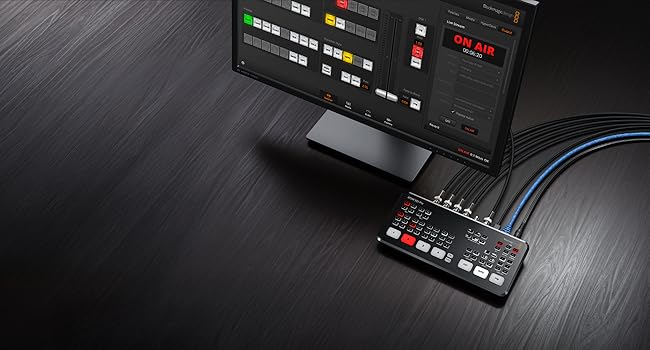
Figura 4.3: Multiview Monitoring Display.
5. Manutenzjoni
Proper maintenance ensures the longevity and optimal performance of your ATEM SDI Pro ISO.
- Tindif: Use a soft, dry cloth to clean the exterior of the unit. Avoid abrasive cleaners or solvents. For stubborn marks, a slightly damp Jista' jintuża drapp, biex jiżgura li ma tidħolx umdità fil-portijiet.
- Aġġornamenti tal-Firmware: Periodically check the Blackmagic Design website for firmware updates. Updates can provide new features, performance improvements, and bug fixes. Follow the instructions provided with the update software carefully.
- Kundizzjonijiet Ambjentali: Operate the switcher within recommended temperature and humidity ranges. Ensure adequate ventilation around the unit to prevent overheating.
6 Issolvi l-problemi
Din it-taqsima tindirizza kwistjonijiet komuni li tista’ tiltaqa’ magħhom.
6.1 L-ebda Ħruġ tal-Vidjo
- Iċċekkja Kejbils: Ensure all SDI cables are securely connected to both the sources and the switcher, and from the switcher to your monitor.
- Qawwa: Verify the switcher is powered on and receiving power.
- Għażla tas-Sors: Confirm that the correct input source is selected on the front panel or via ATEM Software Control.
- Input tal-monitor: Ensure your monitor is set to the correct input (e.g., SDI 1).
6.2 Bla Awdjo
- Livelli ta 'dħul tal-awdjo: Check the audio levels for your microphone inputs on the front panel or in ATEM Software Control. Ensure they are not muted or set too low.
- Konnessjonijiet tal-kejbil: Verify microphone cables are properly connected to the 'MIC 1'/'MIC 2' inputs.
- Monitor Awdjo: Ensure your monitoring device (headphones, speakers) is connected and its volume is up.
6.3 Kwistjonijiet ta' Streaming
- Konnessjoni tal-Internet: Confirm your Ethernet connection is active and has internet access.
- Settings tal-Istreaming: Double-check your streaming platform settings (RTMP server, stream key) in ATEM Software Control.
- Faxxa tal-frekwenza: Ensure your internet upload speed meets the requirements for your chosen streaming quality.
6.4 Recording Errors
- External Drive: Verify the USB-C SSD is properly connected and formatted correctly (e.g., exFAT or HFS+).
- Drive Space: Ensure there is sufficient free space on the external drive for recording.
- Veloċità tas-sewqan: Use a fast SSD drive capable of sustaining the required data rates for ISO recording.
7. Speċifikazzjonijiet
Below are the technical specifications for the Blackmagic Design ATEM SDI Pro ISO Live Stream Switcher.
| Karatteristika | Speċifikazzjoni |
|---|---|
| Numru tal-Mudell | BM-SWATEMMXEPBPRISO |
| Dimensjonijiet tal-Prodott | 10.63 x 7.09 x 2.76 pulzieri |
| Piż tal-oġġett | 1.5 liri |
| Inputs tal-Vidjo | 4 x 3G-SDI (with format/frame rate converters) |
| Inputs tal-awdjo | 2 x 3.5mm Stereo Microphone Inputs |
| Outputs tal-Vidjo | SDI Outputs (for program/multiview) |
| Konnettività | Ethernet (for control and streaming), USB-C (for webcam, recording, control) |
| Mixer Awdjo | 6-input Fairlight audio mixer with EQ, dynamics |
| Reġistrazzjoni | ISO recording to external USB-C media |
| Kulur | Iswed |
8. Garanzija u Appoġġ
Blackmagic Design products are manufactured to high standards and come with a limited manufacturer's warranty. For specific warranty terms and conditions, please refer to the documentation included with your product or visit the official Blackmagic Design websit.
For technical support, software downloads, and additional resources, please visit the Blackmagic Design support page. You can find comprehensive FAQs, user forums, and contact information for customer service.
Blackmagic Design Official Websit: www.blackmagicdesign.com/support


