1. Introduzzjoni
This manual provides essential information for the safe and efficient use of your HUAWEI PixLab B5 Multifunction Laser Printer. Please read it thoroughly before operating the device and keep it for future reference.
The HUAWEI PixLab B5 is a versatile 3-in-1 device, offering high-speed printing, copying, and scanning functionalities. It features automatic duplex printing, a user-friendly one-step toner replacement system, and multiple connectivity options including USB, Wi-Fi, and LAN.
2. Informazzjoni dwar is-Sigurtà
Dejjem segwi l-prekawzjonijiet bażiċi ta' sigurtà meta tuża dan il-prodott biex tnaqqas ir-riskju ta' nar, xokk elettriku, u korriment lil persuni.
- Tpoġġix il-printer fuq karrettun, stand, jew mejda instabbli.
- Timblokkax jew tgħattix is-slots u l-fetħiet fil-printer.
- Use only the power cord and power source indicated in this manual.
- Tippruvax tagħmel manutenzjoni tal-istampatur int stess. Irreferi għal kull manutenzjoni għand persunal tas-servizz kwalifikat.
- Żomm il-printer 'il bogħod mill-ilma u l-umdità.
- Kun żgur ventilazzjoni xierqa madwar l-istampatur.
3. Kontenut tal-Pakkett
Iċċekkja li l-oġġetti kollha huma inklużi fil-pakkett:
- HUAWEI PixLab B5 Multifunction Laser Printer
- Kejbil tal-Enerġija
- Cable USB
- HUAWEI F-1500BZ Toner Cartridge
- HUAWEI X-15000BZ Drum Unit
- Manwal għall-Utent (dan id-dokument)
4. Prodott Aktarview
Familiarize yourself with the main components of your HUAWEI PixLab B5 printer.

Figura 4.1: Quddiem view of the HUAWEI PixLab B5 printer, showing the HUAWEI logo on the front panel.

Figura 4.2: Minn fuq għal isfel view of the HUAWEI PixLab B5 printer, illustrating a document exiting the output tray after printing.
5. Setup
5.1 Disimballaġġ
- Neħħi b'attenzjoni l-istampatur mill-ippakkjar tiegħu.
- Neħħi t-tejps protettivi u l-materjali tal-ippakkjar kollha minn barra u minn ġewwa l-istampatur.
5.2 Installazzjoni tal-Unità tat-Toner u d-Drum
The HUAWEI PixLab B5 features an innovative drawer-type toner cartridge for easy replacement.
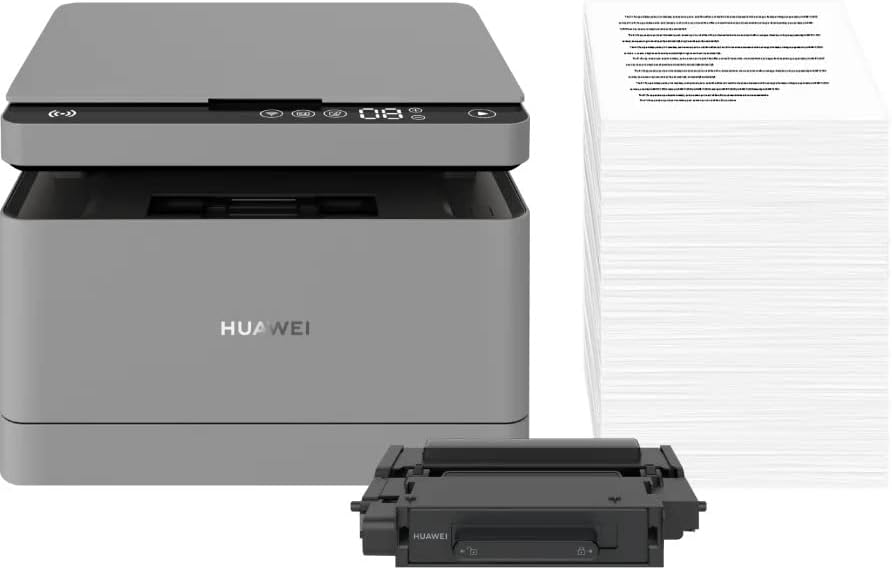
Figura 5.1: The HUAWEI PixLab B5 printer shown alongside a replacement toner cartridge and a stack of paper, highlighting the separate components.

Figura 5.2: A diagram illustrating the toner cartridge detached from the drum unit, demonstrating the modular design for replacement.
- Iftaħ il-qoxra ta' quddiem tal-istampatur.
- Gently pull out the toner cartridge drawer.
- Insert the HUAWEI F-1500BZ toner cartridge into the HUAWEI X-15000BZ drum unit until it clicks into place.
- Slide the assembled toner and drum unit back into the printer until it is securely seated.
- Agħlaq il-qoxra ta' quddiem.
5.3 Tagħbija tal-Karta
- Iftaħ it-trej tal-karti.
- Adjust the paper guides to the correct paper size (e.g., A4).
- Load paper into the tray, ensuring it is not overfilled (maximum capacity: 150 sheets).
- Agħlaq it-trej tal-karti.
5.4 Konnessjoni tal-Enerġija
- Qabbad il-kejbil tal-enerġija mal-port tal-enerġija tal-istampatur.
- Ipplaggja t-tarf l-ieħor tal-kejbil tal-enerġija f'sokit elettriku ertjat.
- Agħfas il-buttuna tal-enerġija biex tixgħel l-istampatur.
5.5 Installazzjoni u Konnettività tas-Softwer
The HUAWEI PixLab B5 supports multiple connection methods for seamless integration with various devices.
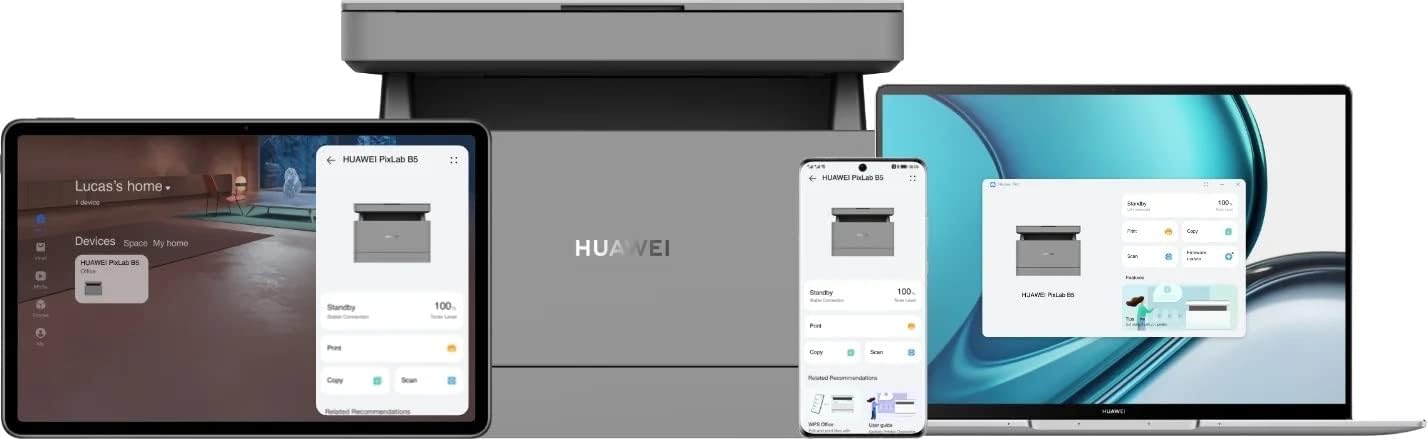
Figura 5.3: The HUAWEI PixLab B5 printer demonstrating its versatile connectivity by being linked to a tablet, a smartphone, and a laptop, all displaying the printer's interface.

Figura 5.4: An illustrative image depicting various devices such as a tablet, smartphone, and laptop connected to the printer, emphasizing multi-device compatibility.


Figura 5.5: Icons representing various connectivity options: USB, LAN, Wi-Fi, and Printer Hotspot.
- Konnessjoni USB: Connect the printer to your computer using the provided USB cable. The necessary drivers should install automatically.
- Konnessjoni LAN: Connect an Ethernet cable from your router or network switch to the LAN port on the printer.
- Konnessjoni Wi-Fi:
- Download and install the HUAWEI AI Life app on your smartphone or tablet.
- Follow the in-app instructions to connect your printer to your Wi-Fi network.
- For PC/laptop, ensure your device is on the same Wi-Fi network as the printer and add the printer through your operating system's printer settings.
- Konnessjoni NFC: For compatible devices, tap your device to the NFC tag on the printer to establish a quick connection.
6. Istruzzjonijiet Operattivi
6.1 Stampar
The HUAWEI PixLab B5 offers high-speed monochrome printing at up to 30 pages per minute.

Figura 6.1: An image highlighting the printer's capability of printing 30 pages per minute for single-sided documents.
- Open the document you wish to print on your connected device.
- Agħżel l-għażla tal-istampar (ġeneralment File > Stampa).
- Choose the HUAWEI PixLab B5 from the list of available printers.
- Adjust print settings as needed:
- Stampar Duplex: The printer supports automatic double-sided printing. Select this option in your print settings to save paper.
- Kwalità: The printer uses Q14 grayscale for clear and layered black and white prints.
- Ikklikkja fuq 'Ipprintja'.
6.2 Ikkupjar
The printer can make up to 100 copies in a single series.

Figura 6.2: A person placing a smart card on the scanner bed of the HUAWEI PixLab B5, demonstrating the Smart Card Copy function.

Figura 6.3: An image showing a user placing a card on the scanner glass, indicating the process for copying or scanning small items like ID cards.
- Place the document face down on the scanner glass or face up in the automatic document feeder (if available).
- Fuq il-pannell tal-kontroll tal-istampatur, agħżel il-funzjoni 'Kopja'.
- Aġġusta s-settings bħan-numru ta' kopji, id-dlam, jew id-daqs tal-karta.
- Smart Card Copy: This feature automatically corrects the position and orientation of cards for perfect copies, even if not perfectly aligned.
- Agħfas il-buttuna 'Start' biex tibda tikkopja.
6.3 Skennjar
The HUAWEI PixLab B5 functions as a photo and sheet-fed scanner.
- Poġġi d-dokument fuq il-ħġieġa tal-iskaner jew fl-alimentatur tad-dokumenti.
- On your connected computer or mobile device, open the scanning software (e.g., HUAWEI AI Life app or your operating system's scanning utility).
- Select the HUAWEI PixLab B5 as your scanner.
- Choose scan settings such as resolution, color mode (monochrome), and destination folder.
- Ibda l-iskennjar.
6.4 Remote Printing
The HUAWEI AI Life app allows for flexible remote printing.

Figura 6.4: The HUAWEI PixLab B5 printer positioned on a desk next to a computer monitor, which displays the printer's software interface, indicating remote management capabilities.
- Ensure your HUAWEI PixLab B5 is connected to the internet via Wi-Fi or LAN.
- Open the HUAWEI AI Life app on your smartphone or tablet.
- Select your PixLab B5 printer from the device list.
- You can now send print jobs to your printer remotely, even when you are away from your office.
7. Manutenzjoni
7.1 Sostituzzjoni tal-Iskrataċ tat-Toner
The HUAWEI PixLab B5 uses separate toner and drum units, allowing for independent replacement and cost savings.

Figura 7.1: An image displaying the maximum page yield for the drum cartridge (15,000 pages) and the toner cartridge (1,500 pages).
- When the toner low indicator appears, prepare a new HUAWEI F-1500BZ toner cartridge.
- Iftaħ il-qoxra ta' quddiem tal-istampatur.
- Iġbed il-kexxun tal-iskartoċċ tat-toner 'il barra.
- Remove the empty toner cartridge from the drum unit.
- Unpack the new toner cartridge and insert it into the drum unit until it clicks.
- Slide the assembled unit back into the printer and close the front cover.
7.2 Drum Unit Replacement
The HUAWEI X-15000BZ drum unit has a yield of up to 15,000 pages.
- When the drum unit needs replacement, open the front cover of the printer.
- Pull out the toner cartridge drawer, which contains the drum unit.
- Remove the toner cartridge from the old drum unit.
- Insert the toner cartridge into the new HUAWEI X-15000BZ drum unit.
- Slide the new assembled unit back into the printer and close the front cover.
7.3 Tindif
- Itfi l-istampatur u aqla l-korda tad-dawl.
- Uża drapp ratba u mingħajr ħelu dampAħsel bl-ilma biex timsaħ il-barra tal-istampatur.
- For the scanner glass, use a glass cleaner applied to a cloth (not directly to the glass) to clean any smudges or dust.
- Tużax tindif jew solventi li joborxu.
8 Issolvi l-problemi
This section addresses common issues you might encounter with your HUAWEI PixLab B5 printer.
8.1 Il-Printer Mhux Jirrispondi
- Check if the printer is powered on and the power cable is securely connected.
- Verify the USB, LAN, or Wi-Fi connection. For Wi-Fi, ensure the printer is connected to the correct network.
- Restart both the printer and your connected device.
- Kun żgur li d-drajvers tal-printer huma installati u aġġornati b'mod korrett.
8.2 Kwistjonijiet ta' Kwalità tal-Istampar
- Check the toner level and replace the toner cartridge if it is low.
- Ensure the drum unit is not worn out (check its page yield).
- Clean the printer's internal components as per the maintenance section.
- Use recommended paper types and ensure paper is loaded correctly.
8.3 Ġammijiet tal-karti
- Itfi l-istampatur u aqlah.
- Iftaħ l-għatu kollu bir-reqqa u neħħi kwalunkwe karta mblukkata, billi iġbed fid-direzzjoni tal-mogħdija tal-karta.
- Kun żgur li ma jibqgħux biċċiet żgħar ta' karti ġewwa.
- Agħlaq l-għatu kollu, ipplaggja, u ixgħel il-printer.
9. Speċifikazzjonijiet
| Karatteristika | Speċifikazzjoni |
|---|---|
| Brand | HUAWEI |
| Isem tal-Mudell | HUPIXLABB5 |
| Tip ta' Prodott | Copy, Scan, Print |
| Teknoloġija tal-Istampar | Laser |
| Output Printer | Monokromu |
| Veloċità Massima tal-Istampar Monokromatiku | 30 Paġni kull minuta |
| Riżoluzzjoni Massima tal-Istampar | 600 x 600 DPI |
| Stampar Duplex | Iva (Awtomatiku) |
| Tip ta' Skaner | Photo, Sheet-fed |
| Kopji Massimi għal kull Serje | 100 |
| Teknoloġija tal-Konnettività | Ethernet, NFC, USB, Wi-Fi |
| Portijiet USB totali | 1 |
| Apparati Kompatibbli | Desktop Computer, Laptop, Smartphone, Tablet |
| Appoġġ tas-Sistema Operattiva | OS X 10.9 Mavericks, Windows 10 |
| Daqs Max tal-Midja | A4 |
| Daqs tal-Folja | 210 × 297 mm |
| Max Sheet Feeding Capacity | 150 |
| Kapaċità tal-Memorja | 512 MB |
| Konsum tal-Enerġija | 410 Watt |
| Power (Operating) | 240 Watts |
| Piż tal-oġġett | 12.3 Kilogrammi |
| Dimensjonijiet tal-Prodott | 10D x 20W x 10H Ċentimetri |
| Kulur | Iswed |
| Karatteristiċi Speċjali | Versatile connectivity (USB, LAN, Wi-Fi), Stable Wi-Fi, High print quality (Q14 grayscale), Remote printing (AI Life app), Print history erase for privacy. |
10. Garanzija u Appoġġ
For warranty information and technical support, please refer to the official HUAWEI website or contact your local HUAWEI customer service center. Keep your purchase receipt as proof of purchase.
Information regarding spare parts availability and guaranteed software updates is not available at this time.


