1. Introduzzjoni
This manual provides detailed instructions for the installation, operation, and maintenance of your ESSGOO Android 10 Car Stereo. Please read this manual thoroughly before using the product to ensure proper function and safety. Keep this manual for future reference.
2. Informazzjoni dwar is-Sigurtà
- Sigurtà tas-Sewqan: Always prioritize driving safety. Do not operate the system in a way that distracts you from the road.
- Installazzjoni: Professional installation is recommended. Incorrect wiring can damage the vehicle's electrical system or the stereo unit.
- Provvista tal-Enerġija: Ensure the car stereo is connected to a 12V DC power supply with negative grounding.
- Temperatura: Evita li tesponi l-unità għal temperaturi estremi jew dawl tax-xemx dirett għal perjodi twal.
- Umdità: Keep the unit away from water and moisture to prevent electrical hazards.
3. Kontenut tal-Pakkett
Ivverifika li l-oġġetti kollha huma preżenti fil-pakkett:
- ESSGOO Android 10 Car Stereo Unit
- Power Cable (ISO Wire)
- Wifi Antenna
- USB Transfer Cables
- Antenna tal-GPS
- Mounting Brackets / Universal Frame
- Backup Camera with 8 LED lights
- Mikrofonu Estern
- Manwal ta 'Istruzzjoni (dan id-dokument)
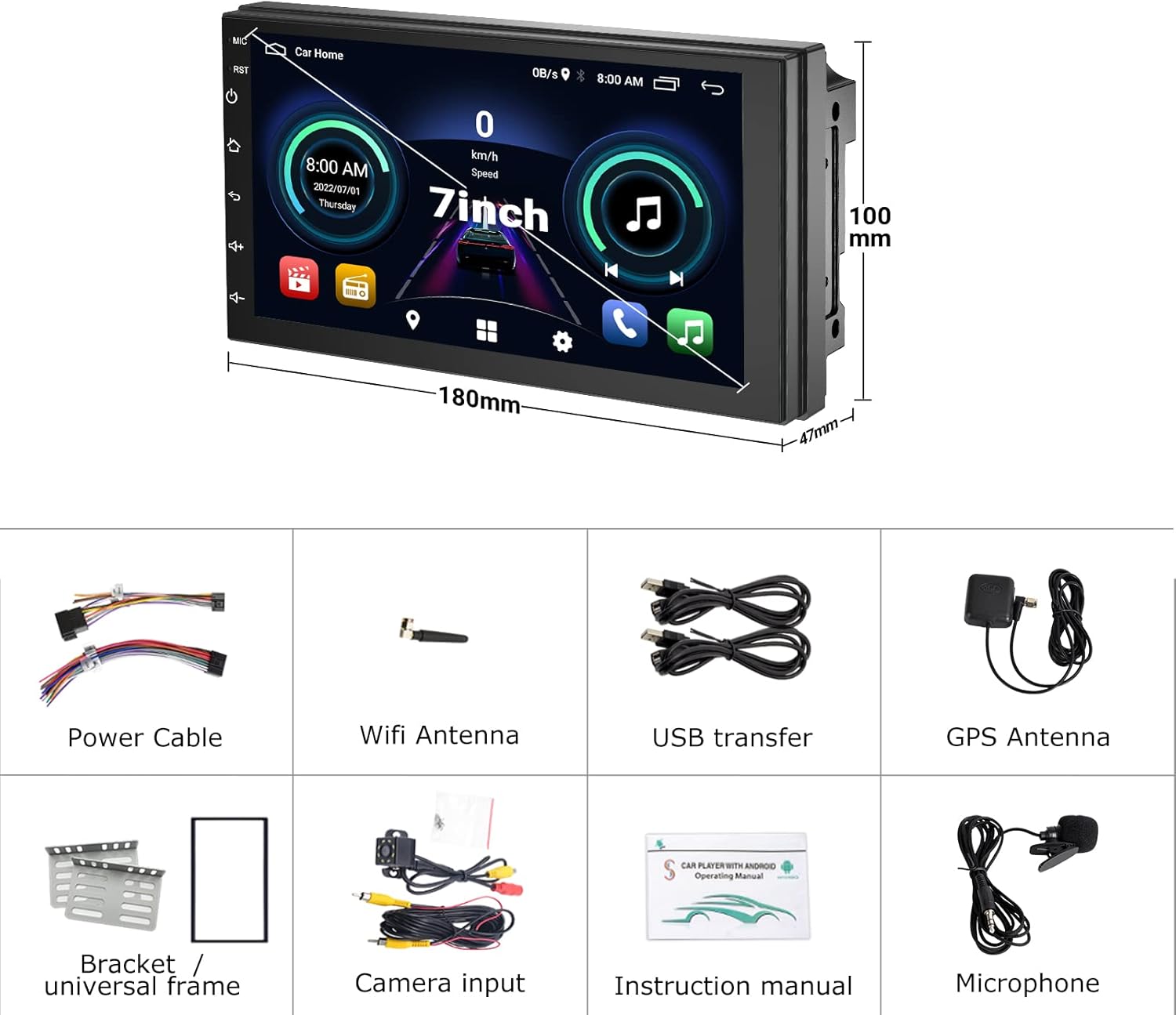
Image: Contents of the ESSGOO Android 10 Car Stereo package, showing the main unit, power cable, WiFi antenna, USB transfer cables, GPS antenna, mounting brackets, backup camera, and external microphone.
4. Prodott Aktarview
The ESSGOO Android 10 Car Stereo is a double DIN unit featuring a 7-inch touch screen. It integrates advanced connectivity and entertainment options for your vehicle.
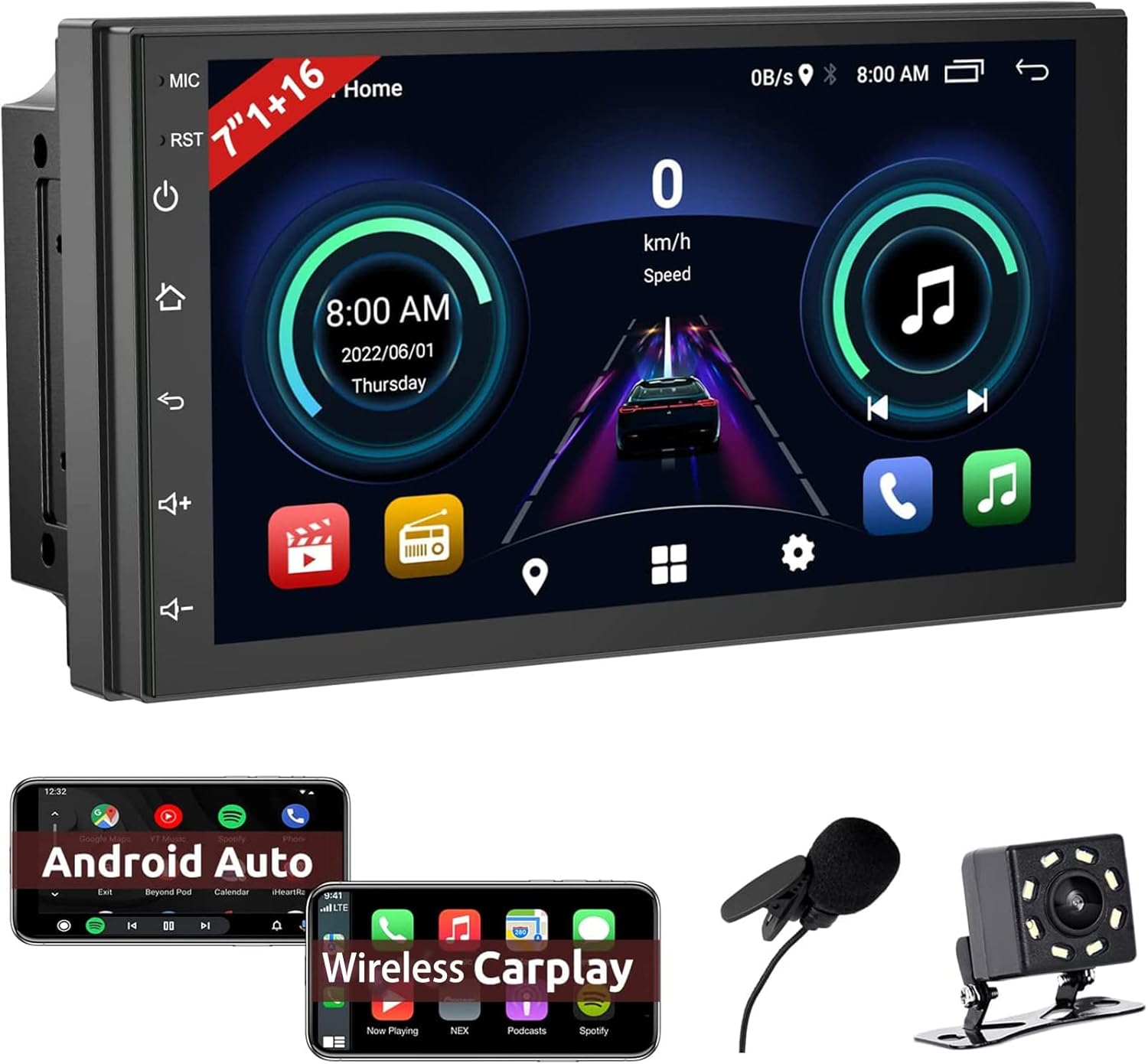
Immaġni: Quddiem view of the ESSGOO Android 10 Car Stereo, displaying its 7-inch touch screen interface and physical control buttons on the left side.
Karatteristiċi ewlenin:
- Sistema Operattiva Android 10
- Touch Screen ta '7 pulzieri capacitive
- Wireless Apple CarPlay & Android Auto
- Mirror Link Functionality (USB for iPhone/Android)
- Bluetooth for Hands-Free Calling and Music Streaming
- Tuner tar-Radju FM
- Navigazzjoni GPS integrata
- Konnettività WiFi
- Support for HD Backup Camera Input
- Kompatibbiltà tal-Kontroll tal-isteering Wheel
- Funzjoni ta' Skrin Maqsum
5. Gwida għall-Installazzjoni
Proper installation is crucial for the performance and longevity of your car stereo. If you are unsure about any steps, consult a professional installer.
5.1 Dijagramma tal-Wiring
Refer to the following diagram for correct wiring connections. Ensure all connections are secure to prevent short circuits or malfunctions.

Image: Schematic diagram illustrating the various input and output ports on the rear of the car stereo, including power, audio, video, USB, GPS, WiFi, and the specific wiring for the reversing camera.
5.2 Installazzjoni Fiżika
- Skonnettja l-batterija: Qabel tibda, skonnettja t-terminal negattiv tal-batterija tal-vettura tiegħek biex tevita xorts elettriċi.
- Neħħi l-Unità l-Qadima: Neħħi bir-reqqa l-istereo tal-karozza eżistenti tiegħek mid-dashboard.
- Qabbad il-Wiring: Connect the ISO wire harness from the new stereo to your vehicle's wiring. Ensure all connections (power, speakers, antenna, etc.) match the wiring diagram.
- Installa l-Antenni: Connect the GPS antenna and WiFi antenna to their respective ports on the stereo unit. Position them in a location with good signal reception.
- Backup Camera Installation:
- Waħħal il-kamera tar-retroviżur fuq wara tal-vettura tiegħek, tipikament ħdejn il-pjanċa tar-reġistrazzjoni.
- Connect the camera's power wire (red) to the positive pole of the reverse light.
- Connect the camera's ground wire (black) to the negative pole of the reverse light or vehicle chassis.
- Run the video cable from the camera to the "CAM VIDEO IN" port on the car stereo.
- Connect the red trigger wire from the video cable to the reversing detection line (BACK) on the stereo's harness.
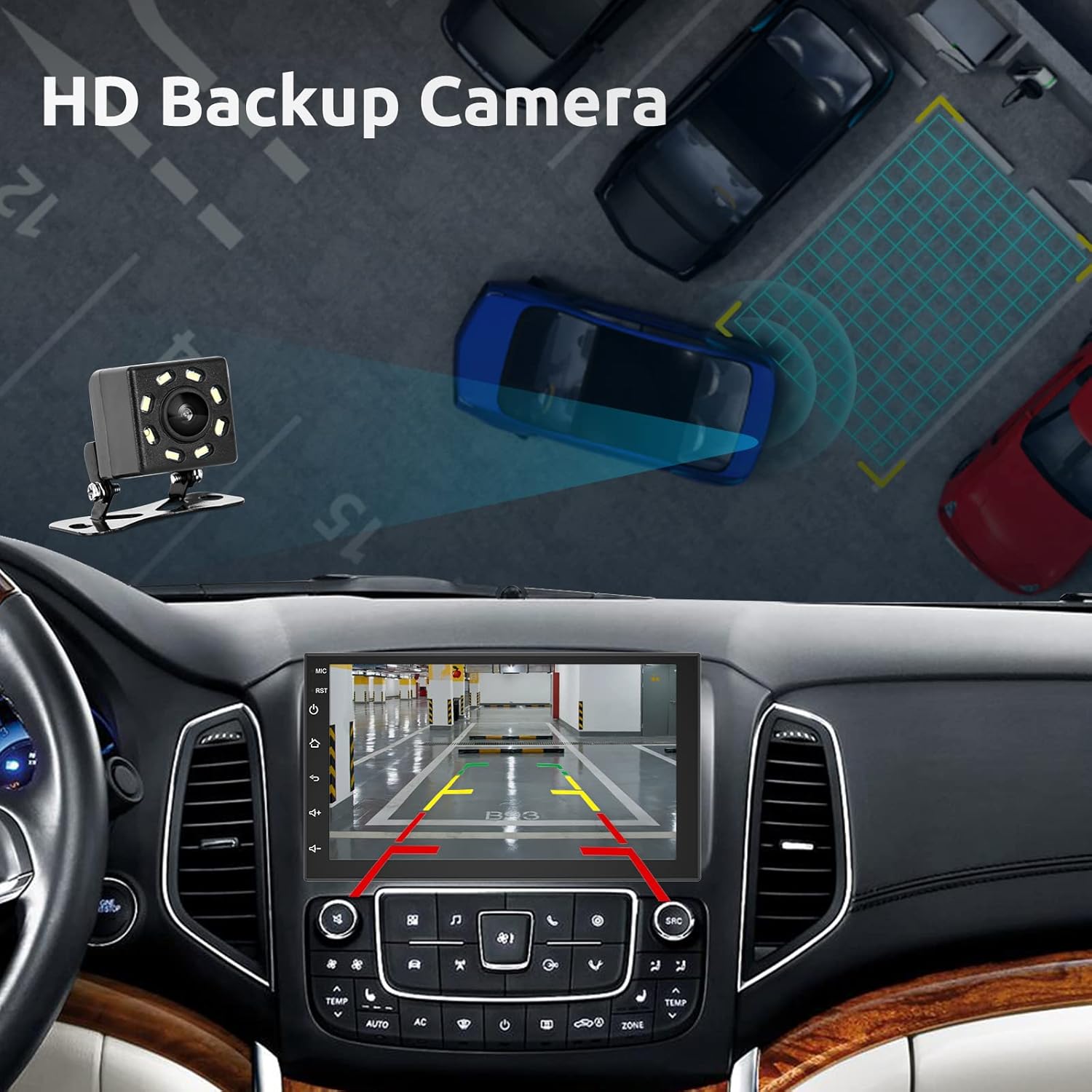
Image: Illustration of the HD backup camera system in operation, showing the camera mounted at the rear of a vehicle and its feed displayed on the car stereo screen with parking guidelines.
- Mikrofonu Estern: Connect the external microphone to the designated port for improved call quality. Position it near the driver for optimal voice pickup.
- Mount Stereo: Secure the car stereo into the dashboard using the provided mounting brackets.
- Erġa' qabbad il-batterija: Erġa' qabbad it-terminal negattiv tal-batterija tal-vettura tiegħek.
- Funzjonalità tat-Test: Turn on the vehicle and test all functions of the stereo.
6. Istruzzjonijiet Operattivi
This section details how to use the various features of your ESSGOO Android 10 Car Stereo.
6.1 Operazzjoni Bażika
- Power On/Off: The unit powers on automatically with the vehicle's ignition. Press and hold the power button (if available) for manual power control.
- Kontroll tal-Volum: Use the physical volume buttons or the on-screen controls to adjust audio levels.
- Skrin tad-dar: Navigate through applications and settings from the main home screen.
6.2 Apple CarPlay u Android Auto
The stereo supports both wireless Apple CarPlay and Android Auto for seamless smartphone integration.
- Kun żgur li l-Bluetooth u l-Wi-Fi huma attivati fuq l-ismartphone tiegħek.
- On the car stereo, select the CarPlay or Android Auto application.
- Follow the on-screen prompts to pair your phone. For wireless connection, your phone will typically connect via Bluetooth first, then switch to Wi-Fi for data transfer.
- Once connected, your phone's compatible apps will appear on the stereo screen, allowing navigation, music, calls, and messages.
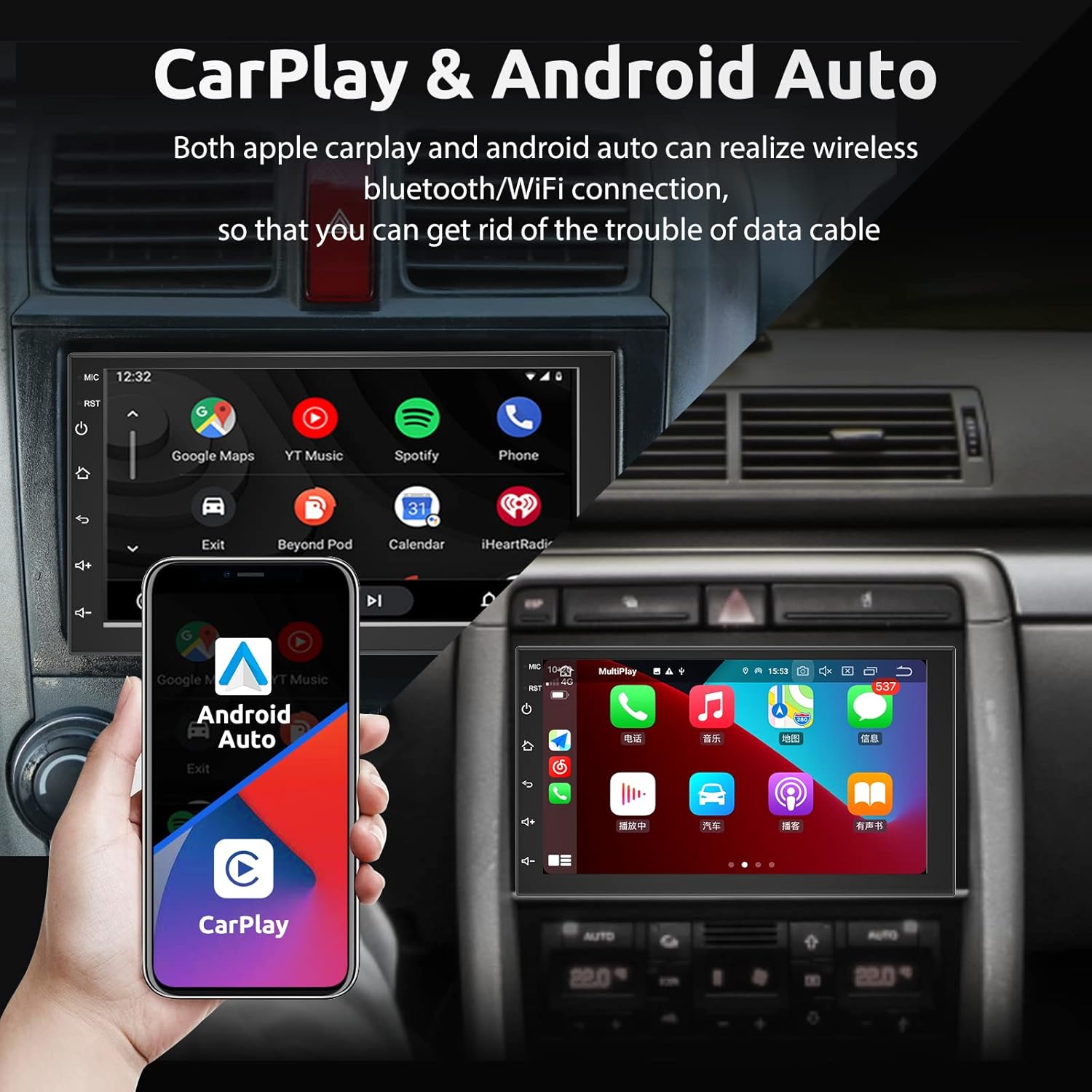
Image: The car stereo screen showing both Apple CarPlay and Android Auto interfaces, demonstrating wireless connectivity for navigation, music, and phone functions.
6.3 Link tal-Mera
Mirror Link allows you to display your smartphone's screen directly on the car stereo via a USB connection.
- Connect your iPhone or Android phone to the stereo using a USB cable.
- Select the "Mirror Link" application on the stereo.
- Follow the on-screen instructions to establish the connection. You may need to enable USB debugging or grant permissions on your phone.
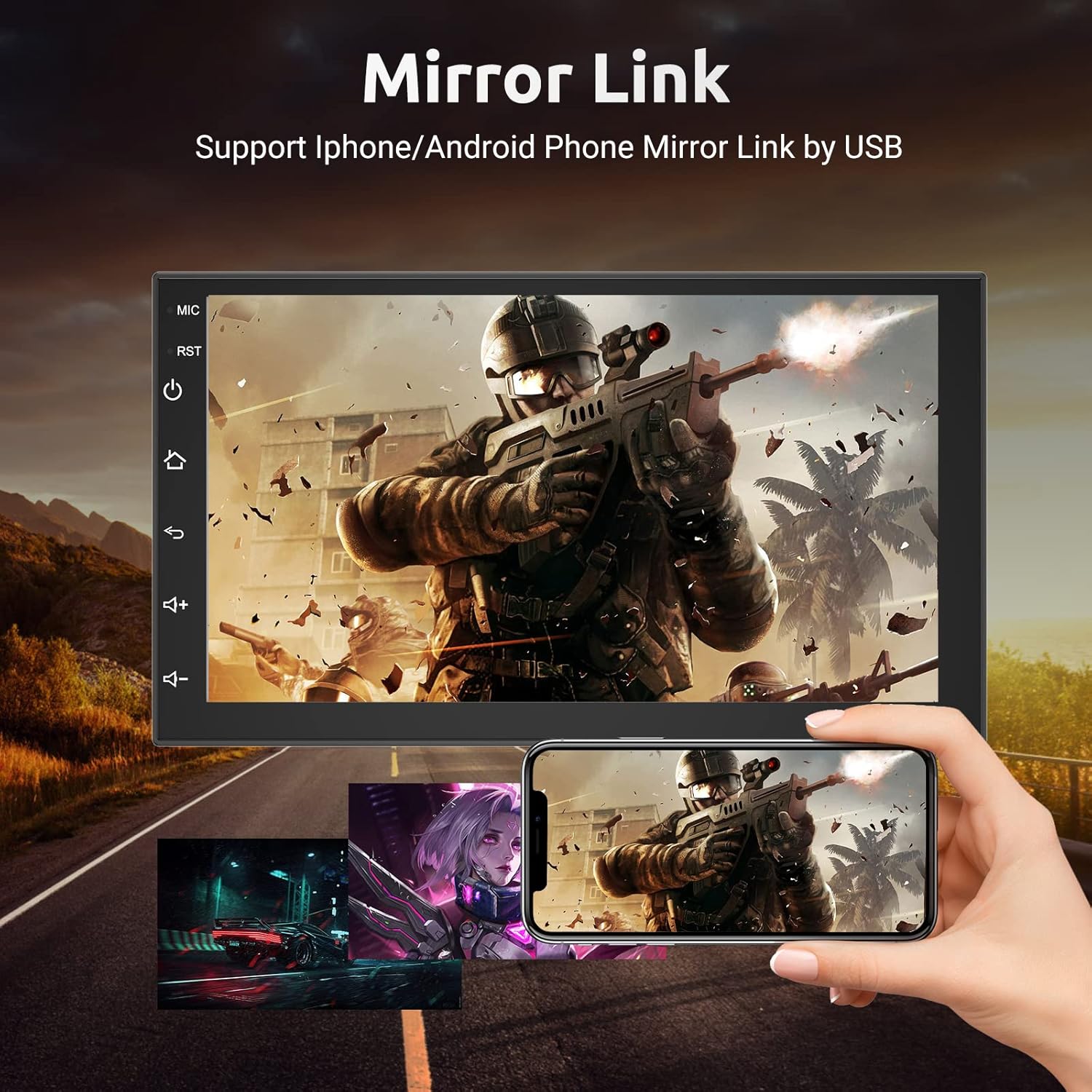
Image: The car stereo screen mirroring a smartphone display, showing a video game, with a hand holding the connected smartphone below the stereo.
6.4 Funzjonalità tal-Bluetooth
Qabbad it-telefon tiegħek permezz tal-Bluetooth għal sejħiet hands-free u streaming tal-awdjo.
- Mur fis-settings tal-Bluetooth fuq l-istereo tal-karozza.
- Ippermetti Bluetooth fuq l-ismartphone tiegħek u fittex tagħmir disponibbli.
- Select the car stereo (e.g., "ESSGOO BT") from your phone's list and pair.
- Once paired, you can make/receive calls and play music through the stereo.
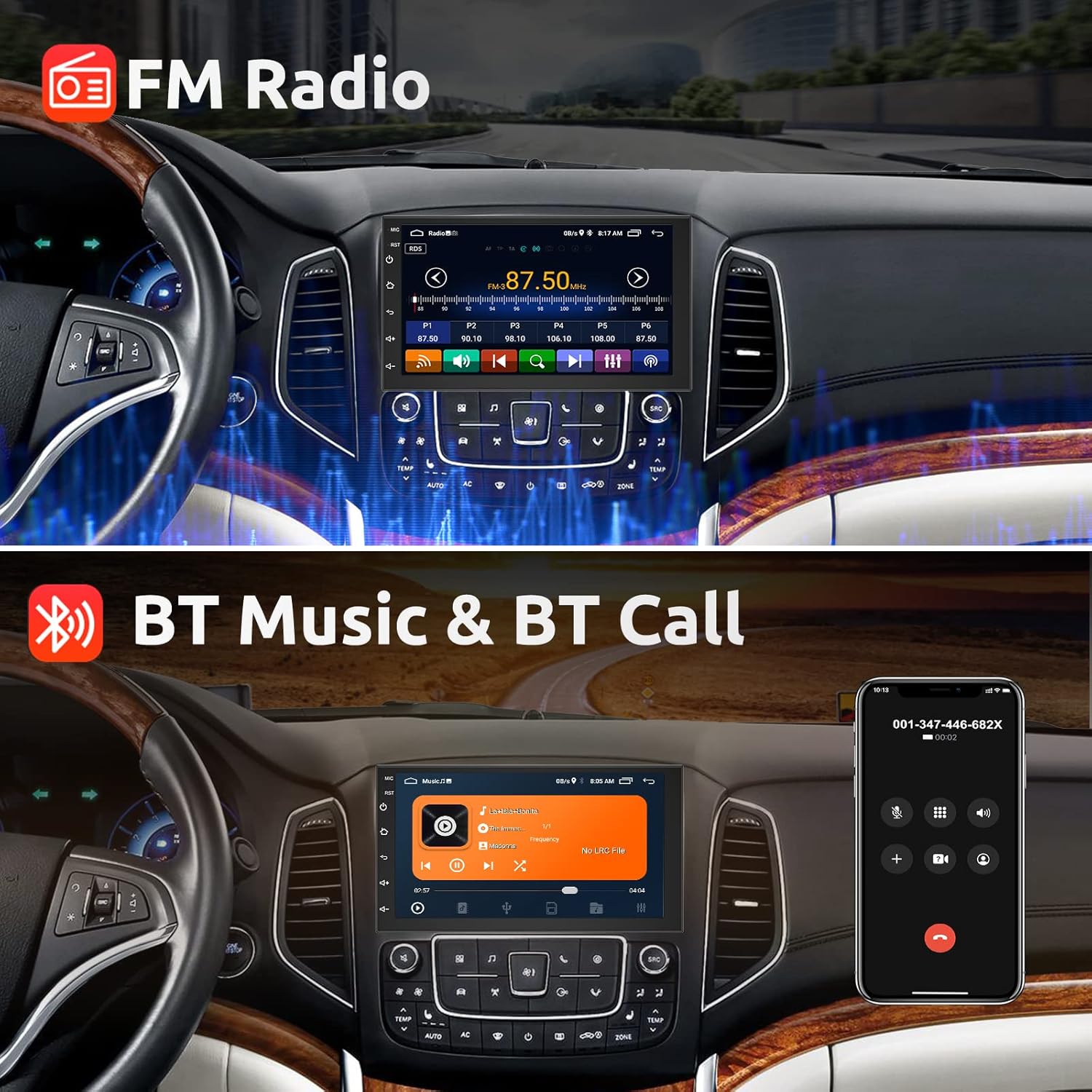
Image: The car stereo displaying both the FM radio interface and the Bluetooth music player, alongside a smartphone showing an incoming call, illustrating hands-free communication and audio streaming.
6.5 Radju FM
Access and tune into FM radio stations.
- Select the "FM Radio" application.
- Use the on-screen controls to scan for stations, manually tune, or select preset stations.
6.6 Navigazzjoni GPS
Utilize the built-in GPS for navigation.
- Open the "Navigation" or "Maps" application.
- Kun żgur li l-antenna tal-GPS hija installata sew u għandha viżibilità ċara. view of the sky for optimal signal.
- Input your destination and follow the voice-guided directions.

Image: The car stereo displaying a GPS navigation map on one side and a selection of app icons, including streaming services, on the other, highlighting both navigation and WiFi capabilities.
6.7 Konnessjoni WiFi
Connect the stereo to a Wi-Fi network for internet access and app downloads.
- Go to "Settings" and then "Wi-Fi".
- Select your desired Wi-Fi network and enter the password if required.
- Once connected, you can browse the internet, download apps from the Play Store, and stream content.
6.8 Kontroll tar-rota tal-isteering
Configure your vehicle's steering wheel controls to operate the stereo.
- Navigate to the "Steering Wheel Control" settings in the stereo's menu.
- Follow the on-screen instructions to map your vehicle's steering wheel buttons to specific stereo functions (e.g., volume up/down, track skip, mode).
6.9 Funzjoni ta' Skrin Maqsum
Use the split-screen feature to run two applications simultaneously.
- While an app is open, press and hold the recent apps button or drag an app to one side of the screen (depending on the Android interface).
- Select another app to occupy the other half of the screen.
6.10 Issettjar tal-EQ
Adjust audio equalization for a personalized listening experience.
- Access the "EQ" or "Sound Settings" menu.
- Adjust frequency bands, balance, fader, and preset sound modes (e.g., Pop, Rock, Jazz).
7. Manutenzjoni
Biex tiżgura l-lonġevità u l-prestazzjoni ottimali tal-istereo tal-karozza tiegħek, segwi dawn il-linji gwida ta' manutenzjoni:
- Tindif: Use a soft, dry cloth to clean the screen and unit. For stubborn smudges, slightly dampen the cloth with water or a screen cleaner. Avoid abrasive cleaners or solvents.
- Temperatura: Tesponix l-unità għal sħana jew kesħa estremi.
- Umdità: Keep the unit dry. If moisture enters the unit, disconnect power immediately and allow it to dry completely before use.
- Aġġornamenti tas-Software: Iċċekkja perjodikament għal aġġornamenti tas-softwer biex tiżgura li s-sistema taħdem b'mod effiċjenti u għandha l-aħħar karatteristiċi.
8 Issolvi l-problemi
If you encounter issues with your ESSGOO car stereo, refer to the following common problems and solutions:
| Problema | Kawża Possibbli | Soluzzjoni |
|---|---|---|
| L-unità ma tixgħelx. | No power supply; Blown fuse; Incorrect wiring. | Check power connections; Inspect vehicle's fuse box and stereo's fuse; Verify wiring against diagram. |
| L-ebda ħoss. | Volum baxx wisq; Mute attivat; Problema bil-wajers tal-ispiker. | Żid il-volum; Iddiżattiva l-mute; Iċċekkja l-konnessjonijiet tal-ispiker. |
| Il-Bluetooth mhux qed jikkonnettja. | Bluetooth off on phone/stereo; Pairing mode not active; Interference. | Ensure Bluetooth is on; Put stereo in pairing mode; Try pairing in a different location. |
| Is-sinjal tal-GPS huwa dgħajjef jew mhux preċiż. | L-antenna tal-GPS hija mblukkata jew imqiegħda ħażin. | Kun żgur li l-antenna tal-GPS għandha viżibilità ċara view tas-sema; Iċċekkja l-konnessjoni tal-antenna. |
| Il-kamera ta' wara ma turiex. | Camera power issue; Incorrect video input; Trigger wire not connected. | Check camera power and ground; Verify video cable connection to "CAM VIDEO IN"; Ensure reverse trigger wire is connected. |
| L-iskrin tattili ma jirrispondix. | System freeze; Software issue. | Restart the unit (press reset button if available); Perform a factory reset (data will be lost). |
If the problem persists after trying these solutions, please contact ESSGOO customer support.
9. Speċifikazzjonijiet
| Karatteristika | Speċifikazzjoni |
|---|---|
| Mudell | B09Y1SDHWP |
| Sistema Operattiva | Android 10 |
| Daqs tal-Iskrin | 7 pulzieri |
| Dimensjonijiet tal-Prodott | 7"D x 7.09"W x 3.94"Għ (180mm x 100mm x 47mm) |
| Piż tal-oġġett | 2.48 liri |
| Teknoloġija tal-Konnettività | Bluetooth, USB, Wi-Fi |
| Tip ta' Kontrollur | Android |
| Karatteristiċi Speċjali | DAB (Digital Audio Broadcasting), RDS (Radio Data System), Touchscreen |
| Apparati Kompatibbli | Smartphone, Speaker |
| Modalità tal-Ħruġ tal-Awdjo | Stereo |
| Qawwa tal-Ħruġ | 60 Watts (per channel, 4 channels total) |
| Manifattur | ESSGOO |
10. Garanzija u Appoġġ
ESSGOO is committed to providing high-quality products and customer satisfaction.
- Assigurazzjoni tal-Kwalità: The product typically comes with a 1-year quality assurance. Please refer to your purchase documentation for specific warranty terms.
- Appoġġ għall-Klijent: If you have any questions, require technical assistance, or need to report an issue, please contact ESSGOO Support via Amazon Messages. Our professional technical team and after-sales service are available to provide high-quality solutions.


