1. Introduzzjoni
The Cameo DVC CUE is a powerful and versatile USB to DMX interface designed for controlling DMX-compatible lighting devices. It offers seamless integration with the Cameo Software powered by Daslight, allowing users to manage complex lighting setups from a PC or Mac. This manual provides essential information for setting up, operating, maintaining, and troubleshooting your DVC CUE interface.
2. Informazzjoni dwar is-Sigurtà
Please read and understand all safety instructions before operating the device. Keep this manual for future reference.
- Provvista tal-Enerġija: Only use the specified power sources. For standalone operation, a standard 5V USB power supply is required.
- Ambjent: Do not expose the device to rain, moisture, or extreme temperatures. Ensure adequate ventilation.
- Immaniġġjar: Avoid dropping or subjecting the device to strong impacts. Do not open the casing; irreferi s-servizz kollu lil persunal kwalifikat.
- Tindif: Skonnettja l-provvista tal-enerġija qabel it-tindif. Uża drapp niexef u artab. Tużax prodotti tat-tindif likwidi.
3. Kontenut tal-Pakkett
Ivverifika li l-oġġetti kollha huma preżenti fil-pakkett:
- Cameo DVC CUE USB to DMX Interface
- USB-C Cable
- Gwida ta' Bidu Mgħaġġel (mhux inkluża f'dan il-manwal)
4. Device Overview
The Cameo DVC CUE features an intuitive design with illuminated controls and essential connectivity ports.

Figura 4.1: Quddiem view of the Cameo DVC CUE interface, showing the illuminated numeric buttons (1-10), ABC button, arrow keys, and digital display.
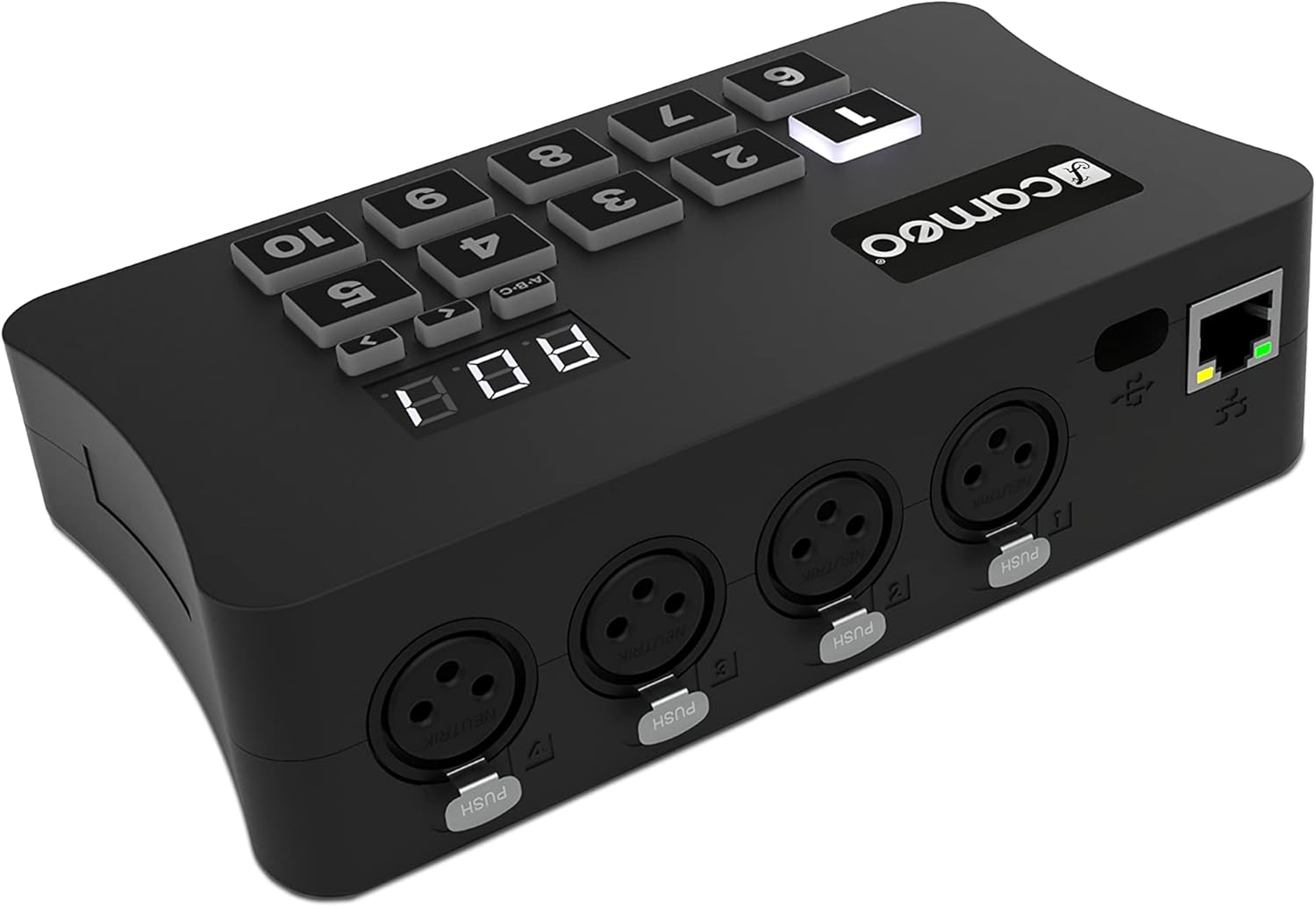
Figura 4.2: Wara view of the Cameo DVC CUE interface, highlighting the USB-C port, four 3-pin DMX outputs, and an Ethernet port.
4.1 Kontrolli ta' Front Panel
- Buttuni Numeriċi (1-10): Illuminated buttons for direct scene recall in standalone mode.
- Buttuna ABC: Used to navigate through 5 zones in standalone mode.
- Arrow Keys (< >): Used to navigate through 99 scenes within a zone in standalone mode.
- Wirja Diġitali: Shows current scene, zone, or status information.
4.2 Konnessjonijiet tal-Panew ta' wara
- Port USB-C: For power supply and connection to a computer (PC/Mac).
- DMX Outputs (4x 3-pin): Connect DMX-compatible lighting fixtures.
- Port Ethernet: For external control and network connectivity.
5. Setup
5.1 Rekwiżiti tas-Sistema
- Operating System: Mac (refer to software documentation for specific versions).
- Port USB disponibbli.
- Internet connection for software download and updates.
5.2 Installazzjoni tas-Softwer
- Download the latest Cameo Software powered by Daslight from the official Cameo websit.
- Segwi l-istruzzjonijiet fuq l-iskrin biex tinstalla s-softwer fuq il-kompjuter tiegħek.
- Ensure that the necessary drivers are installed during the process.
5.3 Konnessjoni tal-Ħardwer
- Qabbad mal-Kompjuter: Use the provided USB-C cable to connect the DVC CUE interface to an available USB port on your computer. The device will draw power from the USB connection.
- Connect DMX Devices: Connect your DMX-compatible lighting fixtures to the 3-pin DMX output ports on the rear of the DVC CUE using standard DMX cables.
- Konnessjoni Ethernet (Mhux obbligatorja): If external control or network integration is desired, connect an Ethernet cable to the Ethernet port.
- Standalone Power (Optional): For standalone operation without a computer, connect a standard 5V USB power supply (not included) to the USB-C port.
6. Modi Operattivi
6.1 Live Mode (Computer Control)
In Live Mode, the DVC CUE interface is controlled directly by the Cameo Software powered by Daslight running on your PC or Mac.
- Kanali DMX: Provides 1024 DMX channels initially, expandable to 2048 DMX channels across four DMX512 universes.
- Kontroll: All lighting programming, scene creation, and live control are performed through the software interface.

Figura 6.1: Eżample of the Cameo software interface, displaying options for movements, color effects, master effects, and various control parameters.

Figure 6.2: The software's scene management view, allowing users to organize and trigger lighting scenes, with real-time BPM display.
6.2 Modalità Standalone
The DVC CUE can operate independently without a computer, recalling pre-programmed scenes stored on a microSD card.
- Kanali DMX: Provides 512 DMX channels in standalone mode.
- Scene Storage: Pre-programmed scenes must be saved to a microSD card (not included) via the Cameo software.
- Scene Recall: Use the 10 illuminated buttons to directly recall scenes.
- Zone Navigation: The ABC button allows navigation through 5 distinct zones.
- Scene Navigation: The arrow keys (< >) allow navigation through up to 99 scenes within a selected zone.
- Qawwa: Requires a standard 5V USB power supply for standalone operation.
7. Software Usage (Cameo Software powered by Daslight)
The Cameo Software powered by Daslight is the primary tool for programming and controlling your DVC CUE interface in Live Mode. It offers extensive features for creating and managing lighting shows.
- Programmazzjoni: Create complex lighting scenes, effects, and sequences.
- Fixture Patching: Assign DMX addresses and control parameters for your lighting fixtures.
- Live Control: Real-time control over fixtures, scenes, and effects.
- Ġestjoni tax-Xena: Organize 99 scenes across 5 zones. Calendar control is possible with optional ESApro 2 software.
For detailed instructions on using the software, please refer to the dedicated Cameo Software powered by Daslight user manual and online resources.

Figure 7.1: The DMX universe and fixture patching section of the software, allowing precise assignment of DMX channels to connected devices.

Figura 7.2: Dettaljat view of scene steps and triggers within the software, enabling precise timing and automation of lighting sequences.
8. Manutenzjoni
Proper maintenance ensures the longevity and optimal performance of your DVC CUE interface.
- Tindif: Regularly wipe the device with a dry, soft, lint-free cloth. Do not use abrasive cleaners or solvents.
- Ħażna: Aħżen l-apparat f'post frisk u niexef 'il bogħod mix-xemx diretta u minn temperaturi estremi meta ma jkunx qed jintuża.
- Aġġornamenti tal-Firmware: Periodically check the official Cameo website for firmware updates for the DVC CUE interface. Follow the provided instructions carefully for any updates.
9 Issolvi l-problemi
If you encounter issues with your Cameo DVC CUE, refer to the following common problems and solutions:
| Problema | Kawża Possibbli | Soluzzjoni |
|---|---|---|
| Apparat mhux rikonoxxut mill-kompjuter | Loose USB connection, missing drivers, incompatible USB port. | Ensure USB-C cable is securely connected. Try a different USB port. Reinstall Cameo software to ensure drivers are correctly installed. |
| No DMX output in Live Mode | Incorrect DMX cabling, software not running, fixture not patched, scene not active. | Check DMX cable connections. Ensure Cameo software is running and connected to the interface. Verify that fixtures are correctly patched and scenes are active in the software. |
| Standalone mode not working | No 5V USB power, no microSD card, scenes not saved to microSD, corrupted microSD card. | Connect a 5V USB power supply. Insert a microSD card with pre-programmed scenes. Ensure scenes were correctly exported to the microSD card from the software. Try reformatting the microSD card and re-exporting scenes. |
| Buttons/Display unresponsive | Power issue, device malfunction. | Disconnect and reconnect power. If the issue persists, contact customer support. |
10. Speċifikazzjonijiet
| Karatteristika | Dettall |
|---|---|
| DMX Channels (Live Mode) | 1024 (expandable to 2048 across 4 universes) |
| DMX Channels (Standalone Mode) | 512 |
| Konnettività | USB-C, 4x 3-pin DMX outputs, Ethernet |
| Provvista tal-Enerġija | USB-C (from computer), 5V USB power supply (standalone) |
| Apparati Kompatibbli | Kompjuter Personali |
| Softwer Appoġġjat | Cameo Software powered by Daslight |
| Sistema Operattiva | Mac |
| Dimensjonijiet (Ippakkjar) | 17.6 x 14.7 x 5.1 ċm |
| Piż | 380 g |
| Numru tal-Mudell | CLDVCCUE |
11. Garanzija u Appoġġ
11.1 Informazzjoni dwar Garanzija
This product is covered by a manufacturer's warranty. Please refer to the warranty card included with your product or visit the official Cameo websit għal termini u kundizzjonijiet dettaljati tal-garanzija.
11.2 Appoġġ għall-Klijent
For technical assistance, troubleshooting beyond this manual, or service inquiries, please contact Cameo customer support through their official website or authorized service centers. Have your product model number (CLDVCCUE) and purchase information ready when contacting support.


