1. Introduzzjoni
Grazzi tax-xiriasing the THINKWARE Q1000 QHD Dash Cam. This device is designed to record high-quality video footage of your journeys, providing crucial evidence in case of incidents and enhancing your driving safety with advanced features. The Q1000 offers front and rear QHD recording, built-in Wi-Fi and GPS, STARVIS Night Vision, 24-hour parking surveillance, and G-Sensor capabilities.
This manual provides detailed instructions on how to install, operate, and maintain your dash cam. Please read this manual thoroughly before using the product to ensure proper and safe operation.
2. Informazzjoni dwar is-Sigurtà
- Do not disassemble, repair, or modify the device yourself. This may void the warranty and cause damage.
- Ensure the device is securely mounted and does not obstruct the driver's view jew jinterferixxu mal-kontrolli tal-vettura.
- Avoid exposing the device to direct sunlight for extended periods, especially in hot weather, as this may cause overheating.
- Use only genuine THINKWARE accessories and power cables to prevent damage and ensure optimal performance.
- Keep the device away from strong magnetic fields, which can interfere with its operation.
- Do not operate the device while driving. Adjust settings or review footage biss meta l-vettura tkun ipparkjata b'mod sikur.
3. Kontenut tal-Pakkett
Ivverifika li l-oġġetti kollha huma preżenti fil-pakkett tal-prodott tiegħek:

Image: THINKWARE Q1000 Dash Cam package contents.
- Q1000 Front Dash Cam
- Wara View Kamera
- Adhesive Windshield Mount
- Spare Mounting Tape
- Kejbil tal-Enerġija 12V
- Kejbil tal-Cam ta' wara
- 32GB MicroSD Card (included by default)
- Adhesive Wire Clips
- Film li Jimblokka s-Sħana
- CS Info / Quick Start Guide
- Hardwiring Cable (included)

Image: Genuine THINKWARE 32GB MicroSD card included with the dash cam.
Nota: The included 32GB MicroSD card is a genuine THINKWARE product, rigorously tested for compatibility and reliability. Using incompatible memory cards may lead to recording failures or power issues.
4. Prodott Aktarview
Kamera ta 'quddiem 4.1

Image: Front and rear cameras of the THINKWARE Q1000.

Immaġni: Quddiem view of the Q1000 dash cam.
The main unit houses the front camera, processor, GPS module, and control buttons. It records QHD (2560x1440) resolution video with a 156° wide-angle lens.
4.2 Kontrolli u Indikaturi

Immaġni: Fuq view of the Q1000 with controls and indicators.
- Buttuna REC: Manually start/stop event recording.
- Buttuna tal-Mic: Toggle audio recording on/off.
- Format Button: Formatta l-karta MicroSD.
- Buttuna Wi-Fi: Activate Wi-Fi for app connection.
- Buttuna tal-Qawwa: Ixgħel / itfi l-apparat.
- Indikaturi LED: Display recording status, GPS signal, and Wi-Fi connection.
4.3 Portijiet u Konnessjonijiet

Immaġni: Wara view of the Q1000 with ports.
- DC-IN: Port tad-dħul tal-enerġija.
- RADAR: For optional radar module connection.
- V-IN: Video input for the rear camera.
- Slott tal-Karta MicroSD: Għall-inserzjoni tal-karta tal-memorja.
5. Setup u Installazzjoni
5.1 Għażla ta' Post ta' Installazzjoni
Select a location on your windshield that does not obstruct your view or interfere with airbags. The ideal position is typically behind the rearview mera.

Image: Front camera installed on the windshield.

Immaġni: Ġenb view of the front camera installation.
5.2 Installing the Front Camera
- Clean the installation area on the windshield thoroughly.
- Attach the adhesive mounting tape to the dash cam mount.
- Remove the protective film from the adhesive tape and firmly press the mount onto the chosen location on the windshield for at least 30 seconds.
- Slide the dash cam onto the mounted bracket until it clicks into place.
5.3 Installazzjoni tal-Kamera ta 'wara
- Clean the installation area on the rear window.
- Attach the adhesive mounting tape to the rear camera.
- Remove the protective film and firmly press the rear camera onto the center of the rear window, ensuring the lens has a clear view.
- Connect the rear camera to the front camera using the provided rear cam cable. Route the cable neatly along the vehicle's headliner and pillars using the included wire clips.
5.4 Konnessjoni tal-Enerġija
The Q1000 supports both 12V cigarette lighter power and hardwire installation for continuous parking mode recording.
- 12V Power Cable: Plug the 12V power cable into your vehicle's cigarette lighter socket and connect the other end to the DC-IN port on the front dash cam.
- Kejbil tal-wajers fissi: For 24-hour parking mode, connect the hardwiring cable to your vehicle's fuse box. Professional installation is recommended for hardwiring to ensure correct connection to constant and accessory power sources.
5.5 Inserzjoni tal-Kard MicroSD
Insert the included 32GB MicroSD card into the MicroSD card slot on the side of the front dash cam until it clicks into place. Ensure the card is inserted correctly with the gold contacts facing the correct direction as indicated on the device.
6. Tħaddim tad-Dash Cam
6.1 Modi ta' Reġistrazzjoni
- Reġistrazzjoni Kontinwa: Automatically starts recording when the vehicle's ignition is turned on. Footage is saved in one-minute segments.
- Reġistrazzjoni ta' Avvenimenti: Triggered by impacts (G-Sensor) or manual button press. These recordings are saved in a separate folder to prevent overwriting.
- Reġistrazzjoni tal-Modalità ta' Parkeġġ: When hardwired, the dash cam automatically switches to parking mode when the ignition is off. It records motion and impact events to protect your vehicle while parked.
6.2 Video Quality and Night Vision
The Q1000 records in QHD (2560x1440) resolution for clear and detailed footage. It features STARVIS Night Vision and High Dynamic Range (HDR) for enhanced clarity in low-light conditions.
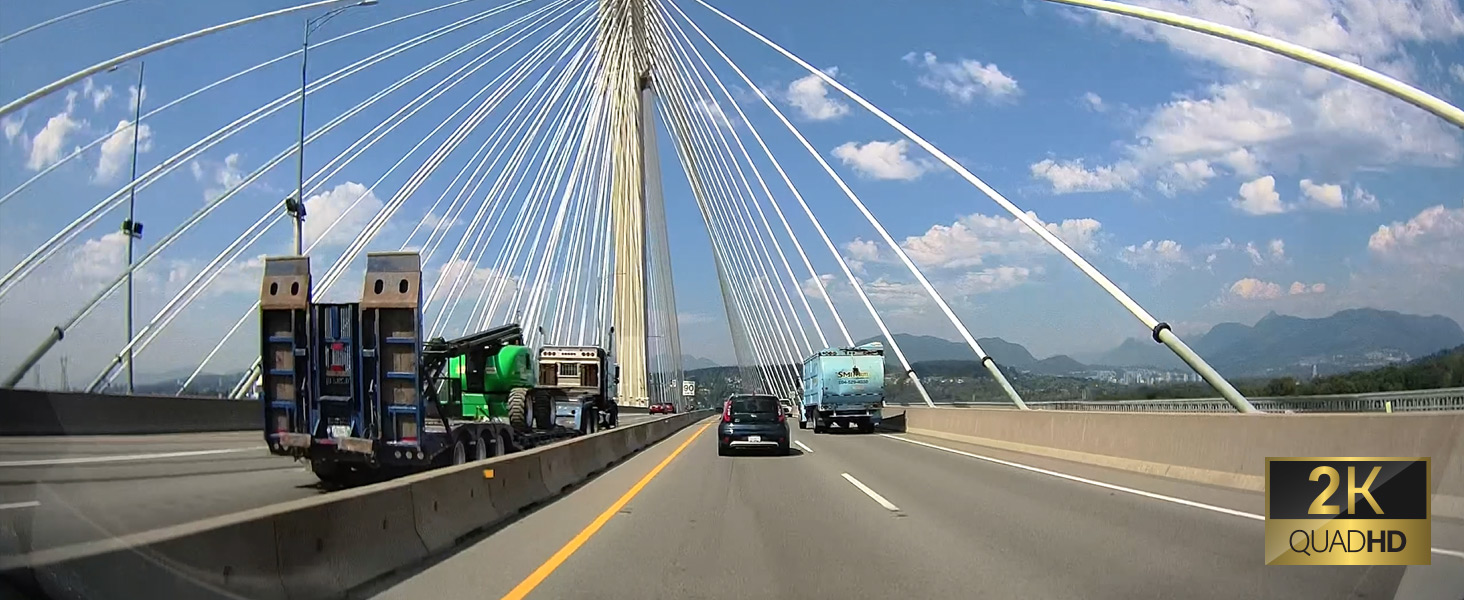
Immaġni: Eżample of 2K Quad HD video quality.

Image: Comparison of standard vs. wide-angle view.

Image: Night vision comparison (OFF vs. ON with HDR).
6.3 GPS and Wi-Fi Features
The built-in GPS module records vehicle speed and location data, which can be viewed during playback. Integrated Wi-Fi allows you to connect the dash cam to your smartphone via the THINKWARE DASH CAM LINK app.

Image: 5GHz Wi-Fi connectivity for faster downloads.
6.4 Sistema Avvanzata ta' Assistenza lis-Sewwieq (ADAS)
The Q1000 includes ADAS features to assist drivers and enhance safety:
- Sistema ta' Twissija ta' Ħruġ mill-Karreġġjata (LDWS): Javżak jekk il-vettura tiegħek toħroġ mill-karreġġjata tagħha.
- Sistema ta' Twissija ta' Ħabta minn Quddiem (FCWS): Warns you of an impending collision with a vehicle ahead.
- Twissija ta' Tluq ta' Vettura minn Quddiem (FVDW): Javżak meta l-vettura ta' quddiemek tibda tiċċaqlaq minn waqfa.
- Speed Camera and Red Light Camera Alerts: Provides audible warnings for upcoming speed and red light cameras (requires GPS signal).

Image: ADAS features in action.

Image: Speed and red light camera alerts.
6.5 L-użu tal-App THINKWARE DASH CAM LINK
The THINKWARE DASH CAM LINK app allows you to conveniently manage settings, monitor live footage, and download videos directly to your smartphone.

Image: THINKWARE DASH CAM LINK app interface.

Image: THINKWARE CONNECTED app features.
Niżżel l-app minn:
7. Manutenzjoni
7.1 Ġestjoni tal-Kard MicroSD
Regularly format the MicroSD card (at least once a month) to prevent recording errors and ensure optimal performance. You can format the card via the dash cam's button or through the THINKWARE DASH CAM LINK app.
7.2 Aġġornamenti tal-Firmware
Keep your dash cam's firmware updated to ensure the latest features and bug fixes. Firmware updates can typically be downloaded from the THINKWARE website and installed via the MicroSD card.
7.3 Tindif tal-Apparat
Wipe the dash cam's lens and body with a soft, dry cloth. Do not use harsh chemicals or abrasive cleaners, as they may damage the device.
7.4 High-Temperature Protection
The Q1000 is equipped with a high-temperature protection system. If the internal temperature exceeds a certain limit, the device may automatically shut down to prevent damage. This is a normal safety feature.

Image: High-temperature protection feature.
8 Issolvi l-problemi
| Problema | Kawża Possibbli | Soluzzjoni |
|---|---|---|
| Id-dash cam ma tixgħelx. | Loose power connection, vehicle's power outlet issue, fuse blown. | Check power cable connection. Test power outlet with another device. Check vehicle's fuse box. |
| Waqfiet ta' reġistrazzjoni jew footage hija korrotta. | MicroSD card error, incompatible MicroSD card, card needs formatting. | Format the MicroSD card. Ensure you are using a genuine THINKWARE card or a compatible Class10 U3 card. Replace card if necessary. |
| Problemi bil-konnessjoni tal-Wi-Fi bl-app. | Incorrect Wi-Fi password, app not updated, dash cam Wi-Fi not activated. | Ensure Wi-Fi is activated on dash cam. Re-enter password. Update the app to the latest version. |
| Is-sinjal tal-GPS mhux miksub. | Device not in open area, GPS module obstructed. | Move vehicle to an open area. Ensure no obstructions are blocking the GPS signal. |
| Il-modalità tal-parkeġġ mhux qed taħdem. | Not hardwired, low vehicle battery voltage. | Ensure dash cam is hardwired correctly. Check vehicle battery voltage. |
If you encounter issues not listed here, please refer to the official THINKWARE support resources.
9. Speċifikazzjonijiet
| Karatteristika | Dettall |
|---|---|
| Isem tal-Mudell | Q1000 |
| Numru tal-Mudell tal-Oġġett | TW-Q1000D32CH |
| Dimensjonijiet tal-Prodott | 1.18 x 3.94 x 2.83 pulzieri |
| Piż tal-oġġett | 5.4 uqija |
| Riżoluzzjoni tal-Qbid tal-Vidjo | 1440p (QHD) |
| Angolu Wide | 156° |
| Karatteristiċi Speċjali | Night Vision (STARVIS), G-Sensor, HDR, 24H Parking Mode, ADAS, GPS, Wi-Fi |
| Teknoloġija tal-Konnettività | Bluetooth, Wireless (Wi-Fi) |
| Komponenti Inklużi | Memory Card (32GB), Front & Rear Cam, 12V & Hardwire Cables |
| Tip ta 'Immuntar | Mount Windskrin |
| Kulur | Iswed |
10. Garanzija u Appoġġ
THINKWARE products are designed for reliability and performance. For specific warranty terms and conditions, please refer to the warranty information provided with your product at the time of purchase. Warranty details can also typically be found on the official THINKWARE websit.
For technical support, firmware updates, or frequently asked questions, please visit the official THINKWARE support page or contact their customer service directly. Keep your product's model number and purchase information ready when seeking support.
Gwida Uffiċjali għall-Utent (PDF): Niżżel Hawnhekk


