1. Introduzzjoni
Welcome to the Oversteel Invar USB Gaming Mouse user manual. This guide provides detailed instructions for setting up, operating, and maintaining your new gaming mouse. The Oversteel Invar is engineered for precision gaming, featuring a high-performance optical sensor, adjustable DPI, and customizable RGB lighting to enhance your gaming experience.
2. Prodott Aktarview
The Oversteel Invar mouse is designed with an ergonomic shape for comfortable use and features multiple buttons for enhanced control. Below are illustrations of the mouse and its key components.

Figura 2.1: Fuq view of the Oversteel Invar mouse, highlighting the scroll wheel, DPI buttons, and illuminated logo.
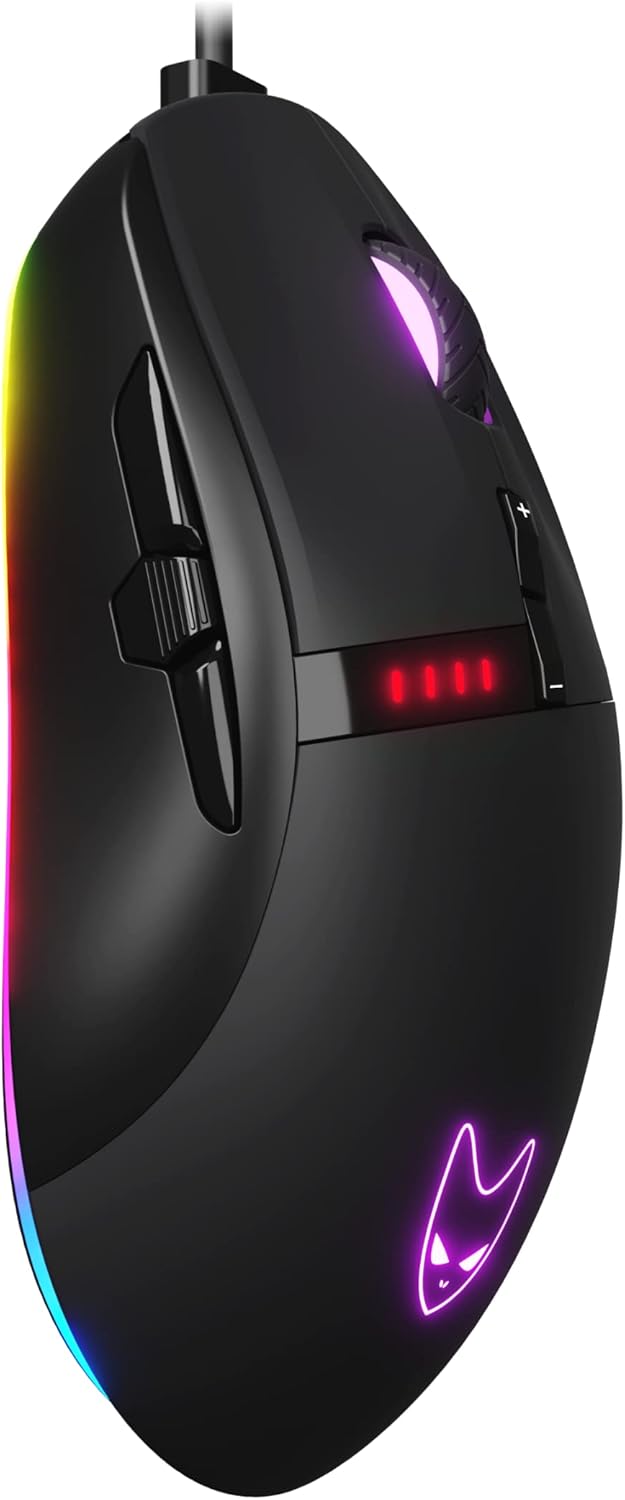
Figura 2.2: Angolat view of the mouse, illustrating the primary and side buttons.

Figura 2.3: Proġett tal-ġenbfile tal-maws, wirjaasing id-disinn ergonomiku tiegħu u d-dawl RGB.
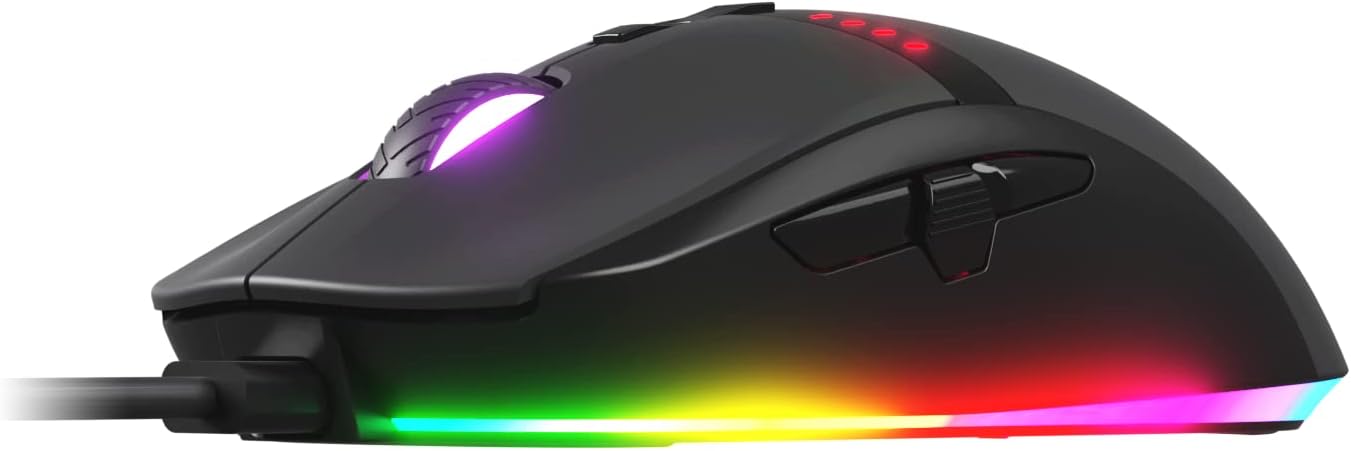
Figura 2.4: Naħa dettaljata view, highlighting the textured scroll wheel and overall finish.
Komponenti Ewlenin:
- Buttuni tal-Ikklikkjar tax-Xellug/tal-Lemin: Standard primary input buttons.
- Scroll Wheel: For vertical scrolling and can also function as a clickable button.
- DPI Adjustment Buttons (+/-): Used to cycle through different DPI sensitivity levels.
- Indikatur DPI: LED lights that show the current DPI setting.
- Buttuni tal-ġenb: Typically used for forward/backward navigation or can be programmed for other functions.
- Buttuna tan-Nar: A dedicated button for rapid-fire actions, particularly useful in FPS games.
- Żoni tad-Dawl RGB: Customizable LED lighting for aesthetic personalization.
3. Setup
Setting up your Oversteel Invar mouse is a straightforward process. Follow these steps to get started:
- Oħroġ il-Maws mill-pakkett: Carefully remove the Oversteel Invar mouse from its packaging.
- Qabbad mal-Kompjuter: Ipplaggja l-konnettur USB tal-maws f'port USB disponibbli fuq il-PC jew il-Mac tiegħek.
- Installazzjoni Awtomatika tas-Sewwieq: Your operating system (Windows or macOS) will typically detect the mouse automatically and install the necessary drivers. This may take a few moments.
- Ivverifika l-Funzjonalità: Once the drivers are installed, move the mouse to confirm cursor movement. The RGB lighting should also illuminate.
- Installa s-Softwer (Mhux obbligatorju iżda Rakkomandat): For advanced customization, download and install the proprietary Oversteel Invar software from the official Oversteel website. Refer to Section 5 for more details.
4. Kif Tħaddem il-Maws Tiegħek
The Oversteel Invar mouse offers several features to enhance your control and experience.
4.1 Aġġustament DPI
The mouse features adjustable DPI (Dots Per Inch) settings, allowing you to change cursor sensitivity on the fly. This is crucial for adapting to different game types or tasks.
- Uża l- DPI + button to increase sensitivity.
- Uża l- DPI - button to decrease sensitivity.
- Il- Indikatur DPI (red LEDs) will illuminate to show the current DPI level. The mouse supports DPI settings up to 12400.
4.2 Modi ta' Dawl RGB
The Oversteel Invar includes customizable RGB lighting with up to 10 different lighting modes. These modes can be cycled through or configured using the dedicated software.
- Default modes can often be changed by a combination of buttons (e.g., DPI + side button) or through the software.
- Refer to the software section for advanced RGB customization.
4.3 Buttuni Programmabbli
The mouse features up to 9 programmable buttons, including a dedicated fire button. These buttons can be assigned various functions, macros, or key combinations using the Oversteel Invar software.
- Buttuna tan-Nar: Activates a rapid-fire sequence, beneficial for games requiring quick, repeated clicks.
- Buttuni tal-ġenb: By default, these often function as 'forward' and 'backward' in web browsers jew file explorers. Their functions can be remapped.
- All programmable buttons offer flexibility to tailor the mouse to your specific needs.
5. Oversteel Invar Software
To unlock the full potential of your Oversteel Invar mouse, it is recommended to install the proprietary software. This software provides comprehensive control over the mouse's features.
5.1 Installazzjoni tas-Softwer
- Visit the official Oversteel websit.
- Navigate to the support or downloads section and locate the software for the Invar USB Gaming Mouse.
- Niżżel l-installatur file u segwi l-istruzzjonijiet fuq l-iskrin biex tlesti l-installazzjoni.
- Ibda mill-ġdid il-kompjuter tiegħek jekk tintalab.
5.2 Karatteristiċi tas-Software
- Assenjazzjoni tal-Buttuna: Customize the function of each of the 9 programmable buttons.
- Settings DPI: Fine-tune DPI levels and assign them to the DPI switch.
- Kontroll tad-Dawl RGB: Select from 10 lighting modes, adjust colors, brightness, and effects.
- Editur Makro: Create and assign complex macros to any programmable button.
- Profile Ġestjoni: Save different configurations as profiles for various games or applications.
6. Manutenzjoni
Proper maintenance ensures the longevity and optimal performance of your Oversteel Invar mouse.
- Tindif: Uża drapp artab u niexef biex timsaħ il-wiċċ tal-maws. Għal ħmieġ iebes, nixxef ftit.ampLaħlaħ id-drapp bl-ilma jew b'soluzzjoni ħafifa tat-tindif. Evita kimiċi ħarxa.
- Kura tas-Sensor: Żomm is-senser ottiku fuq in-naħa ta’ taħt tal-maws nadif u ħieles mit-trab jew mill-fdalijiet. Uża swab tal-qoton jew arja kkompressata jekk meħtieġ.
- Ġestjoni tal-Kejbil: Evita liwjiet qawwija jew ġbid eċċessiv tal-kejbil USB biex tevita l-ħsara.
- Ħażna: Meta ma tkunx qed tuża l-maws, aħżen il-maws f'ambjent nadif u niexef 'il bogħod minn temperaturi estremi.
7 Issolvi l-problemi
If you encounter issues with your Oversteel Invar mouse, refer to the following common solutions:
| Problema | Soluzzjoni Possibbli |
|---|---|
| Mouse not responding / Cursor not moving |
|
| Is-settings tad-DPI ma jinbidlux |
|
| Id-dawl RGB mhux qed jaħdem jew mhux korrett |
|
| Programmable buttons not functioning |
|
8. Speċifikazzjonijiet
| Karatteristika | Dettall |
|---|---|
| Brand | Azzar żejjed |
| Isem tal-Mudell | Invar |
| Numru tal-Mudell | HU-XI-201 |
| Teknoloġija tal-Konnettività | USB |
| Teknoloġija ta 'Sejbien tal-Moviment | Optical (Pixart 3327 Sensor) |
| DPI (tikek kull pulzier) | Aġġustabbli, sa 12400 DPI |
| Aċċelerazzjoni | 30G |
| Numru ta' Buttuni | 9 Buttuni Programmabbli |
| Tip ta' Swiċċ | Huano switches (rated for 20 million clicks) |
| Dawl RGB | 10 configurable LED lighting modes |
| Karatteristiċi Speċjali | LED Light, Lightweight, Ergonomic Design |
| Apparati Kompatibbli | Personal Computer (PC), Mac |
| Sistema Operattiva | macOS (and Windows, implied) |
| Kulur | Iswed |
9. Garanzija u Appoġġ
For warranty information, technical support, or further assistance, please visit the official Oversteel webis-sit jew ikkuntattja lid-dipartiment tas-servizz tal-konsumatur tagħhom. Żomm il-prova tax-xiri tiegħek għal talbiet ta’ garanzija.


