1. Introduzzjoni
This manual provides comprehensive instructions for the setup, operation, and maintenance of your Epson EcoTank L8180 Multifunction A3+ Photo Printer. Please read this manual thoroughly to ensure proper use and to maximize the performance and longevity of your device. Keep this manual for future reference.
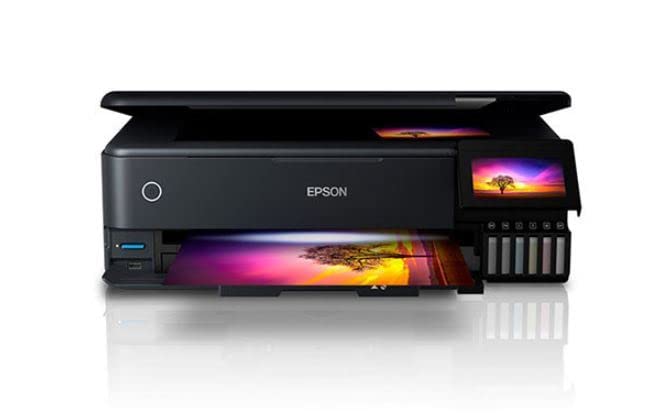
Figure 1: Epson EcoTank L8180 Printer. This image shows the front view of the Epson EcoTank L8180 printer, highlighting its compact design and front-loading paper tray.
2. Kontenut tal-Pakkett
Iċċekkja li l-oġġetti kollha huma inklużi fil-pakkett:
- Stampatur Epson EcoTank L8180
- Kejbil tal-Enerġija
- Initial Ink Bottle Set (Cyan, Magenta, Yellow, Black, Light Cyan, Light Magenta)
- Gwida ta' Setup
- Software CD-ROM (for Windows/macOS)
- Cable USB
3. Setup
3.1 Spakkjar u Tqegħid
- Remove the printer from its box and remove all protective materials, tapes, and films.
- Poġġi l-istampatur fuq wiċċ ċatt u stabbli bi spazju adegwat madwaru għall-ventilazzjoni u t-tħaddim.
3.2 Imla t-Tankijiet tal-Linka
The EcoTank L8180 uses a cartridge-free ink tank system. Follow these steps to fill the ink tanks:
- Iftaħ l-għatu tal-unità tat-tank tal-linka.
- Uncap the ink bottle for the corresponding color. Each bottle has a unique key to prevent incorrect filling.
- Insert the ink bottle into the filling port. The ink will automatically start flowing into the tank. Do not squeeze the bottle.
- Once the tank is full, the ink flow will stop. Remove the bottle and recap it.
- Repeat for all six ink colors (Cyan, Magenta, Yellow, Black, Light Cyan, Light Magenta).
- Agħlaq l-għatu tal-unità tat-tank tal-linka.
3.3 Konnessjoni tal-Enerġija u Setup Inizjali
- Connect the power cable to the printer and then to an electrical outlet.
- Agħfas il-buttuna tal-enerġija biex tixgħel l-istampatur.
- Follow the on-screen instructions on the 10.9cm color touchscreen to select your language, date, and time.
- The printer will then initiate the ink charging process. This may take several minutes. Do not turn off the printer during this process.
- Once ink charging is complete, the printer is ready for software installation.

Figure 2: Printer Touchscreen Interface. This image displays a close-up of the printer's 10.9cm color touchscreen, showing a user interacting with the interface.
3.4 Installazzjoni u Konnettività tas-Softwer
Install the printer software on your computer or mobile device to enable full functionality.
- For Computer (Windows/macOS): Insert the provided Software CD-ROM or download the latest drivers and utilities from the official Epson support websit. Segwi l-istruzzjonijiet fuq l-iskrin għall-installazzjoni.
- Għażliet ta' Konnettività:
- Konnessjoni USB: Qabbad l-istampatur mal-kompjuter tiegħek billi tuża kejbil USB.
- Konnessjoni Wi-Fi: On the printer's touchscreen, navigate to the Wi-Fi setup menu and follow the instructions to connect to your wireless network.
- Konnessjoni Ethernet: Qabbad kejbil Ethernet mill-istampatur mar-router jew mal-hub tan-netwerk tiegħek.
- Għal Apparat mobbli: Download the Epson Smart Panel app from your device's app store. Follow the in-app instructions to connect your mobile device to the printer via Wi-Fi.

Figure 3: Wireless Printing from Mobile. This image illustrates the Epson EcoTank L8180 printer receiving a print job wirelessly from a smartphone, demonstrating its Wi-Fi connectivity.
4. Istruzzjonijiet Operattivi
4.1 Tagħbija tal-Karta
The printer supports various paper types and sizes, up to A3+.
- Open the paper support and pull out the output tray.
- Aġġusta l-gwidi tat-truf għall-wisa' tal-karta tiegħek.
- Load paper into the rear paper feed or front paper cassette, depending on the paper type and size. Ensure the print side is facing the correct direction.
- For photo paper, use the dedicated photo paper tray.
4.2 L-Istampar ta' Dokumenti u Ritratti
- Open the document or photo you wish to print on your computer or mobile device.
- Agħżel Stampa mill-menù tal-applikazzjoni.
- Choose the Epson L8180 as your printer.
- Adjust print settings such as paper size (e.g., A3+, A4), media type (e.g., Glossy Photo Paper), print quality, and color options.
- Ikklikkja Stampa.
4.3 Skennjar ta' Dokumenti
The L8180 features a flatbed scanner for scanning documents and photos.
- Għolli l-għatu tal-iskaner.
- Place the document or photo face-down on the scanner glass, aligning it with the corner mark.
- Agħlaq l-għatu tal-iskaner bil-mod.
- From your computer, open the Epson Scan software or use the scan function on the printer's control panel.
- Select scan settings (e.g., resolution, color mode, destination folder) and initiate the scan.
4.4 Ikkupjar ta' Dokumenti
Use the printer's control panel to make copies.
- Place the document on the scanner glass as described in Section 4.3.
- On the printer's touchscreen, select the Kopja għażla.
- Aġġusta settings bħan-numru ta' kopji, id-daqs tal-karta, u l-kwalità.
- Agħfas il- Ibda buttuna biex tibda tikkopja.
4.5 Direct Printing (Memory Card/USB)
The L8180 allows direct printing from memory cards and USB drives.
- Insert a memory card into the card slot or a USB flash drive into the USB port.
- On the printer's touchscreen, select the Kard tal-Memorja or USB għażla.
- Browse and select the photos or documents you wish to print.
- Adjust print settings and press Stampa.
4.6 CD/DVD Printing
The printer supports direct printing onto printable CDs/DVDs.
- Open the CD/DVD tray cover on the printer.
- Place a printable CD or DVD onto the CD/DVD tray, ensuring it is correctly seated.
- Insert the CD/DVD tray into the printer's dedicated slot.
- Use the Epson Print CD software on your computer to design and print onto the disc.

Figure 4: CD/DVD Printing Function. This image shows a printable CD being loaded into the Epson EcoTank L8180 printer's dedicated tray for direct disc printing.
5. Manutenzjoni
5.1 Riforniment tal-linka
When an ink tank level is low, refill it using genuine Epson ink bottles. Refer to Section 3.2 for detailed ink filling instructions.
Importanti: Use only genuine Epson Claria ET Premium Ink to ensure optimal print quality and prevent damage to the printer.
5.2 Tindif tar-Ras tal-Istampar
Jekk il-kwalità tal-istampar tonqos (eż. linji neqsin, stampi mċajpra), wettaq tindif tar-ras tal-istampar.
- Fuq it-touchscreen tal-istampatur, naviga lejn Manutenzjoni or Setup.
- Agħżel Tindif tar-ras tal-istampar.
- Follow the on-screen prompts. This process uses a small amount of ink.
- After cleaning, print a nozzle check pattern to verify improvement. If print quality is still poor, repeat the cleaning process up to three times.
5.3 Kontroll taż-Żennuna
Perform a nozzle check to diagnose print quality issues before cleaning.
- Fuq it-touchscreen tal-istampatur, naviga lejn Manutenzjoni or Setup.
- Agħżel Iċċekkja taż-żennuna.
- The printer will print a pattern. Examine the pattern for any gaps or missing segments.
5.4 Tindif tal-Printer
Regularly clean the exterior of the printer with a soft, damp, drapp mingħajr suf. Tużax prodotti tat-tindif jew solventi li joborxu.
6 Issolvi l-problemi
6.1 Kwistjonijiet Komuni u Soluzzjonijiet
- Il-Printer Mhux Qed Jirrispondi:
- Ensure the printer is powered on and connected securely (USB, Wi-Fi, Ethernet).
- Check for error messages on the printer's touchscreen.
- Erġa' ibda l-istampatur u l-kompjuter/router tiegħek.
- Verify that the correct printer is selected in your application's print dialog.
- Kwalità Fqira tal-Istampar:
- Perform a nozzle check (Section 5.3) and print head cleaning (Section 5.2).
- Ensure ink tanks are adequately filled.
- Use genuine Epson ink and appropriate paper types for your print job.
- Iċċekkja s-settings tal-istampar fl-applikazzjoni tiegħek biex tiżgura li jaqblu mat-tip ta' karta u l-kwalità mixtieqa.
- Ġammijiet tal-karti:
- Turn off the printer and carefully remove any jammed paper from the paper trays or inside the printer.
- Kun żgur li l-karta tkun mgħobbija sew u mhux imkemmxa jew imċappsa.urled.
- Do not overload the paper trays.
- Kwistjonijiet ta' Konnessjoni Wi-Fi:
- Kun żgur li l-istampatur jinsab fil-firxa tar-router mingħajr fili tiegħek.
- Iċċekkja li l-password tal-Wi-Fi li daħħalt hija korretta.
- Erġa' ibda r-router mingħajr fili tiegħek u l-istampatur.
- Check for any network interference.
6.2 Kodiċi ta' Żball
If an error code appears on the printer's screen, refer to the on-screen instructions or the Epson support website for specific solutions related to that code.
7. Speċifikazzjonijiet
| Karatteristika | Dettall |
|---|---|
| Isem tal-Mudell | L8180 |
| Dimensjonijiet tal-Prodott (P x W x H) | 37.9 x 52.3 x 16.9 Ċentimetru |
| Piż tal-oġġett | 14.6 kg |
| Daqs Massimu tal-Midja | A3+ |
| Teknoloġija tal-Istampar | Ink Tank (6-colour Epson Claria ET Premium Ink) |
| Kuluri tal-linka | Cyan, Magenta, Yellow, Black, Light Cyan, Light Magenta |
| Maximum Print Resolution (Color/B&W) | 5760 x 1440 dpi |
| Maximum Print Speed (Color/B&W) | 32 ppm |
| Tip ta' Skaner | Flatbed |
| Maximum Copy Speed (Black and White) | 32 ppm |
| Stampar Duplex | Awtomatiku |
| Kapaċità Massima tal-Folja tal-Input | 120 folja |
| Metodu ta' Kontroll | Touch (10.9cm color touchscreen) |
| Teknoloġija tal-Konnettività | Wi-Fi, Ethernet, USB |
| Apparati Kompatibbli | Laptops, PC, Tablets |
| Kompatibilità tas-Sistema Operattiva | Windows XP and later, macOS |
| Wattage | 17 Watt Sigħat |
| Karatteristiċi Speċjali | A3+ Borderless Photo Printing, Direct printing via memory card slot, USB port, Ethernet, CD/DVD printing |

Figure 5: Printer Dimensions. This image provides a diagram showing the physical dimensions (width, depth, height) of the Epson EcoTank L8180 printer in millimeters.
8. Garanzija u Appoġġ
8.1 Informazzjoni dwar Garanzija
The Epson EcoTank L8180 printer comes with a Garanzija Limitata. For specific terms and conditions, including warranty duration and coverage details, please refer to the warranty card included with your product or visit the official Epson support websit.
8.2 Appoġġ għall-Klijent
For technical assistance, troubleshooting, or service inquiries, please contact Epson customer support:
- Appoġġ onlajn: Żur l-appoġġ uffiċjali tal-Epson website for FAQs, drivers, manuals, and contact information.
- Appoġġ bit-Telefon: Refer to your product documentation or the Epson websit għal numri ta' appoġġ lokali.
Meta tikkuntattja l-appoġġ, jekk jogħġbok żomm il-mudell tal-istampatur tiegħek (L8180) u n-numru tas-serje lesti.


