1. Introduzzjoni
This manual provides essential information for the setup, operation, and maintenance of your RCA 58-Inch Class 4K 2160p Smart LED TV, Model RWOSU5847. This television features a WebOS smart platform, HDR10 support, a 60Hz refresh rate, Bluetooth connectivity, and compatibility with ThinQ AI for an enhanced viewing esperjenza.
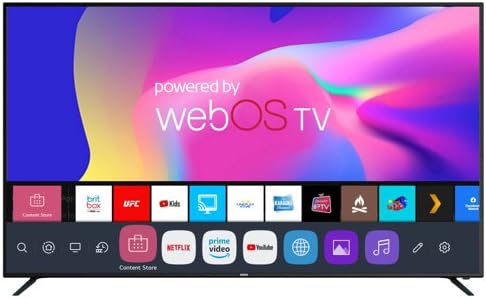
Figura 1.1: Quddiem view of the RCA 58-inch 4K Smart LED TV with WebInterfaċċja tal-OS.
This image displays the front of the RCA 58-inch 4K Smart LED TV. The screen shows the 'powered by webOS TV' logo at the top, and a row of application icons at the bottom, including Netflix, Prime Video, and YouTube, indicating its smart TV capabilities.
Key features of your television include:
- 4K Ultra HD (2160p) Resolution: Delivers four times the resolution of Full HD, with upscaling for lower-resolution content.
- WebOS Smart Pjattaforma: Provides access to a wide selection of streaming services and applications.
- Appoġġ HDR10: Enhances contrast and color accuracy for a more lifelike picture.
- Rata ta' Aġġornar ta' 60Hz: Ensures smooth motion for gaming and fast-paced content.
- Bluetooth 5.0 and Wi-Fi Connectivity: Enables wireless internet access and connection to Bluetooth devices.
- ThinQ AI Compatibility: Allows for voice control functionality.
2. Setup
2.1 Spakkjar u Spezzjoni
Carefully remove the TV from its packaging. Inspect the TV and all included accessories for any signs of damage. Retain the packaging materials for future transport or if service is required.
2.2 It-twaħħil tal-Istand
Place the TV screen-down on a soft, flat surface to prevent scratches. Align the included stands with the mounting holes on the bottom of the TV. Secure the stands using the provided screws. Ensure the stands are firmly attached before placing the TV upright.
2.3 Immuntar mal-Ħajt (Mhux obbligatorju)
If you choose to wall-mount your TV, refer to the instructions provided with your wall-mount kit. Ensure the wall mount is compatible with the TV's VESA mounting pattern (not specified in product data, consult TV back panel or manufacturer for details) and can support the TV's weight (approximately 26.5 pounds).
2.4 Konnessjoni ta' Apparati Esterni
Your TV offers various ports for connecting external devices. Refer to the diagrams below for port locations and types.

Figure 2.1: Rear Input Ports
This image shows the rear panel connections of the TV. From left to right, these include a USB port (USB2), an RJ45 Ethernet port, composite video (CVBS) and stereo audio (L/R) inputs, a headphone jack, an HDMI port (HDMI3), and an RF antenna/cable input (TV IN).

Figure 2.2: Side Input Ports
This image displays the side panel connections of the TV. From left to right, these include an Optical Digital Audio Out port, two HDMI ports (HDMI2 with HDCP2.2/ARC support, and HDMI1 with HDCP2.2), and a USB port (USB1).
- HDMI: Connect Blu-ray players, game consoles, cable/satellite boxes, or other HDMI-enabled devices. Your TV has multiple HDMI inputs, including one with ARC (Audio Return Channel) for simplified audio connections to soundbars or AV receivers.
- USB: Qabbad apparati tal-ħażna USB ma' view photos, play music, or watch videos.
- Ethernet (RJ45): Għal konnessjoni tal-internet bil-fili.
- Antenna/Cable (RF): Qabbad antenna għal xandiriet bl-ajru jew konnessjoni tat-TV bil-kejbil.
- Composite Video (CVBS): For older devices using yellow, white, and red RCA cables.
- Ħruġ Awdjo Diġitali Ottiku: Għall-konnessjoni ma' sistemi awdjo esterni b'input ottiku.
- Jack tal-headphone: Għal smigħ privat.
2.5 Ixgħel u Setup Inizjali
After connecting all desired devices and the power cord, press the power button on the TV or remote control. The TV will guide you through an initial setup wizard, which typically includes:
- Għażla tal-lingwa.
- Konnessjoni tan-netwerk (Wi-Fi jew Ethernet).
- Skennjar tal-kanali (għal konnessjonijiet tal-antenna/kejbil).
- Issettjar taż-żona tal-ħin u tad-data.
3. It-tħaddim tat-TV
3.1 Funzjonijiet ta' Kontroll mill-bogħod
Use the provided remote control to navigate the TV's menus and functions. Common buttons include Power, Volume Up/Down, Channel Up/Down, Input Source, Home (for WebOS), Navigation (directional arrows and OK), and dedicated app buttons (if present).
3.2 WebPjattaforma Intelliġenti tas-Sistema Operattiva
Il- WebOS platform provides a user-friendly interface for accessing streaming services, apps, and other smart features. Press the 'Home' button on your remote to bring up the launcher bar at the bottom of the screen. From here, you can:
- Launch pre-installed apps like Netflix, YouTube, Prime Video, and more.
- Access the Content Store to download additional applications.
- Aqleb bejn sorsi ta 'input.
- Aġġusta s-settings tat-TV.
3.3 Issettjar tal-Immaġni u l-Ħoss
Navigate to the TV's settings menu to customize picture and sound. You can adjust brightness, contrast, color, sharpness, and select picture modes (e.g., Standard, Vivid, Cinema). For audio, adjust bass, treble, balance, and select sound modes (e.g., Standard, Music, Movie).
3.4 Konnettività Bluetooth
To connect Bluetooth devices such as headphones or speakers:
- Go to the TV's settings menu.
- Select 'Sound' or 'Connectivity' and then 'Bluetooth'.
- Ippermetti l-Bluetooth fuq it-TV u poġġi t-tagħmir tiegħek fil-modalità ta' tqabbil.
- Agħżel it-tagħmir tiegħek mil-lista fuq l-iskrin tat-TV biex tqabbad.
3.5 ThinQ AI Voice Control
Your TV works with ThinQ AI for voice control. To use this feature, you typically need to download the ThinQ AI app on your smartphone and connect it to your TV. Follow the instructions within the app to set up voice commands for controlling your TV.
4. Manutenzjoni
4.1 Tindif tal-Iskrin
Before cleaning, ensure the TV is turned off and unplugged from the power outlet. Use a soft, lint-free cloth, slightly dampened with water or a screen-cleaning solution specifically designed for electronics. Do not spray liquid directly onto the screen.
4.2 Tindif tal-Korp tat-TV
Wipe the TV's frame and back panel with a soft, dry cloth. For stubborn marks, a slightly damp cloth can be used, followed by a dry cloth. Avoid using abrasive cleaners, waxes, or solvents as they can damage the finish.
4.3 Kura Ġenerali
- Evita li tpoġġi t-TV fid-dawl tax-xemx dirett jew ħdejn sorsi ta’ sħana.
- Kun żgur li jkun hemm ventilazzjoni adegwata madwar it-TV biex tevita li jisħon iżżejjed.
- Protect the TV from moisture and dust.
- Skonnettja t-TV waqt maltempati bis-sajjetti jew meta ma jkunx se jintuża għal perjodi twal.
5 Issolvi l-problemi
If you encounter issues with your TV, refer to the following common troubleshooting steps before contacting support.
5.1 Ebda Qawwa
- Check if the power cord is securely plugged into both the TV and a working electrical outlet.
- Test the outlet with another device to ensure it has power.
- Agħfas il-buttuna tal-qawwa fuq it-TV innifsu, mhux biss fuq ir-remote, biex teskludi problema bir-remote.
5.2 Ebda Stampa jew Ħoss
- Kun żgur li s-sors tad-dħul korrett huwa magħżul (eż., HDMI 1, TV).
- Iċċekkja l-konnessjonijiet kollha tal-kejbil bejn it-TV u apparati esterni.
- Adjust the volume and ensure the TV is not muted.
- Jekk qed tuża antenna, wettaq skennjar tal-kanali.
5.3 Smart Features Not Working / Network Issues
- Ivverifika li r-router tal-Wi-Fi tiegħek huwa mixgħul u qed jaħdem sew.
- Check the TV's network settings to ensure it is connected to the correct Wi-Fi network or that the Ethernet cable is properly connected.
- Try restarting your router and modem.
- Perform a network connection test in the TV's settings.
5.4 Il-Kontroll mill-Bogħod Mhux Jirrispondi
- Ibdel il-batteriji fil-kontroll remot.
- Kun żgur li m'hemm l-ebda ostaklu bejn ir-remote u s-senser IR tat-TV.
- Ipponta r-remote direttament lejn it-TV.
6. Speċifikazzjonijiet
The following specifications apply to the RCA 58-Inch Class 4K Smart LED TV, Model RWOSU5847:
- Ditta: RCA
- Mudell: RWOSU5847
- Daqs tal-iskrin: 58 Pulzier (148 ċm djagonali viżibbli)
- Teknoloġija tal-Wiri: LED
- Riżoluzzjoni: 4K (3840 x 2160)
- Rata ta' Aġġornar: 60 Hz
- Proporzjon tal-aspett: 16:9
- Karatteristika Speċjali: Flat Screen, HDR10
- Teknoloġija tal-Konnettività: Bluetooth 5.0, Wi-Fi, Ethernet, HDMI, USB, Composite, Optical Audio Out, Headphone
- Kulur: Iswed
- Dimensjonijiet tal-Prodott (P x W x H): 9.6 x 55.2 x 33 pulzieri (bl-istand)
- Piż tal-oġġett: 26.5 liri
- Komponenti Inklużi: TV, Stand

Figure 6.1: TV Dimensions
This diagram illustrates the physical dimensions of the RCA 58-inch 4K Smart LED TV. The width is shown as 55.2 inches, the height as 33 inches, and the depth as 9.6 inches, likely including the stand.
7. Garanzija u Appoġġ
As a renewed product, the warranty terms for your RCA 58-Inch Class 4K Smart LED TV (RWOSU5847) may differ from new products. Please refer to the specific warranty information provided by the seller or the Amazon Renewed program at the time of purchase. For technical support or service inquiries, please contact RCA customer service or the seller directly.
For further assistance, you may visit the official RCA support website or the Amazon Renewed Store for product-specific information and FAQs.


