1. Introduzzjoni u Fuqview
The Wemo Smart Video Doorbell is designed for seamless integration with Apple HomeKit Secure Video, providing a convenient and secure method to monitor your home and communicate with visitors. This device offers a wide field of view and high-definition video quality, ensuring comprehensive coverage of your doorstep. It leverages your existing iCloud subscription for secure storage of motion-based recordings within the Apple Home App.
Key features include face recognition, dual-band Wi-Fi connectivity for reliable performance, and infrared technology for clear night vision. This doorbell is compatible exclusively with wired 16-24V AC doorbell systems.
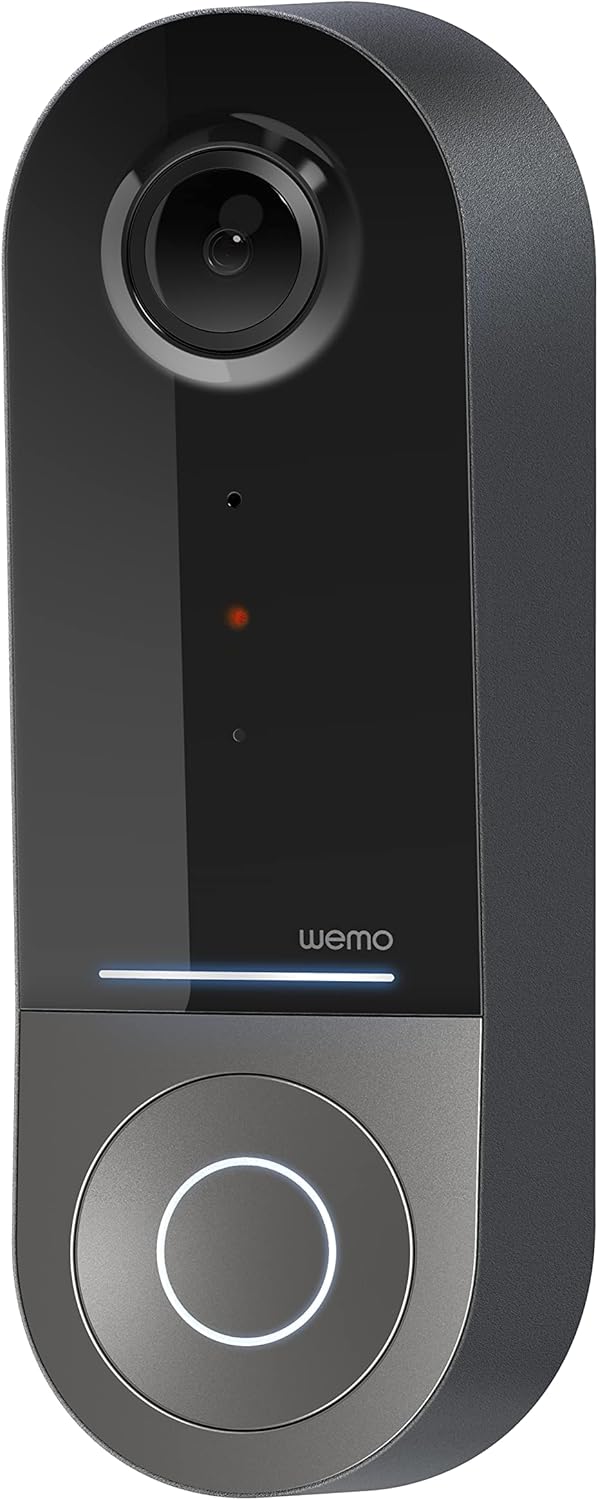
Figure 1: Wemo Smart Video Doorbell
2. Setup u Installazzjoni
2.1 Lista ta' Kontroll ta' Qabel l-Installazzjoni
- Ensure you have a wired doorbell system with 16-24V AC power.
- Download the Apple Home App on your iOS device.
- Confirm strong 2.4GHz and 5GHz Wi-Fi signal at your doorbell location.
2.2 Installazzjoni Fiżika
- Itfi l-enerġija: Before beginning installation, turn off power to your existing doorbell system at the circuit breaker.
- Remove old doorbell: Carefully remove your existing doorbell button.
- Install mounting bracket: Use the provided screws and screwdriver to securely attach the mounting bracket to your wall. If needed, use the left/right wedges to adjust the viewangolu tal-ing.
- Connect power kit: Follow the instructions in the included Setup Guide to properly install the Power Kit with Connectors into your existing chime box. This is crucial for correct operation.
- Wire the Wemo Doorbell: Connect the existing doorbell wires to the terminals on the back of the Wemo Smart Video Doorbell.
- Mount the doorbell: Secure the Wemo Smart Video Doorbell onto the mounting bracket.
- Irrestawra l-qawwa: Ixgħel il-qawwa lura fis-circuit breaker.
2.3 Konfigurazzjoni tal-App
- Open the Apple Home App on your iOS device.
- Tap the '+' icon to add a new accessory.
- Scan the HomeKit setup code provided with your Wemo Smart Video Doorbell.
- Follow the on-screen prompts to name your doorbell, assign it to a room, and configure HomeKit Secure Video settings, including motion detection and face recognition preferences.
3. Istruzzjonijiet Operattivi
3.1 Ħaj View u Notifiki
- Access live video feed directly from the Apple Home App on your iPhone, iPad, or HomePod.
- Receive instant notifications on your iOS device when motion is detected or the doorbell is pressed.
- Utilize face recognition to receive specific alerts for known individuals.

Figure 2: Face Recognition with HomeKit Secure Video
3.2 Reġistrazzjoni u Ħażna tal-Vidjo
- HomeKit Secure Video stores 10 days of motion-based recording history in your iCloud account.
- Review recorded events directly within the Apple Home App.

Figure 3: iCloud Recording via Apple Home App
3.3 Awdjo b'żewġ direzzjonijiet
- Engage in real-time two-way conversations with visitors through the Apple Home App.
3.4 Advanced Video Features
- Qasam Wiesgħa ta View: The camera offers a 178° vertical, 140° horizontal, and 223° diagonal field of view for extensive coverage.
- HD Resolution with HDR: Enjoy crystal clear 1200x1600 resolution video with HDR for optimal image quality in varying light conditions.
- Viżjoni bil-lejl imtejba: Infrared technology provides clear video even in low-light conditions.

Figure 4: Enhanced Night Vision
Konnettività Wi-Fi b'Doppju Banda 3.5
- The doorbell utilizes both 2.4GHz and 5GHz Wi-Fi bands.
- The 2.4GHz band offers a longer range and better penetration through walls.
- The 5GHz band provides higher speeds for closer proximity connections.

Figure 5: Dual-Band Wi-Fi Connectivity
4. Manutenzjoni u Soluzzjoni ta' Problemi
4.1 Kura Ġenerali
- Naddaf il-lenti tal-kamera regolarment b'ċarruta ratba u damp cloth to ensure clear video quality.
- Ensure the doorbell is free from obstructions that might block its field of view or microphone.
4.2 Issolvi l-problemi
- Kwistjonijiet ta' Konnettività: If the doorbell frequently disconnects, ensure your Wi-Fi signal is strong at the installation location. Consider adjusting your router's band (2.4GHz for range, 5GHz for speed) or adding a Wi-Fi extender.
- Problemi ta' Enerġija: Verify that your wired doorbell system provides the required 16-24V AC. Insufficient voltage can lead to intermittent operation or device resets. Consult a qualified electrician if you suspect voltage kwistjonijiet.
- App Responsiveness: If the Apple Home App is slow to connect or display the live feed, ensure your iOS device and HomeKit hub (e.g., Apple TV, HomePod) are updated and have a stable internet connection. Restarting the doorbell or your HomeKit hub may resolve temporary glitches.
5. Speċifikazzjonijiet
| Użu fuq ġewwa/barra | Barra |
| Apparati Kompatibbli | HomePod, iPad, iPhone |
| Sors tal-Enerġija | Corded Electric (16-24V AC) |
| Protokoll tal-Konnettività | Wi-Fi (2.4GHz u 5GHz) |
| Tip ta' Kontrollur | Apple HomeKit |
| Tip ta 'Immuntar | Mount Wall |
| Riżoluzzjoni tal-Qbid tal-Vidjo | 1200x1600 (HD, HDR-enabled) |
| Kulur | Iswed |
| Dimensjonijiet tal-oġġett L x W x H | 2.1 x 1.8 x 5 pulzieri |
| Piż tal-oġġett | 13.7 uqija |
| Karatteristiċi Speċjali | HD Resolution, Image Sensor, Night Vision, HDR |
6. X'hemm fil-Kaxxa
- Smart Video Doorbell
- Gwida ta' Setup
- Bracket tal-Immuntar
- Left/Right Wedge
- Viti u Tornavit
- Power Kit with Connectors
7. Vidjo Uffiċjali tal-Prodott
Video 1: Official Wemo Video Doorbell overview, wirjaasinkaratteristiċi u disinn g.
8. Garanzija u Appoġġ
For warranty information and technical support, please refer to the official WeMo webis-sit jew ikkuntattja lis-servizz tal-konsumatur tagħhom direttament. Żomm l-irċevuta tax-xiri tiegħek għal talbiet ta' garanzija.


