1. Introduzzjoni
This manual provides comprehensive instructions for the setup, operation, and maintenance of your Bisofice Q2 Handheld POS Terminal. This intelligent payment terminal integrates a receipt printer and camera, operating on Android 8.1 OS. It is designed for efficient sales processing, warehouse management, and various small business applications.
Please read this manual thoroughly before using the device to ensure proper functionality and to maximize its lifespan.

Figure 1.1: The Bisofice Q2 is suitable for various applications including warehouse, logistics, retail, restaurant, supermarket, and port terminal environments.
2. Prodott Aktarview
2.1 Karatteristiċi ewlenin
- Integrated 58mm thermal receipt printer for low operating cost and high-speed printing.
- Android 8.1 Operating System for smooth and stable application performance.
- 5.45-inch IPS capacitive touchscreen display.
- Supports 3G communication, WiFi, and Bluetooth 4.0 for versatile connectivity.
- Built-in 5000mAh rechargeable battery for extended working time.
- Optional 1D/2D barcode scanning and NFC module configurations.
- Compact and wireless design for portability.
2.2 Komponenti tal-Apparat

Figura 2.1: Quddiem view of the Bisofice Q2 Handheld POS Terminal, showing the touchscreen display and a printed receipt emerging from the top.
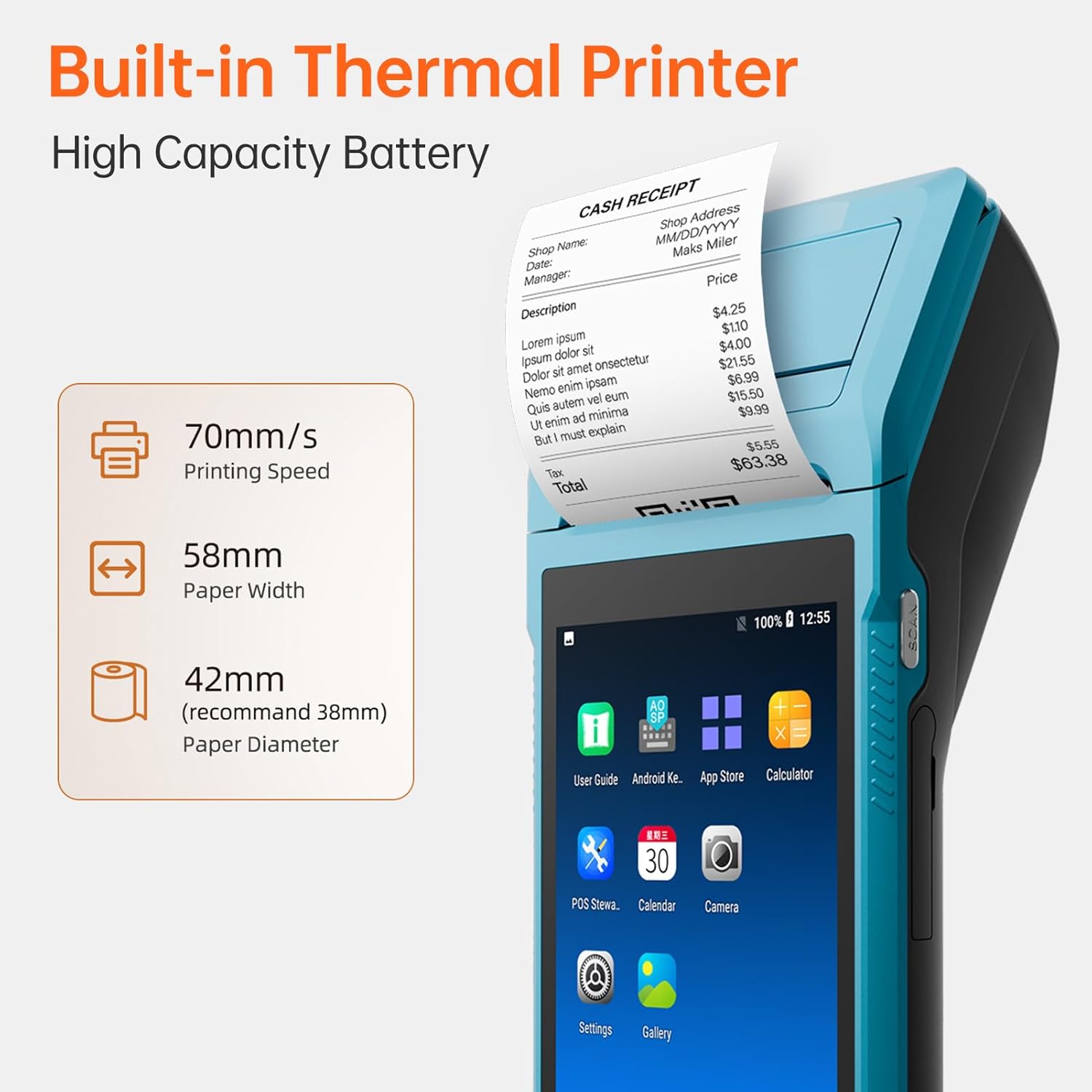
Figura 2.2: Dettaljat view highlighting the built-in thermal printer with 70mm/s printing speed, 58mm paper width, and 42mm recommended paper diameter.

Figura 2.3: Wara view of the Bisofice Q2, showing the 2-megapixel HD rear camera with fixed-focus and LED flash support.
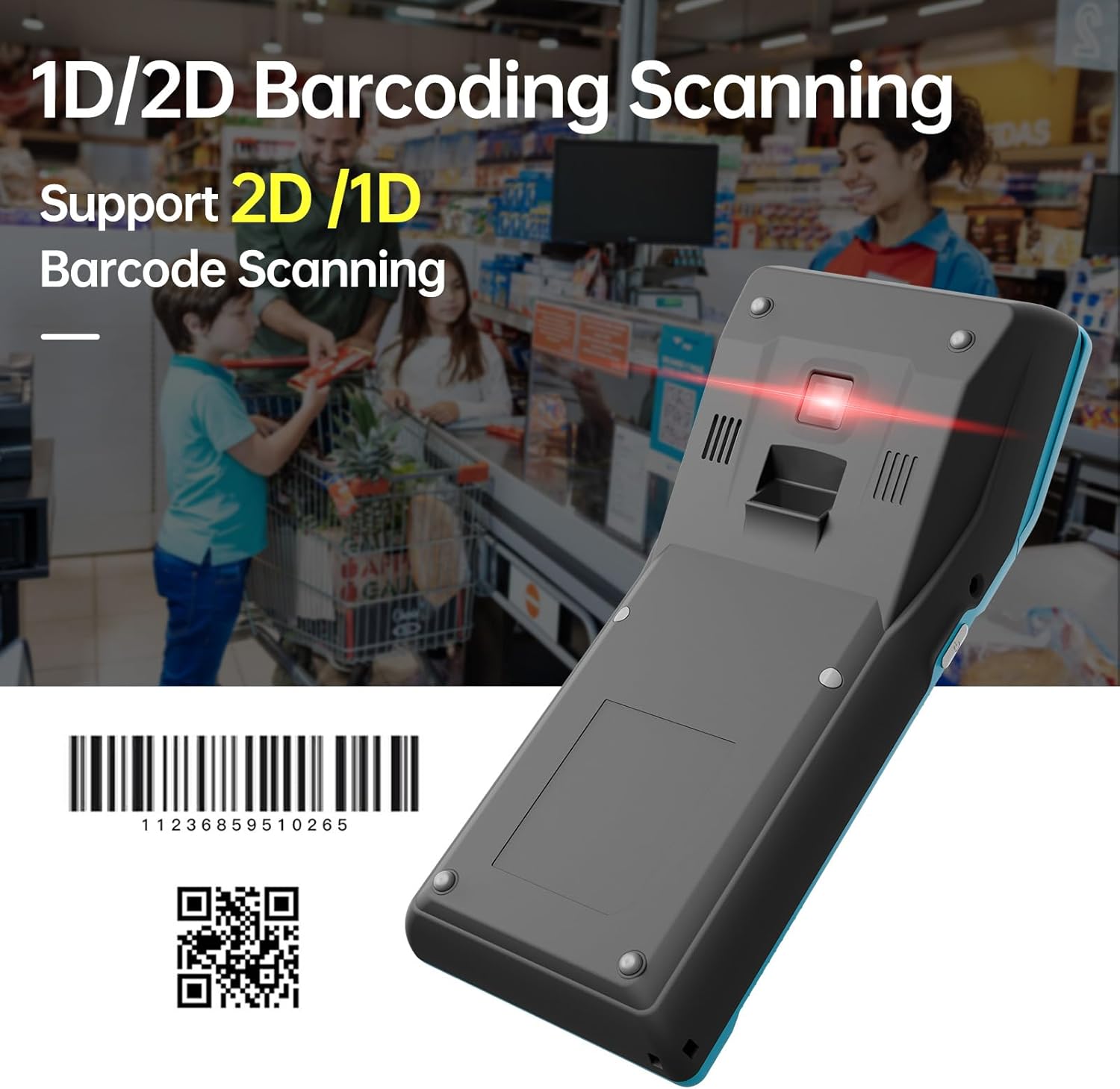
Figura 2.4: In-naħa ta’ taħt view of the Bisofice Q2, illustrating its 1D/2D barcoding scanning capability.
3. Setup
3.1 Żpakkjar u Spezzjoni Inizjali
Carefully unpack all components from the box. Verify that all items listed in the "Package List" section are present and undamaged. If any items are missing or damaged, contact customer support immediately.
3.2 Iċċarġjar tal-batterija
- Connect the provided power adapter to the DC Charge interface (12V 1.5A) on the device.
- Ipplaggja l-korda tad-dawl fi żbokk elettriku adattat.
- Allow the device to charge fully before first use. The battery indicator on the screen will show charging status.
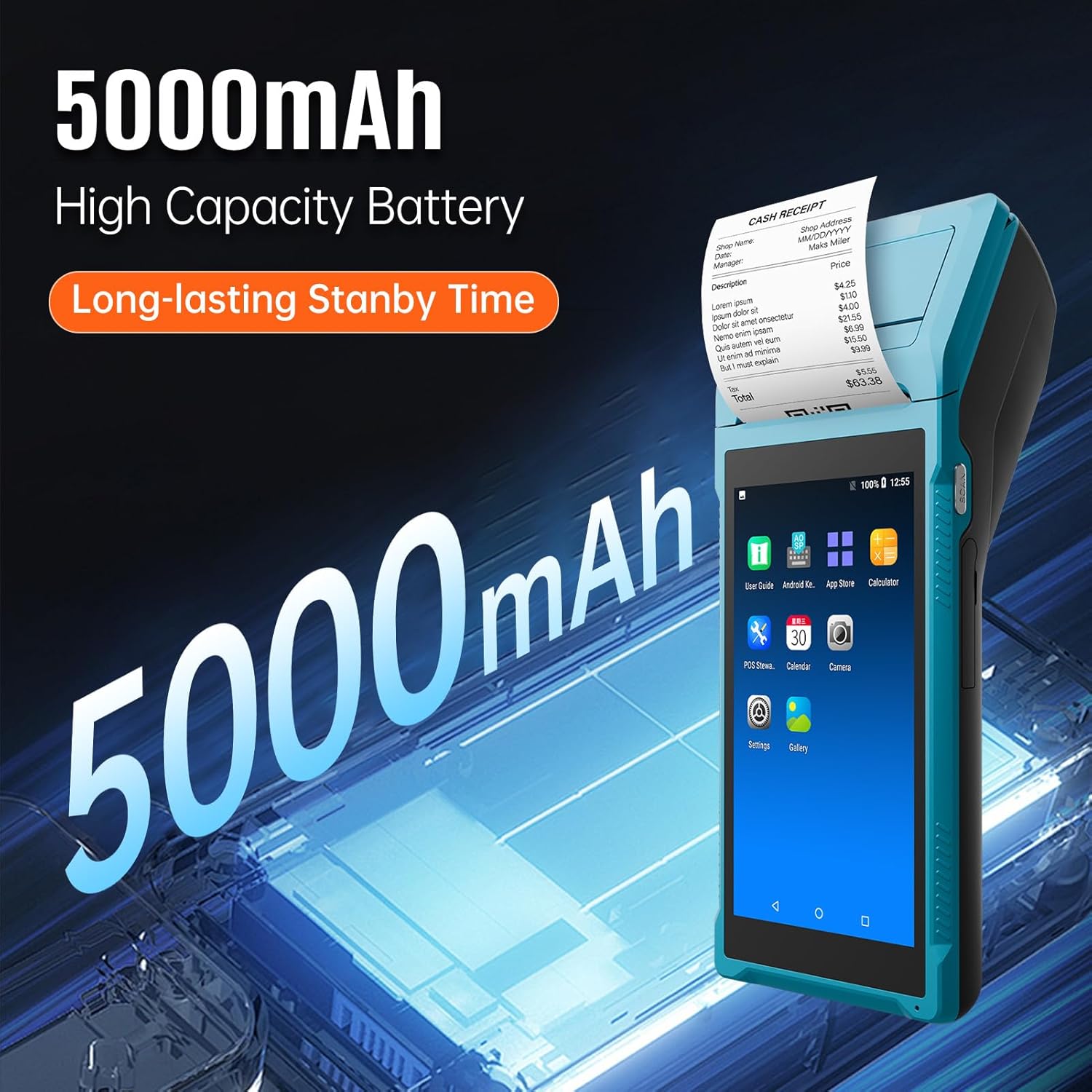
Figure 3.1: The Bisofice Q2 features a 5000mAh high-capacity battery, providing long-lasting standby time.
3.3 Installing the Thermal Paper Roll
- Locate the printer cover release latch, typically on the top or side of the device.
- Iftaħ il-qoxra tal-printer.
- Insert a 58mm wide thermal paper roll into the compartment, ensuring the paper feeds out from the top and the leading edge is straight. The recommended paper diameter is 35mm.
- Agħlaq l-għatu tal-istampatur sew sakemm tikklikkja f'postu.
3.4 Tixgħel/Jitfi
- Biex Tixgħel: Press and hold the power button (usually on the side) until the screen illuminates.
- Biex Tifi: Press and hold the power button until the power options menu appears, then select "Power Off".
3.5 Konnessjoni tan-Netwerk
The device supports WiFi and 3G communication.
- WiFi: Innaviga lejn Settings > Netwerk & Internet > Wi-FiAgħżel in-netwerk mixtieq tiegħek u daħħal il-password jekk tintalab.
- 3G Communication: Insert a compatible SIM card into the designated slot (if available on your model configuration). Ensure the SIM card is correctly oriented. The device supports GSM850/900/1800/1900 and WCDMA B1.
4. Istruzzjonijiet Operattivi
4.1 Navigazzjoni Bażika
The Bisofice Q2 operates on Android 8.1. Use the 5.45-inch touchscreen for navigation. Swipe, tap, and use the on-screen navigation buttons (Back, Home, Recent Apps) as you would on any Android device.
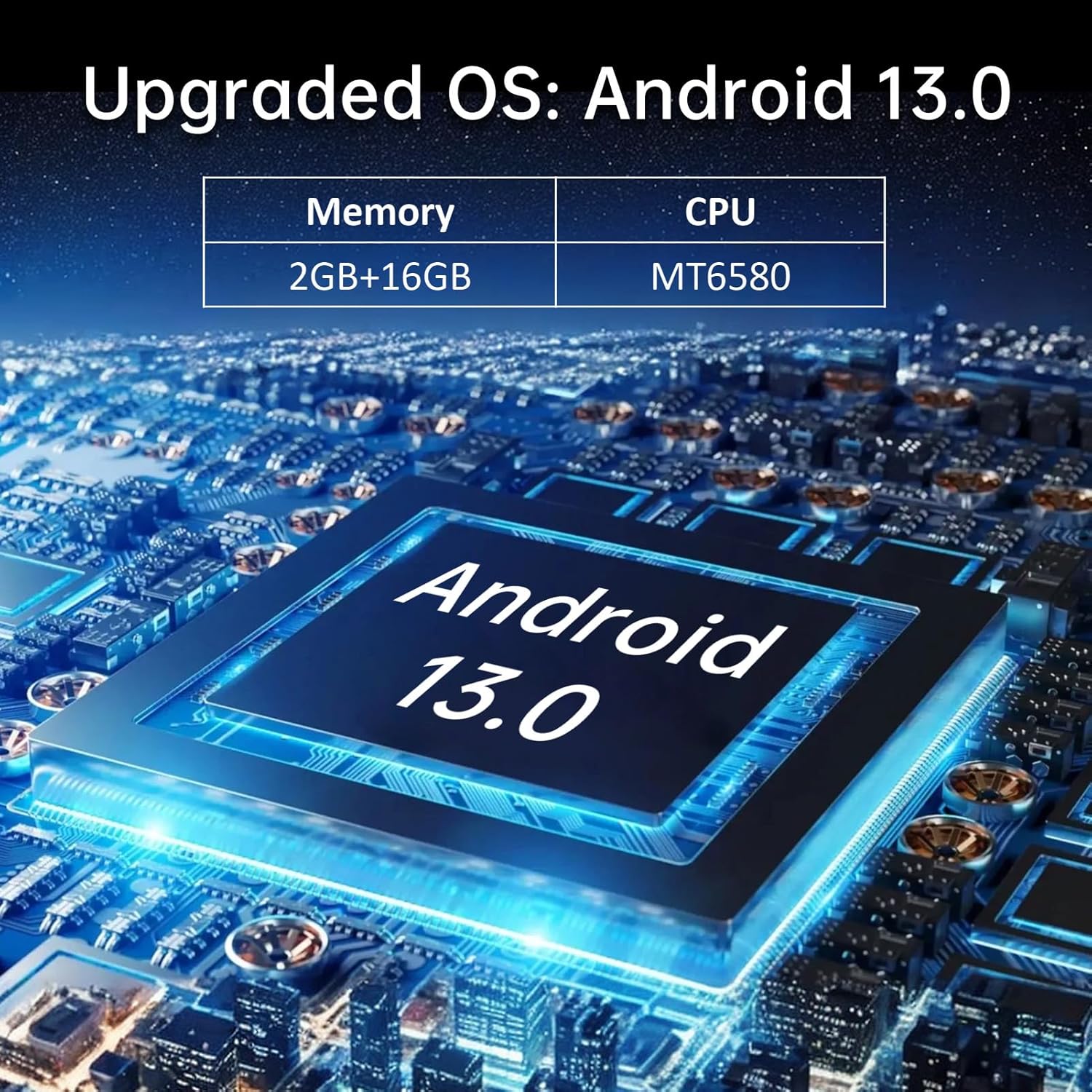
Figure 4.1: The device's interface, showing typical Android application icons for user guide, app store, calculator, POS software, calendar, camera, settings, and gallery.
4.2 Stampar ta' Riċevuti
To print a receipt, ensure thermal paper is correctly loaded. Printing functionality is typically integrated within your POS application. Follow the prompts within your specific application to initiate a print job.
- Open your POS application.
- Process a transaction or select a previous transaction for reprinting.
- Locate the "Print" or "Receipt" option within the application.
- Confirm the print command. The device will automatically print the receipt.
4.3 Using the Barcode Scanner (Optional)
For models equipped with 1D/2D barcode scanning, activate the scanner through your application. Point the scanner window at the barcode, ensuring it is within the scanning range and properly illuminated. The device will typically provide an audible or visual confirmation upon successful scan.
4.4 Konnettività Bluetooth
To connect to other Bluetooth devices (e.g., external scanners, keyboards):
- Mur fuq Settings > Apparati konnessi > Bluetooth.
- Ixgħel il-Bluetooth.
- The device will scan for available Bluetooth devices. Select the device you wish to pair with and follow any on-screen prompts.
5. Manutenzjoni
5.1 Tindif tal-Apparat
- Use a soft, dry, lint-free cloth to clean the exterior of the device.
- For the touchscreen, use a screen cleaner specifically designed for electronic displays.
- Evita li tuża kimiċi ħarxa, prodotti tat-tindif li joborxu, jew umdità eċċessiva.
5.2 Printer Head Cleaning
If print quality degrades (e.g., faint lines, smudges), the printer head may need cleaning. Use a printer head cleaning pen or a cotton swab lightly dampened with isopropyl alcohol. Gently wipe the thermal print head (located inside the paper compartment) to remove any residue. Allow it to dry completely before closing the cover and resuming operation.
5.3 Kura tal-Batterija
- Evita li tiċċarġja l-batterija kompletament ta' spiss.
- Aħżen l-apparat f'post frisk u niexef meta ma jkunx qed jintuża għal perjodi twal.
- Use only the original or approved power adapter for charging.
6 Issolvi l-problemi
6.1 Kwistjonijiet Komuni u Soluzzjonijiet
| Problema | Kawża Possibbli | Soluzzjoni |
|---|---|---|
| L-apparat ma jixgħelx. | Batterija baxxa; l-apparat jiġġarraf. | Charge the device for at least 30 minutes. If still unresponsive, perform a forced restart (refer to device-specific instructions, usually holding power button for 10-15 seconds). |
| Il-printer mhux qed jistampa. | No paper; paper incorrectly loaded; printer head dirty; application error. | Check paper roll and reload if necessary. Clean the printer head. Restart the POS application or the device. |
| Kwalità fqira tal-istampar. | Dirty printer head; low quality thermal paper. | Clean the printer head as described in Section 5.2. Use high-quality 58mm thermal paper. |
| Ma nistax nikkonnettja mal-WiFi. | Password mhux korretta; barra mill-firxa; problema bir-router. | Verify WiFi password. Move closer to the router. Restart the router and the device. |
| L-iskaner tal-barcode mhux qed jaħdem. | Scanner not activated in application; dirty scanner window; damaged scanner. | Ensure scanner is enabled in your application. Clean the scanner window. If issues persist, contact support. |
If the problem persists after attempting these solutions, please contact Bisofice customer support.
7. Speċifikazzjonijiet
7.1 Speċifikazzjonijiet Tekniċi
| Karatteristika | Dettall |
|---|---|
| Mudell | Q2 (Item model number: DA123029) |
| Kulur | Ċerulean |
| CPU | Quad-Core 1.3GHz MT6580V/WA |
| RAM | 1GB |
| NAND Flash | 4GB |
| Sistema Operattiva | Android 8.1 |
| Skrin Primarju | 5.5 Inch, 1280*720 IPS Capacitive Touchscreen |
| Metodu ta' Komunikazzjoni | 3G (GSM850/900/1800/1900, WCDMA B1) |
| Back Camera | 800W (8 Megapixel) Downward Compatible |
| Batterija | 7.4V, 5000mAh |
| Interface tal-iċċarġjar | DC Charge, 12V 1.5A |
| Interface tal-widna | 3.5mm Standard Earphones |
| OTG | Appoġġ |
| Interface USB | Micro USB2.0 * 1 |
| Sistema Awdjo | Built-in Speaker, Buzzer, Microphone |
| WiFi | 802.11b/g/n |
| Bluetooth | BT4.0 |
| Stampar | Thermal Printer, Paper Scroll 58*35mm (not included) |
| Daqs tal-printer | 21.5 * 8.6 * 5.3cm / 8.46 * 3.39 * 2.1in |
| Piż tal-printer | 462g / 16.3oz |
| Dimensjonijiet tal-Prodott | 8 x 3 x 3 pulzieri (20.92cm x 8.74cm x 5.17cm) |
| Piż tal-oġġett | 1.05 liri |

Figure 7.1: Dimensions of the Bisofice Q2 Handheld POS Terminal: 209.2mm (8.2in) length, 87.4mm (3.4in) width, and 51.7mm (2in) height.
7.2 Lista tal-Pakketti
L-oġġetti li ġejjin huma inklużi fil-pakkett:
- 1 * PDA Printer (Bisofice Q2 Handheld POS Terminal)
- 1 * Power Cord (US Plug)
- 1 * Adapter tal-Enerġija
- 1 * User Manual (English & Chinese)
8. Garanzija u Appoġġ
Bisofice products are manufactured to high-quality standards. For warranty information, please refer to the warranty card included with your product or visit the official Bisofice website. For technical support, troubleshooting assistance, or service inquiries, please contact Bisofice customer support through the contact information provided on the product packaging or the official websit.
Jekk jogħġbok żomm l-irċevuta tax-xiri tiegħek bħala prova tax-xiri għal talbiet ta' garanzija.


