1. Introduzzjoni
Thank you for choosing the Dalton 10 kVA Uninterruptible Power Supply (UPS) unit. This manual provides essential information for the safe and efficient operation of your UPS. Please read this manual thoroughly before installation and operation, and keep it for future reference.
This UPS is designed to provide reliable power protection for critical equipment, safeguarding against power outages, surges, and fluctuations. Its advanced technology ensures stable and clean power delivery, extending the lifespan of your connected devices.
2. Informazzjoni dwar is-Sigurtà
Always observe the following safety precautions to prevent injury or damage to the UPS and connected equipment:
- Tiftaħx il-UPS casing. Ġewwa m'hemm l-ebda partijiet li jistgħu jiġu rranġati mill-utent. Irreferi għal kull manutenzjoni għand persunal tas-servizz kwalifikat.
- Kun żgur li l-UPS huwa konness ma' sokit tal-enerġija ertjat.
- Do not block ventilation openings. Adequate airflow is crucial for proper cooling.
- Evita li tinstalla l-UPS f'żoni b'eċċess ta' trab, umdità, jew temperaturi estremi.
- Disconnect the UPS from the AC power source before performing any maintenance or moving the unit.
- Il-batteriji jistgħu jippreżentaw riskju ta’ xokk elettriku u kurrent għoli ta’ short circuit. Osserva l-prekawzjonijiet xierqa meta taħdem bil-batteriji.
3. Kontenut tal-Pakkett
Carefully unpack the UPS and check if all items are present and undamaged. If any items are missing or damaged, contact your dealer immediately.
- Dalton 10 kVA UPS Unit
- Manwal għall-Utent (dan id-dokument)
- Kejbil tal-Qawwa tad-Dħul
- Output Power Cables (quantity may vary)
- USB Communication Cable (for monitoring software)
- CD tas-Softwer (jekk applikabbli)
4. Prodott Aktarview
The Dalton 10 kVA UPS is a robust power protection solution. Below is an overview of its typical components and features.
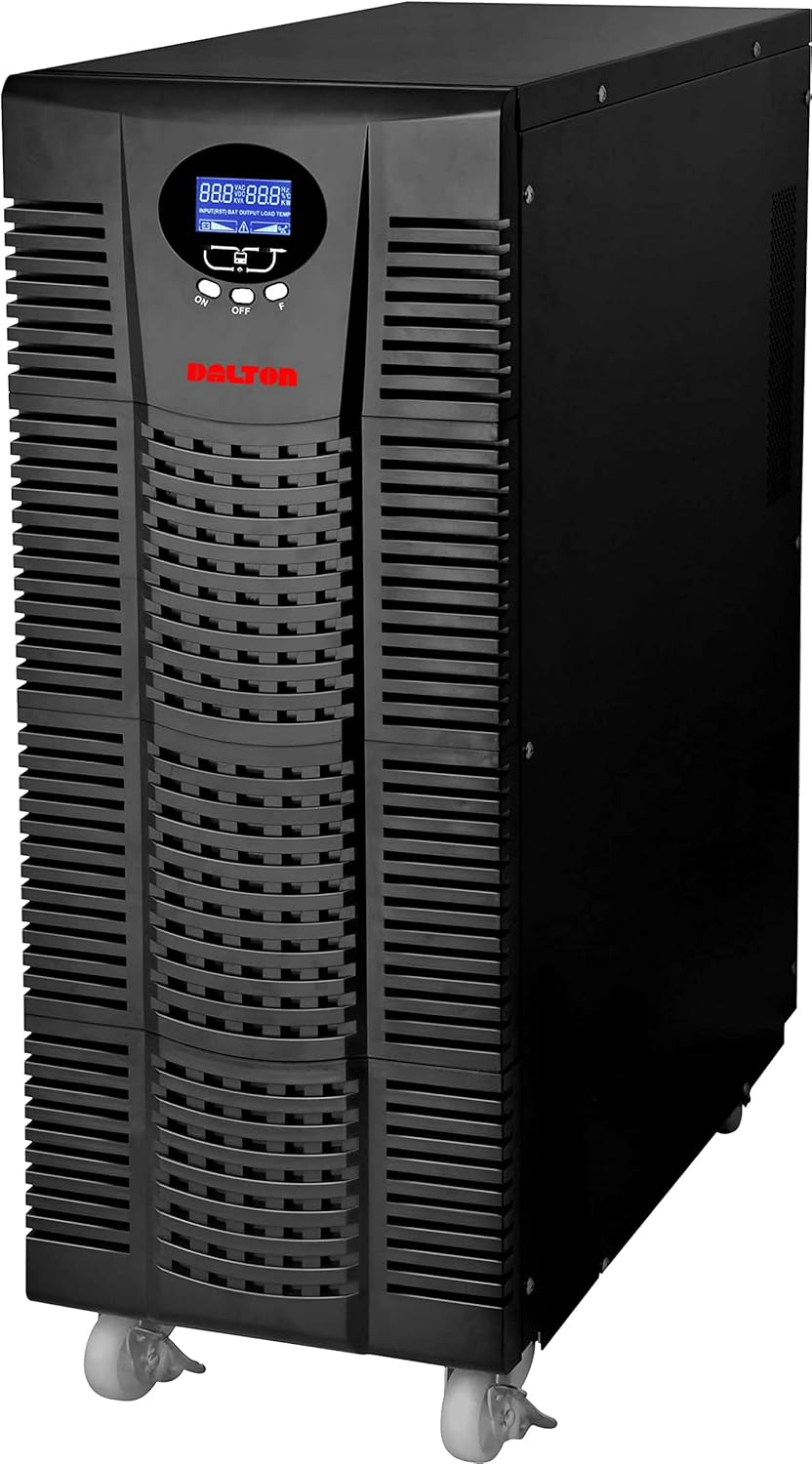
Figura 4.1: Quddiem view of the Dalton 10 kVA UPS unit. This image displays the tall, black tower design of the UPS, featuring a prominent vented front panel for airflow and integrated wheels at the base for easy mobility. The control panel and display are visible towards the top of the unit.
4.1 Panel ta 'Quddiem
- Display LCD: Shows real-time status, input/output voltage, battery level, load percentage, u kodiċijiet ta' żball.
- Buttuni tal-Kontroll: Used to navigate menus, acknowledge alarms, and perform system tests.
- Buttuna tal-Qawwa: Jixgħel jew jitfi l-UPS.
4.2 Panel ta 'wara
- Konnettur tal-Qawwa tad-Dħul: For connecting the UPS to the main AC power source.
- Reċipjenti tal-Ħruġ: For connecting protected equipment.
- Communication Ports (USB/RS232): For connecting to a computer for monitoring and management.
- External Battery Connector (if applicable): For connecting optional external battery packs.
- Circuit Breaker: Provides overload protection.
5. Setup u Installazzjoni
Follow these steps for proper installation of your UPS unit:
- Pjazzament:
- Poġġi l-UPS f'żona nadifa, niexfa u ventilata sew.
- Ensure sufficient clearance around the unit for proper airflow.
- Avoid direct sunlight, heat sources, and excessive moisture.
- Ċarġ tal-Batterija Inizjali:
- Qabbad l-UPS ma' żbokk tad-dawl AC ertjat.
- Allow the UPS to charge for at least 8 hours before connecting any equipment to ensure full battery capacity. The display will indicate charging status.
- Tagħmir ta' Konnessjoni:
- With the UPS turned off and fully charged, connect your critical equipment (computers, servers, networking devices) to the UPS output receptacles.
- Do not connect laser printers or other high-surge current devices to the battery-backed outlets, as this may overload the UPS.
- Tixgħel:
- Press and hold the power button on the front panel until you hear a beep and the display illuminates.
- The UPS will perform a self-test and then enter normal operating mode.
6. Istruzzjonijiet Operattivi
6.1 Operazzjoni Normali
Once powered on, the UPS continuously monitors the incoming AC power. In normal mode, it provides clean and stable power to connected devices.
6.2 Modalità tal-Batterija
If the utility power fails or fluctuates outside acceptable limits, the UPS will automatically switch to battery mode, providing power from its internal batteries. An audible alarm will sound, and the LCD display will indicate "Battery Mode".
- During battery mode, save your work and shut down connected equipment gracefully to prevent data loss.
- The duration of battery backup depends on the load connected and the battery charge level.
6.3 Itfi l-UPS
To turn off the UPS and disconnect power to connected devices:
- Shut down all connected equipment.
- Press and hold the power button on the UPS until it powers off.
- Disconnect the UPS from the AC power outlet.
7. Manutenzjoni
7.1 Kura tal-Batterija
- Regularly charge the batteries by keeping the UPS connected to AC power.
- Perform a battery self-test periodically (refer to your UPS display menu for this option) to check battery health.
- Batteries have a limited lifespan (typically 3-5 years). Contact service for battery replacement when performance degrades.
7.2 Tindif
- Clean the exterior of the UPS with a soft, dry cloth.
- Tużax tindif likwidu jew aerosol.
- Kun żgur li l-fetħiet tal-ventilazzjoni huma ħielsa mit-trab u l-fdalijiet.
8 Issolvi l-problemi
Din it-taqsima tipprovdi soluzzjonijiet għal kwistjonijiet komuni li tista’ tiltaqa’ magħhom mal-UPS tiegħek.
| Problema | Kawża Possibbli | Soluzzjoni |
|---|---|---|
| Il-UPS ma jixgħelx. | No AC input power; Low battery; UPS fault. | Check power cord connection and wall outlet. Allow UPS to charge for several hours. Contact service if problem persists. |
| Il-UPS jagħmel ħoss kontinwu fil-modalità normali. | Overload; Battery fault. | Reduce connected load. Perform battery self-test. |
| Ħin qasir ta' backup. | Overload; Old battery; Insufficient charging. | Reduce load. Replace battery. Ensure UPS is fully charged. |
For issues not listed here, or if solutions do not resolve the problem, please contact Dalton customer support.
9. Speċifikazzjonijiet
| Karatteristika | Dettall |
|---|---|
| Brand | Dalton |
| Mudell | 10 kVA UPS |
| Qawwa Massima | 10,000 Watts |
| Qawwa tal-Ħruġ | 10,000 Watts |
| Medda ta' Frekwenzi | 50/60 Hz (± 3 Hz) |
| Tip ta' Konnettur | IEC 320, Battery |
| Kulur | Iswed |
| Materjal | Metall |
| ASIN | B09NC2FXNC |
| L-Ewwel Data Disponibbli | 9 ta’ Diċembru 2021 |
10. Garanzija u Appoġġ
Dalton provides comprehensive support for its products. As authorized distributors in the Arab Republic of Egypt, we maintain an authorized service center for all Dalton UPS units.
- For technical assistance, troubleshooting, or warranty claims, please contact our authorized service center.
- Ensure you have your product model and ASIN (B09NC2FXNC) ready when contacting support.
- Unauthorized repairs or modifications will void the product warranty.
For more information, please visit the official Dalton webis-sit jew ikkuntattja lid-distributur lokali tiegħek.


