1. Introduzzjoni
Thank you for choosing the MEER 5G WiFi Mini Projector. This portable device is designed to provide a high-quality viewing experience for movies, games, and presentations, both indoors and outdoors. Featuring advanced 5G Wi-Fi connectivity, enhanced resolution, and a compact design, it offers versatile entertainment options. This manual provides detailed instructions for setup, operation, maintenance, and troubleshooting to ensure optimal performance and longevity of your projector.
2. Informazzjoni dwar is-Sigurtà
- Provvista tal-Enerġija: Use only the provided power adapter. Ensure the power source matches the voltage requirements specified on the adapter.
- Ventilazzjoni: Timblokkax il-fetħiet tal-ventilazzjoni. Kun żgur li jkun hemm fluss tal-arja adegwat madwar il-proġettazzjoni biex tevita li ssaħħan iżżejjed.
- Ilma u Umdità: Żomm il-proġettur 'il bogħod mill-ilma, ix-xita, u l-umdità eċċessiva. Tħaddimx b'idejn imxarrbin.
- Protezzjoni tal-għajnejn: Tħarisx direttament fil-lenti tal-proġettazzjoni meta tkun qed taħdem.amp is on. The bright light can cause eye strain or damage.
- Tindif: Disconnect the power before cleaning. Use a soft, dry cloth. Avoid liquid cleaners or abrasive materials.
- Immaniġġjar: Immaniġġja l-proġettur b'attenzjoni. Evita li twaqqgħu jew li tissottomettih għal impatti qawwija.
3. Kontenut tal-Pakkett
Jekk jogħġbok iċċekkja l-pakkett għall-oġġetti li ġejjin:
- MEER YG300 Pro-WIFI Mini Projector
- Adapter tal-Enerġija
- Kontrollur mill-bogħod
- Cable HDMI
- AV Cable
- Manwal għall-Utent

Image: The MEER YG300 Pro-WIFI Mini Projector with its power adapter, remote controller, HDMI cable, and AV cable.
4. Prodott Aktarview
Familiarize yourself with the various parts and interfaces of your MEER Mini Projector.
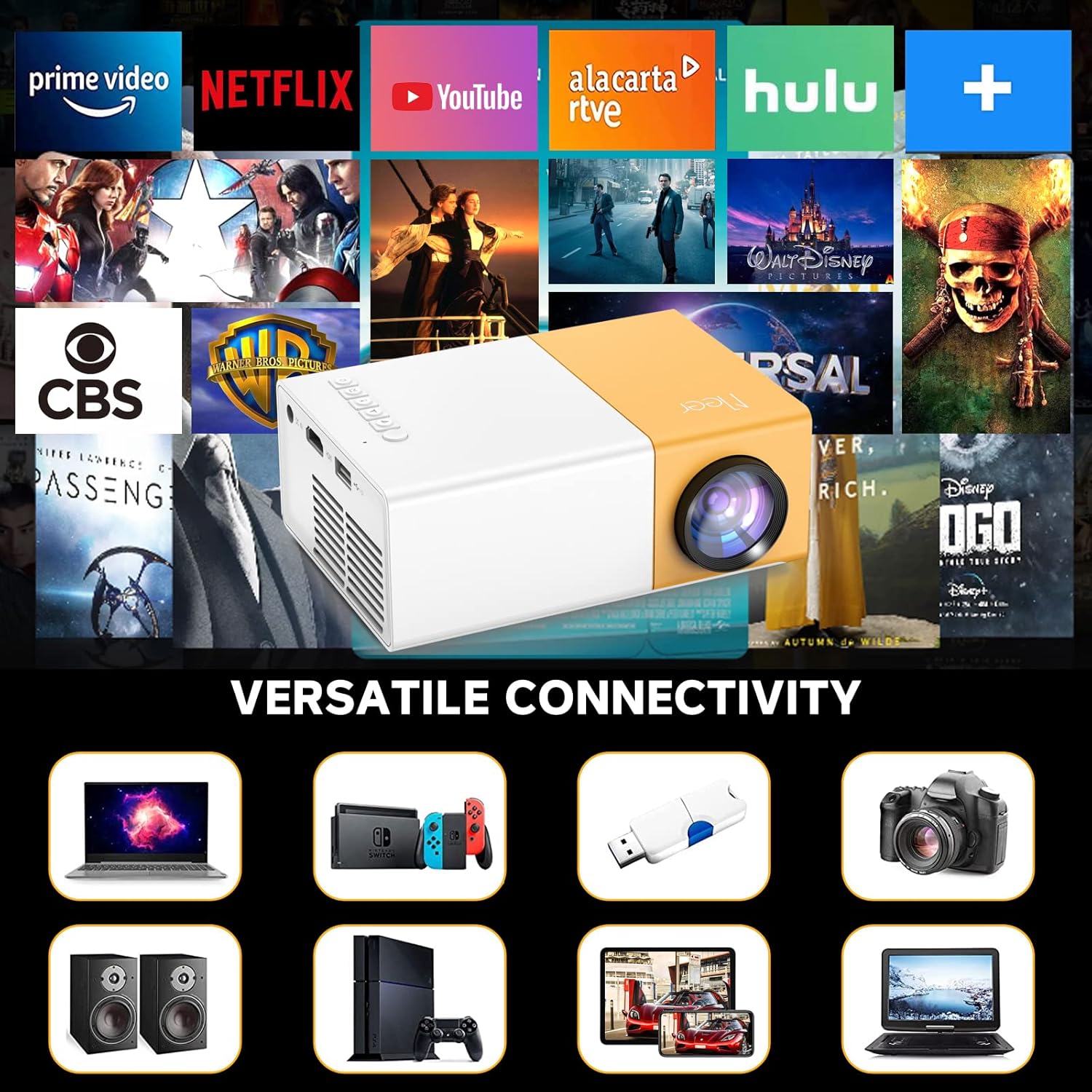
Image: The projector showcasing its versatile connectivity ports, including HDMI, USB, and audio output.
- Lenti: Jipproġetta l-immaġni fuq l-iskrin.
- Rota tal-Focus: Jaġġusta ċ-ċarezza tal-immaġni pproġettata.
- Panel tal-Kontroll: Buttons for navigation and settings on the top of the projector.
- Port DC IN: Tqabbad mal-adapter tal-enerġija.
- Port HDMI: Connects to devices like laptops, gaming consoles, and TV sticks.
- Port USB: Jikkonnettja ma' drives USB għad-daqq tal-midja.
- Slott tal-Karta Mikro SD: Biex iddoqq il-midja direttament minn kard Micro SD.
- Port AV: Connects to older devices using the included AV cable.
- Audio Out (3.5mm) Port: Jikkonnettja ma' kelliema esterni jew headphones.
- Kelliem inkorporat: Provides audio output directly from the projector.
5. Setup
- Konnessjoni tal-Enerġija: Connect the power adapter to the DC IN port on the projector and then plug it into a power outlet. The power indicator light will illuminate.
- Pjazzament: Poġġi l-proġettur fuq wiċċ stabbli u ċatt. Għal użu ottimali viewing, position it directly in front of the projection surface (wall or screen).
- Qawwa Mixgħul: Agħfas il-buttuna tal-qawwa fuq il-proġekter jew il-kontroll mill-bogħod biex tixgħel l-apparat.
- Aġġustament tal-Focus: Rotate the focus wheel near the lens until the projected image appears clear and sharp.
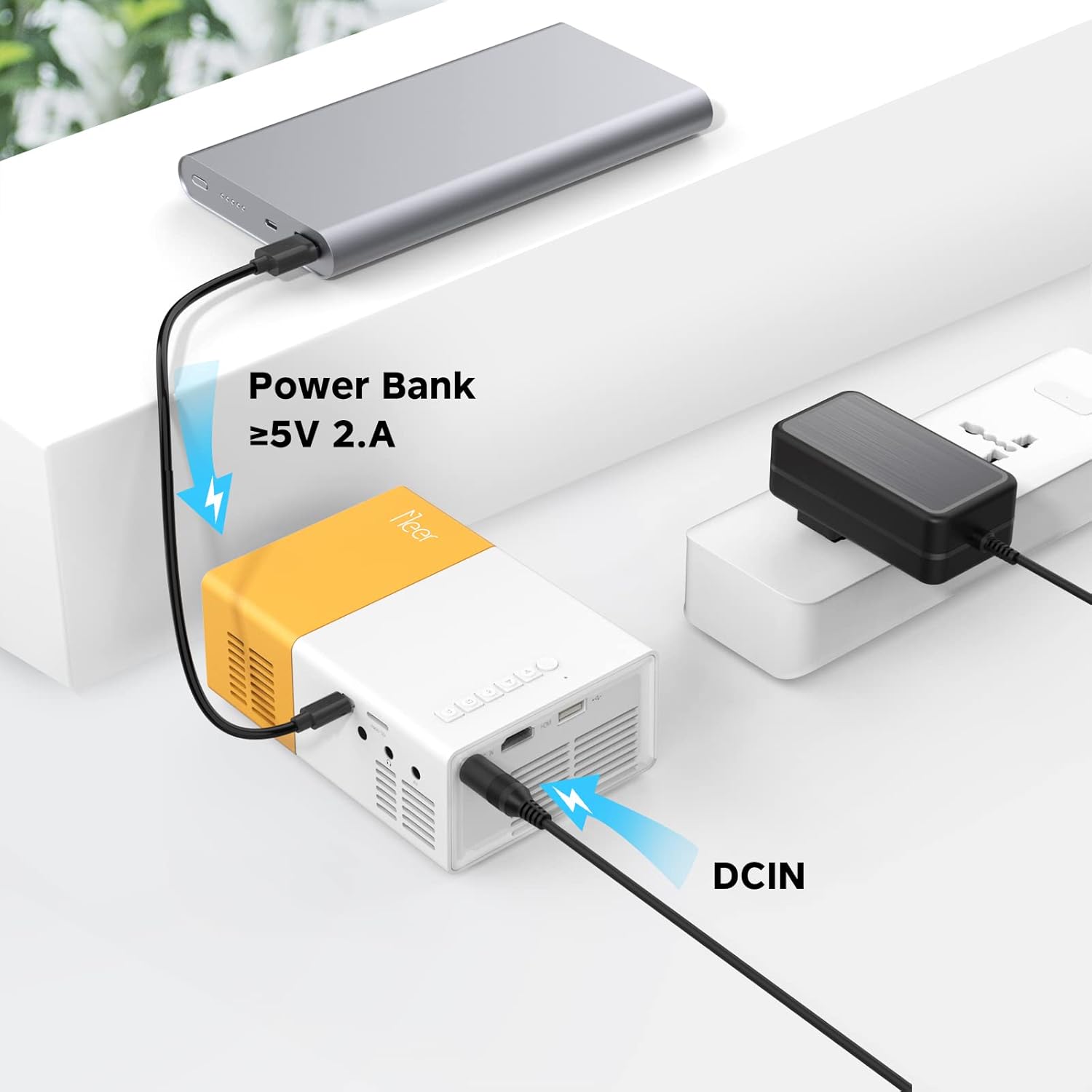
Image: The projector can be powered by a power bank (5V 2A minimum) for portable use.
6. Joperaw
6.1 Konnessjoni Wi-Fi
To enable wireless screen mirroring or casting, connect your projector to a Wi-Fi network:
- From the main menu, navigate to the 'Settings' or 'Wi-Fi' option.
- Agħżel in-netwerk Wi-Fi mixtieq tiegħek mil-lista.
- Daħħal il-password tal-Wi-Fi billi tuża t-tastiera fuq l-iskrin u kkonferma.
- Once connected, ensure your mobile device is on the same Wi-Fi network.
6.2 Screen Mirroring & Screen Cast
The projector supports wireless screen mirroring for iOS and Android devices.
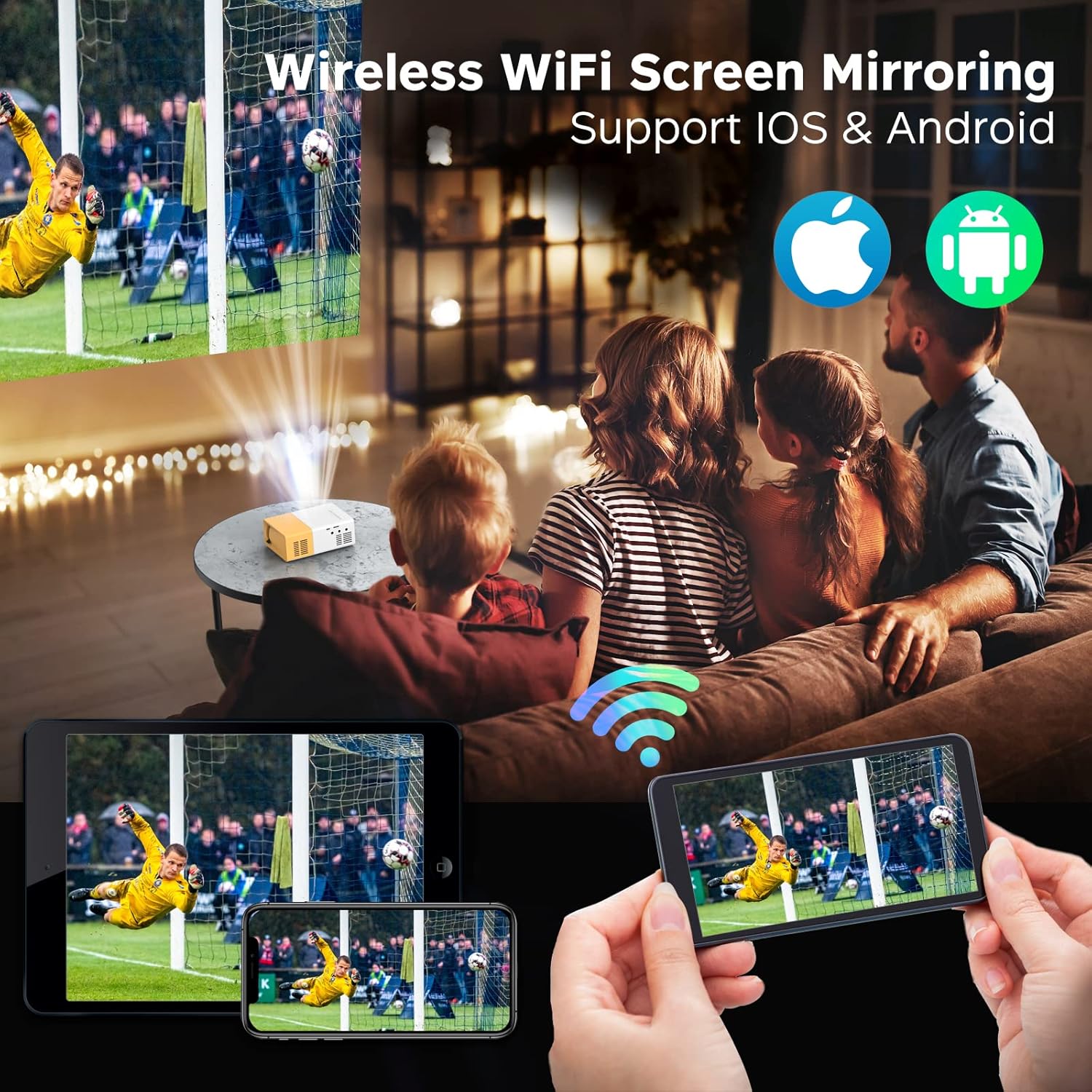
Image: The projector displaying content wirelessly from a smartphone and tablet, illustrating the screen mirroring capability.

Image: Comparison of Screen DLNA (watching video while using phone for other tasks) and Screen Cast (mirroring phone screen directly).
- Għal Apparat IOS:
- Ensure both projector and iPhone/iPad are connected to the same Wi-Fi network.
- On the projector, select the 'iOS Cast' or 'Screen Mirroring' option.
- On your iOS device, open Control Center and tap 'Screen Mirroring' or 'AirPlay Mirroring'.
- Select the projector's name from the list to begin mirroring.
- Għal Apparat Android:
- Ensure both projector and Android device are connected to the same Wi-Fi network.
- On the projector, select the 'Android Cast' or 'Screen Mirroring' option.
- On your Android device, enable 'Wireless Display', 'Screen Cast', 'Smart View', or similar function (name varies by device).
- Select the projector's name from the list to begin mirroring.
6.3 Konnessjoni ta' Apparati Esterni
Il-proġettur joffri diversi portijiet għall-konnessjoni ta' diversi apparati:

Image: The projector's HDMI port and examples of devices that can be connected, such as laptops, game consoles, and streaming sticks.
- HDMI: Connect your laptop, gaming console (PS4, PS5, Switch), TV stick (Firestick, Roku), or Blu-ray player using an HDMI cable. Select 'HDMI' as the input source from the projector's menu.
- USB: Insert a USB flash drive into the USB port. The projector will automatically detect the drive, allowing you to browse and play media files (videos, photos, music).
- TA’: Use the included AV cable to connect to older devices like DVD players or VCRs. Select 'AV' as the input source.
- Mikro SD: Insert a Micro SD card into the dedicated slot. Navigate to the 'Media' or 'SD Card' option in the menu to access files.
6.4 Output Awdjo
The projector has a built-in 3W HiFi stereo speaker for direct audio playback.
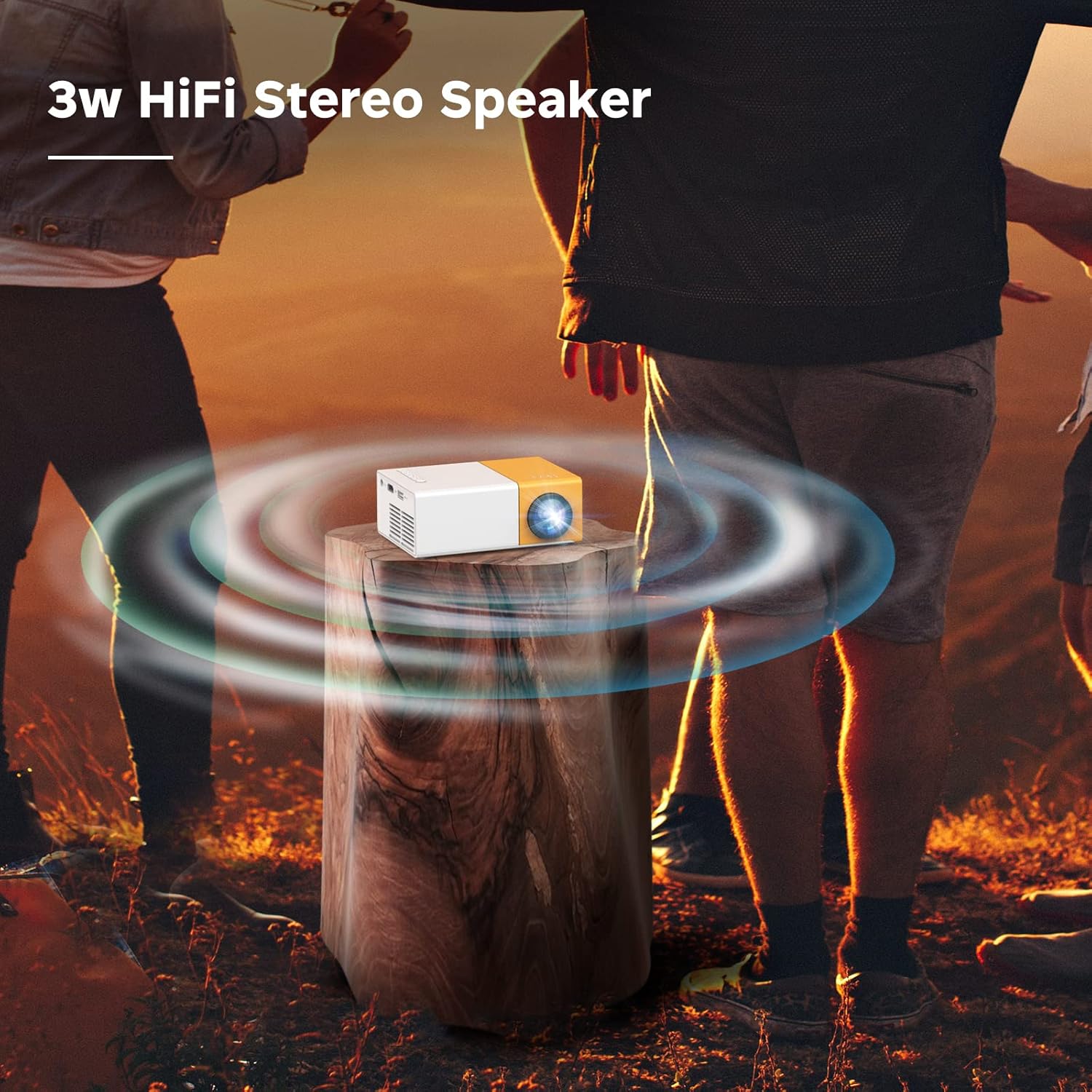
Image: The projector emitting sound waves, highlighting its built-in 3W HiFi stereo speaker.
For a more immersive audio experience or private listening, you can connect external audio devices:
- Headphones: Plug 3.5mm headphones into the Audio Out port.
- Kelliema Esterni: Connect external speakers via the 3.5mm Audio Out port.
6.5 Xenarji ta' Użu
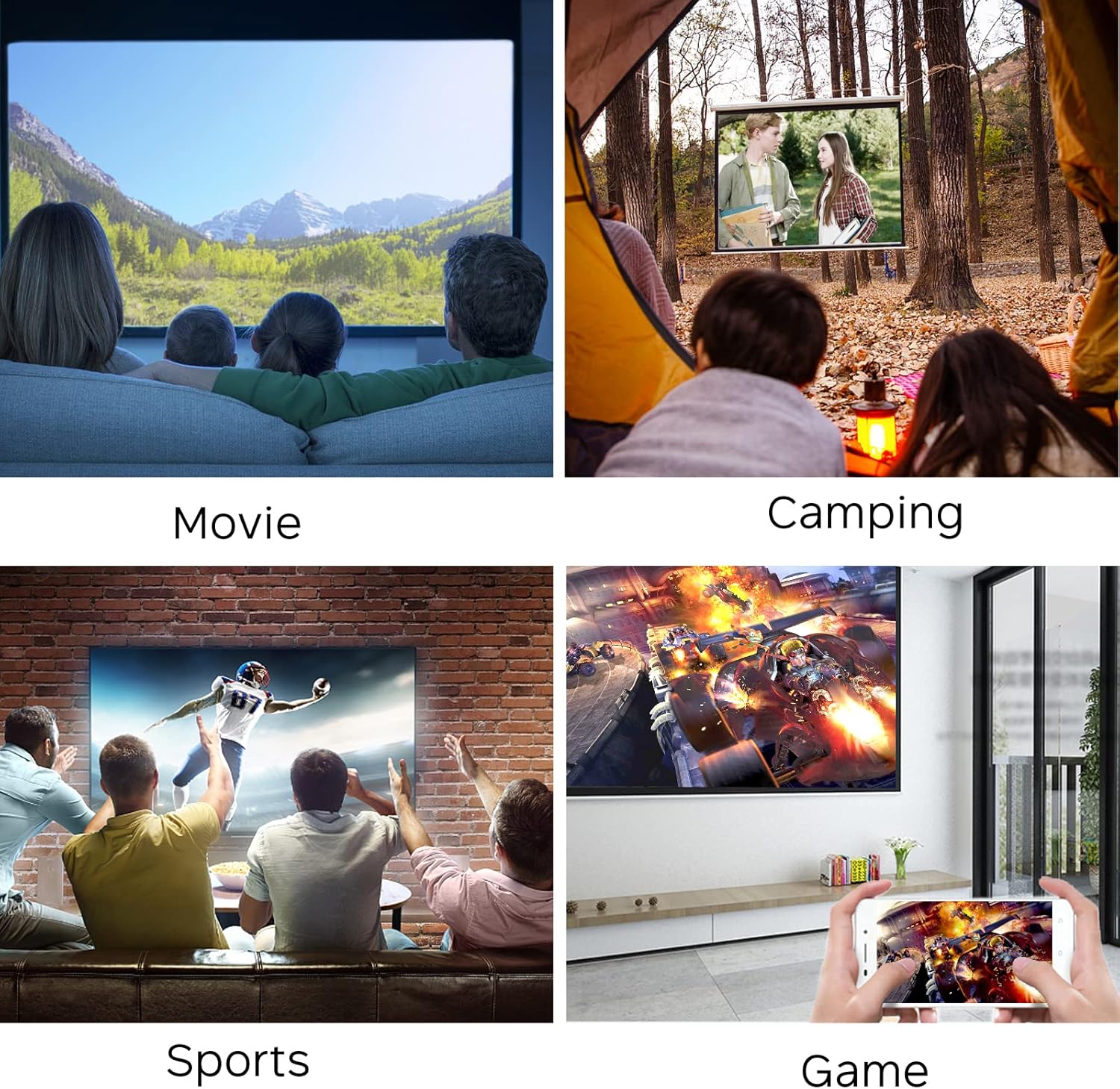
Image: Collage showing the projector being used for watching movies, camping, sports, and gaming.

Image: Further examples of projector use, including watching movies, friends party, playing games, sports livestreaming, and outdoor camping.
7. Manutenzjoni
- Tindif tal-Lenti: Uża drapp artab u mingħajr suf, iddisinjat speċifikament għal lentijiet ottiċi, biex timsaħ bil-mod il-lenti tal-proġettazzjoni. Tużax prodotti tat-tindif li joborxu jew forza eċċessiva.
- Tindif tal-vent: Regularly check and clean the ventilation openings to prevent dust buildup, which can affect performance and lead to overheating. Use a soft brush or compressed air.
- Ħażna: When not in use, store the projector in a cool, dry place, away from direct sunlight and extreme temperatures. Use the original packaging or a protective case if available.
8 Issolvi l-problemi
| Problema | Kawża Possibbli | Soluzzjoni |
|---|---|---|
| L-ebda immaġni pproġettata | Power not connected; Input source incorrect; Device not powered on. | Check power connection; Select correct input source (HDMI, USB, AV); Ensure connected device is on. |
| L-immaġni hija mċajpra | Focus not adjusted; Projector too far/close to screen. | Adjust the focus wheel; Reposition the projector within optimal distance. |
| L-ebda ħoss | Volum baxx wisq; Sikketjat; Apparat awdjo estern mhux imqabbad sew. | Increase volume; Unmute; Check external speaker/headphone connection. |
| Kwistjonijiet ta 'konnessjoni Wi-Fi | Incorrect password; Out of range; Network issues. | Re-enter password; Move closer to router; Restart router and projector. |
| Il-mirror tal-iskrin ma jaħdimx | Not on same Wi-Fi network; Device compatibility. | Ensure both devices are on the same Wi-Fi; Check device's mirroring function. |
9. Speċifikazzjonijiet
| Karatteristika | Dettall |
|---|---|
| Brand | MEER |
| Numru tal-Mudell | YG300Pro-WIFI |
| Piż tal-oġġett | 10 uqija |
| Dimensjonijiet tal-Prodott | 4.69 x 3.39 x 1.89 pulzieri |
| Karatteristiċi Speċjali | Kelliema |
| Tip ta' Kelliem | Stereo |
| Użi Rakkomandati | Ġewwa/Barra |
| Teknoloġija tal-Konnettività | HDMI, USB, AV, Micro SD, Wi-Fi |
| Riżoluzzjoni tal-Wiri | 1280 x 720 |
| Lamp Ħajja | Aktar minn 50,000 sigħat |

Image: Visual representation of key features including HiFi Stereo Speaker, Eye Protection, Sleep Timer Shutdown, and 50,000 Hours Lamp Ħajja.

Image: Illustrates the projector's ability to project up to 120 inches and various placement options (front, tripod, ceiling).
10. Garanzija u Appoġġ
The MEER YG300 Pro-WIFI Mini Projector comes with a standard manufacturer's warranty. Please refer to the warranty card included in your package for specific terms and conditions.
For technical support, troubleshooting assistance, or warranty claims, please contact MEER customer service through the retailer's platform or the official MEER website. Have your product model number and purchase details ready when contacting support.


