1. Introduzzjoni
Thank you for choosing the Dragonwar Dragon Shock 4 Wireless Controller. This manual provides detailed instructions to help you set up, operate, and maintain your controller for optimal performance across PlayStation 4, PC, and mobile devices. Please read this manual thoroughly before use.
2. Kontenut tal-Pakkett
Kun żgur li l-oġġetti kollha huma preżenti fil-pakkett:
- Dragonwar Dragon Shock 4 Wireless Controller
- Cable tal-Iċċarġjar tal-USB
- Manwal għall-Utent
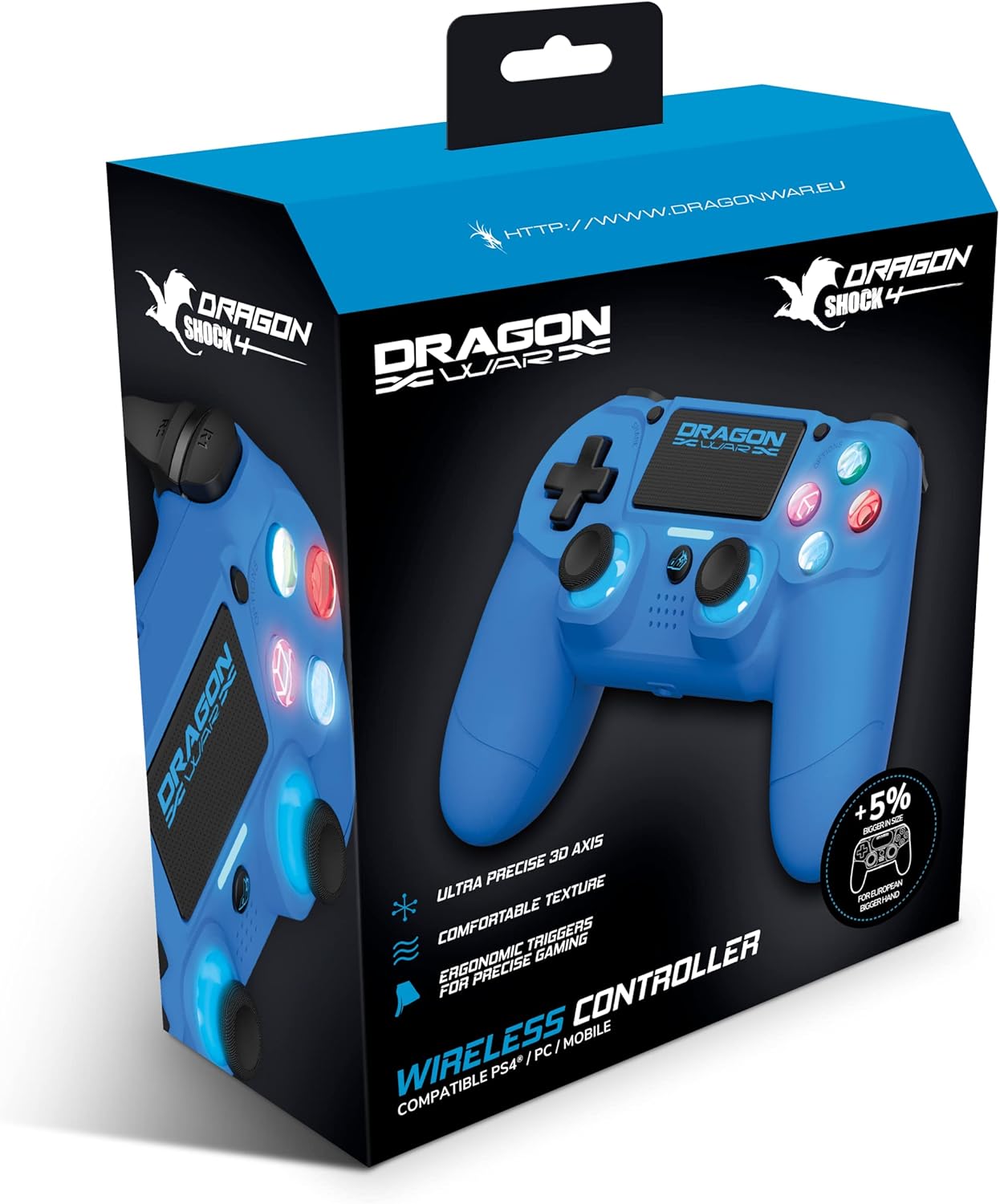
Image: The Dragonwar Dragon Shock 4 Wireless Controller packaging, showing the blue controller inside a blue and black box with product features listed.
3. Kontrollur Fuqview
Familiarize yourself with the various buttons and features of your Dragon Shock 4 controller:

Image: A detailed diagram of the Dragonwar Dragon Shock 4 Wireless Controller, highlighting and numbering its various buttons and components for easy identification.
- Left Joystick / L3 Button: Used for movement and as a clickable button.
- Buttuna tad-dar: Jixgħel/jitfi l-kontrollur u jaċċessa l-menus tas-sistema.
- 3.5mm Jack Play & Chat: For connecting a headset for audio and voice chat.
- Right Joystick / R3 Button: Used for camera control, aiming, and as a clickable button.
- Button (Cross): Buttuna ta' azzjoni.
- Button (Circle): Buttuna ta' azzjoni.
- Button (Triangle): Buttuna ta' azzjoni.
- Button (Square): Buttuna ta' azzjoni.
- Buttuna tal-Għażliet: Accesses in-game or system options.
- Touch Pad: Multi-touch input surface.
- Buttuna Share: Għall-qsim ta' kontenut tal-logħob.
- Up Button (D-Pad): Input direzzjonali.
- Right Button (D-Pad): Input direzzjonali.
- Left Button (D-Pad): Input direzzjonali.
- Down Button (D-Pad): Input direzzjonali.
- R1 Button: Right shoulder button.
- R2 Button: Right trigger button.
- L1 Button: Left shoulder button.
- L2 Button: Left trigger button.
- Port tal-Iċċarġjar: USB port for charging the controller.
4. Setup
4.1 Iċċarġjar inizjali
Before first use, fully charge the controller. Connect the supplied USB charging cable to the controller's charging port (20) and the other end to a powered USB port (e.g., PS4 console, PC, or USB wall adapter). The light bar will indicate charging status and turn off when fully charged.
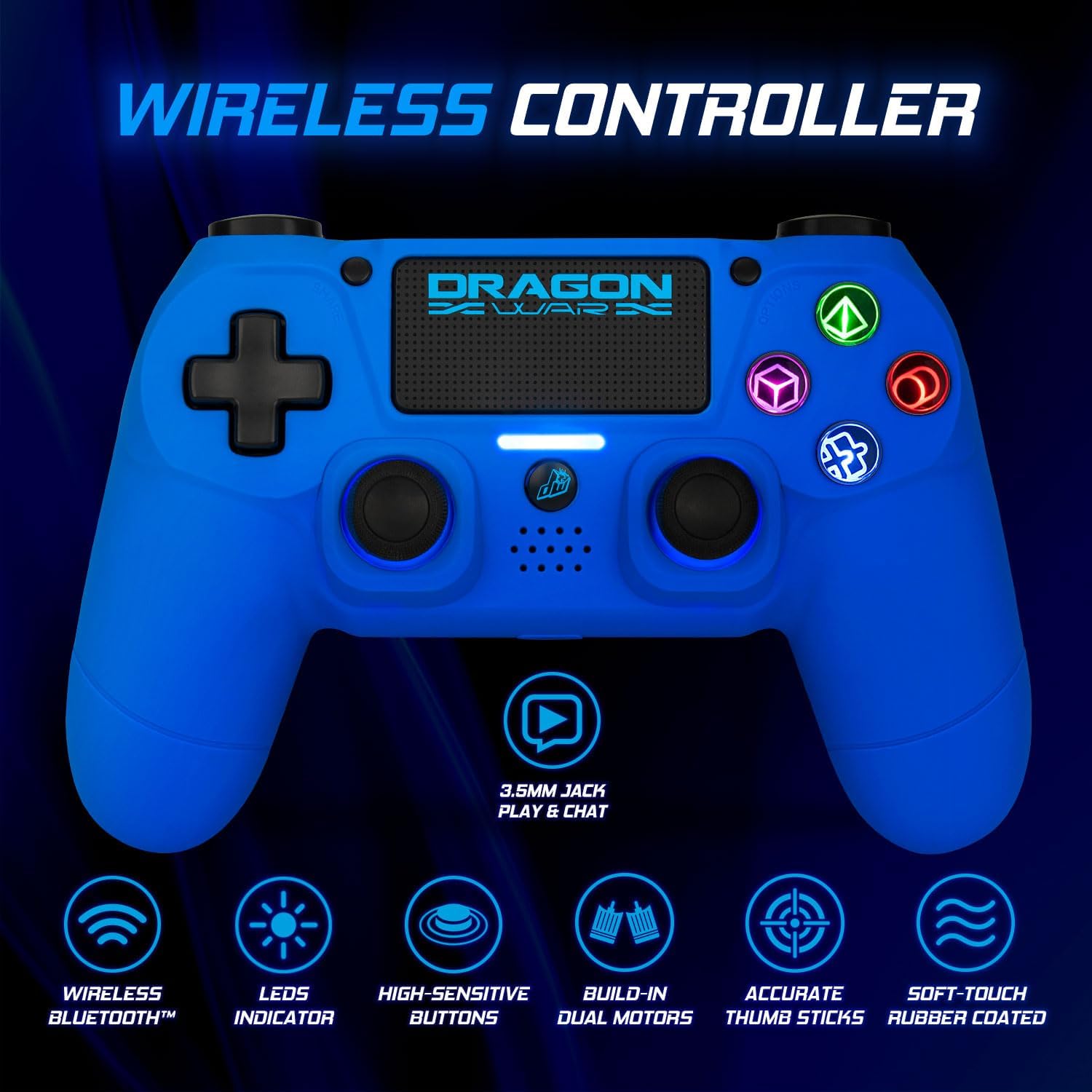
Image: The Dragonwar Dragon Shock 4 Wireless Controller displayed with text indicating "Long Battery Life" and a 500mAh battery, along with play time and charging time details.
4.2 Pairing with PlayStation 4
- Kun żgur li l-console tal-PS4 tiegħek hija mixgħula.
- Connect the controller to the PS4 console using the USB charging cable.
- Agħfas il- Buttuna tad-dar (2) on the controller.
- The controller will pair with the PS4. Once paired, you can disconnect the USB cable for wireless play.
- To pair additional controllers, repeat the process.
4.3 Konnessjoni mal-PC (Windows)
The controller can be connected to a PC via Bluetooth or USB cable.
4.3.1 Konnessjoni Bluetooth
- Kun żgur li l-PC tiegħek għandu l-Bluetooth attivat.
- Fuq il-PC tiegħek, mur Settings > Apparati > Bluetooth u apparati oħra.
- Żomm il- Ibda l-Buttuna (11) u l- Buttuna tad-dar (2) on the controller simultaneously until the light bar starts flashing rapidly. This indicates pairing mode.
- On your PC, click "Add Bluetooth or other device" and select "Bluetooth".
- Select the controller from the list of available devices (it may appear as "Wireless Controller" or similar).
- Segwi kwalunkwe struzzjonijiet fuq l-iskrin biex tlesti t-tqabbil.
4.3.2 Konnessjoni bil-Fili
- Qabbad il-kontrollur mal-PC tiegħek billi tuża l-kejbil tal-iċċarġjar USB.
- Il-PC għandu jiskopri u jinstalla awtomatikament id-drajvers meħtieġa.
4.4 Connecting to Mobile Devices
- Kun żgur li l-Bluetooth huwa attivat fuq it-tagħmir mobbli tiegħek.
- Żomm il- Ibda l-Buttuna (11) u l- Buttuna tad-dar (2) on the controller simultaneously until the light bar starts flashing rapidly.
- On your mobile device, go to Bluetooth settings and scan for new devices.
- Select the controller from the list of available devices.
- Segwi kwalunkwe struzzjonijiet fuq l-iskrin biex tlesti t-tqabbil.
5. Istruzzjonijiet Operattivi
5.1 Power On/Off
- Biex Tixgħel: Agħfas il- Buttuna tad-dar (2). The controller will attempt to connect to the last paired device.
- Biex Tifi: Żomm il- Buttuna tad-dar (2) for approximately 10 seconds until the light bar turns off. The controller will also power off automatically after a period of inactivity.
5.2 Using the Touch Pad
The touch pad (10) supports multi-touch input, allowing for various gestures depending on the game or application. Refer to specific game instructions for touch pad functionality.
5.3 Konnessjoni tal-headset
Connect a standard 3.5mm headset to the 3.5mm Jack Play & Chat (3) for in-game audio and voice communication.

Immaġni: Close-up view of the 3.5mm stereo audio jack located on the Dragonwar Dragon Shock 4 Wireless Controller, indicating its function for play and chat.
5.4 Funzjoni ta' Vibrazzjoni
The controller features dual vibration motors for enhanced haptic feedback during gameplay. This function is automatically enabled when supported by the game.
5.5 Precision Analog Sticks
The controller is equipped with high-precision analog sticks (1, 4) designed for accurate movement and aiming.

Image: A close-up of the Dragonwar Dragon Shock 4 Wireless Controller's analog sticks, emphasizing their precision for improved gaming accuracy and speed.
6. Manutenzjoni
6.1 Tindif
Biex tnaddaf il-kontrollur, uża drapp artab u niexef. Għal ħmieġ iebes, nixxef ftit.ampen the cloth with water. Do not use harsh chemicals, solvents, or abrasive cleaners, as these can damage the controller's finish and internal components.
6.2 Ħażna
Store the controller in a cool, dry place away from direct sunlight and extreme temperatures. Avoid placing heavy objects on the controller to prevent damage to buttons or joysticks.
7 Issolvi l-problemi
- Il-kontrollur mhux qed jixgħel: Ensure the controller is fully charged. Connect it to a power source using the USB cable.
- Il-kontrollur mhux qed jikkonnettja/jqabbad:
- For PS4: Try connecting with the USB cable first to re-establish the connection.
- For PC/Mobile: Ensure Bluetooth is enabled on your device and the controller is in pairing mode (flashing light bar). Remove previous pairings from your device's Bluetooth list and try again.
- Reset the controller: Locate the small reset button on the back of the controller (often a small hole near the L2 button). Use a thin object (like a paperclip) to press and hold the button for 3-5 seconds. Then, attempt to pair again.
- Buttuni jew joysticks ma jirrispondux:
- Kun żgur li l-kontrollur huwa konness sew.
- Restart the controller and the connected device (PS4, PC, mobile).
- Test the controller with another game or application to determine if the issue is specific to one program.
- Dewmien jew skonnessjoni fl-input:
- Ensure there are no obstructions or strong interference sources (e.g., Wi-Fi routers, other Bluetooth devices) between the controller and the connected device.
- Move closer to the connected device.
- Kun żgur li l-kontrollur huwa ċċarġjat kompletament.
8. Speċifikazzjonijiet
| Brand | Dragonwar |
| Numru tal-Mudell | GSPS4-BU |
| Kulur | Blu |
| Teknoloġija tal-Konnettività | Bluetooth |
| Apparati Kompatibbli | PlayStation 4, Windows, Mobile |
| Tip ta' Kontrollur | Gamepad |
| Sors tal-Enerġija | Imħaddem bil-batterija (500mAh) |
| Dimensjonijiet (L x W x H) | 17.5 x 20 x 8 ċm |
| Karatteristiċi Speċjali | Ergonomic Design, Wireless, Dual Vibration, 3.5mm Audio Jack, Touch Pad |
| Numru ta' Buttuni | 16 |
9. Garanzija u Appoġġ
9.1 Informazzjoni dwar Garanzija
This Dragonwar product comes with a Garanzija ta' 2 snin mill-manifattur mid-data tax-xiri. Din il-garanzija tkopri difetti fil-materjali u l-abbilità taħt użu normali. Ma tkoprix ħsara kkawżata minn użu ħażin, inċidenti, modifiki mhux awtorizzati, jew xedd u kedd normali. Jekk jogħġbok żomm il-prova tax-xiri tiegħek għal talbiet ta' garanzija.
9.2 Appoġġ għall-Klijent
For technical assistance, troubleshooting, or warranty inquiries, please visit the official Dragonwar website or contact their customer support service. Contact details can typically be found on the product packaging or the official brand websit.


