1. Introduzzjoni
This manual provides comprehensive instructions for the setup, operation, and maintenance of your MARKLIFE P11 Wireless Thermal Label Maker. The P11 is a compact, inkless label printer designed for various organization tasks in home, kitchen, and office environments. It utilizes thermal printing technology, eliminating the need for ink or toner.

Image 1.1: The MARKLIFE P11 Label Maker, its packaging, and included label rolls.
2. Setup
2.1 Tneħħija tal-kaxxa u Spezzjoni Inizjali
Neħħi bir-reqqa l-komponenti kollha mill-imballaġġ. Iċċekkja li l-oġġetti li ġejjin huma inklużi:
- Magna tat-Tikketti MARKLIFE P11
- Label rolls (quantity may vary based on package)
- Cable tal-iċċarġjar tal-USB
- Manwal ta 'Istruzzjoni (dan id-dokument)

Image 2.1: Contents of the MARKLIFE P11 package, including the label maker and various label rolls.
2.2 Iċċarġjar tal-Apparat
Before first use, ensure the label maker is fully charged. Connect the provided USB charging cable to the device and a compatible USB power source. The indicator light will show charging status and turn off when fully charged.
2.3 Tagħbija tar-Rombli tat-Tikketti
- Iftaħ l-għatu tal-magna tat-tikketti.
- Insert the label roll into the compartment, ensuring the printing side of the label faces upwards and the leading edge extends slightly out of the slot.
- Agħlaq l-għatu sew.

Image 2.2: Proper method for loading a label roll into the MARKLIFE P11, highlighting the thermal print head.
2.4 Tniżżil tal-App u Konnessjoni Bluetooth
The MARKLIFE P11 operates via a mobile application. Follow these steps to connect:
- Download the "Marklife" app from your device's app store.
- Turn on the MARKLIFE P11 label maker by pressing the power button.
- Ippermetti Bluetooth fuq l-ismartphone tiegħek.
- Open the Marklife app and search for available devices. Select "P11" or a similar device name to connect.

Image 2.3: The Marklife app interface and the P11 label maker, illustrating the Bluetooth connection process.

Image 2.4: The Marklife app in use, demonstrating label creation and examples of printed output, including a barcode 46745875478655.

Image 2.5: A visual guide to the three-step process for printing labels: app download, Bluetooth connection, and label editing.
3. Istruzzjonijiet Operattivi
3.1 Creating and Customizing Labels
The Marklife app offers extensive customization options for your labels:
- Test: Enter custom text, adjust font, size, and alignment.
- Data: Add dates in various formats.
- Fruntieri: Choose from a selection of decorative borders.
- Stikers: Incorporate various icons and graphics.
- Linji: Żid linji għal separazzjoni jew disinn.
- Kodiċi QR: Generate and print QR codes. Example: Sample QR Code
- Kodiċijiet tal-Barrijiet 1D: Create and print standard barcodes. Example: 46745875478655
- Graffiti/Picture: Import images or draw directly.

Immaġni 3.1: Dettaljata view of the Marklife app's label editing features, including options for text, dates, borders, stickers, QR codes, and 1D barcodes.

Image 3.2: The Marklife app provides a wide array of templates, supporting multiple languages, symbols, frames, and fonts for diverse label designs.
3.2 Stampar ta' Tikketti
Once your label design is complete in the Marklife app, tap the "Print label" button. The label maker will print your design using thermal technology. Ensure the label roll is correctly loaded and the device is connected via Bluetooth.
3.3 Teknoloġija tal-Istampar Termali
The MARKLIFE P11 uses direct thermal printing, which means it applies heat to specially coated thermal paper to create text and images. This technology eliminates the need for ink cartridges or toner, reducing operational costs and maintenance.

Image 3.3: The internal thermal printing mechanism of the P11, which operates without ink or toner.
3.4 Label Durability and Applications
MARKLIFE labels are designed for durability, featuring resistance to grease and scratches. They can also be removed without leaving residue.

Image 3.4: Demonstration of label durability, showing resistance to water, grease, and scratches, and clean removal.

Image 3.5: Labels are designed to be water-proof and oil-proof, suitable for various environments.
The P11 label maker is suitable for a wide range of applications:
- Organizzazzjoni tad-Dar: Tikkettar ta' kontenituri tal-ikel, kaxxi tal-ħażna, vażetti tal-ħwawar, u oġġetti personali.
- Organizzazzjoni tal-Uffiċċju: Jorganizza files, documents, office supplies, and asset tagging.
- Retail/Shop: Creating item tags, price labels, and barcodes.
- Użu Personali: Crafting, gift labeling, and school supplies.

Immaġni 3.6: Eż.amples of label usage in an office environment, including a badge with barcode 6953124066961.
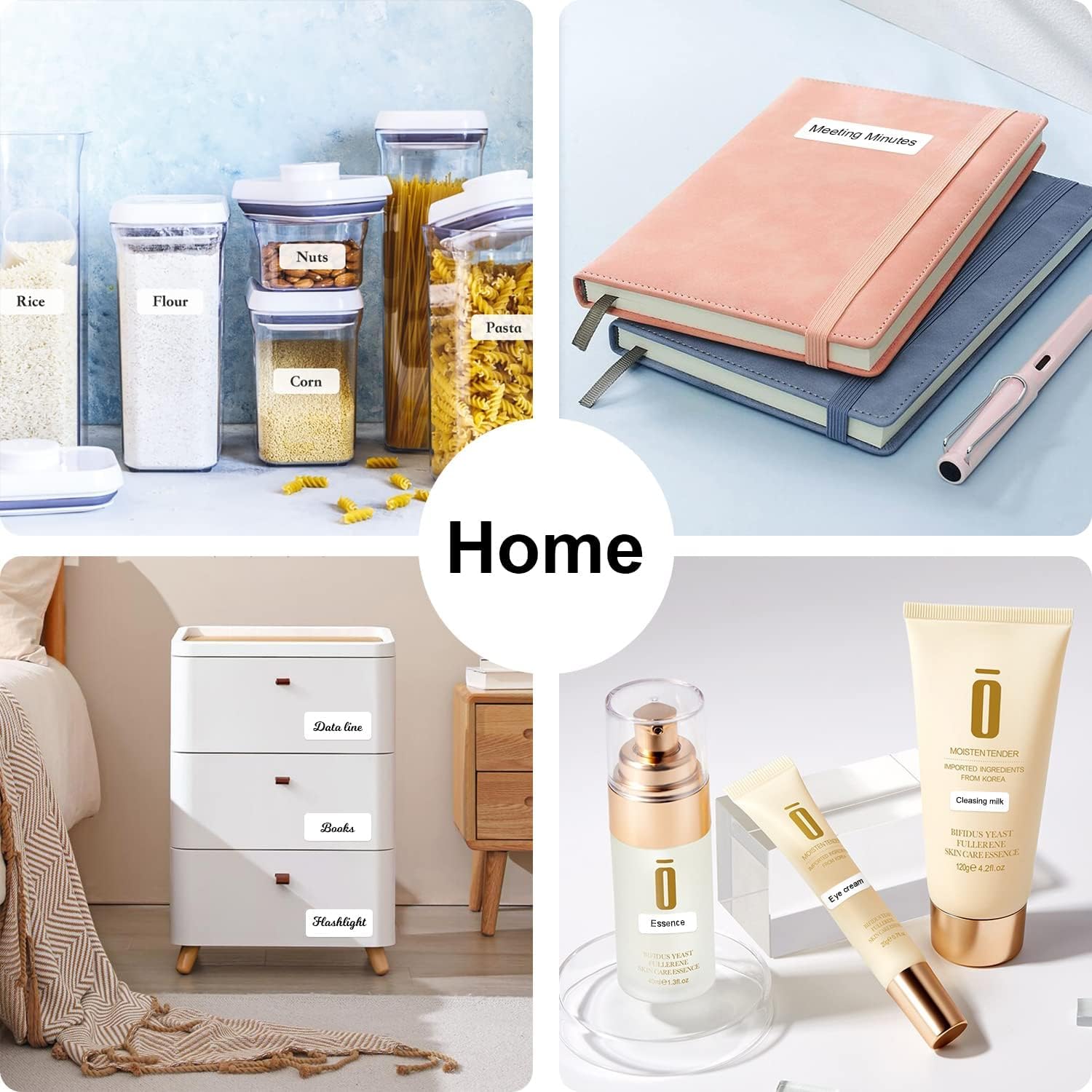
Immaġni 3.7: Eż.amples of label usage for home organization, such as on kitchen containers and storage drawers.

Image 3.8: Diverse applications of the P11 label maker, from kitchen organization to retail tagging and baby bottle labeling.

Image 3.9: Additional applications including school supplies, office documents, medical reminders, and craft projects.
4. Manutenzjoni
4.1 Tindif tar-Ras tal-Istampar
Biex tiżgura kwalità ottimali tal-istampar, naddaf ir-ras tal-istampar termali perjodikament. Uża drapp artab u mingħajr suf nixxef ħafif.ampened with isopropyl alcohol. Gently wipe the print head surface. Ensure the device is powered off and disconnected from any power source before cleaning.
4.2 Ħażna tar-Rombli tat-Tikketti
Store unused label rolls in a cool, dry place away from direct sunlight and excessive heat. This helps preserve the thermal coating and prevents premature discoloration or degradation of the labels.
5 Issolvi l-problemi
If you encounter issues with your MARKLIFE P11, refer to the following common problems and solutions:
| Problema | Kawża Possibbli | Soluzzjoni |
|---|---|---|
| L-apparat ma jixgħelx | Batterija baxxa jew problema ta' enerġija. | Charge the device using the USB cable. Ensure the power button is pressed firmly. |
| Ma tistax tikkonnettja permezz tal-Bluetooth | Bluetooth is off on phone/printer, app not detecting, or interference. |
|
| Poor print quality or blank labels | Incorrect label loading, dirty print head, or incompatible labels. |
|
| It-tikketti mhumiex qed jitimgħu sew | Label jam or incorrect roll placement. |
|
| L-app tiġġarraf jew tiffriża | Software bug, outdated app version, or device compatibility issue. |
|
6. Speċifikazzjonijiet
| Karatteristika | Dettall |
|---|---|
| Brand | MARKLIFE |
| Isem tal-Mudell | P11 |
| Teknoloġija tal-Istampar | Termali |
| Tip ta' linka tal-printer | Mingħajr linka |
| Konnettività | Bluetooth |
| Apparati Kompatibbli | Smartphones |
| Metodu ta' Kontroll | App, Touch |
| Output Printer | Monokromu |
| Piż tal-oġġett | 8.96 uqija (madwar 254 gramma) |
| Dimensjonijiet tal-Prodott | 5.5"D x 3.14"W x 1.18"Għ (madwar 14cm x 8cm x 3cm) |
| Karatteristika Speċjali | Portabbli, Wireless |
| Użi Speċifiċi | Dar, Uffiċċju |
7. Garanzija u Appoġġ
The MARKLIFE P11 Label Maker comes with a Garanzija Sħiħa. For specific details regarding warranty coverage, duration, and claims, please refer to the warranty card included in your product packaging or contact MARKLIFE customer support directly.
For technical assistance, troubleshooting not covered in this manual, or general inquiries, please visit the official MARKLIFE webis-sit jew ikkuntattja lid-dipartiment tas-servizz tal-konsumatur tagħhom. L-informazzjoni ta' kuntatt tipikament tista' tinstab fuq l-imballaġġ tal-prodott jew fuq il-preżenza uffiċjali online tal-marka.


