1. Introduzzjoni
The Elo 4303L 43-inch Touchscreen Signage display is designed for continuous commercial use, offering interactive capabilities for various environments. This manual provides essential information for setting up, operating, maintaining, and troubleshooting your device.
Il-karatteristiċi ewlenin jinkludu:
- 43-inch touch screen monitor with a sleek, slim design.
- TouchPro PCAP technology supporting up to 40 touches with fast and sensitive response time.
- Anti-friction glass to minimize heat during prolonged use.
- Designed for 24/7 operation in high-traffic locations.
- Flexible installation options: landscape, portrait, and tabletop orientations.
- Touch-thru functionality for installations requiring a protective layer.
2. Informazzjoni dwar is-Sigurtà
Please read all safety instructions before using this product. Failure to follow these instructions may result in electric shock, fire, or damage to the device.
- Tesponix l-apparat għax-xita jew l-umdità.
- Tiftaħx is-casing. Irreferi s-servizz kollu lil persunal kwalifikat.
- Żgura ventilazzjoni xierqa madwar il-wiri.
- Use only the power cord and adapters supplied by the manufacturer.
- Evita li tpoġġi oġġetti tqal fuq il-korda tad-dawl.
- Disconnect the power plug from the outlet if the device will not be used for a long period.
3. X'hemm fil-Kaxxa
Iċċekkja li l-oġġetti kollha huma preżenti fl-imballaġġ:
- 43-inch Interactive Display
- Gwida ta' Installazzjoni Mgħaġġla
- HDMI 2.0 cable (A to A)
- USB cable (A to C)
- Power cables (IEC 60320-C5 NA; EU/KR; UK)
- Serial 3.5mm male to Serial DB9 female cable
- Energy label according to EU Regulation 1062/2010
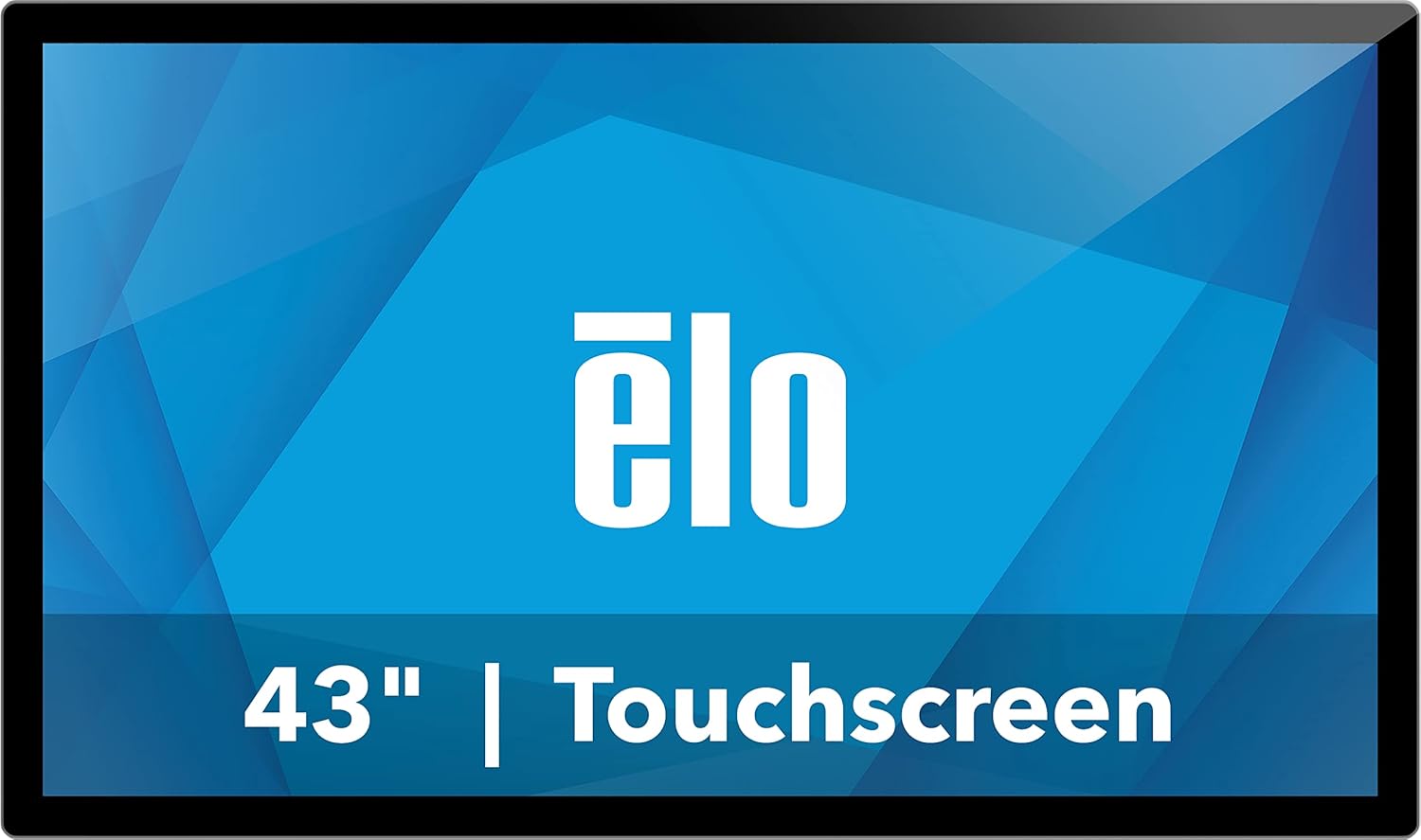
Figura 1: Quddiem view of the Elo 4303L 43-inch Touchscreen Signage display.
4. Setup
4.1 Installazzjoni Fiżika
The Elo 4303L can be mounted in various orientations. Ensure the mounting solution is compatible with VESA standards and can support the display's weight.
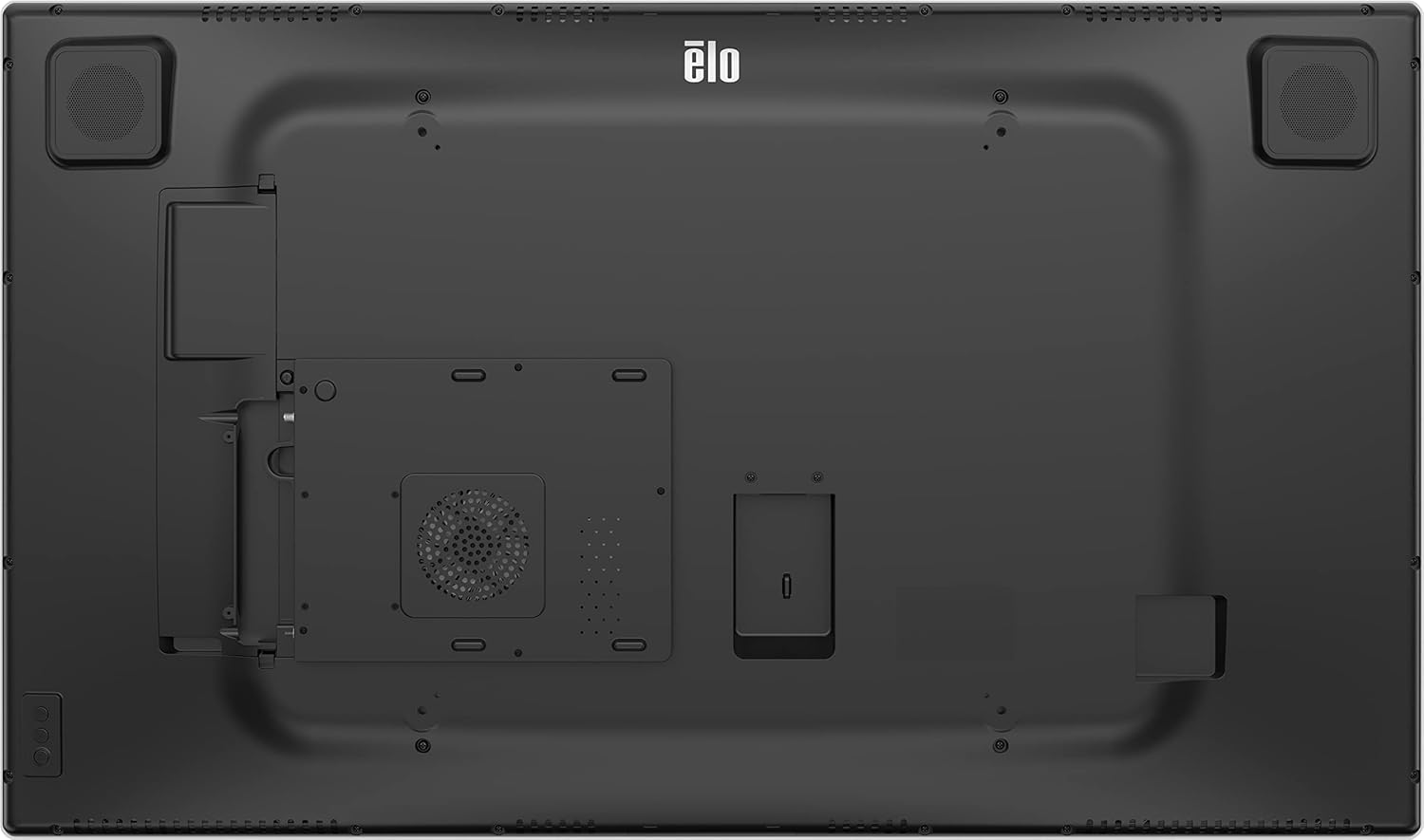
Figura 2: Wara view of the display with VESA mount points.
4.2 Kejbils tal-Konnessjoni
Connect the necessary cables for power, video, and touch functionality.
- Konnessjoni tal-Enerġija: Connect one end of the provided power cable to the display's power input and the other end to a grounded electrical outlet.
- Konnessjoni tal-vidjo: Use the HDMI 2.0 cable to connect your video source (e.g., PC, media player) to one of the HDMI input ports on the display.
- Konnessjoni tal-Mess: Connect the USB-A to USB-C cable from your computer's USB port to the display's USB-C port for touch functionality.
Video 1: This video demonstrates the unboxing and installation process, including connecting various cables to a similar 43-inch interactive display. It shows the rear port layout and how to connect power, video, and USB cables.
5. Istruzzjonijiet Operattivi
5.1 Power On/Off
Locate the power button, typically on the side or bottom bezel of the display. Press it to turn the display on or off.
5.2 Funzjonalità tal-Mess
The display supports up to 40 simultaneous touches. Ensure the USB touch cable is connected to your computer for touch input to function.
Video 2: This video illustrates the multi-touch capabilities and interactive whiteboard features of a similar touchscreen display, demonstrating smooth and responsive touch input.
5.3 Konnettività tan-Netwerk
If the display has built-in smart features or requires network access, connect it via Ethernet or Wi-Fi. Refer to the on-screen settings for network configuration.
5.4 Mirroring/It-Tixrid tal-Iskrin
The display may support screen mirroring from compatible devices. Consult the display's software interface for available casting options.
Video 3: This video demonstrates wireless screen mirroring functionality, showing how to connect a mobile device to a touchscreen display for content sharing.
6. Manutenzjoni
6.1 Tindif tal-Display
To clean the display, first power it off and disconnect the power cord. Use a soft, lint-free cloth lightly dampNaddaf il-ħġieġ b'deterġent li ma jobrox u li ma fihx ammonja. Tisprejjax id-deterġent direttament fuq l-iskrin.
6.2 Kura Ġenerali
Avoid exposing the display to extreme temperatures or humidity. Do not block ventilation openings. Handle the display with care to prevent physical damage.
7 Issolvi l-problemi
7.1 Ebda Qawwa
- Ensure the power cable is securely connected to both the display and the electrical outlet.
- Ivverifika li s-sokit elettriku qed jaħdem billi tqabbad apparat ieħor.
7.2 No Video Signal
- Check that the video cable (HDMI) is securely connected to both the display and the video source.
- Ensure the correct input source is selected on the display (if applicable).
- Verify the video source (e.g., PC) is powered on and functioning correctly.
7.3 Il-Funzjonalità tal-Mess Mhux Taħdem
- Confirm the USB touch cable is properly connected between the display and your computer.
- Restart your computer and the display.
- Check your computer's device manager for any issues with USB input devices.
8. Speċifikazzjonijiet
| Karatteristika | Dettall |
|---|---|
| Dimensjonijiet tal-Prodott | 44.95 x 7.31 x 32.01 pulzieri |
| Piż tal-oġġett | 41.8 liri |
| Manifattur | Elo Touch Solutions, Inc. |
| Numru tal-Mudell tal-Oġġett | E720629 |
| Daqs tal-Wiri tal-Iskrin Permanenti | 43 Pulzier |
| Proporzjon ta' l-aspett | 16:9 |
| Riżoluzzjoni | 1920 x 1080 (FHD 1080p) |
| Luminożità tal-Immaġni | 430 nits |
| Portijiet USB totali | 1 |
| Deskrizzjoni tal-wiċċ tal-iskrin | Tleqq |
9. Garanzija u Appoġġ
For warranty information, please refer to the documentation included with your product or visit the official Elo website. Technical support is available through the manufacturer's customer service channels.
You can find additional information and support resources on the Elo Store on Amazon.


