1. Introduzzjoni
This manual provides comprehensive instructions for the installation, operation, and maintenance of your TP-Link Archer C5 AC1200 Dual-Band Gigabit Wireless Wi-Fi Router. The Archer C5 is designed to provide seamless Wi-Fi coverage with its dual-band capabilities, offering speeds up to 750Mbps on the 5GHz band and up to 300Mbps on the 2.4GHz band. It features four external antennas for stable wireless connections and full Gigabit ports for high-speed wired connections.
Please read this manual carefully before using the device to ensure proper setup and optimal performance.
2. Kontenut tal-Pakkett
Ivverifika li l-pakkett tiegħek fih l-oġġetti li ġejjin:
- Router TP-Link Archer C5
- Power Adapter (DC Adapter)
- Kejbil Ethernet (RJ45)
- Quick Installation Guide (may be a separate document)
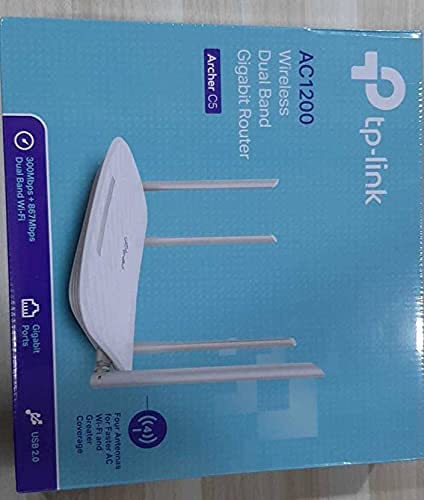
3. Prodott Aktarview
3.1 Panel ta 'Quddiem

The front panel features LED indicators that provide information about the router's status, including power, internet connectivity, Wi-Fi status for both 2.4GHz and 5GHz bands, and LAN port activity.
3.2 Panel ta 'wara

The rear panel includes all physical connection ports and buttons:
- Input ta' Enerġija: Jikkonnettja mal-adapter tal-enerġija pprovdut.
- Buttuna tal-Qawwa: Jixgħel jew jitfi r-router.
- Port USB: Għall-konnessjoni ta' apparati tal-ħażna USB biex taqsamhom files madwar in-netwerk.
- Port WAN (Blu): Connects to your modem for internet access. This is a Gigabit port.
- Portijiet LAN (Isfar): Erba' portijiet Gigabit Ethernet għall-konnessjoni ta' apparati bil-fili bħal kompjuters, consoles tal-logħob, jew smart TVs.
- Buttuna Irrisettja: Użat biex jirrestawra r-router għas-settings default tal-fabbrika.
- Buttuna WPS/Wi-Fi: Press to enable WPS (Wi-Fi Protected Setup) for easy connection, or press and hold to turn Wi-Fi on/off.
4. Gwida ta' Setup
Follow these steps to set up your TP-Link Archer C5 router:
- Itfi l-Modem Tiegħek: Skonnettja l-enerġija mill-modem eżistenti tiegħek.
- Qabbad ir-router:
- Connect one end of the provided Ethernet cable to the WAN port (blue) on your Archer C5 router.
- Qabbad it-tarf l-ieħor tal-kejbil Ethernet mal-port Ethernet tal-modem tiegħek.
- Apparat ta' Qawwa:
- Connect the power adapter to the router's power input and plug it into a power outlet.
- Power on your modem, then wait for it to fully boot up (usually indicated by stable LED lights).
- Power on the Archer C5 router. Wait for the LED indicators to stabilize, particularly the Internet LED.
- Connect to the Router's Wi-Fi Network:
- Sib l-isem tan-netwerk Wi-Fi (SSID) u l-password stampati fuq it-tikketta fil-qiegħ tar-router tiegħek.
- On your computer or mobile device, select the router's Wi-Fi network and enter the password to connect.
- Aċċess għall- Web Interface ta' Ġestjoni:
- Iftaħ a web browser (eż., Chrome, Firefox) u ittajpja
http://tplinkwifi.netor192.168.0.1fil-bar tal-indirizz. - Log in using the default username and password (usually
adminfor both, or as specified on the router label). - Follow the Quick Setup wizard to configure your internet connection and personalize your Wi-Fi network name and password.
- Iftaħ a web browser (eż., Chrome, Firefox) u ittajpja
- Optional: Use the TP-Link Tether App: Download the TP-Link Tether app from your mobile device's app store for easy setup and management.
5. Istruzzjonijiet Operattivi
Once your router is set up, you can manage its functions through the web management interface or the TP-Link Tether app.
Wi-Fi b'Doppju Banda 5.1
The Archer C5 operates on two Wi-Fi bands:
- Banda ta' 2.4 GHz: Jipprovdi kopertura usa' u penetrazzjoni aħjar mill-ħitan, adattat għall-użu ġenerali tal-internet u apparati eqdem.
- Banda ta' 5 GHz: Offers faster speeds and less interference, ideal for bandwidth-intensive activities like online gaming and HD video streaming.
You can configure separate SSIDs (network names) and passwords for each band or use a single SSID with Band Steering enabled (if available in your firmware) to allow the router to automatically assign devices to the best band.
5.2 Ġestjoni tan-Netwerk
Permezz tal- web interface, tista':
- Change Wi-Fi settings (SSID, password, security type).
- Set up a Guest Network for visitors.
- Configure parental controls to manage internet access for children.
- Prioritize devices or applications using Quality of Service (QoS).
- Immaniġġja l-apparati konnessi.
- Access advanced settings like port forwarding, VPN server, and dynamic DNS.
6. Manutenzjoni
Manutenzjoni regolari tgħin biex tiżgura l-lonġevità u l-prestazzjoni ottimali tar-router tiegħek.
- Aġġornamenti tal-Firmware: Iċċekkja perjodikament l-uffiċjal tat-TP-Link websit għal aġġornamenti tal-firmware. L-aġġornament tal-firmware jista' jtejjeb il-prestazzjoni, iżid karatteristiċi ġodda, u jirranġa vulnerabbiltajiet tas-sigurtà.
- Pożizzjonament Fiżiku: Place the router in a central location, away from obstructions and devices that emit electromagnetic interference (e.g., microwaves, cordless phones). Elevating the router can also improve signal distribution.
- Tindif: Keep the router clean and free from dust. Ensure ventilation holes are not blocked to prevent overheating.
- Rebooting: If you experience slow speeds or connectivity issues, try rebooting the router by unplugging its power adapter for 10 seconds and then plugging it back in.
7 Issolvi l-problemi
Din it-taqsima tindirizza kwistjonijiet komuni li tista' tiltaqa' magħhom bir-router Archer C5 tiegħek.
7.1 Ebda Aċċess għall-Internet
- Iċċekkja l-Konnessjonijiet tal-Cable: Ensure the Ethernet cable from your modem is securely connected to the router's blue WAN port.
- Status tal-Modem: Ivverifika li l-modem tiegħek qed jaħdem sew u għandu konnessjoni tal-internet attiva.
- LEDs tar-router: Check the Internet LED on the router. If it's off or red, there might be an issue with your internet service provider (ISP) or modem connection.
- Apparati ta' Reboot: Power cycle your modem and then your router.
- Klonazzjoni tal-Indirizz MAC: Xi ISPs jeħtieġu l-ikklonjar tal-indirizz MAC. Aċċessa r-router web interface and check WAN settings for this option.
7.2 Wi-Fi Signal Drops or is Weak
- Pożizzjonament tar-Router: Mexxi r-router f'post ċentrali, 'il bogħod minn ostakli u sorsi ta' interferenza.
- Orjentazzjoni tal-antenna: Aġġusta l-erba' antenni esterni għal riċeviment ottimali tas-sinjal.
- Interferenza tal-Kanal: Fir-router web interface, try changing the Wi-Fi channel for both 2.4GHz and 5GHz bands to a less congested one.
- Aġġornament tal-Firmware: Kun żgur li l-firmware tar-router tiegħek huwa aġġornat.
7.3 Forgot Router Login Password
Jekk tinsa l-password għall- web management interface, you will need to reset the router to its factory default settings. Locate the Reset button on the rear panel, press and hold it for about 10 seconds until the LEDs flash, then release. The router will reboot with default settings (usually admin for username and password).
8. Speċifikazzjonijiet
| Karatteristika | Dettall |
|---|---|
| Brand | TP-Link |
| Isem tal-Mudell | ArcherC5 |
| Standard Wireless | IEEE 802.11ac/n/a 5 GHz, IEEE 802.11n/b/g 2.4 GHz |
| Veloċità Wi-Fi | AC1200 (867 Mbps fuq 5 GHz, 300 Mbps fuq 2.4 GHz) |
| Klassi ta' Banda ta' Frekwenza | Faxxa doppja (2.4 GHz u 5 GHz) |
| Portijiet Ethernet | 1x Gigabit WAN Port, 4x Gigabit LAN Ports |
| Port USB | 1x USB 2.0 Port |
| Antenni | 4x Antenni Esterni |
| Protokoll ta 'Sigurtà | WPA2-PSK |
| Sistema Operattiva | RouterOS (as per product data, typically TP-Link custom firmware) |
| Karatteristika Speċjali | Aċċess mill-bogħod |
| Piż tal-oġġett | 710 g |
| Komponenti Inklużi | Router, DC Adapter, RJ45 Ethernet Cable |
9. Garanzija u Appoġġ
9.1 Informazzjoni dwar Garanzija
The TP-Link Archer C5 router typically comes with a 1 Snin Garanzija. Please refer to the warranty card included in your product packaging or visit the official TP-Link websit għal termini u kundizzjonijiet dettaljati tal-garanzija speċifiċi għar-reġjun tiegħek.
9.2 Appoġġ Tekniku
For technical assistance, firmware updates, or further information, please visit the official TP-Link support website. You can usually find FAQs, troubleshooting guides, and contact information for customer support there.
TP-Link Official Websit: www.tp-link.com


