1. Introduzzjoni
This manual provides detailed instructions for the installation, operation, and maintenance of your BrosTrend WiFi 6 AX1800Mbps USB WiFi Adapter (Model AX1). This device is designed to upgrade your PC, laptop, or desktop to the latest WiFi 6 standard, offering faster speeds and improved network efficiency. It supports Windows 11 and Windows 10 operating systems only.
2. Informazzjoni dwar is-Sigurtà
- Tesponix l-apparat għall-ilma jew għal umdità eċċessiva.
- Evita temperaturi estremi.
- Tippruvax tiżżarma jew issewwi l-apparat int stess. Irreferi għal persunal tas-servizz kwalifikat.
- Żomm fejn ma jintlaħaqx mit-tfal.
- Kun żgur li jkun hemm ventilazzjoni xierqa meta tkun qed tużah.
3. Kontenut tal-Pakkett
Ivverifika li l-pakkett tiegħek fih l-oġġetti li ġejjin:
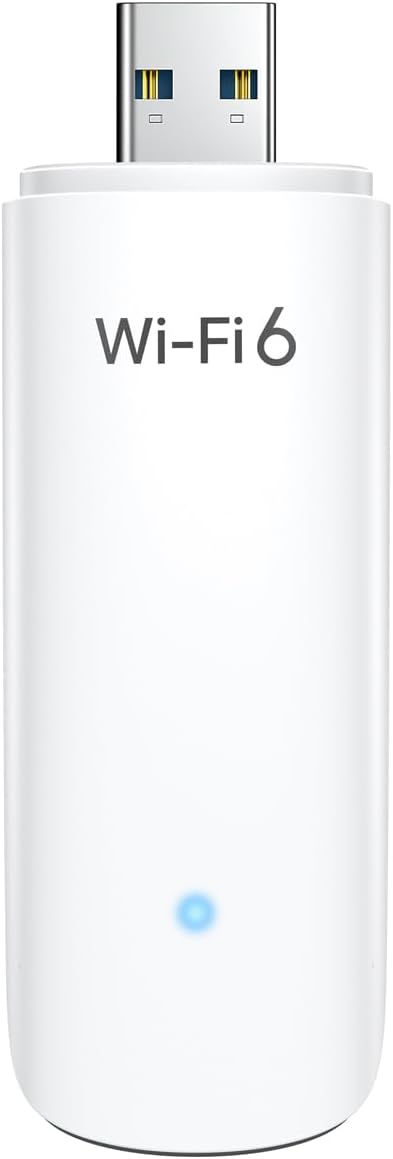
- 1 x BrosTrend AX1800Mbps USB WiFi 6 Adapter (Model AX1)
- 1 x Gwida ta 'Installazzjoni Mgħaġġla
4. Setup u Installazzjoni
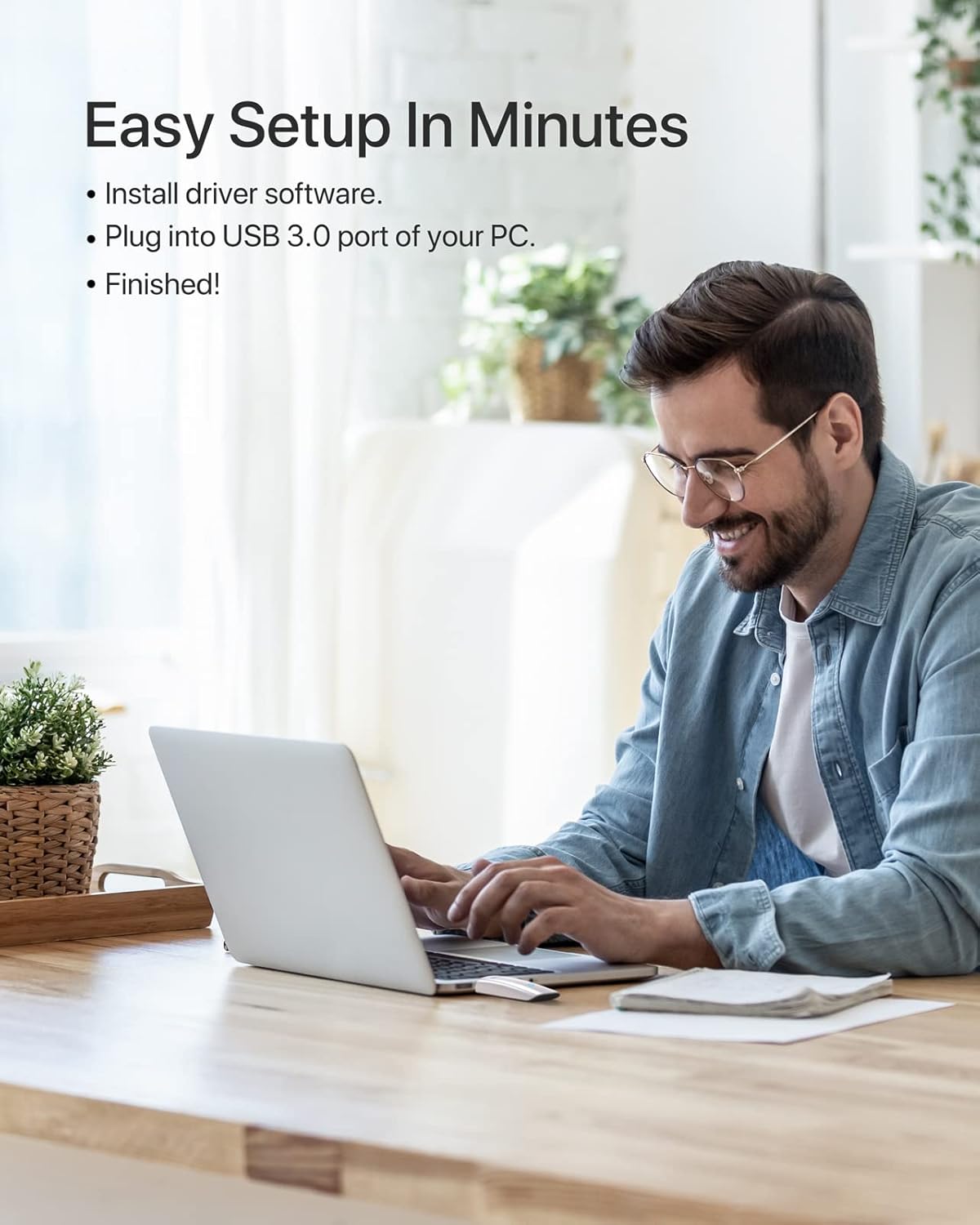
Follow these steps to install your BrosTrend WiFi 6 USB Adapter:
- Rekwiżiti tas-Sistema: Ensure your computer is running Windows 11 or Windows 10. Linux operating systems are not supported.
- Installazzjoni tas-sewwieq: The adapter comes with a pre-loaded driver. When you plug it into your computer for the first time, the system should automatically detect the device and initiate driver installation. If automatic installation does not occur, you may need to access the adapter's internal storage (which appears as a virtual CD-ROM drive) and run the setup executable.
- Qabbad l-Adapter: Insert the BrosTrend AX1800Mbps USB WiFi 6 Adapter into an available USB 3.0 port on your PC, laptop, or desktop. For optimal performance, use a USB 3.0 port (typically blue inside).
- Ivverifika l-Installazzjoni: After installation, a new wireless network adapter should appear in your computer's Device Manager. The blue LED indicator on the adapter will illuminate when it is properly connected and functioning.

5. Istruzzjonijiet Operattivi
Ladarba l-adapter ikun installat, tista' tikkonnettja ma' netwerk mingħajr fili:
- Aċċess għas-Settings tan-Netwerk: Click on the Wi-Fi icon in your system tray (usually in the bottom-right corner of your screen).
- Agħżel Netwerk: Tidher lista ta' netwerks mingħajr fili disponibbli. Agħżel in-netwerk mixtieq tiegħek (SSID).
- Qabbad: Ikklikkja "Qabbad" u daħħal iċ-ċavetta tas-sigurtà tan-netwerk (password) jekk tintalab.
- Operazzjoni Doppja Banda: The adapter supports both 5GHz and 2.4GHz bands. For higher speeds and less interference, connect to a 5GHz network if available. For broader coverage, the 2.4GHz band is suitable.
- Karatteristiċi Avvanzati: The adapter utilizes UL/DL MU-MIMO and OFDMA technologies for improved network throughput and efficiency, especially in environments with multiple devices. Beamforming technology enhances signal strength and coverage.


6. Manutenzjoni
Biex tiżgura l-lonġevità u l-prestazzjoni ottimali tal-adapter tiegħek:
- Żomm l-adapter nadif u ħieles mit-trab. Uża drapp artab u niexef għat-tindif.
- Evita impatt fiżiku jew li twaqqa’ l-apparat.
- When not in use, you may unplug the adapter and store it in a safe place. The adapter includes a protective cap for the USB connector.
- Periodically check the BrosTrend website for updated drivers, although the pre-loaded driver is generally sufficient.

7 Issolvi l-problemi
If you encounter issues with your BrosTrend WiFi 6 USB Adapter, consider the following:
- Adapter Not Detected / No Indicator Light:
- Ensure the adapter is fully inserted into a USB 3.0 port.
- Ipprova port USB differenti fuq il-kompjuter tiegħek.
- Ibda mill-ġdid il-kompjuter tiegħek.
- Verify that your operating system is Windows 11 or Windows 10.
- Slow Speeds / Frequent Disconnections:
- Ensure you are connected to a 5GHz network if available and within range for optimal speed.
- Check for obstacles between your computer and the wireless router.
- Aġġorna l-firmware tar-router tiegħek.
- Temporarily disable any VPN or firewall software to see if it resolves the issue.
- Reinstall the adapter drivers.
- Kwistjonijiet fl-Installazzjoni tas-Sewwieq:
- If the driver does not install automatically, open "This PC" or "My Computer", locate the virtual CD-ROM drive associated with the adapter, and run the setup file.
- Ensure your antivirus software is not blocking the driver installation.
- Download the latest drivers from the official BrosTrend support websit jekk meħtieġ.
8. Speċifikazzjonijiet
| Karatteristika | Dettall |
|---|---|
| Numru tal-Mudell | AX1 |
| Standard Wireless | IEEE 802.11ax (WiFi 6) |
| Rata ta' Trasferiment tad-Data | Sa 1800Mbps (1201Mbps fuq 5GHz, 574Mbps fuq 2.4GHz) |
| Meded ta' Frekwenza | 2.4GHz u 5GHz (Banda Doppja) |
| Interface | USB 3.0 |
| Sistemi Operattivi Kompatibbli | Windows 11, Windows 10 (Linux NOT supported) |
| Tip ta' Antenna | Internal On-Board Antennas |
| Dimensjonijiet (L x W x H) | 3.62 x 1.18 x 0.51 pulzieri (9.2 x 3.0 x 1.3 ċm) |
| Piż tal-oġġett | 0.635 uqija (18 Grammi) |
| Kulur | Abjad |
| Karatteristiċi Avvanzati | UL/DL MU-MIMO, OFDMA, Beamforming, WPA3 Encryption |
9. Garanzija u Appoġġ
BrosTrend products come with a manufacturer's warranty. Please refer to the official BrosTrend website or the Quick Installation Guide for specific warranty terms and conditions.
For technical support, driver downloads, or further assistance, please visit the BrosTrend support page or contact their customer service. Contact information is typically provided in the Quick Installation Guide or on the official BrosTrend websit.
Appoġġ onlajn: www.brostrend.com/support (Eżampil-link, jekk jogħġbok ivverifika l-appoġġ attwali URL)


