1. Prodott Aktarview
The NETVUE Sentry 2 is a 1080P outdoor security camera designed to provide comprehensive surveillance for your home. It features advanced functionalities such as 360° pan and 110° tilt for wide area coverage, real-time motion and human detection, two-way audio communication, and enhanced night vision capabilities. Its IP66 weatherproof rating ensures reliable performance in various outdoor conditions.
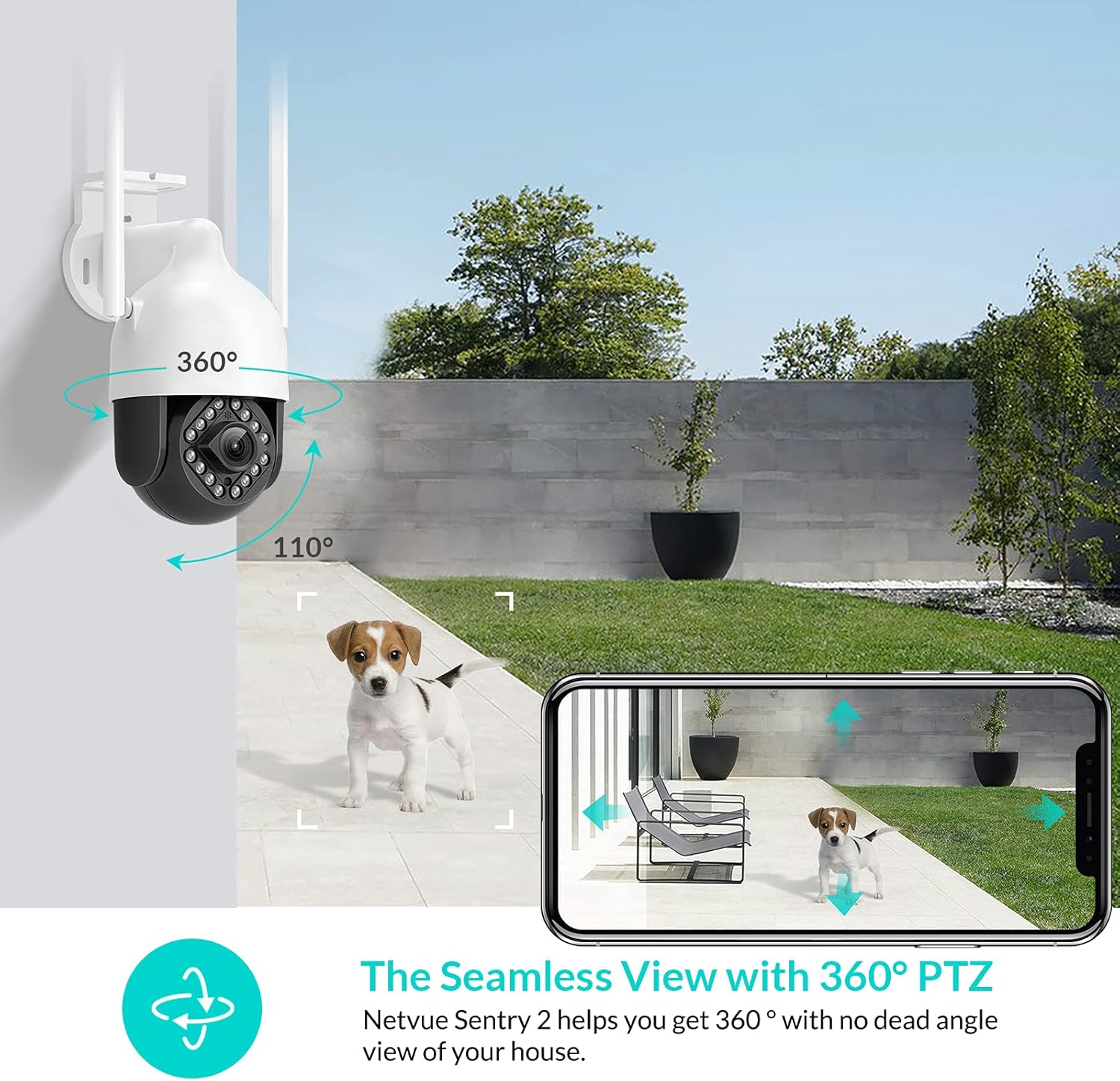
Image: NETVUE Sentry 2 Outdoor Security Camera showcasing its 360° pan and 110° tilt view.
2. X'hemm fil-Kaxxa
Upon unboxing your NETVUE Sentry 2 camera, please verify that all components are present:
- NETVUE Sentry 2 Outdoor Security Camera
- Adapter tal-Enerġija
- Bracket tal-Immuntar
- Viti tal-Immuntar u Ankri tal-Ħajt
- Waterproof Kit for Cable Connections
- Manwal għall-Utent (dan id-dokument)
For a visual guide on the product and its components, please refer to the official product video below:
Video: Official Netvue Outdoor Security Camera Sentry 2 overview, including unboxing and installation steps.
3. Setup u Installazzjoni
3.1 Tixgħel
- Qabbad l-adapter tal-enerġija mad-dħul tal-enerġija tal-kamera.
- Ipplaggja l-adapter tal-enerġija fi żbokk elettriku standard.
- Wait for the camera to power on and initiate its self-test.
3.2 Tniżżil tal-App u Ħolqien ta' Kont
- Download the official NETVUE app from your device's app store (iOS or Android).
- Iftaħ l-app u oħloq kont ġdid, jew idħol jekk diġà għandek wieħed.
3.3 Konnessjoni Wi-Fi
The NETVUE Sentry 2 camera supports 2.4GHz Wi-Fi networks. Ensure your mobile device is connected to a 2.4GHz Wi-Fi network during the setup process.
- In the NETVUE app, tap 'Add Device' and select your camera model.
- Follow the on-screen instructions to connect the camera to your Wi-Fi network. This typically involves scanning a QR code generated by the app with the camera lens.

Image: NETVUE Sentry 2 camera demonstrating stable Wi-Fi connection in distance.
3.4 Installazzjoni Fiżika
Choose a suitable outdoor location for mounting the camera, ensuring it has a clear view and is within Wi-Fi range. The camera is IP66 weatherproof, suitable for various outdoor conditions.
- Use the mounting bracket as a template to mark drill holes on the desired surface.
- Drill it-toqob u daħħal l-ankri tal-ħajt.
- Waħħal il-bracket tal-immuntar mal-wiċċ billi tuża l-viti pprovduti.
- Waħħal il-kamera mal-bracket tal-immuntar.
- Ensure all cable connections are properly sealed using the waterproof kit to prevent water ingress.
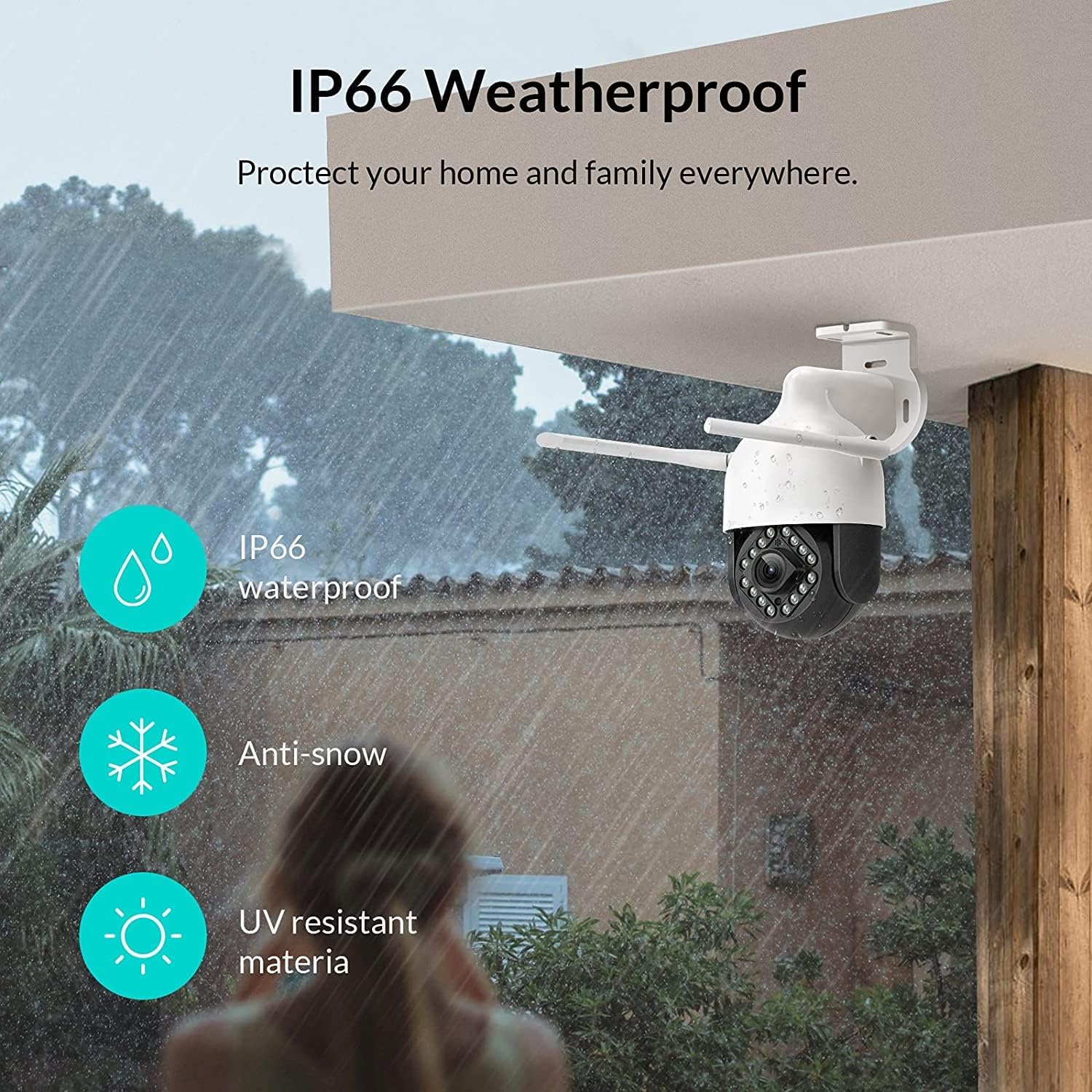
Image: NETVUE Sentry 2 camera highlighting its IP66 weatherproof features against rain and snow.
4. It-tħaddim tal-Kamera
4.1 Ħaj View u Kontroll Pan/Tilt
Access the live video feed from your camera through the NETVUE app. You can remotely control the camera's pan (horizontal) and tilt (vertical) movements to adjust the viewing angolu kif meħtieġ.
4.2 Motion and Human Detection
The camera is equipped with motion and human detection capabilities. When motion or a human figure is detected, you will receive immediate notifications on your mobile device.

Image: Real-time motion detection alert displayed on a smartphone from the NETVUE Sentry 2 camera.

Image: Motion and human detection alert from the NETVUE Sentry 2 camera, showing a person at the front door.
4.3 Awdjo b'żewġ direzzjonijiet
Utilize the two-way audio feature to communicate with individuals near the camera. This is useful for interacting with visitors or deterring unwanted guests.

Image: Two-way audio feature of the NETVUE Sentry 2 camera, allowing communication with a delivery person.
4.4 Viżjoni bil-lejl
The NETVUE Sentry 2 camera is equipped with 16 infrared lights for super night vision, providing clear video footaganke f'dawl baxx jew fid-dlam totali.

Image: Close-up of the NETVUE Sentry 2 camera's 16 infrared lights for super night vision.
5. Manutenzjoni
5.1 Tindif tal-Kamera
Periodically clean the camera lens and housing to ensure optimal performance. Use a soft, damp drapp biex timsaħ it-trab u l-ħmieġ. Evita li tuża kimiċi ħarxa jew materjali li joborxu li jistgħu jagħmlu ħsara lill-lenti jew lill-finitura.
5.2 Aġġornamenti tal-Firmware
Regularly check the NETVUE app for available firmware updates. Keeping your camera's firmware up-to-date ensures you have the latest features, security enhancements, and bug fixes.
5.3 Ġestjoni tal-Ħażna
The camera supports local storage via a microSD card (not included) and cloud storage options. If using a microSD card, ensure it is properly formatted and regularly check its status within the app to prevent recording issues.
6 Issolvi l-problemi
6.1 Kwistjonijiet ta' Konnessjoni tal-Wi-Fi
- Ensure 2.4GHz Wi-Fi: The camera only supports 2.4GHz Wi-Fi. Confirm your router is broadcasting a 2.4GHz signal and your phone is connected to it during setup.
- Qawwa tas-Sinjal: Verify the camera is installed within a strong Wi-Fi signal range. Relocate the camera or use a Wi-Fi extender if necessary.
- Settings tal-router: Check your router settings for any restrictions that might prevent new devices from connecting.
6.2 SD Card Not Detected or Recording
- Reinsert SD Card: Power off the camera, remove the microSD card, and reinsert it firmly. Power the camera back on.
- Format SD Card: Format the SD card through the NETVUE app. If issues persist, try a different, high-quality microSD card.
- Iċċekkja l-issettjar tal-app: Ensure recording settings are correctly configured in the NETVUE app.
6.3 No Motion Alerts
- Ippermetti Twissijiet: Confirm motion detection and notification alerts are enabled in the NETVUE app settings.
- Aġġusta s-Sensittività: Adjust the motion detection sensitivity to an appropriate level.
- Iċċekkja l-Iskeda: Ensure motion detection is not disabled during specific times via a schedule.
6.4 Kwistjonijiet Ġenerali
- Restart Camera: Disconnect the power adapter, wait 10 seconds, and reconnect it to restart the camera.
- Aġġorna l-App: Ensure your NETVUE app is updated to the latest version.
7. Speċifikazzjonijiet
| Apparati Kompatibbli | Monitor tal-Vidjo |
| Sors tal-Enerġija | AC/DC |
| Protokoll tal-Konnettività | Wi-Fi |
| Tip ta' Kontrollur | Iris |
| Tip ta 'Immuntar | Mount Wall |
| Riżoluzzjoni tal-Qbid tal-Vidjo | 1080p |
| Numru ta' Oġġetti | 1 |
| Numru ta 'Kanali | 1 |
| Teknoloġija tal-Komunikazzjoni mingħajr Fili | Wi-Fi |
| Batteriji Meħtieġa? | Nru |
| Teknoloġija tad-Dawl Baxx | Kulur bil-lejl |
| Tip ta 'Twissija | Mozzjoni Biss |
| Tip ta' Sors tad-Dawl | Infra-aħmar |
| Format tal-Qbid tal-Vidjo | MPEG-4 |
| Għadd ta' Unitajiet | 1.0 Għadd |
| Klassifikazzjoni tal-Protezzjoni Internazzjonali | IP66 |
| Dimensjonijiet tal-Pakkett | 11.3 x 6.1 x 5.91 pulzieri |
| Piż tal-oġġett | 2.12 liri |
| Użi Rakkomandati Għall-Prodott | Sigurtà ta 'barra |
| Użu fuq ġewwa/barra | Barra |
8. Garanzija u Appoġġ
For warranty information and technical support, please refer to the official NETVUE website or contact NETVUE customer service directly. Keep your purchase receipt for warranty claims.


