1. Introduzzjoni
This manual provides detailed instructions for the setup, operation, and maintenance of your CHERRY DW 9100 Slim Wireless Keyboard and Mouse Set. This rechargeable desktop set offers both 2.4 GHz wireless and Bluetooth connectivity, featuring a slim design and silent keystroke SX Scissor Mechanism for comfortable and efficient use in various environments.

Image 1.1: The CHERRY DW 9100 Slim Wireless Keyboard and Mouse Set, including the USB nano receiver.
2. Kontenut tal-Pakkett
Jekk jogħġbok iċċekkja l-kontenut tal-pakkett meta tiftaħ il-kaxxa biex tiżgura li l-komponenti kollha huma preżenti:
- CHERRY DW 9100 Slim Wireless Keyboard
- CHERRY DW 9100 Slim Wireless Mouse
- Riċevitur Nano USB
- Cable tal-Iċċarġjar tal-USB-C
- Manwal għall-Utent (dan id-dokument)
3. Setup
3.1 Iċċarġjar tal-Apparati
Both the keyboard and mouse are equipped with rechargeable lithium batteries.
- Connect the supplied USB-C charging cable to the USB-C port on the keyboard and mouse.
- Connect the other end of the cable to a powered USB port (e.g., computer, USB wall adapter).
- The status LED on each device will indicate the charging status. A full charge is indicated when the LED changes color or turns off (refer to Section 4.3 for LED indicators).
3.2 Connecting via 2.4 GHz Wireless
For a stable and fast wireless connection, use the included USB nano receiver.
- Locate the USB nano receiver.
- Ipplaggja r-riċevitur nano USB f'port USB disponibbli fuq il-kompjuter tiegħek.
- On both the keyboard and mouse, locate the connectivity switch. Set the switch to the 2.4 GHz position (often indicated by a receiver icon or "RF").
- The devices should automatically connect to your computer.
3.3 Konnessjoni permezz tal-Bluetooth
The set supports Bluetooth connectivity for devices that have Bluetooth capabilities.
- On both the keyboard and mouse, locate the connectivity switch. Set the switch to the Bluetooth position (often indicated by a Bluetooth icon).
- On your computer or device, open the Bluetooth settings.
- Initiate the pairing process on your device. The keyboard and mouse should appear in the list of discoverable devices (e.g., "CHERRY DW 9100 Keyboard", "CHERRY DW 9100 Mouse").
- Select each device to pair them. Follow any on-screen prompts, such as entering a pairing code for the keyboard.
Nota: The keyboard and mouse can be paired with multiple Bluetooth devices. Use the connectivity switch to toggle between paired devices or 2.4 GHz mode.
4. Istruzzjonijiet Operattivi
4.1 Funzjonijiet tat-Tastiera
The CHERRY DW 9100 Slim Keyboard features a full-size layout with an SX Scissor Mechanism for silent and precise keystrokes.
- Ċwievet Standard: All standard alphanumeric and symbol keys function as expected.
- Ċwievet tal-Funzjoni (F1-F12): These keys may have secondary functions (e.g., media control, volume, brightness) accessible by pressing the Fn key simultaneously. Refer to your operating system's settings for specific function key behavior.
- Tastiera numerika: Provides dedicated number entry.

Immaġni 4.1: Proġett tal-ġenbfile of the CHERRY DW 9100 Slim Keyboard, highlighting its thin design.

Image 4.2: Visual representation of the CHERRY SX Scissor Mechanism, responsible for silent and precise keystrokes.
4.2 Funzjonijiet tal-Maws
The CHERRY DW 9100 Slim Mouse features 6 buttons and a scroll wheel for versatile navigation.
- Ikklikkja fuq ix-Xellug/Lemin: Buttuni standard tal-maws.
- Scroll Wheel: For vertical scrolling and as a middle click button.
- Buttuni tal-ġenb: Tipikament użat għal navigazzjoni 'l quddiem/lura fi web browsers.
- Swiċċ DPI: A button, usually near the scroll wheel, allows adjustment of the mouse's sensitivity (DPI - Dots Per Inch). Pressing this button cycles through different DPI settings, indicated by the mouse's status LED.

Immaġni 4.3: Fuq view of the CHERRY DW 9100 Slim Mouse, showing the left/right click buttons, scroll wheel, and DPI switch.
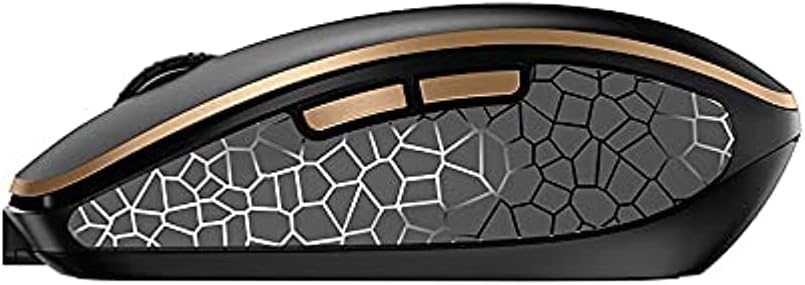
Immaġni 4.4: Ġenb view of the CHERRY DW 9100 Slim Mouse, illustrating the ergonomic design and side buttons.
4.3 LEDs tal-Istatus
Both the keyboard and mouse feature status LEDs to provide information on battery level, charging status, and mouse resolution.
- Batterija Baxxa: The LED will flash or illuminate in a specific color (e.g., red) when the battery level is low, indicating that charging is required.
- Iċċarġjar: The LED will illuminate while charging and typically change color or turn off when fully charged.
- Mouse Resolution (DPI): When adjusting the DPI, the mouse LED may briefly flash to indicate the current setting.
5. Manutenzjoni
5.1 Tindif
To maintain the performance and appearance of your devices:
- Skonnettja l-apparati mill-kompjuter tiegħek qabel ma tnaddafhom.
- Uża drapp ratba u mingħajr ħelu ftit dampimdaħħla bl-ilma jew soluzzjoni ħafifa għat-tindif.
- Evita li tuża kimiċi ħarxa, prodotti tat-tindif li joborxu, jew solventi, għax dawn jistgħu jagħmlu ħsara lill-uċuħ.
- Għat-tastiera, uża arja kkompressata biex tneħħi t-trab u l-fdalijiet minn bejn iċ-ċwievet.
5.2 Kura tal-Batterija
The integrated lithium batteries are designed for long-term use.
- Erġa' ċċarġja l-apparati meta jidher l-indikatur ta' batterija baxxa.
- Avoid fully discharging the batteries frequently to prolong their lifespan.
- If storing the devices for an extended period, charge them to approximately 50% before storage.
6 Issolvi l-problemi
If you encounter issues with your CHERRY DW 9100 Slim set, refer to the following common solutions:
6.1 Kwistjonijiet ta' Konnettività
- No Connection (2.4 GHz):
- Ensure the USB nano receiver is securely plugged into a working USB port.
- Verify the keyboard and mouse connectivity switches are set to the 2.4 GHz pożizzjoni.
- Ipprova qabbad ir-riċevitur ma' port USB differenti.
- Ensure the devices are sufficiently charged.
- Ebda Konnessjoni (Bluetooth):
- Ensure the keyboard and mouse connectivity switches are set to the Bluetooth pożizzjoni.
- Confirm Bluetooth is enabled on your computer/device.
- Remove previous pairings from your device's Bluetooth settings and attempt to re-pair.
- Ensure the devices are sufficiently charged.
6.2 Kwistjonijiet tal-Enerġija u l-Iċċarġjar
- Apparat li ma Jiċċarġjax:
- Check that the USB-C charging cable is properly connected to both the device and the power source.
- Ipprova kejbil USB-C differenti jew sors ta' enerġija USB differenti.
- Kun żgur li s-sors tal-enerġija huwa attiv.
- Ħajja Qasira tal-Batterija:
- Kun żgur li l-apparati jkunu ċċarġjati kompletament qabel l-użu.
- Battery life can vary based on usage patterns.
6.3 Kwistjonijiet ta' Traċċar tal-Ġurdien
- Inaccurate or No Tracking:
- Kun żgur li s-senser tal-maws huwa nadif u ħieles minn debris.
- Use the mouse on a suitable surface (e.g., mouse pad). Highly reflective or transparent surfaces may cause issues.
- Aġġusta s-setting tad-DPI billi tuża s-swiċċ tad-DPI fuq il-maws.
7. Speċifikazzjonijiet
| Karatteristika | Dettall |
|---|---|
| Numru tal-Mudell | JD-9100US-2 |
| Dimensjonijiet tal-Prodott | 17.32 x 5.12 x 0.59 pulzieri |
| Piż tal-oġġett | 2.35 liri |
| Batteriji | Rechargeable Lithium (USB-C) |
| Teknoloġija tal-Konnettività | Bluetooth, 2.4 GHz Radio Frequency (USB) |
| Karatteristika Speċjali | Rechargeable, Silent Keystroke (SX Scissor Mechanism) |
| Apparati Kompatibbli | Kompjuter Personali |
| Manifattur | ĊIRASA |
Note on Batteries: The product description indicates USB-C rechargeable lithium batteries. The specification "1 AA batteries required. (included)" in the source data appears to be a discrepancy. Please rely on the USB-C rechargeable feature for this model.
8. Garanzija u Appoġġ
CHERRY products are manufactured to high-quality standards. For detailed warranty information, including terms and conditions, please refer to the official CHERRY webis-sit jew il-karta tal-garanzija inkluża mal-prodott tiegħek.
For technical support, troubleshooting assistance beyond this manual, or to inquire about replacement parts, please visit the official CHERRY support portal or contact their customer service directly.
- Official CHERRY Websit: www.cherry.de/en/ (or regional equivalent)
- Appoġġ għall-Klijent: Irreferi għall- websit għad-dettalji tal-kuntatt.


