1. Introduzzjoni
This manual provides essential instructions for the safe and efficient use of your Epson EcoTank L3156 multifunction printer. It covers initial setup, operational procedures for printing, scanning, and copying, routine maintenance, and troubleshooting common issues. Please read this manual thoroughly before using the product and retain it for future reference.
2. Prodott Aktarview
The Epson EcoTank L3156 is a 3-in-1 inkjet printer designed for home and small office use, offering print, scan, and copy functionalities. It features an integrated ink tank system for ultra-low-cost printing and supports wireless connectivity via Wi-Fi and Wi-Fi Direct.
Karatteristiċi ewlenin:
- Integrated Ink Tank System: Designed for high-volume, low-cost printing, eliminating the need for traditional cartridges.
- Multifunzjonalità: Capable of printing, scanning, and copying documents and photos.
- Konnettività Wireless: Supports Wi-Fi and Wi-Fi Direct for printing from various devices, including smartphones and tablets.
- Rendiment Għoli tal-Paġni: Delivers a high number of pages per ink refill, reducing operational costs.
- Stampar ta' Ritratti mingħajr Borduri: Supports printing borderless photos up to 10x15cm.
Komponenti tal-Prodott:
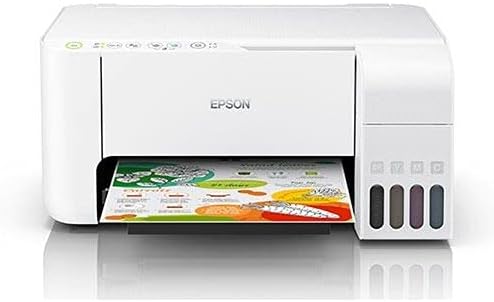


3. Setup
3.1 Żpakkjar u Pożizzjonament Inizjali
- Neħħi b'attenzjoni l-istampatur mill-ippakkjar tiegħu.
- Neħħi t-tejps protettivi u l-materjali tal-ippakkjar kollha minn barra u minn ġewwa l-istampatur.
- Poġġi l-istampatur fuq wiċċ ċatt u stabbli bi spazju adegwat madwaru għall-operazzjoni u l-ventilazzjoni.
3.2 Imla t-Tankijiet tal-Linka
The EcoTank system uses ink bottles for refilling. Ensure you use genuine Epson ink bottles designed for your model to prevent damage and ensure optimal print quality.
- Iftaħ l-għatu tal-unità tat-tank tal-linka fuq in-naħa tal-lemin tal-istampatur.
- Open the cap for the ink tank you wish to fill (Black, Cyan, Magenta, Yellow).
- Uncap the corresponding ink bottle and insert it into the filling port. The bottle is designed to prevent overfilling and ensure the correct color is used.
- Ħalli l-linka tiskula fit-tank. Tagħfasx il-flixkun.
- Once the tank is full, remove the bottle and securely close the ink tank cap and the unit cover.
- Irrepeti għall-kuluri kollha.
3.3 Power Connection and Initial Ink Charge
- Qabbad il-korda tal-enerġija mal-istampatur u mbagħad ma' sokit elettriku.
- Agħfas il-buttuna tal-enerġija biex tixgħel l-istampatur.
- Follow the on-screen instructions on the printer's control panel (if applicable) or refer to the quick start guide for initiating the initial ink charge. This process primes the print head and can take several minutes. Do not turn off the printer during this process.
3.4 Installazzjoni tas-Softwer
- Insert the software CD-ROM into your computer's CD/DVD drive, or download the latest drivers and software from the official Epson support websit.
- Segwi l-istruzzjonijiet fuq l-iskrin biex tinstalla d-drajvers tal-printer u s-softwer tal-utilità.
- During installation, you will be prompted to choose a connection method (USB, Wi-Fi).
4. It-Tħaddim tal-Printer
4.1 Tagħbija tal-Karta
- Iftaħ is-support tal-karta u iġbed it-trej tal-ħruġ 'il barra.
- Żerżaq il-gwidi tat-tarf għall-pożizzjonijiet l-aktar 'il barra tagħhom.
- Load paper print-side up into the rear paper feed slot.
- Slide the edge guides against the sides of the paper, ensuring the paper is straight.
4.2 Stampar
- Ensure the printer is turned on and connected to your computer or network.
- Iftaħ id-dokument jew l-immaġni li tixtieq tipprintja fuq il-kompjuter tiegħek.
- Agħżel "Stampa" mill-menù tal-applikazzjoni (eż., File > Stampa).
- Agħżel "Epson L3156 Series" bħala l-istampatur tiegħek.
- Aġġusta s-settings tal-istampar bħad-daqs, it-tip, l-orjentazzjoni u l-kwalità tal-karta kif meħtieġ.
- Ikklikkja "Ipprintja".
4.3 Skennjar
- Poġġi d-dokument jew ir-ritratt wiċċu 'l isfel fuq il-ħġieġa tal-iskaner, billi tallinjah mal-marka tal-kantuniera.
- Agħlaq l-għatu tal-iskaner bil-mod.
- Fuq il-kompjuter tiegħek, iftaħ is-softwer Epson Scan jew applikazzjoni tal-iskannjar kompatibbli.
- Select your scanner (Epson L3156 Series) and choose your scanning mode (e.g., Home Mode, Professional Mode).
- Adjust settings such as resolution, document type, and destination folder.
- Click "Scan".
4.4 Ikkupjar
- Poġġi d-dokument oriġinali wiċċu 'l isfel fuq il-ħġieġa tal-iskaner.
- Agħlaq l-għatu tal-iskaner.
- On the printer's control panel, press the Black & White copy button or the Color copy button, depending on your desired output.
- Biex tagħmel kopji multipli, agħfas il-buttuna tal-kopja rispettiva diversi drabi għan-numru ta' kopji mixtieq.
4.5 Wireless Connectivity (Wi-Fi / Wi-Fi Direct)
The Epson L3156 supports connecting to a wireless network (Wi-Fi) or directly to a device (Wi-Fi Direct).
Connecting to a Wi-Fi Network:
- Ensure your wireless router is on and functioning.
- Use the printer's control panel to navigate to the Wi-Fi setup menu.
- Select "Wi-Fi Setup Wizard" and follow the on-screen prompts to select your network and enter the password.
- Alternatively, use the WPS (Wi-Fi Protected Setup) button on your router and the printer for a simpler connection.
Using Wi-Fi Direct:
- Enable Wi-Fi Direct on your printer via the control panel.
- On your mobile device (smartphone or tablet), go to Wi-Fi settings and select the printer's Wi-Fi Direct network (e.g., DIRECT-xx-EpsonL3156).
- Enter the password displayed on the printer's control panel.
- You can now print directly from your mobile device using the Epson iPrint app or other compatible printing applications.
5. Manutenzjoni
5.1 Iċċekkjar tal-Livelli tal-Linka u l-Mili Mill-Ġdid
Regularly check the ink levels in the transparent ink tanks. When an ink tank is low, refill it promptly using genuine Epson ink bottles. Refer to Section 3.2 for detailed ink refilling instructions.
5.2 Tindif tar-Ras tal-Istampar
If print quality declines (e.g., missing lines, faded prints), perform a print head cleaning. This can be done through the printer's utility software on your computer or via the printer's control panel. This process clears clogged nozzles.
5.3 Allinjament tar-Ras tal-Istampar
If prints appear blurry or misaligned, perform a print head alignment. This adjusts the print head position to ensure proper vertical and horizontal alignment. This function is typically accessed through the printer's utility software.
5.4 Tindif tal-Istampatur
- Barra: Imsaħ il-barra tal-istampatur b'ċarruta ratba u damp, drapp mingħajr suf. Evita li tuża prodotti tat-tindif jew solventi li joborxu.
- Ħġieġ tal-iskaner: Naddaf il-ħġieġ tal-iskaner bil-mod b'ċarruta ratba u mingħajr suf imxarrba b'ammont żgħir ta' tindif tal-ħġieġ. Tisprejjax it-tindif direttament fuq il-ħġieġ.
6 Issolvi l-problemi
Din it-taqsima tindirizza kwistjonijiet komuni li tista’ tiltaqa’ magħhom mal-istampatur Epson EcoTank L3156 tiegħek.
6.1 Il-Printer Mhux Jirrispondi
- Kun żgur li l-istampatur ikun mixgħul u li l-korda tal-enerġija tkun imqabbda sew.
- Check the USB cable connection (if using USB) or Wi-Fi connection status.
- Erġa' ibda kemm il-printer kif ukoll il-kompjuter tiegħek.
- Ivverifika li l-istampatur korrett huwa magħżul fid-djalogu tal-istampar tal-applikazzjoni tiegħek.
6.2 Kwalità tal-Istampar Fqira
- Iċċekkja l-livelli tal-linka u imla mill-ġdid kwalunkwe tank li jkun baxx.
- Agħmel tindif tar-ras tal-istampar (ara t-Taqsima 5.2).
- Perform a print head alignment (refer to Section 5.3).
- Ensure you are using appropriate paper settings for your media type.
6.3 Ġammijiet tal-karti
- Itfi l-istampatur u aqla l-korda tad-dawl.
- Neħħi bir-reqqa kwalunkwe karta mblukkata mit-trej tad-dħul, mit-trej tal-ħruġ, jew minn ġewwa l-istampatur. Iġbed il-karta bil-mod biex tevita li titqatta’.
- Kun żgur li l-karta titgħabba b'mod korrett u ma taqbiżx il-kapaċità massima.
- Remove any small pieces of torn paper.
- Erġa' qabbad il-kurrent u ixgħel il-printer.
6.4 Kwistjonijiet ta' Konnessjoni tal-Wi-Fi
- Ensure your wireless router is powered on and broadcasting.
- Check that the printer is within range of your wireless router.
- Iċċekkja li l-password tal-Wi-Fi li daħħalt hija korretta.
- Restart your router, printer, and computer/mobile device.
- Try re-running the Wi-Fi setup wizard on the printer.
7. Speċifikazzjonijiet
| Karatteristika | Speċifikazzjoni |
|---|---|
| Numru tal-Mudell | Ċ11CG86414 |
| Tip ta 'stampatur | Inkjet Multifunction (Print, Scan, Copy) |
| Konnettività | USB, Wi-Fi, Wi-Fi Direct |
| Kulur | Abjad |
| Apparati Kompatibbli | Computers, Smartphones (Android, iOS) |
| Midja Stampata | Plain paper, Glossy photo paper |
| Piż tal-oġġett | 5.66 Kilogrammi |
| Dimensjonijiet tal-Pakkett | 42.2 x 40.4 x 23.8 ċm |
| EAN-13 | 8715946667522 |
8. Garanzija u Appoġġ
For information regarding your product's warranty, please refer to the warranty card included with your printer or visit the official Epson support websit għar-reġjun tiegħek. L- website also provides access to drivers, FAQs, and contact information for technical support.
Epson Official Support: www.epson.com/support


