Introduzzjoni
Thank you for choosing the AULA S50 Wired Gaming Mouse. This manual provides essential information for setting up, operating, maintaining, and troubleshooting your new mouse. Please read it carefully to ensure optimal performance and longevity of your device.
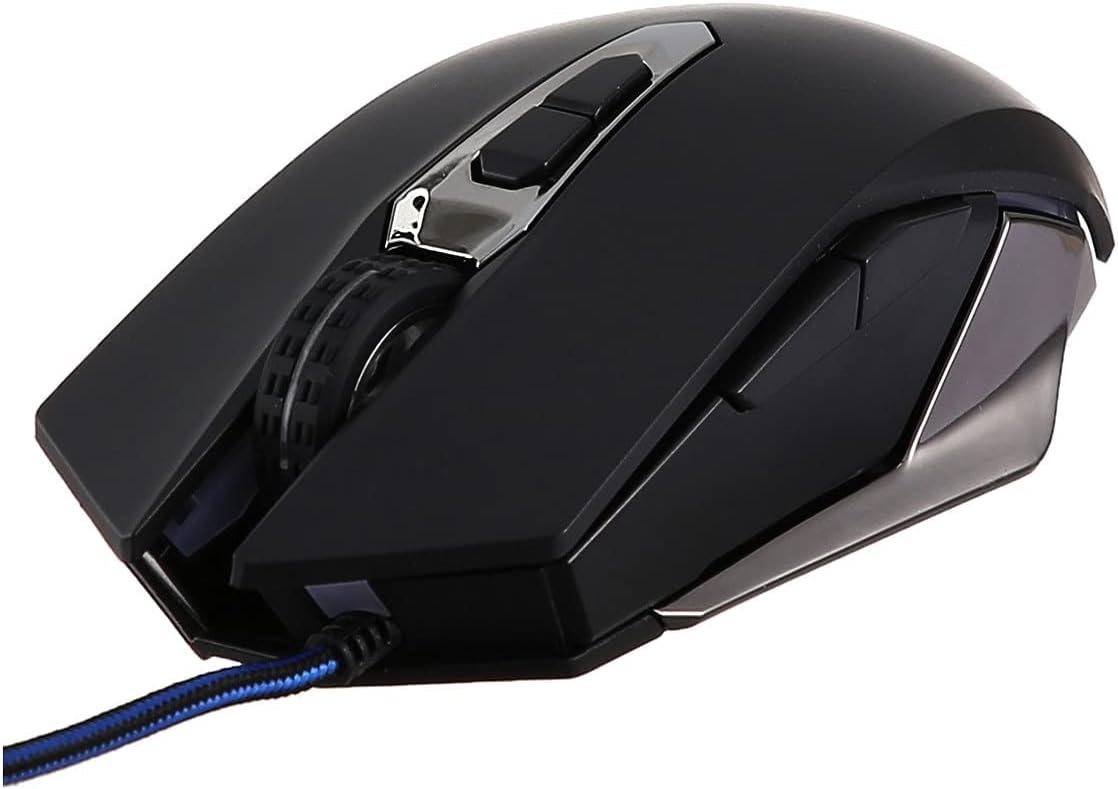
Figura 1: Quddiem view of the AULA S50 Wired Gaming Mouse.
Setup
Konnessjoni tal-Ġurdien
- Sib port USB disponibbli fuq il-kompjuter jew laptop tiegħek.
- Plug the USB connector of the AULA S50 mouse into the USB port.
- The operating system will typically detect and install the necessary drivers automatically. No additional software installation is required for basic functionality.
The mouse is compatible with various operating systems, including Linux and Windows XP, and newer versions.
Istruzzjonijiet Operattivi
Funzjonijiet Bażiċi
- Ikklikkja Xellug: Primary action, selection, opening items.
- Ikklikkja bil-lemin: Jiftaħ menus kuntestwali.
- Scroll Wheel: Skrollja dokumenti u web pages vertically. Can also be pressed for middle-click functionality.
Advanced Features (7 Programmable Buttons)
The AULA S50 mouse features 7 buttons, including the standard left, right, and scroll wheel click, along with additional side buttons and a DPI adjustment button. For advanced customization, such as programming macros or remapping buttons, dedicated software may be available from the manufacturer's website. This software allows users to tailor the mouse's functionality to specific applications or games.
Aġġustament DPI
The mouse supports multiple DPI (Dots Per Inch) settings, allowing you to adjust cursor sensitivity. Use the dedicated DPI button, usually located behind the scroll wheel, to cycle through available DPI levels. Higher DPI settings result in faster cursor movement, suitable for quick actions, while lower DPI settings provide more precise control.
Manutenzjoni
Tindif
- Skonnettja l-maws mill-kompjuter tiegħek qabel ma tnaddaf.
- Uża drapp artab, niexef u mingħajr suf biex timsaħ il-wiċċ tal-maws.
- Għal ħmieġ iebes, neħħi ftitampLaħlaħ id-drapp bl-ilma jew b'soluzzjoni ħafifa tat-tindif. Evita umdità eċċessiva.
- Use a cotton swab or compressed air to clean around buttons and the optical sensor area.
Ħażna
Aħżen il-maws f'post frisk u niexef 'il bogħod mix-xemx diretta u minn temperaturi estremi. Evita li tpoġġi oġġetti tqal fuq il-maws jew fuq il-kejbil tiegħu.
Issolvi l-problemi
Il-maws ma jirrispondix
- Ensure the USB cable is securely plugged into the computer's USB port. Try a different USB port.
- Ibda mill-ġdid il-kompjuter tiegħek.
- Ittestja l-maws fuq kompjuter ieħor biex tiddetermina jekk il-problema hijiex fil-maws jew fil-kompjuter.
Moviment Erratiku tal-Kursur
- Clean the optical sensor on the bottom of the mouse with a soft cloth or cotton swab.
- Kun żgur li qed tuża l-maws fuq wiċċ nadif, mhux riflettiv, u uniformi. Huwa rakkomandat li tuża mouse pads.
- Check for any software conflicts or outdated drivers. Update your operating system and mouse drivers if necessary.
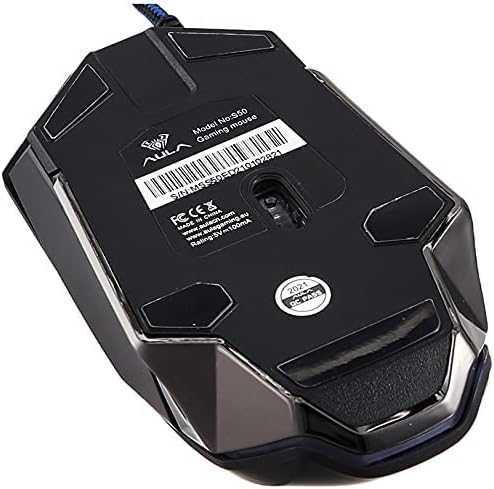
Figura 2: Qiegħ view of the AULA S50 Wired Gaming Mouse, highlighting the optical sensor.
Speċifikazzjonijiet
| Brand | AULA |
| Isem tal-Mudell | AULA S50 |
| Numru tal-Mudell tal-Oġġett | S50 |
| Kulur | Iswed |
| Teknoloġija tal-Konnettività | USB (fili) |
| Teknoloġija ta 'Sejbien tal-Moviment | Ottiċi |
| Numru ta' Buttuni | 7 |
| Orjentazzjoni tal-Idejn | Ambidestru |
| Użi Rakkomandati Għall-Prodott | Logħob |
| Apparati Kompatibbli | PC u Laptop |
| Pjattaforma tal-Ħardwer | PC |
| Sistema Operattiva | Linux, Windows XP |
| Dimensjonijiet tal-Prodott | 17 x 7 x 5 ċm |
| Piż tal-oġġett | 140 gramma |
Garanzija
The AULA S50 Wired Gaming Mouse comes with a standard manufacturer's warranty. Please refer to the warranty card included with your product or contact your retailer for specific warranty terms and conditions. Keep your proof of purchase for warranty claims.
Appoġġ
For technical assistance or further inquiries regarding your AULA S50 Wired Gaming Mouse, please contact the retailer where you purchased the product or visit the official AULA support website. Ensure you have your product model number (S50) available when seeking support.


