1. Introduzzjoni
Thank you for choosing the iPega PG-9076 Wireless Bluetooth Gamepad. This versatile controller is designed to provide an immersive gaming experience across multiple platforms. It supports both Bluetooth and 2.4GHz wireless connections, making it compatible with Android smartphones, tablets, Smart TVs, TV boxes, and Windows PCs (XP/7/8/10).
Please read this manual carefully before using the product to ensure proper operation and to maximize your gaming enjoyment.
2. Kontenut tal-Pakkett
- 1 x iPega PG-9076 Wireless Bluetooth Gamepad
- 1 x USB Iċċarġjar Cable
- 1 x 2.4G Wireless Receiver (USB Dongle)
- 1 x Manwal għall-Utent
3. Prodott Aktarview
Familiarize yourself with the layout and functions of your gamepad.

Figura 3.1: Minn fuq għal isfel view of the iPega PG-9076 Gamepad. This image displays the directional pad (D-pad) on the left, two analog joysticks, action buttons (A, B, X, Y) on the right, and central function buttons including TURBO, START, SELECT, NEW, iCADE, and ANDROID mode buttons.
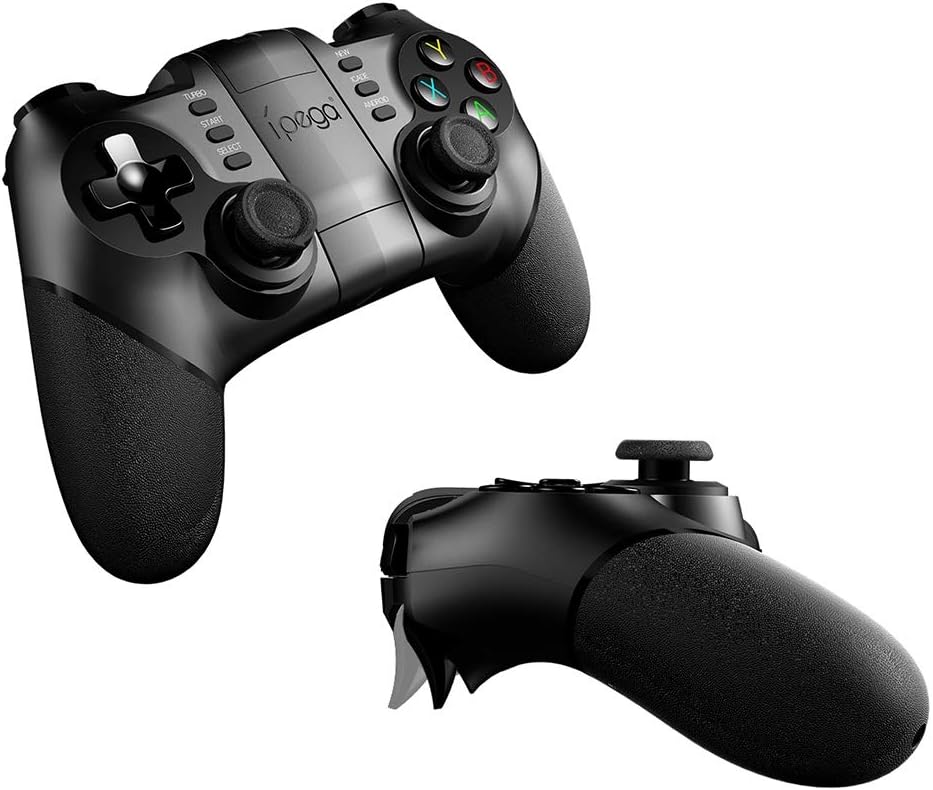
Figura 3.2: Angolat view of the iPega PG-9076 Gamepad. This perspective emphasizes the ergonomic grips and the overall shape of the controller, designed for comfortable handling during extended gaming sessions.
- D-Pad: Kuxxinett direzzjonali għal moviment preċiż.
- Sticks Analogiċi tax-Xellug/Lemin: Għal moviment ta' 360 grad u kontroll tal-kamera.
- Buttuni ta' Azzjoni (A, B, X, Y): Għal azzjonijiet fil-logħba.
- L1/L2/R1/R2 Triggers/Shoulder Buttons: Located on the top of the gamepad.
- Buttuni START/SELECT: Buttuni standard tal-kontroll tal-logħba.
- Buttuna TURBO: Activates continuous firing for assigned buttons.
- Mode Buttons (NEW, iCADE, ANDROID): Użat biex jaqleb bejn modi ta' tħaddim differenti.
- Buttuna tad-dar: Buttuna ċentrali għall-funzjonijiet tas-sistema.
- Detentur tat-Telefown: Integrated adjustable holder for smartphones.
4. Setup
4.1. Iċċarġjar tal-Gamepad
Before first use, fully charge the gamepad. Connect the supplied USB charging cable to the gamepad's charging port and the other end to a USB power source (e.g., computer USB port, USB wall adapter).
- The LED indicator will typically show charging status (e.g., red light on while charging, off when fully charged).
- Ċarġ sħiħ normalment jieħu madwar 2-3 sigħat.
4.2. Modi ta 'Konnessjoni
The PG-9076 supports multiple connection modes for various devices.
4.2.1. Bluetooth Connection (for Android/iOS/Smart TV/TV Box)
- Kun żgur li l-gamepad huwa mitfi.
- Agħfas u żomm il- ANDROID button (or relevant mode button for your device, e.g., iCADE for iOS if supported) and the HOME button simultaneously until the LED indicator flashes rapidly. This puts the gamepad into pairing mode.
- On your device (smartphone, tablet, Smart TV, TV Box), go to Bluetooth settings and turn Bluetooth on.
- Fittex għal available devices. You should see "PG-9076" or a similar name appear in the list.
- Select "PG-9076" to pair. The LED indicator on the gamepad will become solid once successfully connected.
- For iOS devices, some games may require specific iCADE mode. Refer to game instructions.

Figura 4.1: The iPega PG-9076 Gamepad with a smartphone securely mounted in its integrated holder, ready for mobile gaming. This image demonstrates the convenience of playing on a phone with a physical controller.
4.2.2. 2.4G Wireless Connection (for PC/Smart TV/TV Box)
- Plug the 2.4G wireless receiver (USB dongle) into an available USB port on your PC, Smart TV, or TV Box.
- Kun żgur li l-gamepad huwa mitfi.
- Agħfas u żomm il- ĠODDA button (or a specific PC mode button if available) and the HOME button simultaneously until the LED indicator flashes rapidly.
- The gamepad should automatically connect to the receiver. The LED indicator will become solid when connected.
- Your system may automatically install necessary drivers.

Figura 4.2: The iPega PG-9076 Gamepad with a smartphone attached, and the 2.4G USB wireless receiver prominently displayed in the foreground. This illustrates the wireless connectivity option for devices like PCs and TV boxes.
5. Istruzzjonijiet Operattivi
5.1. Power On/Off
- Qawwa Mixgħul: Agħfas il- HOME button. The gamepad will attempt to connect to the last paired device.
- Itfi: Agħfas u żomm il- HOME button for approximately 3 seconds until the LED indicator turns off. The gamepad will also automatically power off after a period of inactivity.
5.2. Gamepad Modes
The PG-9076 supports different modes to ensure compatibility with various games and platforms. Switch modes by holding the corresponding button (e.g., ANDROID, NEW, iCADE) and then pressing the HOME button to power on.
- Modalità Standard Android: For most Android games.
- Modalità ta' Input tal-PC X: For Windows PC games that support X-Input (common for modern PC games).
- iCADE Mode: For some older iOS games that specifically support iCADE protocol.
5.3. Funzjoni TURBO
The TURBO function allows a button to continuously fire when held down, useful for certain games.
- Press the button you wish to set to TURBO (e.g., A button).
- While holding that button, press the TURBO button once. The LED indicator may flash to confirm.
- To cancel TURBO for that button, repeat the process.
6. Manutenzjoni
- Tindif: Use a soft, dry cloth to clean the gamepad. Do not use harsh chemicals or abrasive cleaners.
- Ħażna: Aħżen il-gamepad f'post frisk u niexef 'il bogħod mix-xemx diretta u minn temperaturi estremi.
- Kura tal-batterija: To prolong battery life, avoid fully discharging the battery frequently. Charge the gamepad regularly, even if not in use for extended periods (e.g., once every three months).
- Evita Qtar: Twaqqax il-gamepad jew tissottomettixh għal impatti qawwija, għax dan jista' jagħmel ħsara lill-komponenti interni.
7 Issolvi l-problemi
7.1. Il-Gamepad Mhux Qed Jikkonnettja
- Iċċekkja l-Enerġija: Ensure the gamepad is charged and powered on.
- Modalità Korretta: Verify you are in the correct connection mode (Bluetooth for mobile/TV, 2.4G for PC with dongle).
- Erġa 'par: Delete the gamepad from your device's Bluetooth list and attempt to re-pair.
- Interferenza: Move closer to your device and away from other wireless devices that might cause interference.
- Dongle Check: If using 2.4G, ensure the USB dongle is securely plugged in and recognized by your device.
7.2. Il-Buttuni Ma Jirrispondux
- Livell tal-batterija: Low battery can cause erratic behavior. Charge the gamepad.
- Ibda mill-ġdid: Power off the gamepad and your device, then restart both and try connecting again.
- Kompatibbiltà tal-Logħob: Some games may not fully support external controllers or may require specific mapping. Check game settings.
7.3. Kwistjonijiet ta' Iċċarġjar
- Cable/Port: Ipprova kejbil USB differenti jew port tal-iċċarġjar.
- Sors tal-Enerġija: Ensure the USB power source is functioning correctly.
8. Speċifikazzjonijiet
| Karatteristika | Dettall |
|---|---|
| Mudell | PG-9076 |
| Konnettività | Bluetooth, 2.4G Wireless |
| Kompatibilità | Android (Phones, Tablets, Smart TV, TV Box), Windows (XP/7/8/10) |
| Dimensjonijiet (Tbaħħir) | 17.8 x 13.4 x 6.8 ċm |
| Piż (Tbaħħir) | 302 gramma |
| Referenza tal-Manifattur | 2724709426067 |
9. Garanzija u Appoġġ
Dan il-prodott jiġi b'garanzija standard tal-manifattur. Jekk jogħġbok irreferi għall-karta tal-garanzija inkluża fil-pakkett tiegħek jew ikkuntattja lill-bejjiegħ tiegħek għat-termini u l-kundizzjonijiet speċifiċi tal-garanzija.
For technical support or further assistance, please contact the customer service department of your place of purchase or visit the official iPega websit għal riżorsi ta' appoġġ.


