1. Introduzzjoni
The Innex C470 is a 4K AI-powered webcam designed for enhanced video conferencing, live streaming, and distance learning. It features auto-framing, auto-tracking, a 120° wide-angle lens, and built-in dual noise-cancelling microphones to deliver clear audio and video. This manual provides instructions for setting up, operating, and maintaining your Innex C470 webcam.
2. Kontenut tal-Pakkett
- Innex C470 Webcam
- Cable USB
3. Prodott Aktarview
Familiarize yourself with the components of your Innex C470 webcam.

Stampa 3.1: Quddiem view of the Innex C470 webcam with its integrated mounting clip.
4. Setup u Installazzjoni
4.1 Immuntar tal- Webcam
- Unfold the integrated mounting clip at the base of the webcam.
- Poġġi l- webcam securely on top of your laptop screen, desktop monitor, or a compatible tripod. The clip is designed to fit various display thicknesses.
- Aġġusta l- webcam's angle using the 360-degree swivel mount to achieve your desired view.
4.2 Konnessjoni mal-Kompjuter Tiegħek
- Connect the provided USB cable to the USB port on the Innex C470 webcam.
- Plug the other end of the USB cable into an available USB port on your computer (desktop PC or laptop).
- Il- webcam is a plug-and-play device and should be automatically recognized by your operating system. No additional drivers are typically required.
4.3 Rekwiżiti tas-Sistema
- Sistemi Operattivi: Windows 10/8/7, macOS 10.12 or above, Android 6.0 or above, Chrome OS.
- Apparati Kompatibbli: Laptop, Personal Computer.
5. Karatteristiċi Ewlenin u Operazzjoni
5.1 AI-Powered Auto-Framing
The C470 automatically adjusts its field of view to keep all participants in the frame. When people join or leave the meeting, the camera intelligently narrows or widens the view to ensure optimal framing.

Image 5.1: Illustration of the AI-Powered Auto-Framing feature, adjusting to include all attendees.
5.2 Smart Auto-Tracking
Din il - karatteristika tippermetti webcam to follow a single speaker or presenter, keeping them centered in the frame as they move. This ensures the focus remains on the active participant.

Immaġni 5.2: Eż.ample of Smart Auto-Tracking, where the camera follows a person's movement.
5.3 Ultra HD 4K with 120° Wide View Angolu
Experience superior video quality with 4K resolution and capture a broader perspective with the 120-degree wide-angle lens, ideal for group meetings or showcasing a larger area.

Image 5.3: Visual comparison demonstrating the expansive 120° wide view angolu.
5.4 Built-in Dual Microphones with Noise Cancellation
The integrated omnidirectional microphones capture clear audio from all directions while actively reducing ambient noise, enhancing sound quality during your meetings and streams.
5.5 Kompatibilità tas-Software
The Innex C470 is compatible with a wide range of video communication and streaming applications, including:
- Zoom
- Timijiet tal-Microsoft
- Skype, Skype for Business
- Google Meet, Hangouts
- Webex
- YouTube
- OBS (Open Broadcaster Software)
- Twitch
- GoToMeeting
- Bluejeans
- RingCentral

Immaġni 5.4: Fuqview of key features and compatible software platforms.
5.6 Customizing Image Settings
For advanced image adjustments, you can use the VAP Studio software (if available for your operating system) to fine-tune settings such as brightness, sharpness, contrast, and saturation.
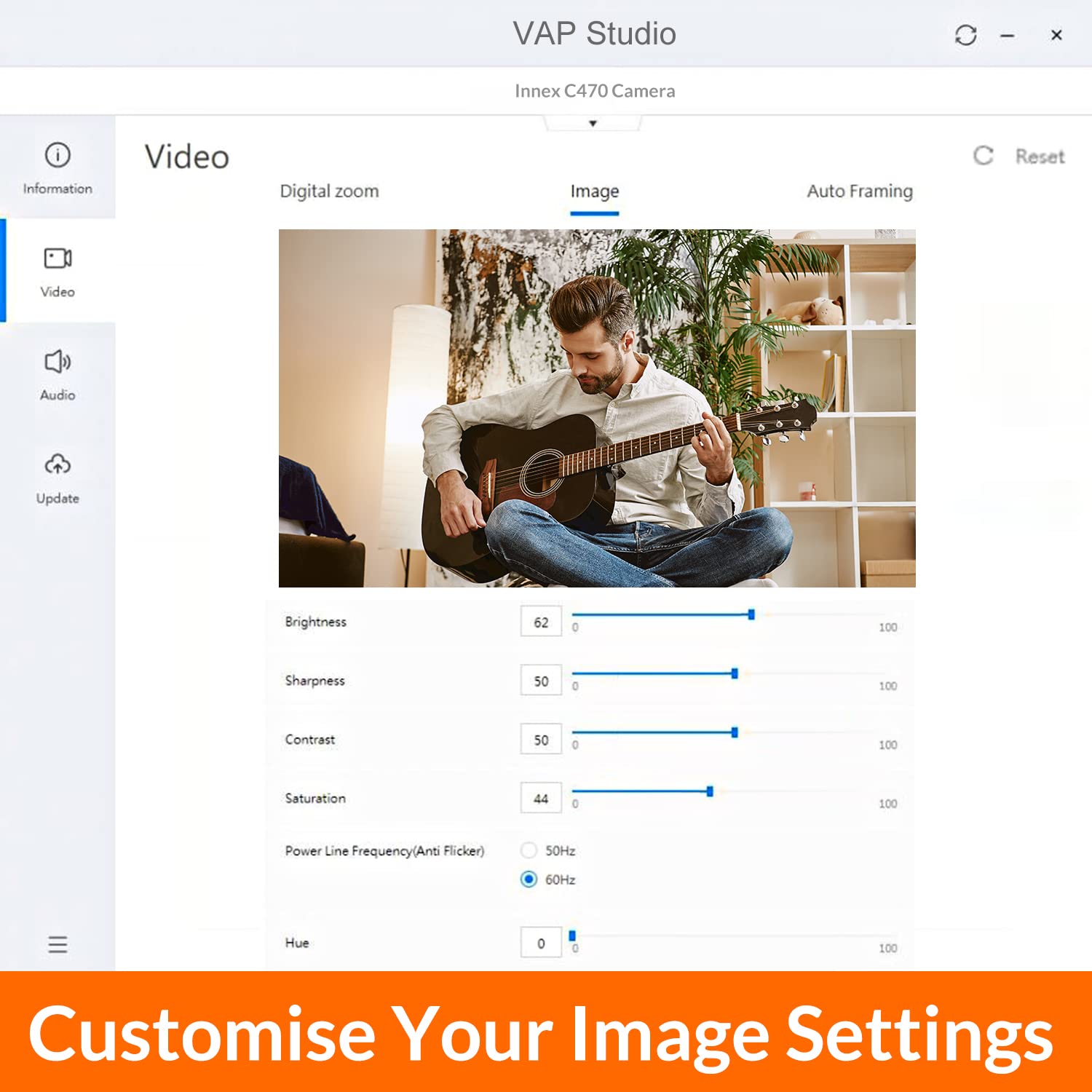
Image 5.5: Screenshot of the VAP Studio interface for adjusting webcam image parameters.
6. Manutenzjoni
To ensure optimal performance and longevity of your Innex C470 webcam, segwi dawn il-linji gwida tal-manutenzjoni:
- Tindif tal-Lenti: Gently wipe the camera lens with a soft, lint-free cloth. Avoid using harsh chemicals or abrasive materials that could scratch the lens.
- Tindif tal-ġisem: Uża niexfa jew ftit damp soft cloth to clean the webcam's exterior.
- Ħażna: Meta ma tkunx qed tużaha għal perjodi twal, aħżenha webcam in a clean, dry place away from extreme temperatures.
- Kura tal-Cable: Evita li tgħawweġ jew iddawwar il-kejbil USB b'mod eċċessiv biex tevita l-ħsara.
7 Issolvi l-problemi
If you encounter issues with your Innex C470 webcam, refer to the following common troubleshooting steps:
- Ebda Vidjo/Awdjo:
- Kun żgur li l-kejbil tal-USB huwa konness sew maż-żewġ webil-kamera u l-kompjuter tiegħek.
- Ipprova qabbad il- webcam ma' port USB differenti fuq il-kompjuter tiegħek.
- Ivverifika li l- webcam is selected as the primary video and audio device within your video conferencing or streaming application settings.
- Ibda mill-ġdid il-kompjuter tiegħek.
- Kwalità Fqira tal-Vidjo:
- Żgura li jkun hemm dawl adegwat fl-ambjent tiegħek.
- Naddaf il- webcam lens as described in the Maintenance section.
- Check your internet connection speed if streaming or video conferencing online.
- Adjust image settings using VAP Studio or your application's video settings.
- Kwalità tal-Awdjo Fqira:
- Tiżgura l- webcam's microphone is selected as the input device in your application settings.
- Naqqas l-istorbju fl-isfond fl-ambjent tiegħek.
- If using an external microphone, ensure it is properly connected and selected.
- Auto-Framing/Tracking Not Working:
- Ensure you are within the recommended range and lighting conditions for the AI features to function optimally.
- Check for any software updates for the webcam or your video application.
8. Speċifikazzjonijiet
| Karatteristika | Speċifikazzjoni |
|---|---|
| Brand | Innex |
| Mudell | C470 |
| Dimensjonijiet tal-Prodott | 11.68 x 5.59 x 5.08 ċm |
| Piż tal-oġġett | 202.7 g (7.15 Uqija) |
| Kompatibilità tas-Sistema Operattiva | Windows, macOS, Android, Chrome OS |
| Apparati Kompatibbli | Laptop, Kompjuter Personali |
| Ħardwer tal-Immuntar | Kejbil USB (inkluż) |
| Image Stabilization Technology | Diġitali |
| Zoom Diġitali | 3x |
| Tul Fokali Minimu | 2 Millimetru |
| Riżoluzzjoni tal-Vidjo Effettiva | 3840 Pixels (4K) |
| Riżoluzzjoni Għadha Effettiva | 13.8 MP |
| Użi Rakkomandati | Video conferencing, online teaching, work from home, distance learning, live streaming |
9. Garanzija u Appoġġ
9.1 Informazzjoni dwar Garanzija
The Innex C470 webkamera tiġi b' Garanzija limitata ta 'sena. Please retain your proof of purchase for warranty claims. For specific terms and conditions, refer to the warranty documentation provided with your product or contact Innex customer support.
9.2 Appoġġ għall-Klijent
For technical assistance, troubleshooting beyond this manual, or warranty inquiries, please visit the official Innex website or contact their customer support team through the channels provided on their websit.


