1. Introduzzjoni
This manual provides detailed instructions for the installation, operation, and maintenance of your Athom Smart Wall Switch. This device is designed to integrate seamlessly with Apple HomeKit, offering convenient control via Siri voice commands, remote access, and scheduling features. It supports both no-neutral line and neutral line electrical systems, making it versatile for various installations.
2. Informazzjoni dwar is-Sigurtà
- Always turn off power at the circuit breaker before installation, removal, or maintenance.
- L-installazzjoni għandha titwettaq minn elettriċista kwalifikat jew skont il-kodiċijiet elettriċi lokali.
- Tħaddimx is-swiċċ b'idejn imxarrbin.
- Ensure the switch is installed in a dry environment, away from moisture and extreme temperatures.
- Verify correct wiring connections to prevent damage to the switch or connected appliances.
3. Kontenut tal-Pakkett
Jekk jogħġbok iċċekkja l-pakkett għall-oġġetti li ġejjin:
- Athom Smart Wall Switch (3-Key)
- Manwal għall-Utent
- Capacitor (for no-neutral line installations)
- Viti tal-Immuntar

Image: Contents of the Athom Smart Wall Switch package, including the switch, manual, capacitor, and screws.
4. Prodott Aktarview
The Athom Smart Wall Switch features a sleek glass panel with three touch-sensitive buttons for manual control. A Wi-Fi indicator is located on the top left of the panel. The rear of the switch houses the wiring terminals for electrical connection.
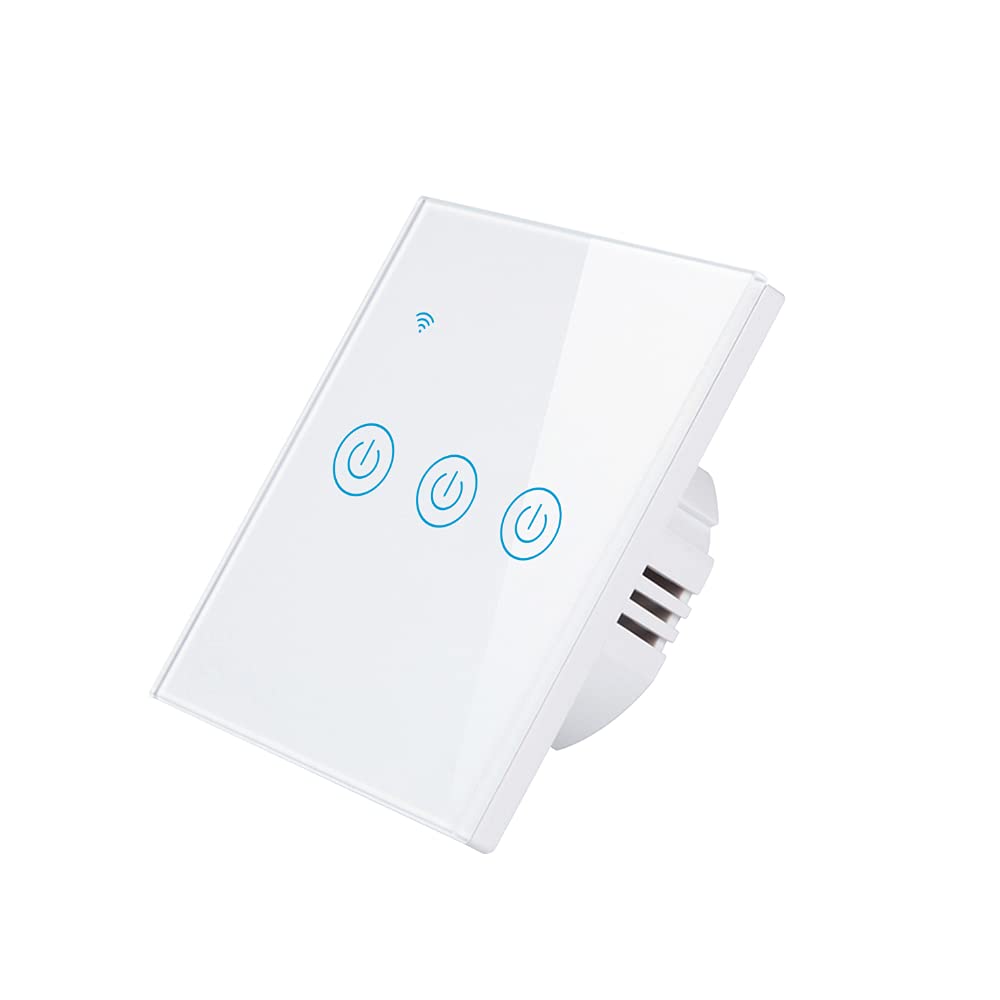
Immaġni: Quddiem view of the Athom Smart Wall Switch, showing the three touch-sensitive buttons and Wi-Fi indicator.

Image: Display of multiple Athom Smart Wall Switches, highlighting compatibility with Apple HomeKit.
5. Setup u Installazzjoni
5.1 Dijagrammi tal-Wiring
The Athom Smart Wall Switch supports both no-neutral line and neutral line installations. Please identify your home's wiring configuration before proceeding.
5.1.1 No Neutral Line Mode
This mode is common in older installations where a neutral wire is not present at the switch box. A capacitor must be installed across the light fixture for proper operation.

Image: Detailed wiring diagram illustrating the connection for the Athom Smart Wall Switch when a neutral line is not available, including capacitor installation across the bulb.
5.1.2 Neutral Line Mode
For installations where a neutral wire is available in the switch box, connect the Live (L) wire to the 'L' terminal, the Neutral (N) wire to the 'N' terminal, and the Load wires (L1, L2, L3) to their respective terminals. The capacitor is not required in this mode.
5.2 Passi ta' Installazzjoni
- Itfi l-Enerġija: Sib is-circuit breaker tiegħek u itfi l-enerġija lis-swiċċ li qed tissostitwixxi. Ivverifika li l-enerġija hija mitfija billi tuża voltagtester.
- Neħħi s-Swiċċ il-Qadim: Carefully remove the existing wall plate and switch. Disconnect the wires.
- Qabbad is-Swiċċ Intelliġenti bil-wajer: Connect the wires to the Athom Smart Wall Switch according to the appropriate wiring diagram (Section 5.1). Ensure all connections are secure.
- Immonta l-Iswiċċ: Gently push the wired switch into the wall box and secure it with the provided mounting screws.
- Installa Pjanċa tal-Ħajt: Waħħal il-pjanċa tal-ħajt il-ġdida.
- Irrestawra l-Enerġija: Ixgħel il-qawwa lura fis-circuit breaker.
- Pair with HomeKit: Follow the instructions in Section 6.1 to pair your switch with Apple HomeKit.
6. Istruzzjonijiet Operattivi
The Athom Smart Wall Switch offers multiple control methods:
6.1 Apple HomeKit and Siri Voice Control
The switch is designed for direct integration with Apple HomeKit without requiring a separate app or registration. To add the switch to HomeKit:
- Ensure your iPhone, iPad, or iPod Touch is connected to the same 2.4GHz Wi-Fi network as the switch.
- Iftaħ l-app Apple Home.
- Tektek l-ikona '+' fir-rokna ta' fuq tal-lemin u agħżel 'Żid Aċċessorju'.
- Scan the HomeKit setup code located on the switch or in the manual.
- Follow the on-screen prompts to assign the switch to a room and give it a name.
Once added, you can control the switch using Siri. For example, għid: "Hey Siri, turn on the living room light."
6.2 Kontroll mill-Bogħod
After successfully adding the switch to Apple HomeKit, you can control it remotely using the Home app on your Apple devices. Ensure your Home Hub (e.g., Apple TV, HomePod, or iPad) is set up and online to enable remote access.
6.3 Ħin u Skedar
Utilize the Apple Home app to set up schedules and automations for your smart switch. You can configure lights or appliances to turn on or off at specific times, or based on other conditions like sunrise/sunset or sensor triggers.
7. Manutenzjoni
- Tindif: Gently wipe the switch's glass panel with a soft, dry cloth. Avoid using abrasive cleaners or solvents.
- Aġġornamenti tal-Firmware: Periodically check for firmware updates through the Apple Home app to ensure optimal performance and security.
- Kundizzjonijiet Ambjentali: Ensure the switch is not exposed to excessive heat, cold, or humidity, which can affect its lifespan and functionality.
8 Issolvi l-problemi
- Is-Swiċċ Mhux Jirrispondi:
- Iċċekkja jekk is-circuit breaker hu mixgħul.
- Iċċekkja li l-konnessjonijiet tal-wajers kollha huma siguri.
- If in no-neutral mode, ensure the capacitor is correctly installed across the light fixture.
- Try resetting the switch by turning off power at the breaker for 10 seconds, then turning it back on.
- Cannot Connect to HomeKit:
- Kun żgur li n-netwerk Wi-Fi tiegħek huwa 2.4GHz. Is-swiċċ ma jappoġġjax netwerks ta' 5GHz.
- Check that your iPhone/iPad is connected to the same 2.4GHz Wi-Fi network.
- Ersaq eqreb lejn ir-router Wi-Fi tiegħek waqt il-proċess ta' tqabbil.
- If the issue persists, try resetting the switch to factory defaults (refer to specific reset procedure if available, otherwise power cycle).
- Lights Flicker (No Neutral Mode):
- This often indicates an issue with the capacitor installation or a low-wattage bulb. Ensure the capacitor is correctly wired across the light fixture.
- Some very low-wattage LED bulbs may still flicker; consider using a compatible bulb or a neutral line installation if possible.
9. Speċifikazzjonijiet
| Brand | Athom |
| Mudell | Smart Wall Switch 3-Key EU Dual Mode |
| Voltage | 220-240V AC, 50-60Hz |
| Load per Gang | 5-200W |
| Dimensjonijiet | 86x86x35mm |
| Mod ta' Operazzjoni | Mitfi, Swiċċ Intelliġenti |
| Klassifikazzjoni kurrenti | 10 Amps |
| Vol Operattivtage | 240 Volts |
| Tip ta' Konnettur | Wireless |
| Klassifikazzjoni tal-Protezzjoni Internazzjonali | IP54 |
| Numru ta' Pożizzjonijiet | 3 |
| Tip ta' Kontrollur | Apple HomeKit |
| Metodu ta' Kontroll | Remote |
| Protokoll tal-Konnettività | Wi-Fi (2.4GHz b/g/n) |
| Rekwiżit taċ-Ċentru | Nru |
| Temperatura tax-Xogħol | -20°C sa 50°C |
| Ċertifikazzjonijiet | CE, RoHS |
10. Garanzija u Appoġġ
For warranty information and technical support, please refer to the documentation provided with your purchase or visit the official Athom websit. Żomm l-irċevuta tax-xiri tiegħek bħala prova tax-xiri għal talbiet ta' garanzija.


