1. Prodott Aktarview
The LifeGoods Monitor Stand with Drawer is designed to enhance your workspace by elevating your monitor or laptop to an ergonomic viewing height, reducing strain on your neck and back. It features a convenient integrated drawer for storage and a perforated top for improved airflow. This product comes as a 2-pack, offering versatile solutions for your home or office.

Image: Two LifeGoods Monitor Stands, each with an integrated storage drawer and accompanied by cable ties. The stands are black with perforated tops.
Karatteristiċi ewlenin:
- Għoli Aġġustabbli: Easily adjust the stand to 10, 12, or 14 cm for optimal eye-level viewing.
- Kxaxen Integrat: A practical drawer with compartments helps organize pens, sticky notes, and other small office supplies.
- Robust & Stable Design: Constructed from durable metal with anti-slip feet, supporting up to 20 kg.
- Fluss tal-Ajru Mtejjeb: Perforated surface allows for better ventilation, keeping your devices cool.
- Ġestjoni tal-Kejbil: Includes 5 cable ties to keep your workspace tidy and free of tangled wires.
- Użu Multifunzjonali: Suitable for monitors, laptops, printers, computers, and more.
2. Setup u Assemblea
The LifeGoods Monitor Stand is designed for quick and easy assembly, requiring no tools. Follow these simple steps to set up your stand:
- Ħoll il-Komponenti: Carefully remove all parts from the packaging. You should have the main platform, the integrated drawer, and eight adjustable legs (four for each stand).
- Waħħal Saqajn: Take one main platform. Insert the four adjustable legs into the designated holes on the underside of the platform. Ensure they click securely into place.
- Daħħal il-Kexxun: Slide the integrated drawer into the slot beneath the main platform.
- Aġġusta l-Għoli: Press the button on each leg and slide the inner part to select your desired height (10 cm, 12 cm, or 14 cm). Ensure all four legs are set to the same height for stability.
- Repeat for Second Stand: If you have the 2-pack, repeat steps 2-4 for the second monitor stand.


Image: Left: A hand demonstrating how to insert an adjustable leg into the monitor stand. Right: An illustration detailing the quick assembly process and the included cable ties for wire organization.
3. Istruzzjonijiet Operattivi
Tqegħid tat-Tagħmir Tiegħek:
Place your monitor, laptop, or other compatible device directly onto the perforated top surface of the stand. Ensure the device is centered and stable. The stand can support devices up to 20 kg (44 lbs).

Image: A monitor and a laptop positioned on separate LifeGoods monitor stands, illustrating the product's wide compatibility and maximum weight capacity of 20 kg.
Adjusting Height for Ergonomics:
To achieve an ergonomic viewing angle, adjust the height of the stand so that the top of your screen is at or slightly below eye level. This helps maintain a neutral neck posture. The stand offers three height settings: 10 cm (4.1 inches), 12 cm (4.8 inches), and 14 cm (5.6 inches).
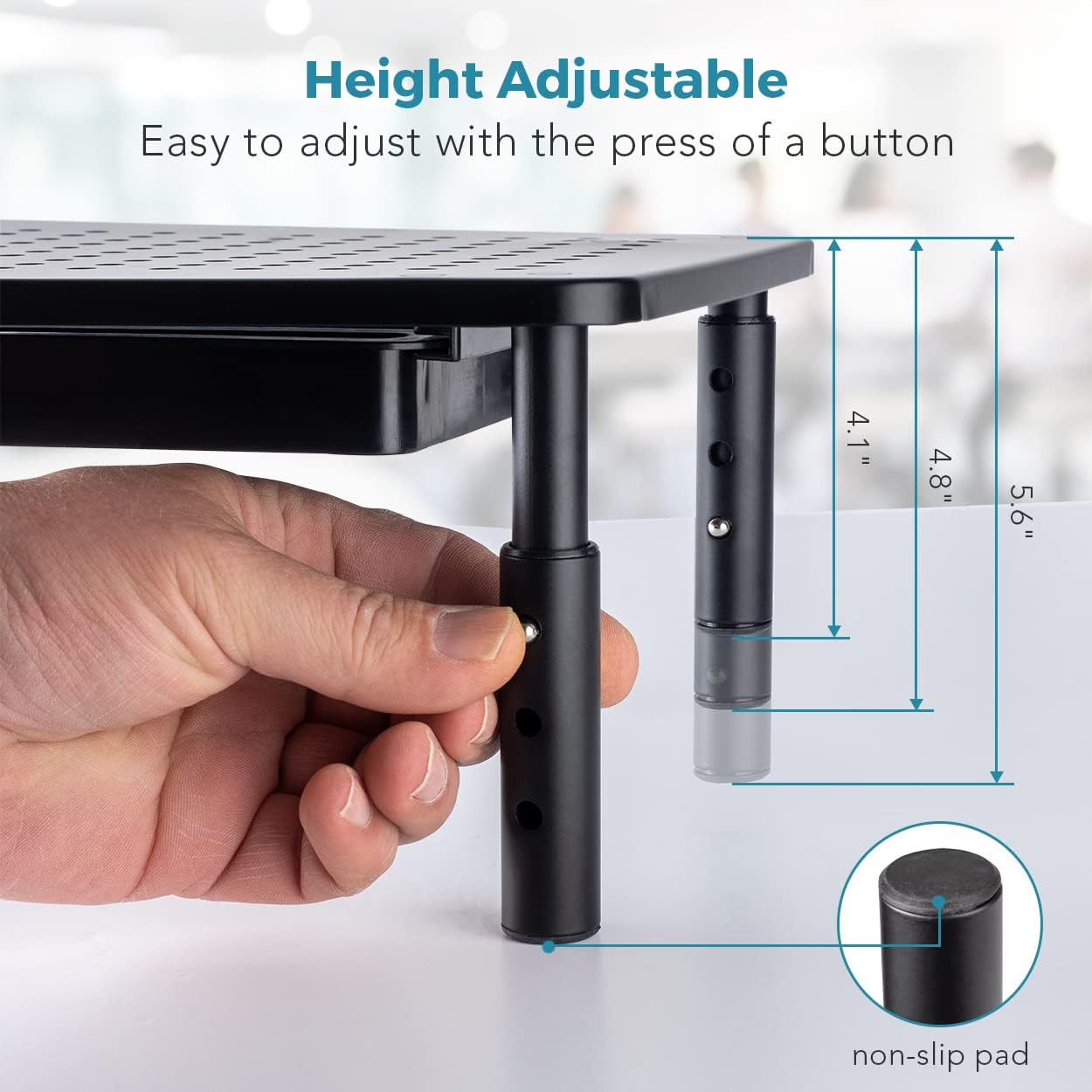
Immaġni: Dettaljata view of a hand adjusting the height of one of the monitor stand's legs, with labels indicating the three adjustable height settings (4.1", 4.8", 5.6") and the non-slip pad at the base.
For optimal ergonomic setup, ensure your feet are flat on the floor, your elbows are at a 90-degree angle, and your wrists are straight when typing.

Image: A woman seated at a desk, working on a computer with her monitor elevated by the LifeGoods stand, illustrating the ergonomic benefits of proper screen height.
Using the Integrated Drawer:
The pull-out drawer provides convenient storage for small office items. It features compartments to help keep your supplies organized. You can also utilize the space beneath the drawer to store a keyboard, books, or other larger items when not in use.

Immaġni: Close-up view of the monitor stand's integrated drawer, shown pulled out and containing various office supplies. Arrows illustrate the airflow through the perforated top surface, aiding in device cooling.
Ġestjoni tal-Kejbil:
Use the included cable ties to bundle and organize your device cables, preventing clutter and creating a neater workspace.
Image: A visual guide demonstrating the quick assembly of the monitor stand, alongside an illustration of the included cable wraps designed to help organize and tidy wires.
Applikazzjonijiet versatili:
Beyond monitors and laptops, these stands can be used to elevate other office equipment such as printers, desktop computers, or even for organizing books and binders, maximizing vertical space on your desk.
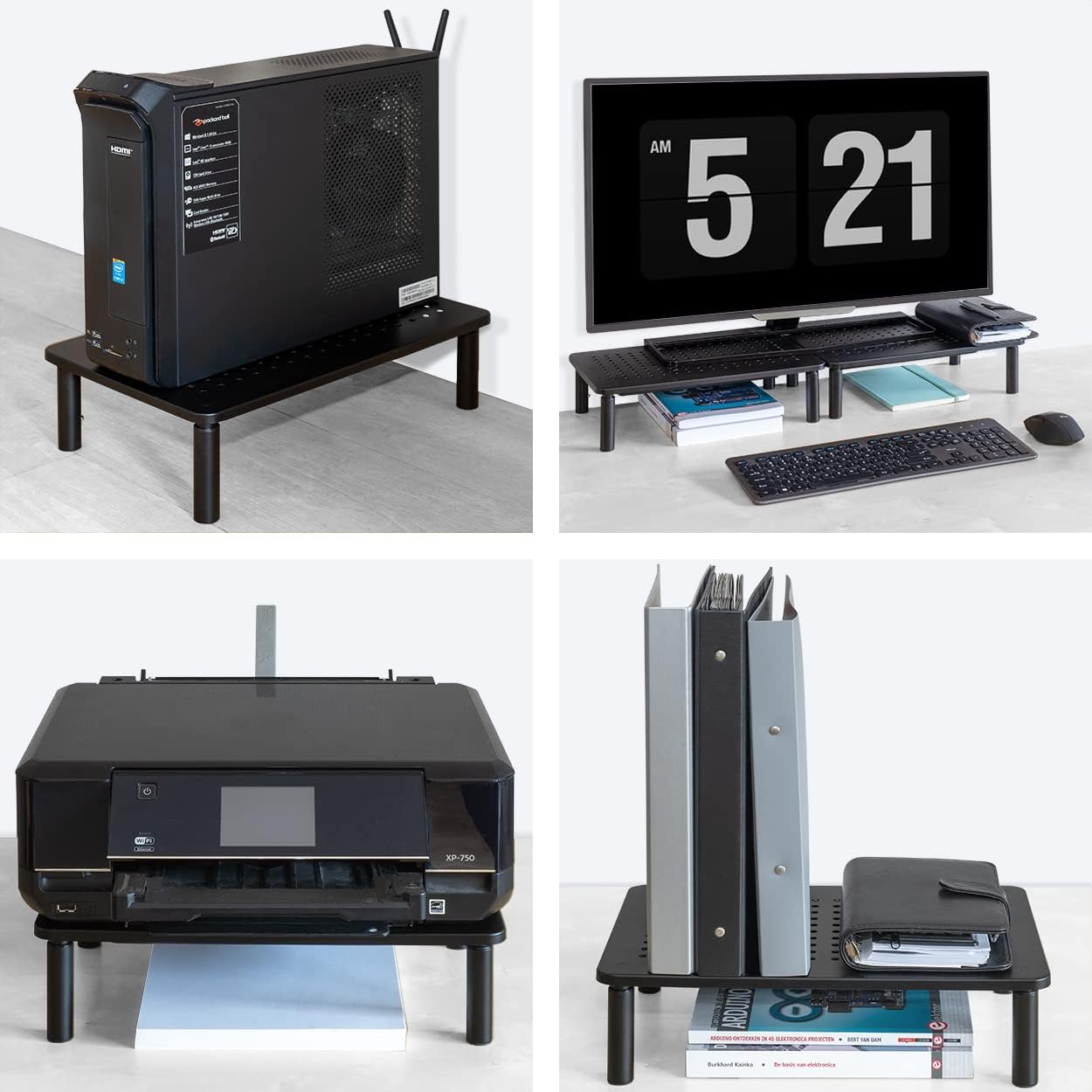
Image: A collage of four images demonstrating the versatile uses of the monitor stand, including elevating a PC tower, supporting two monitors with keyboard storage underneath, holding a printer, and organizing books and binders.
4. Manutenzjoni
To ensure the longevity and optimal performance of your LifeGoods Monitor Stand, follow these simple maintenance guidelines:
- Tindif: Wipe the stand and drawer with a soft, damp cloth. For stubborn marks, a mild soap solution can be used. Avoid abrasive cleaners or solvents, as they may damage the finish.
- It-tfarfir: Regularly dust the perforated surface to maintain optimal airflow and prevent dust buildup in your devices.
- Iċċekkja l-Istabbiltà: Periodically check that all legs are securely attached and set to the same height. Ensure the non-slip pads on the feet are intact.
- Kura tal-Kxaxen: Keep the drawer free of excessive weight or sharp objects that could scratch its surface or hinder smooth operation.
5 Issolvi l-problemi
If you encounter any issues with your monitor stand, refer to the following common problems and their solutions:
| Problema | Kawża Possibbli | Soluzzjoni |
|---|---|---|
| L-istand jitriegħed jew mhux stabbli. | Legs not fully inserted or not set to the same height. Uneven surface. | Ensure all legs are securely clicked into place and adjusted to the identical height setting. Place the stand on a flat, stable surface. |
| Il-kexxun huwa diffiċli biex tiftaħ jew tagħlaq. | Drawer overloaded or obstructed. Debris in the drawer track. | Remove some items from the drawer. Check for and remove any debris in the drawer's sliding mechanism. |
| Device overheating on stand. | Blocked ventilation holes. | Ensure the perforated top surface is not obstructed by papers or other items, allowing for proper airflow. Regularly dust the holes. |
If the problem persists, please contact LifeGoods customer support for further assistance.
6. Speċifikazzjonijiet
| Karatteristika | Dettall |
|---|---|
| Brand | Oġġetti tal-Ħajja |
| Numru tal-Mudell | LG514 |
| Materjal | Metall |
| Kulur | Iswed |
| Dimensjonijiet tal-Prodott (L x W x H) | 37 x 23.5 x 10 ċm (14.57 x 9.25 x 3.94 pulzieri) |
| Settings tal-Għoli aġġustabbli | 10 cm (4.1 in), 12 cm (4.8 in), 14 cm (5.6 in) |
| Kapaċità tal-piż | Sa 20 kg (44 lbs) |
| Assemblea Meħtieġa | Iva (Mingħajr Għodda) |
| Karatteristiċi Speċjali | Integrated drawer, perforated top for airflow, non-slip feet, includes cable ties. |
7. Garanzija u Appoġġ
LifeGoods products are manufactured to high-quality standards. For information regarding warranty coverage, returns, or technical support, please refer to the purchase documentation or visit the official LifeGoods website. You may also contact the seller directly through the platform where the product was purchased.
For direct inquiries, please visit: LifeGoods Official Websit


