Introduzzjoni
This manual provides comprehensive instructions for the setup, operation, and maintenance of your MENEEA Wireless Controller Keyboard for PS5/PS5 Pro. Designed to enhance your gaming communication, this compact keyboard seamlessly integrates with your PlayStation 5 or PlayStation 5 Pro controller, offering a full QWERTY layout for easy messaging and chat.
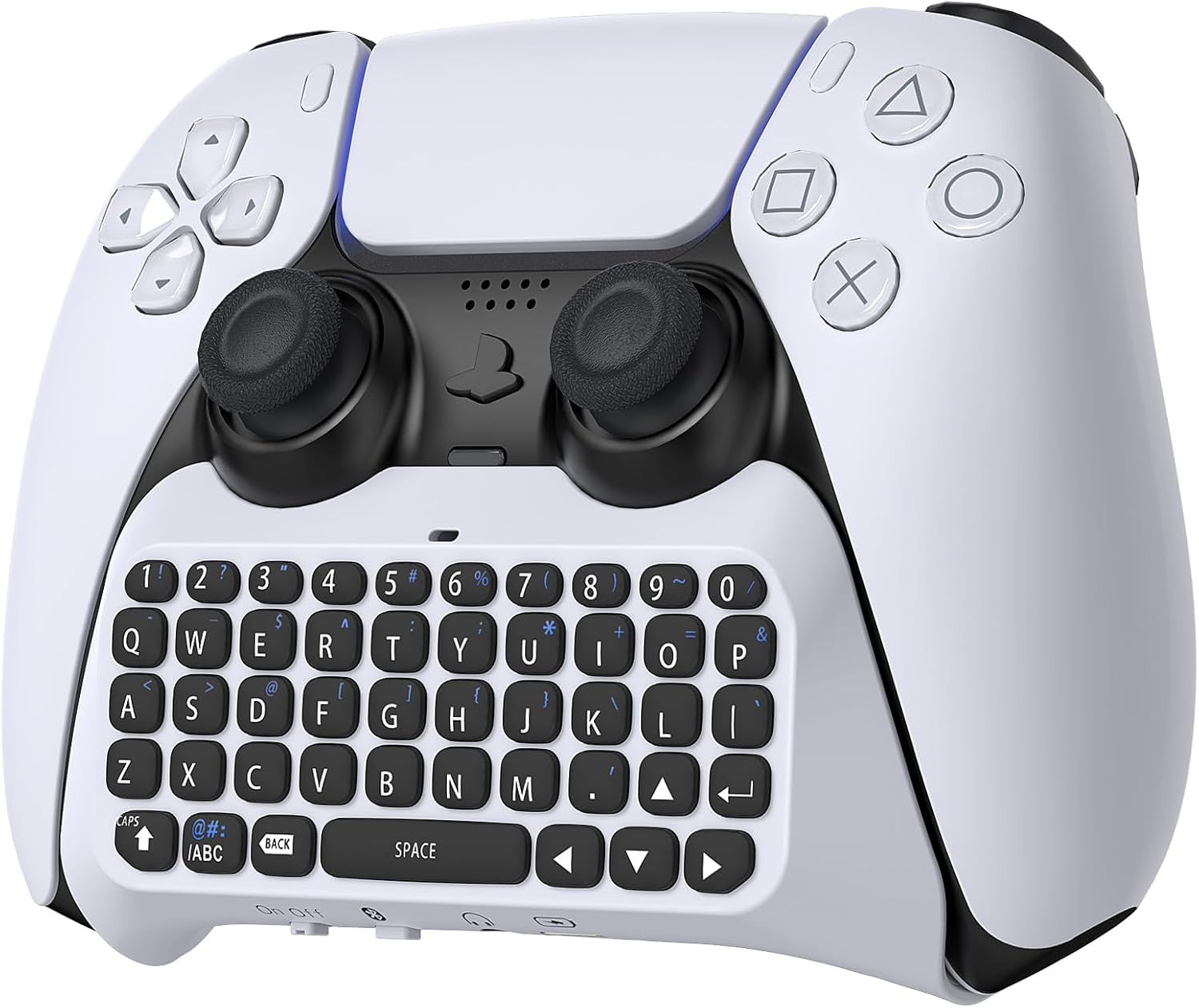
Image: The Wireless Controller Keyboard securely attached to a PlayStation 5 controller, showcasinid-disinn integrat tiegħu.
Speċifikazzjonijiet tal-Prodott
| Ħidma Voltage | Batterija tal-litju 3.7V |
| Kurrent tax-Xogħol | 5mA |
| Kurrent inkwiet | 1.6mA |
| Kurrent Massimu tal-Iċċarġjar | 500mA, 5V |
| Kapaċità tal-Batterija tat-Tastiera | Batterija tal-litju 500mA |
| Verżjoni Bluetooth | Bluetooth 3.0 |
| Ħin tal-Iċċarġjar | 1-2 sigħat |
| Ħin ta 'Użu ta' Enerġija Sħiħa | Madwar sagħtejn |
| Numru tal-Mudell tal-Oġġett | JYS-P5121 |
| Dimensjonijiet tal-Pakkett | 20.4 x 8.2 x 5.5 ċm |
| Piż tal-oġġett | 130 g |

Image: A diagram illustrating the compact dimensions of the keyboard (128mm length, 60mm width, 49mm height) and indicating that a red light signifies charging, with the light turning off when fully charged. It also notes compatibility with PS5/PS5 Pro controllers, but not the PS5 Edge Controller.
Setup u Konnessjoni
Follow these steps to connect your wireless keyboard to your PlayStation 5 or PlayStation 5 Pro controller:
- Konnessjoni Fiżika: Plug the keyboard's 3.5mm audio jack into the corresponding port on your PS5 controller. Ensure it is securely seated.
- Qawwa Mixgħul: Turn on your PS5 console and your PS5 controller. Then, turn on the switch on the keyboard. A blue indicator light will illuminate, signifying it is powered on.
- Ibda Tqabbil: Press and hold the pairing button on the keyboard for three seconds to enter pairing mode.
- PS5 Settings: Fuq il-console tal-PS5 tiegħek, mur fuq [Settings] > [Peripherals] > [Bluetooth Accessories].
- Agħżel Apparat: Locate and select the Bluetooth device named [JYS Bluetooth Keyboard] from the list to initiate pairing.
- Enter Passkey: The PS5 console will display a passkey. Enter this passkey using the wireless keyboard and then confirm your entry within 30 seconds.
- Konferma tal-Konnessjoni: If the connection is successful, the indicator light on the keyboard will turn green.
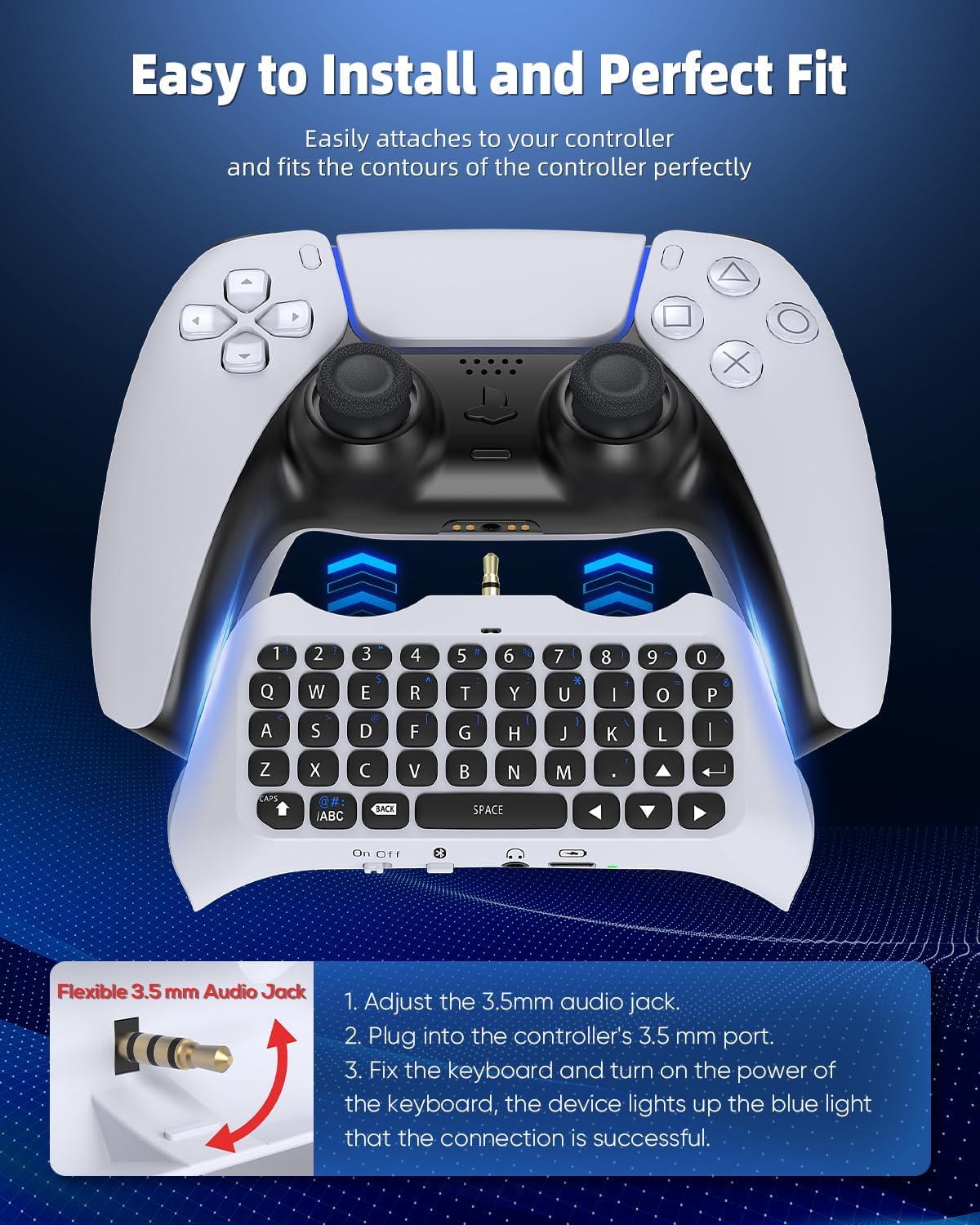
Image: A visual guide demonstrating the easy attachment of the keyboard to the PS5 controller, highlighting the 3.5mm audio jack connection and the blue light indicator for successful connection.

Image: Screenshots illustrating the "How to Connect" process on the PS5 console, showing the Bluetooth Accessories menu, entering the passkey, and the successful connection indicator.
Operazzjoni u Karatteristiċi
The MENEEA Wireless Controller Keyboard offers several features designed for convenient in-game communication and navigation.
It-tqassim tat-tastiera u ċ-ċwievet
The keyboard features a full QWERTY layout with 47 keys, including alphanumeric keys, special characters, and directional keys for easy text input.

Image: A detailed diagram highlighting the various components and keys of the keyboard, including Caps Lock, Functional Key, Delete Key, Space Key, Directional Keys, On/Off Switch, Pairing Key, 3.5mm Audio Output Jack, Type-C Charging Port, and Indicator Light.
Speaker integrat
The keyboard includes a built-in speaker, allowing you to hear chat audio directly from the keyboard. This feature can be disabled via the PS5/PS5 Pro settings menu if you prefer to use an external headset.
- To use the keyboard's speaker for chat audio, ensure your PS5 audio output is not set to HDMI (TV).
- If using a microphone function in-game, select sound output to HDIM to avoid conflicts.

Image: A visual representation of the keyboard's built-in speaker, demonstrating how to switch game sound output for in-game voice communication and noting that HDMI output mode will turn off the speaker sound.
Disinn Konvenjenti
The keyboard is designed for ease of use, making typing faster and more efficient for in-game chat and searching. Its small size and lightweight nature ensure portability and do not interfere with the controller's ergonomics.

Image: A user actively playing a game with the keyboard attached to their PS5 controller, illustrating the practical application and convenience of the device for in-game communication.
Manutenzjoni u Iċċarġjar
To ensure optimal performance and longevity of your keyboard, follow these maintenance guidelines:
- Iċċarġjar: Connect the keyboard to a power source using its Type-C charging port. The indicator light will show red during charging and will turn off when fully charged.
- Nota tal-Iċċarġjar: The controller and the keyboard cannot be charged simultaneously. Only the keyboard will charge when connected.
- Tindif: Use a soft, dry cloth to clean the surface of the keyboard. Avoid using harsh chemicals or abrasive materials.
- Ħażna: Aħżen it-tastiera f'post frisk u niexef 'il bogħod mix-xemx diretta u minn temperaturi estremi meta ma tkunx qed tużaha.
Issolvi l-problemi
If you encounter issues with your wireless keyboard, refer to the following common solutions:
- Keyboard Not Working After Connection: Ensure the keyboard is powered on and successfully paired. If the keyboard is not powered, it will not function.
- Nuqqas ta' Tqabbil: If the initial pairing attempt fails, try the following:
- Restart the keyboard by turning it off and then on again.
- Fuq il-console tal-PS5 tiegħek, mur fuq [Settings] > [Peripherals] > [Bluetooth Accessories], issib [JYS Bluetooth Keyboard], and select "Delete" or "Disconnect" to remove previous pairing information. Then, attempt the pairing process again from step 4 of the "Setup and Connection" section.
- Automatic Reconnection Issues: After a successful initial connection, the keyboard should pair automatically when powered on. If it does not, reboot the keyboard or delete the pairing information on the PS5 and re-pair manually.
- No Audio from Built-in Speaker: Check your PS5 audio output settings. Ensure that the output is not set to HDMI (TV) if you wish to use the keyboard's speaker.
Image: A visual guide demonstrating how to delete existing Bluetooth pairing information for the keyboard on the PS5 console, which can resolve connection issues.
Garanzija u Appoġġ
Specific warranty details for this product are typically provided at the point of purchase or within the product packaging. Please refer to your purchase receipt or the product's retail box for precise warranty terms and conditions.
For technical support, troubleshooting assistance beyond this manual, or inquiries regarding product defects, please contact the manufacturer, MENEEA, or your retailer. Contact information can usually be found on the product packaging or the seller's official websit.
For general inquiries or to explore other products from MENEEA, you may visit their brand page on Amazon: MENEEA Brand Store.