Introduzzjoni
The AZDOME M550 is a state-of-the-art 3-channel dash camera system designed to provide comprehensive surveillance for your vehicle. It captures crystal-clear footage from the front, cabin, and rear, ensuring 360° protection. Equipped with advanced features such as built-in WiFi, GPS tracking, WDR (Wide Dynamic Range), IR night vision, and multiple parking monitoring modes, the M550 is an ideal companion for both daily commutes and long road trips, offering peace of mind and reliable evidence in emergencies.
Kontenut tal-Pakkett

Image: All components included in the AZDOME M550 Dash Cam package.
Jekk jogħġbok ivverifika li l-oġġetti kollha elenkati hawn taħt huma preżenti fil-pakkett tiegħek:
- 1 x AZDOME M550 Dash Cam (Front Camera)
- 1 x Kamera ta 'wara
- 1 x Cabin Camera
- 1 x Magnetic Bracket with Built-in GPS
- Karta tal-Memorja 1 x 64GB
- 1 x 12ft Kejbil tal-Provvista tal-Enerġija b'Ċarġer tal-Karozza
- 2 x Stikers Elettrostatiċi
- 1 x Installation Tools Kit
- 1 x AZDOME M550 User Manual
Prodott Overview
The AZDOME M550 offers advanced recording capabilities and smart features for comprehensive vehicle surveillance.
3-Channel Recording

Image: Visual representation of the 3-channel recording setup, showing front, cabin, and rear camera views.
The M550 simultaneously records from three perspectives:
- Kamera ta' quddiem: Captures 4K footage with a 150° wide-angle view.
- Kamera tal-Kabina: Records 1080P footage of the vehicle's interior with a 150° view, featuring IR night vision.
- Kamera ta' wara: Provides upgraded 2.5K footage with a 150° view, ensuring clear recordings behind your vehicle.
Built-in WiFi & GPS

Image: Icons representing Live View, GPS Tracking, Download, Share, and Settings via the AZDOME app.
Connect the M550 to the 'AZDOME App' on your iOS or Android device via built-in WiFi. This allows for live view, video playback, download, and management directly from your smartphone. The integrated GPS module records driving speed, route, and location data, which can be viewed using the AZDOME GPS Player on a computer or within the app.

Image: Depiction of GPS tracking showing speed and route on a map interface.
Super Night Vision & WDR

Image: Comparison of video quality with WDR off and WDR on, demonstrating improved clarity at night.
Equipped with a Novatek NT96670 Processor, GC4653, Sony IMX307, and GC2053 sensors, the M550 provides superior night vision. WDR technology enhances detail and balances highlights and shadows, ensuring clear capture of license plate information even in challenging low-light or fast-moving conditions. The cabin camera features 6 IR LEDs for clear black-and-white images in complete darkness.
24H Parking Monitor & G-sensor

Image: Illustrations of Motion Detection, Time Lapse, and Collision Detection parking modes.
The M550 offers three parking monitoring modes for 24-hour surveillance (requires a hardwire kit, not included):
- Sejbien ta' Ħabtiet: The built-in G-sensor detects impacts and automatically locks the current video segment.
- Reġistrazzjoni Time-lapse: Records continuously at a low frame rate (e.g., 1 frame per second) to save storage space while covering extended periods.
- Sejbien tal-Moviment: The camera automatically starts recording when motion is detected around the vehicle.

Image: Diagram showing automatic and manual video locking triggered by G-sensor or user input.
Setup
Installazzjoni
The AZDOME M550 is designed for easy and hidden installation. The main unit mounts to your windshield, and the rear camera can be installed either inside or outside your vehicle.

Image: Diagrams illustrating internal and external rear camera installation options.
- Ipprepara ż-Żona tal-Immuntar: Clean the windshield area where the main dash cam will be mounted. Ensure it is free of dust and grease.
- Attach Electrostatic Sticker: Apply one electrostatic sticker to the chosen area on the windshield. This helps in easy removal and prevents residue.
- Immuntar l-Unità Prinċipali: Attach the main dash cam unit to the electrostatic sticker using the adhesive bracket. Ensure the lens has a clear view tat-triq.
- Install Cabin Camera: The cabin camera is integrated into the main unit, ensuring easy setup for interior recording.
- Installa l-Kamera ta' Wara:
- Installazzjoni ta 'ġewwa: Mount the rear camera on the inside of your rear window. An extra rear window bracket may be required (not included).
- Installazzjoni ta' barra: For better rear vision, it is recommended to install the rear camera outside, typically above the license plate. Route the cable carefully to avoid interference.
- Qabbad l-Enerġija: Connect the 12ft power supply cable to the dash cam and plug the car charger into your vehicle's cigarette lighter socket. Route the cable neatly along the car's trim.
- Daħħal il-Kard tal-Memorja: Insert the provided 64GB memory card into the designated slot on the dash cam.
Easy Removal & Adjustment

Image: Visuals demonstrating the sliding bracket for easy removal and adjustable angles of the dash cam components.
The M550 features a sliding bracket for easy removal, allowing you to move the dash cam between vehicles if needed. The main unit and cameras offer adjustable angles (e.g., 120° and 60° adjustable) to optimize recording views.
Istruzzjonijiet Operattivi
Operazzjoni Bażika
- Power On/Off: The dash cam automatically powers on and begins recording when your vehicle starts and powers off when the engine is turned off.
- Reġistrazzjoni Loop: The M550 records in continuous loops (1, 3, or 5-minute segments). When the memory card is full, the oldest unlocked videos are overwritten.
- Serratura ta' Emerġenza: In case of a collision, the built-in G-sensor automatically locks the current video segment to prevent it from being overwritten. You can also manually lock a video by pressing the designated button.
Using the AZDOME App (WiFi Connectivity)
The AZDOME App provides convenient access to your dash cam's features and recordings.
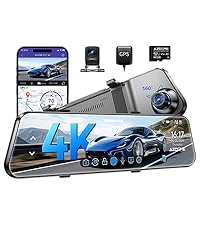
Image: Screenshot of the AZDOME app icon on a smartphone.
- Niżżel l-App: Fittex għal "AZDOME" in the App Store (iOS) or Google Play Store (Android) and install it.
- Enable Dash Cam WiFi: On your M550 dash cam, navigate to the WiFi settings and enable the WiFi hotspot.
- Qabbad it-Telefown Tiegħek: On your smartphone, go to WiFi settings and connect to the AZDOME dash cam's WiFi network (SSID and password will be displayed on the dash cam screen).
- Open AZDOME App: Launch the AZDOME app. It should automatically detect and connect to your dash cam.
- Karatteristiċi ta' Aċċess: Mill-app, tista':
- View foo ħajtage from all three cameras.
- Ibbrawżja u daqq vidjows irreġistrati.
- Niżżel klipps tal-vidjow fuq it-telefon tiegħek.
- Aġġusta s-settings tal-kamera tad-dash.
- View GPS tracking data (speed, route, location).
Manutenzjoni
- Naddaf il-Lentijiet: Regularly clean the front, cabin, and rear camera lenses with a soft, lint-free cloth to ensure clear video quality.
- Kura tal-Kard tal-Memorja:
- Format the memory card regularly (e.g., once a month) within the dash cam's settings to prevent data corruption and ensure optimal performance.
- Use a high-quality, high-speed (Class 10 or U3 recommended) microSD card. The included 64GB card is suitable.
- Aġġornamenti tal-Firmware: Check the AZDOME official website or app periodically for firmware updates to improve performance and add new features.
- Konsiderazzjonijiet tat-Temperatura: Avoid exposing the dash cam to extreme temperatures for prolonged periods. The supercapacitor design offers better heat resistance than traditional lithium batteries.
Issolvi l-problemi
| Problema | Kawża Possibbli | Soluzzjoni |
|---|---|---|
| Id-dash cam ma tixgħelx. | No power supply; faulty power cable; loose connection. | Check car charger connection. Ensure vehicle's cigarette lighter socket is working. Try a different power source if available. |
| "Format SD Card" error message. | Memory card error; card not formatted correctly; incompatible card. | Format the SD card directly in the dash cam's settings. If the issue persists, try a different high-quality microSD card. |
| Poor video quality (blurry/grainy). | Lenti maħmuġa; kundizzjonijiet ta’ dawl baxx; film protettiv għadu fuq il-lenti. | Clean camera lenses. Ensure protective film is removed. Verify WDR and IR night vision settings are enabled for low light. |
| WiFi connection issues with app. | Incorrect WiFi password; phone too far from dash cam; app glitch. | Ensure correct WiFi password. Keep phone within 10ft of the dash cam. Restart both the dash cam and the app. |
| Dash cam stops recording randomly. | Memory card full (no loop recording); card speed too slow; power interruption. | Ensure loop recording is enabled. Use a high-speed memory card. Check power connection stability. |
Għal aktar assistenza, jekk jogħġbok irreferi għat-taqsima tal-Garanzija u l-Appoġġ.
Speċifikazzjonijiet
| Karatteristika | Dettall |
|---|---|
| Brand | AZDOME |
| Isem tal-Mudell | M550 |
| Orjentazzjoni | Quddiem, Wara, u Ġewwa |
| Riżoluzzjoni tal-Qbid tal-Vidjo | 4K Front, 4K+2.5K Front & Rear, 1440P+1080P Front & Inside, 1440P+1080P+1440P Front & Inside & Rear |
| Teknoloġija tal-Konnettività | Wi-Fi |
| Karatteristiċi Speċjali | 3 Channel, Built-in WiFi, GPS Tracking, 24 Hours Parking Mode, G-sensor, Loop Recording, Time-lapse, Infrared Night Vision, 64GB Card Included |
| Tip ta 'Immuntar | Stand manjetiku |
| Kulur | Iswed |
| Daqs tal-Iskrin | Skrin IPS ta' 3.19" |
| Proċessur | Novatek NT96670 |
| Sensuri | GC4653, Sony IMX307, GC2053 |
Garanzija u Appoġġ

Image: Visual representation of warranty, return policy, and customer support contact details.
AZDOME provides comprehensive support for the M550 Dash Cam:
- Garanzija: The AZDOME M550 comes with a 12-month warranty from the date of purchase.
- Politika ta' Ritorn: A 30-day return policy is available for eligible products.
- Appoġġ: AZDOME offers 24/7 customer support for product inquiries and technical assistance.
For any questions, technical support, or warranty claims, please contact AZDOME's support team:
- Email: servizz@azdomevip.com
- Telefon: (833) 667-5545


