1. Introduzzjoni
This manual provides essential information for setting up, operating, and maintaining your Microsoft Bluetooth Mouse - Forest Camo. Designed for precise scrolling and navigation, this compact and modern mouse offers wireless convenience for various computing platforms.
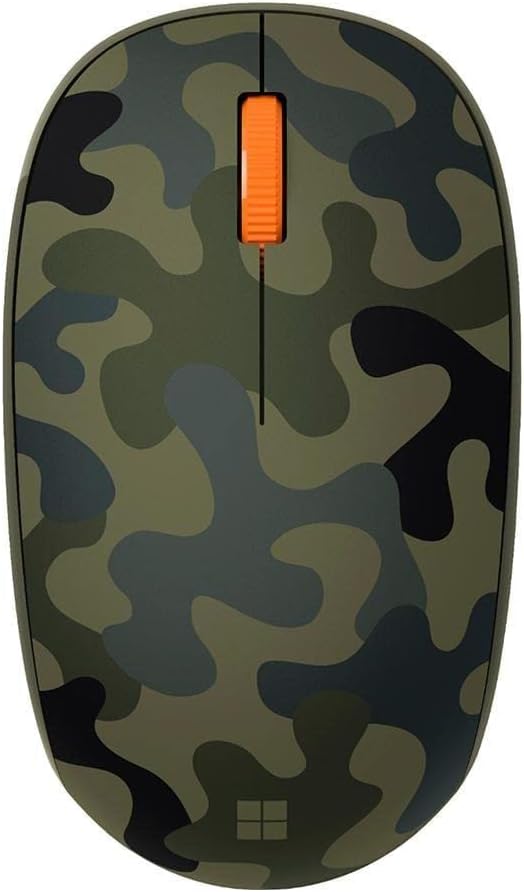
Figure 1: Microsoft Bluetooth Mouse - Forest Camo
2. Kontenut tal-Pakkett
- Microsoft Bluetooth Mouse - Forest Camo
- 1 AA Alkaline Battery (pre-installed)
3. Twaqqif u Tqabbil
3.1. Installazzjoni tal-batterija
The mouse comes with a pre-installed AA battery. To activate the mouse, locate the battery compartment on the underside of the mouse. Remove any protective pull-tab if present. Ensure the battery is correctly seated according to the polarity indicators.

Figure 2: Underside of the mouse with battery compartment
3.2. Tqabbil tal-Bluetooth
- Turn on the mouse by sliding the power switch (usually located on the underside) to the 'On' position. A small LED indicator may light up.
- On your computer (PC or Mac), open your Bluetooth settings.
- Select 'Add Bluetooth or other device' (Windows) or 'Bluetooth Preferences' (Mac).
- The computer should detect 'Microsoft Bluetooth Mouse'. Select it from the list of available devices.
- Follow any on-screen prompts to complete the pairing process. The LED on the mouse may change from flashing to solid to indicate a successful connection.
The mouse is compatible with Windows 10, Windows 8.1, and Mac operating systems.
4. Istruzzjonijiet Operattivi
The Microsoft Bluetooth Mouse features a standard three-button design with a scroll wheel for intuitive navigation.
- Buttuna tal-Ikklikkjar fuq ix-Xellug: Użat għall-għażla ta' oġġetti, ftuħ files, u l-attivazzjoni tal-funzjonijiet.
- Buttuna tal-Ikklikkjar bil-Lemin: Użat għall-aċċess tal-menus tal-kuntest u għażliet addizzjonali.
- Scroll Wheel: Irrombla 'l fuq jew 'l isfel biex tiskrollja fid-dokumenti u web pages. The scroll wheel can also be pressed down for a middle-click function, depending on your software settings.
Biex tikkonserva l-ħajja tal-batterija, itfi l-maws meta ma tkunx qed tużah għal perjodi twal.
5. Karatteristiċi
- Compact and modern design for comfortable use.
- Wireless Bluetooth connectivity, eliminating the need for a USB dongle.
- Fast tracking sensor for precise navigation.
- Up to 12 months of battery life on a single AA battery.
- Designed for both right and left-hand use.
6. Speċifikazzjonijiet
| Karatteristika | Dettall |
|---|---|
| Numru tal-Mudell | 8KX-00003 |
| Brand | Microsoft |
| Kulur | Forest Camo |
| Teknoloġija tal-Konnettività | Bluetooth |
| Sejbien tal-Moviment | Ottiċi |
| Pjattaforma tal-Ħardwer | Laptop, PC |
| Sistema Operattiva | Windows 10, Windows 8.1 |
| Piż tal-oġġett | 3.84 uqija |
| Dimensjonijiet tal-Prodott (LxWxH) | 3.11 x 5.83 x 2.01 pulzieri |
| Ħajja Medja tal-Batterija | 12 xhur |
| Batteriji Meħtieġa | 1 AA (inklużi) |

Figure 3: Mouse dimensions
7 Issolvi l-problemi
7.1. Il-Maws Mhux Qed Jikkonnettja
- Ensure the mouse is turned on and the battery is correctly installed.
- Check your computer's Bluetooth settings to confirm Bluetooth is enabled.
- Try re-pairing the mouse by removing it from your device list and adding it again.
- Ensure the mouse is within range of your computer (typically up to 10 meters).
7.2. Intermittent Connection or Lag
- Ibdel il-batterija AA b'waħda ġdida.
- Minimize interference from other wireless devices operating on the same frequency.
- Kun żgur li s-sewwieqa tal-Bluetooth tal-kompjuter tiegħek huma aġġornati.
8. Manutenzjoni
8.1. Tindif
Biex tnaddaf il-maws tiegħek, uża drapp artab u mingħajr suf imnixxef ħafif.ampened with water or a mild cleaning solution. Avoid harsh chemicals or abrasive materials. Do not allow moisture to enter any openings.
8.2. Sostituzzjoni tal-batterija
When the mouse's performance degrades or the LED indicator suggests low battery, replace the AA battery. Open the battery compartment on the underside, remove the old battery, and insert a new AA battery, observing correct polarity.
9. Garanzija u Appoġġ
For warranty information, technical support, or further assistance, please refer to the official Microsoft support webis-sit jew ikkuntattja s-servizz tal-klijenti ta' Microsoft. Żomm il-prova tax-xiri tiegħek għal talbiet ta' garanzija.
Żur il- Microsoft Store għal aktar informazzjoni u riżorsi dwar il-prodott.


