1. Introduzzjoni
Thank you for choosing the Phomemo M02S Mini Phone Printer. This compact and versatile thermal printer is designed for convenience, allowing you to print photos, text, memos, and labels directly from your smartphone or PC. With its 300dpi resolution, it delivers clear and high-definition prints without the need for ink. This manual provides essential information for setting up, operating, and maintaining your device.

Image: The Phomemo M02S Mini Phone Printer in black, shown alongside several rolls of thermal paper in different sizes and colors, highlighting its compact design and paper compatibility.
2. X'hemm fil-Kaxxa
Upon opening your Phomemo M02S package, you should find the following items:
- 1 Phomemo M02S Mini Pocket Printer (Black)
- 1 pcs 53mm White Sticker Paper
- 1 pcs 25mm Transparent & Semi-Transparent Paper
- 1 pcs 15mm Purple/Orange/Rose Paper
- 1 Micro USB wire
- 1 Gift Box

Image: A visual representation of the Phomemo M02S printer and its included accessories, such as the data cable, gift box, and various rolls of thermal paper (53mm white, 25mm clear/semi-transparent, and 15mm colored).
3. Gwida ta' Setup
3.1 Iċċarġjar tal-Printer
Before initial use, fully charge your Phomemo M02S printer using the provided Micro USB cable. Connect the cable to the printer's charging port and the other end to a USB power adapter (not included) or a computer's USB port. The indicator light will show charging status.
3.2 Installing the Phomemo App
The Phomemo M02S printer operates via the "Phomemo" mobile application. Download the app from your device's app store:

Image: A smartphone displaying the Phomemo app interface, with the Phomemo M02S printer nearby, illustrating the Bluetooth connection process. App store icons for Google Play and Apple App Store are also visible.
3.3 Konnessjoni permezz tal-Bluetooth
- Ensure your Phomemo M02S printer is turned on.
- Ippermetti l-Bluetooth fuq l-ismartphone jew it-tablet tiegħek.
- Open the Phomemo app. The app will automatically search for and connect to your printer. If it doesn't connect automatically, select your printer from the device list within the app.
3.4 Tagħbija ta' Karta Termali
The Phomemo M02S supports three sizes of thermal paper: 53mm, 25mm, and 15mm. To load paper:
- Iftaħ l-għatu tal-kompartiment tal-karta tal-istampatur.
- Insert the thermal paper roll with the printable side facing the print head. Ensure the roll is properly seated.
- Close the cover, leaving a small portion of paper extending from the output slot.
- The printer includes an additional paper holder for stronger stability and to prevent paper jamming, especially with smaller rolls.

Image: The Phomemo M02S printer on a desk with various paper rolls, illustrating the three compatible paper widths: 53mm, 25mm, and 15mm. A printed image is shown emerging from the printer.
4. Istruzzjonijiet Operattivi
The Phomemo app offers a wide range of functions to maximize your printer's utility.
4.1 Basic Printing (Photos, Text, Memos)
- Open the Phomemo app and ensure your printer is connected.
- Select the desired function (e.g., "Print Images" for photos, "Notes" for text, or choose from various templates).
- Edit your content within the app. You can adjust print density (fine, medium, thick) and utilize various fonts and graphics.
- Tap the print icon to send the job to your M02S printer.

Image: A collage demonstrating various applications of the Phomemo M02S printer, including printing gift cards, stickers, notes, and photos, emphasizing its versatility as a multipurpose inkless printer.
4.2 Using "Label Workshop"
For printing 15mm or 25mm labels, utilize the "Label Workshop" feature:
- In the Phomemo app, navigate to the "Label Workshop" section.
- Choose from existing templates or create a new label.
- Customize your label with text, icons, or images.
- Print the label. The app is designed to optimize printing for these smaller paper sizes.
4.3 Exploring App Features
The Phomemo app is regularly updated with new graphics and templates. Key features include:
- Graphic Library: Access a wide range of free graphics for various occasions.
- Variety Fonts: Choose from numerous font styles for your text.
- Mudelli: Over 1000 templates for lists, plans, business, and more.
- Label Workshop: Dedicated section for creating and printing labels.
- Noti: For simple text printing.
- Kaxxa tal-għodda: Additional tools for enhanced printing.
- Skennja: Convert scanned text into editable content.
- Stampa Web: Print content directly from web paġni.
- Stampar tad-Dokument: Print micro-office documents.
- OCR: Optical Character Recognition for text extraction.

Image: A screenshot of the Phomemo app showcasing its diverse features, including a library of free graphics, various font options, and over 1000 templates for different printing needs.
Video: This video demonstrates the Phomemo M02S Pocket Phone Printer in action, showcasing its ease of use for DIY printing projects, such as creating custom stickers and decorations for various items like Easter eggs.
5. Manutenzjoni
5.1 Tindif tar-Ras tal-Istampar
To ensure optimal print quality, periodically clean the print head. Use a cotton swab lightly dampened with rubbing alcohol to gently wipe the print head. Allow it to dry completely before use.
5.2 Sostituzzjoni tar-Rombli tal-Karta
When the paper roll is depleted, replace it with a new Phomemo thermal paper roll of the desired size (53mm, 25mm, or 15mm). Follow the paper loading instructions in Section 3.4.
6 Issolvi l-problemi
6.1 Il-Printer Mhux Qed Jikkonnettja permezz tal-Bluetooth
- Kun żgur li l-istampatur ikun mixgħul u ċċarġjat kompletament.
- Iċċekkja li l-Bluetooth huwa attivat fuq l-apparat mobbli tiegħek.
- Erġa' ibda kemm il-printer kif ukoll l-apparat mobbli tiegħek.
- Close and reopen the Phomemo app.
- If issues persist, try "forgetting" the device in your phone's Bluetooth settings and re-pairing.
6.2 Poor Print Quality (Faint or Streaky Prints)
- Check if the thermal paper is loaded correctly with the printable side facing the print head.
- Naddaf ir-ras tal-istampar kif deskritt fit-Taqsima 5.1.
- Adjust the print density settings within the Phomemo app.
- Ensure the paper roll is not old or damaged. Thermal paper has a shelf life.
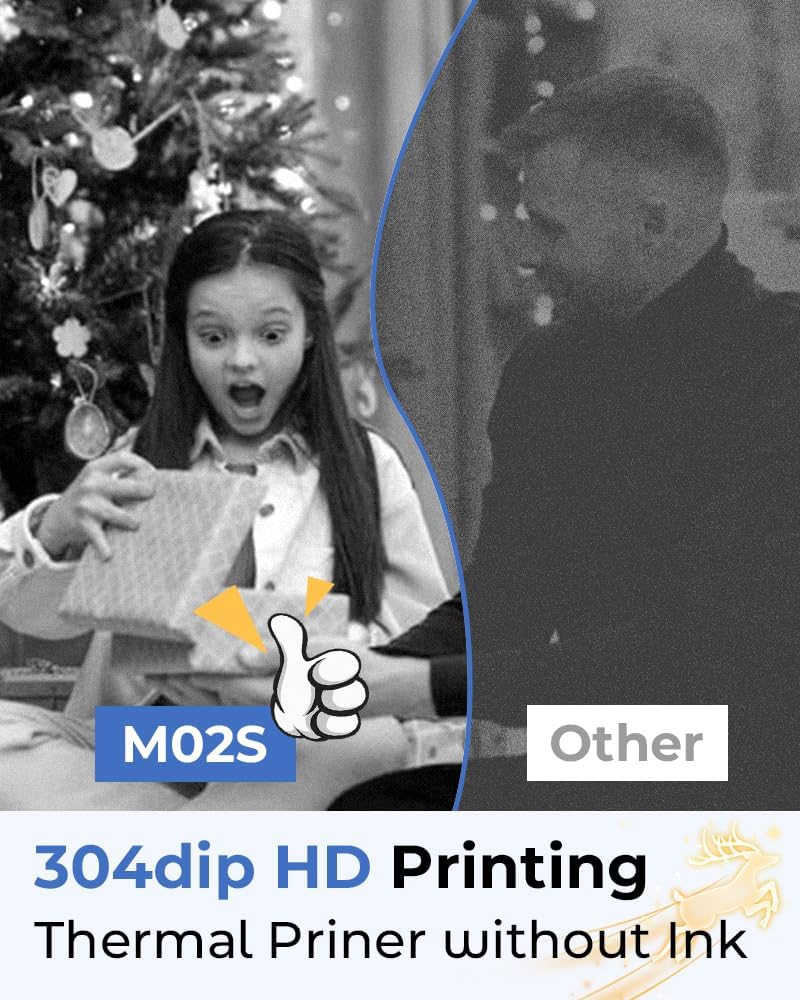
Image: A side-by-side comparison showing the superior 300dpi HD print quality of the Phomemo M02S thermal printer compared to another printer, highlighting its inkless operation.
6.3 Ġammijiet tal-karti
- Itfi l-istampatur immedjatament.
- Gently open the paper compartment and carefully remove any jammed paper. Avoid pulling forcefully to prevent damage.
- Ensure the paper roll is inserted correctly and the additional paper holder is utilized if needed.
- Use only compatible Phomemo thermal paper.
7. Speċifikazzjonijiet
| Karatteristika | Dettall |
|---|---|
| Brand | Phomemo |
| Isem tal-Mudell | M02S |
| Numru tal-Mudell tal-Oġġett | PM-M02SB-TZ1 |
| Teknoloġija tal-Istampar | Termali |
| Riżoluzzjoni Massima tal-Istampar bl-Iswed u l-Abjad | 300 dpi |
| Teknoloġija tal-Konnettività | Bluetooth, USB |
| Apparati Kompatibbli | PC, Smartphones |
| Metodu ta' Kontroll | App (Android, iOS) |
| Daqs Max tal-Midja | 4x6 inches (10.16 x 15.24 cm) |
| Piż tal-oġġett | 12.3 uqija |
| Batteriji | 1 batterija tal-polimer tal-litju (inkluża) |
| Użi Speċifiċi Għall-Prodott | Home, Office, School, Business |
8. Garanzija u Appoġġ
For warranty information and technical support, please refer to the official Phomemo website or contact Phomemo customer service directly. Keep your purchase receipt for warranty claims.
You can visit the official Phomemo store for more information and support:


