Grazzi tax-xiriasing the Trust Wireless Mouse. This manual provides detailed instructions for setting up, operating, maintaining, and troubleshooting your new wireless mouse. Please read this manual thoroughly before using the product to ensure optimal performance and longevity.
Immaġni 1.1: Fuq view of the Trust Wireless Mouse, showcasinid-disinn ergonomiku u t-tqassim tal-buttuni tiegħu.
2. Informazzjoni dwar is-Sigurtà
Jekk jogħġbok osserva l-linji gwida tas-sigurtà li ġejjin biex tevita ħsara lill-apparat jew korriment lilek innifsek:
Tesponix il-maws għall-ilma jew għal umdità eċċessiva.
Evita li twaqqa' jew tissuġġetta l-maws għal impatti qawwija.
Do not attempt to disassemble or repair the mouse yourself. Refer to qualified service personnel.
Armi l-batteriji skont ir-regolamenti lokali.
3. Kontenut tal-Pakkett
Ivverifika li l-oġġetti kollha huma preżenti fil-pakkett:
1x Trust Wireless Comfort Mouse
1x USB Mikro Riċevitur
1x Batterija AA
1x Manwal tal-Utent (dan id-dokument)
Image 3.1: The retail packaging of the Trust Wireless Mouse, showing the mouse and included accessories.
4. Setup
4.1. Installazzjoni tal-batterija
Sib il-kompartiment tal-batterija fuq in-naħa ta' taħt tal-maws.
Image 4.1: Underside of the mouse with the battery compartment open, showing the insertion of an AA battery.
Immaġni 4.2: Il-qiegħ view of the Trust Wireless Mouse, illustrating the battery compartment and the storage slot for the USB micro receiver.
4.2. Connecting the USB Micro Receiver
Locate the USB micro receiver, which is typically stored inside the mouse's battery compartment for transport.
Remove the USB micro receiver from its storage slot.
Plug the USB micro receiver into an available USB port on your computer (laptop or PC).
The mouse should automatically connect to your computer. No additional drivers are typically required for Windows 10, 8, 7, or Mac OS X 10.15 (Catalina) or higher.
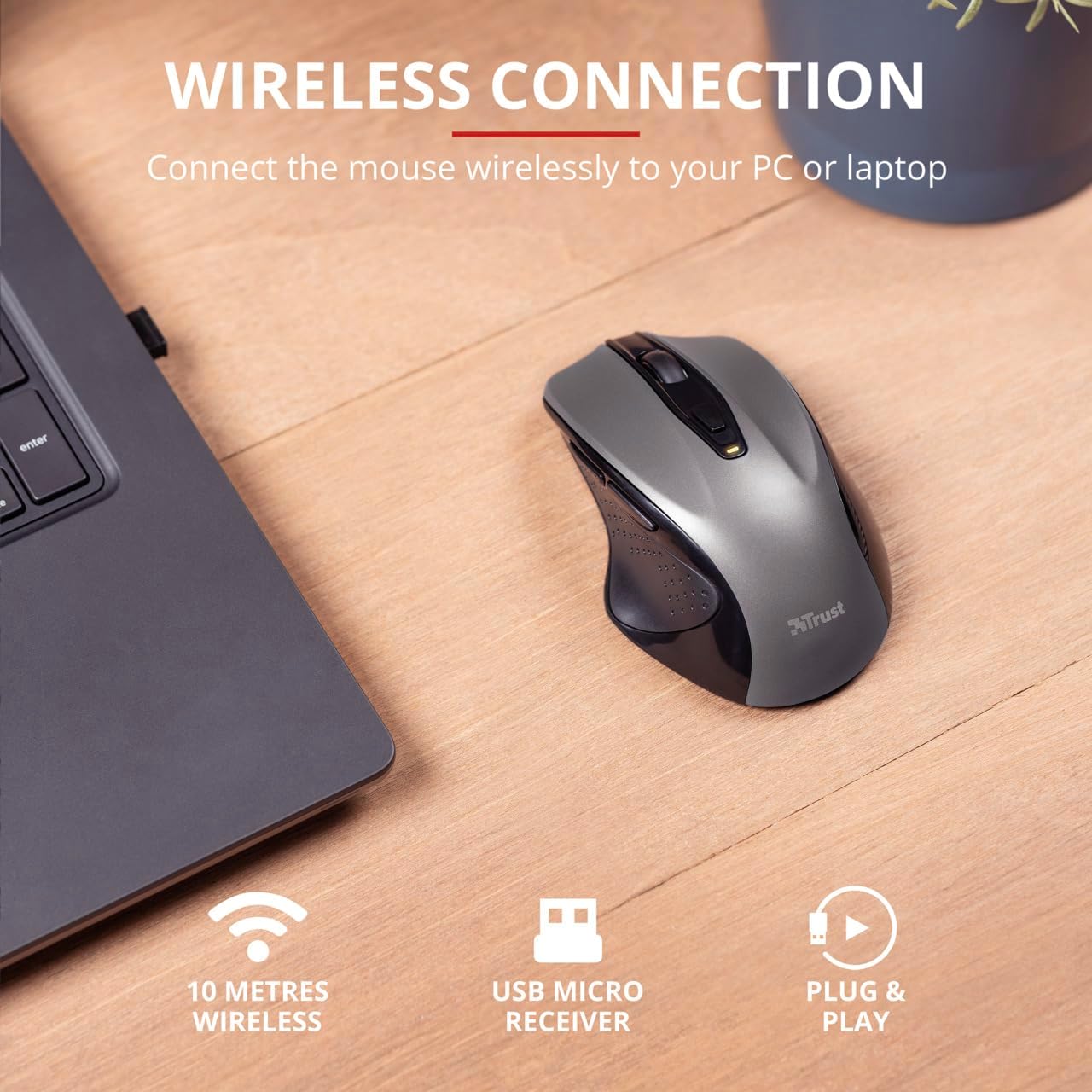
Image 4.3: The Trust Wireless Mouse positioned next to a laptop, demonstrating the wireless connection via the USB micro receiver plugged into the laptop's USB port.
5. It-Tħaddim tal-Maws
5.1. Funzjonijiet Bażiċi
Ikklikkja Xellug: Primary button for selecting items and interacting with software.
Ikklikkja bil-lemin: Buttuna sekondarja għal menus tal-kuntest u għażliet addizzjonali.
Scroll Wheel: Irrombla 'l fuq jew 'l isfel biex tiskrollja fid-dokumenti u web pages. Press the scroll wheel for middle-click functionality.
5.2. Aġġustament tad-DPI
The Trust Wireless Mouse features an adjustable DPI (Dots Per Inch) setting, allowing you to control the cursor speed. There are 5 different speeds available: 800, 1200, 1600, 1800, and 2200 DPI.
Locate the DPI button, usually positioned behind the scroll wheel.
Agħfas il-buttuna DPI biex tiċċirkola permezz tas-settings tad-DPI disponibbli.
An LED indicator on the mouse will briefly show the current DPI setting.
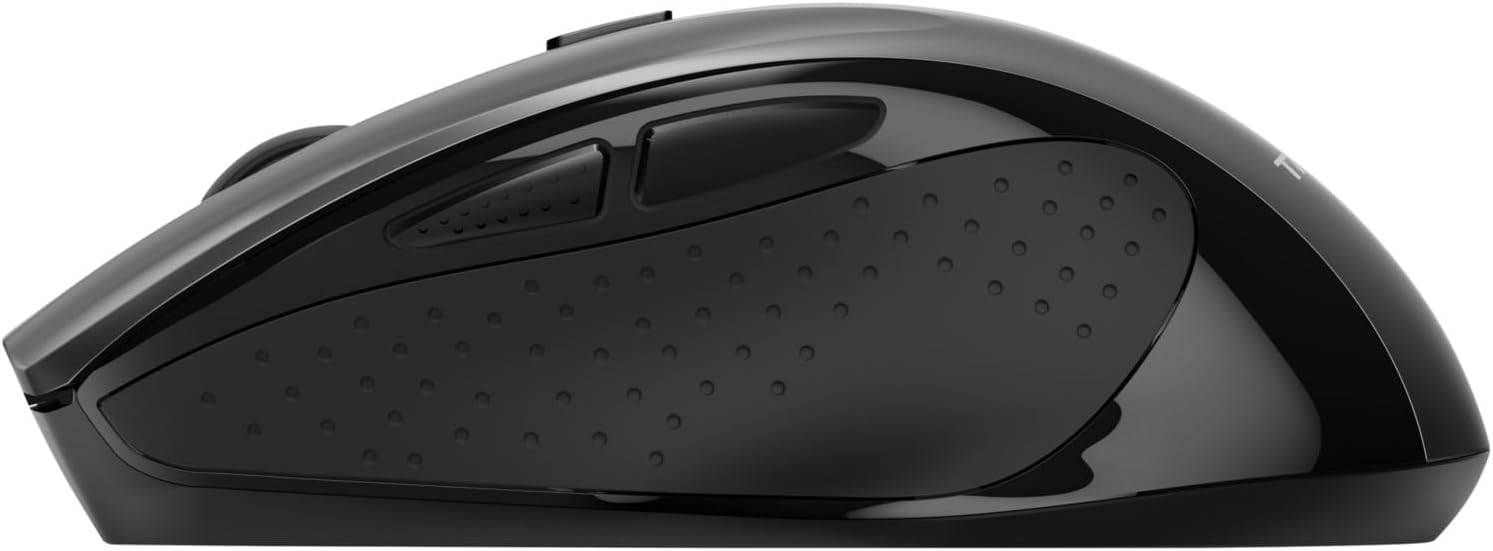
Immaġni 5.1: Ġenb view of the Trust Wireless Mouse highlighting its comfortable shape, thumb rest with extra grip, and the adjustable speed (DPI) feature.
5.3. Thumb Buttons
The mouse is equipped with two conveniently placed thumb buttons (forward and backward) on the left side. These buttons facilitate easy navigation, such as browsing through files jew web paġni.
Agħfas il- Quddiem button to move to the next page or item.
Agħfas il- B'lura button to return to the previous page or item.
Immaġni 5.2: Ġenb view of the Trust Wireless Mouse, clearly showing the placement of the two thumb buttons for forward and backward navigation.
Note: Functionality of side buttons may vary between operating systems.
5.4. Karatteristiċi ta' Iffrankar tal-Enerġija
To conserve battery life, the mouse includes a power-saving mode and an on/off switch.
Swiċċ mixgħul/mitfi: Located on the underside of the mouse. Turn the mouse off when not in use for extended periods to maximize battery life.
Indikatur LED tal-batterija: An LED indicator will light up when the battery level is low, signaling that it's time to replace the AA battery.
6. Manutenzjoni
6.1. Tindif
To maintain optimal performance, clean your mouse regularly:
Uża drapp artab u niexef biex timsaħ il-wiċċ tal-maws.
Għal ħmieġ iebes, neħħi ftitampLaħlaħ id-drapp bl-ilma jew b'soluzzjoni ħafifa tat-tindif. Evita kimiċi ħarxa.
Tħallix likwidi jidħlu fil-komponenti interni tal-maws.
6.2. Sostituzzjoni tal-batterija
When the battery indicator lights up, replace the AA battery promptly to ensure uninterrupted use. Refer to section 4.1 for battery installation instructions.
7 Issolvi l-problemi
Problema
Kawża Possibbli
Soluzzjoni
Il-maws mhux qed jirrispondi.
Batterija baxxa jew mejta.
Ibdel il-batterija AA.
Il-maws mhux qed jirrispondi.
Ir-riċevitur USB mhux imqabbad sew.
Kun żgur li r-riċevitur tal-USB huwa mdaħħal sew f'port USB li jaħdem. Ipprova port USB ieħor.
Il-maws mhux qed jirrispondi.
Il-ġurdien huwa mitfi.
Turn on the mouse using the on/off switch on the underside.
Il-moviment tal-cursor huwa irregolari jew bil-mod.
Low DPI setting.
Press the DPI button to increase cursor speed.
Il-moviment tal-cursor huwa irregolari jew bil-mod.
Dirty sensor or unsuitable surface.
Clean the optical sensor on the underside of the mouse. Use the mouse on a clean, non-reflective surface.
Problemi bil-konnessjoni mingħajr fili.
Interference or distance from receiver.
Ensure the mouse is within 10 meters of the receiver. Remove any large metal objects between the mouse and receiver.
8. Speċifikazzjonijiet
Karatteristika
Dettall
Numru tal-Mudell
24115
Konnettività
Mingħajr fili (RF 2.4GHz)
Firxa Wireless
10-il metru
Settings DPI
800, 1200, 1600, 1800, 2200 DPI (adjustable)
Numru ta' Buttuni
6 (Left, Right, Mid, Forward, Backward, DPI loop)
Tip tas-Sensor
Ottiċi
Ergonomija
Ergonomic design with thumb rest and rubber inlay
Sors tal-Enerġija
1x Batterija AA (inkluża)
Dimensjonijiet (L x W x H)
113 mm x 74 mm x 41 mm (4.45 x 2.91 x 0.04 pulzieri)
Piż
100 g (2.65 uqija)
Sistemi Operattivi Kompatibbli
Windows 10, 8, 7; Mac OS X 10.15 (Catalina) or higher
9. Garanzija u Appoġġ
The Trust Wireless Mouse comes with a garanzija ta 'sena mid-data tax-xiri. Din il-garanzija tkopri difetti fil-materjali u l-abbilità taħt użu normali.
Il-garanzija ma tkoprix:
Ħsara kkawżata minn inċident, abbuż, użu ħażin, għargħar, nar, terremot, jew kawżi esterni oħra.
Damage caused by operating the product outside the permitted or intended uses described by Trust.
Damage caused by service (including upgrades and expansions) performed by anyone who is not a representative of Trust or a Trust Authorized Service Provider.
For technical support or warranty claims, please visit the official Trust website or contact their customer service department. Refer to the product packaging or Trust's official webis-sit għall-aktar informazzjoni ta' kuntatt aġġornata.
Gwida għall-Utent tal-Maws Silent Click Wireless ta' Trust Mydo Gwida komprensiva għall-utent għat-Trust Mydo Wireless Silent Click Mouse, li tkopri s-setup, il-karatteristiċi, u l-appoġġ. Tgħallem kif tikkonnettja u tuża l-maws sieket tiegħek għal komputazzjoni effiċjenti.
Gwida għall-Utent tal-Maws Wireless Trust PUCK Gwida komprensiva għall-utent għall-maws mingħajr fili Trust PUCK, li tiddeskrivi s-setup, il-konnettività permezz ta' riċevitur USB u Bluetooth, u l-istatus tal-indikatur LED.
Gwida għall-Utent tal-Maws tal-Logħob Wireless Trust FELOX bil-Mawspad Gwida uffiċjali għall-utent għall-maws u l-mawspad tal-logħob mingħajr fili Trust FELOX GXT 112. Tgħallem dwar is-setup, l-iċċarġjar, il-funzjonijiet tal-buttuni, is-settings tad-DPI, u d-dawl RGB. Sib appoġġ fuq Trust.com.