Introduzzjoni
This manual provides essential information for setting up, operating, and maintaining your Amazon Fire TV 4-Series 50-inch 4K UHD Smart TV. The Fire TV 4-Series brings vivid 4K Ultra HD, HDR 10, HLG, and Dolby Digital Plus support, offering a clearer and more vibrant picture than 1080p Full HD. Enjoy access to over 1.5 million movies and TV episodes from various streaming services, along with live TV, video games, and music. The integrated Fire TV platform continuously updates with new Alexa skills, features, smart home capabilities, and voice functionality.

Immaġni: Quddiem view of the Amazon Fire TV 4-Series 50-inch 4K UHD Smart TV, showcasing its slim bezel and display.
X'hemm fil-Kaxxa
Iftaħ il-kaxxa bir-reqqa u kun żgur li l-komponenti kollha huma preżenti:
- Fire TV 4-Series 50-inch Television
- Alexa Voice Remote Imtejjeb
- Korda tal-Enerġija
- 2 Batteriji AAA (għall-kontroll remot)
- 4 Screws (for stand attachment)
- Stand tat-TV (2 saqajn)
- Gwida Quick Start

Image: All components included in the Amazon Fire TV 4-Series package, laid out for inspection.
Setup
1. Attaching the TV Stand or Wall Mounting
The TV is designed to be lightweight for easier handling. For the 50-inch model, one person can typically unbox it, but for larger sizes, two people are recommended. The TV stand legs attach easily to the bottom of the television.
- Poġġi l-iskrin tat-TV 'l isfel bir-reqqa fuq wiċċ artab u nadif biex tevita l-grif.
- Allinja kull sieq tal-istand mas-slots korrispondenti fil-qiegħ tat-TV.
- Waħħal kull sieq bil-viti pprovduti.
Alternatively, for wall mounting, the TV supports a VESA Wall Mount Standard of 300 mm x 300 mm. Ensure you use a compatible wall mount (sold separately) and follow its installation instructions carefully.

Image: Visual guide to the TV components and stand assembly.
2. Konnessjoni Periferali
Connect your external devices such as cable boxes, gaming consoles, or sound systems to the appropriate ports on the back and side of the TV. The TV features 3 HDMI 2.0 ports and 1 HDMI 2.1 port with eARC, 1 USB port, 1 Ethernet port, and a Digital Optical Audio Port.

Immaġni: Dettaljata view tal-portijiet tal-konnettività tat-TV.
3. L-Ixgħel Inizjali u s-Setup tan-Netwerk
- Ipplaggja l-korda tal-enerġija fit-TV u mbagħad f'sokit tal-ħajt.
- Insert the two AAA batteries into the Alexa Voice Remote Enhanced.
- Agħfas il-buttuna tal-qawwa fuq ir-remote biex tixgħel it-TV.
- Follow the on-screen prompts to select your language and connect to your Wi-Fi network. You can also use an Ethernet cable for a wired connection.
- The TV may download and install software updates. This process can take 10-15 minutes. Allow it to complete without interruption.
- Sign in with your Amazon account. If you do not have one, you will be prompted to create one.
- Configure any desired parental controls or additional channel subscriptions.
It-tħaddim tat-TV
Navigazzjoni Bażika
Use the Alexa Voice Remote Enhanced to navigate the Fire TV interface. The remote features a directional pad for menu navigation, a select button, and dedicated buttons for Home, Back, Menu, and various streaming services.
Using Alexa Voice Remote Enhanced
The included Alexa Voice Remote Enhanced allows you to control your TV and access content using voice commands. Press and hold the Alexa button on the remote, then speak your command. You can ask Alexa to:
- Find and launch movies, TV shows, and apps.
- Control playback (play, pause, fast forward, rewind).
- Adjust TV settings like volume and input source.
- Check weather, sports scores, and other information.
- Ikkontrolla tagħmir tad-dar intelliġenti kompatibbli.
The remote can also control certain functions, such as power and volume, on a wide range of compatible IR-enabled devices, soundbars, and A/V receivers. Note that certain functions may not be available on all IR-enabled devices.
Aċċess għall-Kontenut
The Fire TV interface provides access to a vast library of streaming content. Subscription fees may apply for certain services.

Immaġni: Eżamples of streaming services available on Fire TV.
Konnettività
The Amazon Fire TV 4-Series offers various connectivity options for your home entertainment system:
- Portijiet HDMI: 3 HDMI 2.0 ports and 1 HDMI 2.1 port with eARC for high-definition audio and video connections.
- Ethernet: 1 Ethernet port for a stable wired internet connection.
- USB: 1 USB port for connecting external storage or other USB devices.
- Output Awdjo Ottiku Diġitali: Għall-konnessjoni ma' soundbars jew riċevituri tal-awdjo.
- Konnettività Wireless: Supports Wi-Fi for wireless internet access.
- Bluetooth: Bluetooth 5.0 for connecting compatible accessories like headphones.
Speċifikazzjonijiet
| Karatteristika | Speċifikazzjoni |
|---|---|
| Riżoluzzjoni | 3840 x 2160 (4K UHD) |
| Medda Dinamika Għolja (HDR) | HDR 10, HLG |
| Tip ta 'backlight | LED dirett |
| Riffriskar Rata | 60 Hz |
| Daqs tal-Iskrin | 50 pulzier (49.5 pulzieri viewkapaċi) |
| Portijiet HDMI | 3 HDMI 2.0 + 1 HDMI 2.1 bl-eARC |
| Port Ethernet | 1 |
| Port USB | 1 |
| Appoġġ Awdjo | Dolby Digital Plus b'passthrough ta' awdjo kkodifikat b'Dolby |
| Qawwa Awdjo | 8W + 8W |
| Sistema Operattiva | Sistema Operattiva tat-TV tan-Nar |
| Daqs tal-Prodott (mingħajr stand) | 44.2” x 25.6” x 3.5” |
| Piż (mingħajr stand) | 20.6 lb |
| Standard tal-Immuntar tal-Ħajt VESA | 300 mm x 300 mm |
| Numru SKU | 4K50N400A |
| Konnettività | Wi-Fi or Ethernet, Bluetooth 5.0 |
| Alexa Voice Remote Enhanced Compatibility | Fire TV 2-Series, Fire TV 4-Series, Fire TV Omni Series, Fire TV Omni QLED Series, Fire TV Cube (3rd Gen) |
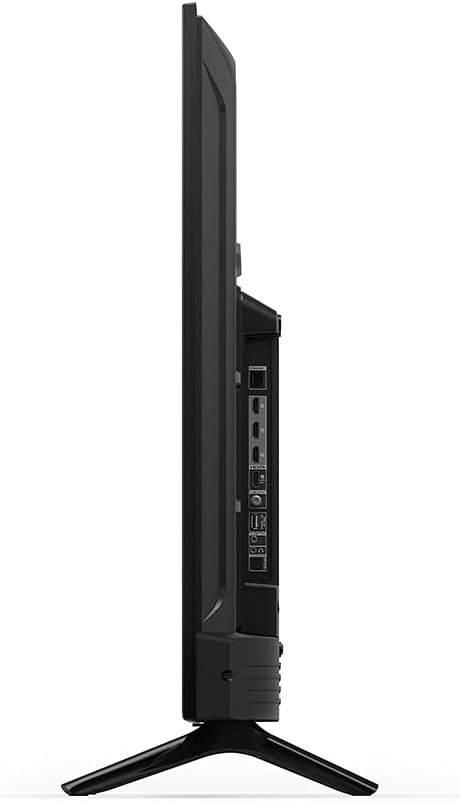
Immaġni: Side profile of the TV, highlighting its slimness.
Immaġni: Wara view of the TV, illustrating the VESA mounting pattern.
Manutenzjoni
Tindif tat-TV
- Dejjem aqla’ t-TV qabel ma tnaddaf.
- Uża drapp artab, niexef u mingħajr suf biex timsaħ bil-mod l-iskrin u l-kabinett.
- Għal marki iebsa fuq l-iskrin, aqta’ ħafifampLaħlaħ id-drapp bl-ilma jew b'soluzzjoni għat-tindif tal-iskrin iddisinjata speċifikament għall-elettronika. Tisprejjax likwidu direttament fuq l-iskrin.
- Evita li tuża prodotti tat-tindif, xama', jew solventi li joborxu għax jistgħu jagħmlu ħsara lill-finitura.
Aġġornamenti tas-Software
Your Fire TV will periodically receive software security updates to improve performance and add new features. Ensure your TV is connected to the internet to receive these updates automatically. You can also check for updates manually through the TV's settings menu.
Issolvi l-problemi
If you encounter issues with your Fire TV, refer to the following common solutions:
- Ebda Qawwa: Kun żgur li l-korda tal-enerġija hija pplaggjata sew kemm fit-TV kif ukoll f'sokit elettriku li jaħdem. Ipprova sokit differenti.
- Ebda Stampa/Ħoss: Verify that the correct input source is selected. Check all cable connections (HDMI, audio) are secure. Restart the TV by unplugging it for 30 seconds and plugging it back in.
- Remote Mhux Jirrispondi: Replace the AAA batteries in the Alexa Voice Remote Enhanced. Ensure there are no obstructions between the remote and the TV. Re-pair the remote if necessary (hold Home button for 10 seconds).
- Kwistjonijiet ta' Konnettività tan-Netwerk: Check your Wi-Fi router and modem. Restart your network equipment. Ensure the TV is within range of your Wi-Fi signal or that the Ethernet cable is properly connected.
- Alexa Mhux qed Tirrispondi: Ensure the remote batteries are fresh. Press and hold the Alexa button firmly when speaking. Check your internet connection.
For more detailed troubleshooting or persistent issues, refer to the online support resources for Fire TV.
Garanzija u Appoġġ
Informazzjoni dwar Garanzija
Your Amazon Fire TV 4-Series 50-inch includes a 1-year limited warranty and service. Optional 3-Year and 4-Year Extended Warranties are available for U.S. customers and can be purchased separately. Use of Fire TV is subject to the terms found on the official Amazon websit.
Appoġġ għall-Klijent
For additional support, frequently asked questions, or to manage your device, please visit the official Amazon Fire TV support pages online. You can find information specific to your device by visiting the 'Manage Your Content and Devices' section on Amazon.


