Introduzzjoni
Thank you for choosing the EZCast H3 Portable Projector. This manual provides detailed instructions for setting up, operating, and maintaining your projector to ensure optimal performance and longevity. The EZCast H3 delivers a native 1080P resolution with 10600 Lumens (200 ASIN Lumens) brightness and a 1000:1 contrast ratio, offering a clear and vibrant viewing esperjenza.

Image: The EZCast H3 Portable Projector, shown with its remote control and a smartphone demonstrating wireless screen mirroring. The projector is white with a silver front panel.
Kontenut tal-Pakkett
Jekk jogħġbok ivverifika li l-oġġetti kollha huma preżenti fil-pakkett tiegħek:
- EZCast H3 Portable Projector
- Kontroll mill-bogħod
- Adapter WiFi 2.4G/5G
- Manwal għall-Utent (dan id-dokument)
Setup
1. Tqegħid Inizjali
Poġġi l-proġettur fuq wiċċ stabbli u ċatt. Għal użu ottimali viewing, a projection distance of 3.3ft to 14.4ft is recommended, yielding a screen size of 80" to 100". The maximum projection size is 155".

Image: The EZCast H3 projector positioned on a table, projecting a large 150-inch image onto a wall, illustrating its cinematic viewkapaċità.
2. Konnessjoni tal-Enerġija
Connect the power adapter to the projector and plug it into a power outlet.
3. WiFi Adapter Installation
Insert the provided 2.4G/5G WiFi adapter into the "Wireless Kit" port on the projector. Ensure the text side of the adapter faces upwards. This adapter enables wireless screen mirroring.
4. Wired Connections (Optional)
The projector supports various wired connections for different devices:
- HDMI: Connect gaming consoles (PS5, X-Box, Switch), laptops, or TV sticks.
- USB-C: Connect compatible smartphones, tablets, or laptops that support Display Alt Mode.
- USB: Għall-konnessjoni ta' drives USB.
- MicroSD: For connecting MicroSD cards.
- Awdjo Jack: Għal apparati awdjo esterni.

Image: A laptop connected to the EZCast H3 projector, illustrating the USB Type-C and HDMI connectivity options.

Image: A laptop connected to the EZCast H3 projector via a USB-C cable, demonstrating how to extend the laptop's screen for enhanced working efficiency.
Istruzzjonijiet Operattivi
1. Operazzjoni Bażika
Use the included remote control or the control panel on the projector to navigate menus and select functions.
2. Mirroring tal-Iskrin mingħajr Fili
The EZCast H3 supports wireless screen mirroring for iOS and Android devices via its 5GHz/2.4GHz WiFi adapter. Ensure both your device and the projector are connected to the same WiFi network.
Għal Apparat Android:
- Power on the projector and select "Android" then "Wireless".
- On your Android phone, find the screen mirroring function (e.g., Smart View, Cast, Wireless Display).
- Select "BeamH3-XXXX" from the list of available devices to mirror.
- Your phone's screen will now be projected.
Għal Apparat IOS:
- Power on the projector and select "iOS" then "Wireless".
- On your iOS device, go to "Screen Mirroring" in the Control Center.
- Select "BeamH3-XXXX" from the list of available devices to mirror.
- Your device's screen will now be projected.

Image: Step-by-step instructions for wireless screen projection from Android and iOS devices to the EZCast H3 projector.
3. Korrezzjoni Keystone
The EZCast H3 features auto vertical keystone correction, which automatically detects and corrects image distortion. You can also manually adjust the keystone corners for precise alignment.
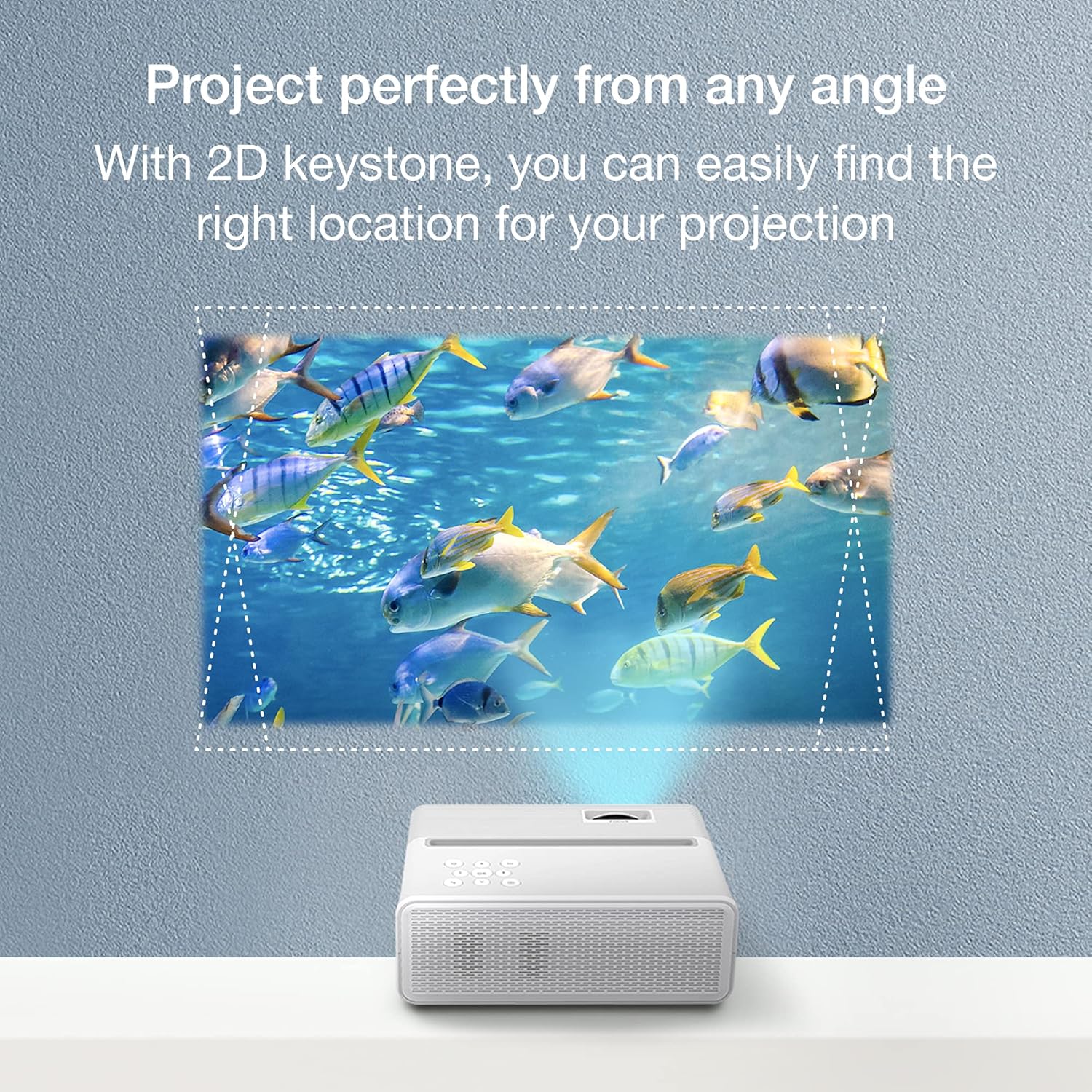
Image: The EZCast H3 projector demonstrating its 2D keystone correction feature, showing how it can project a perfectly rectangular image even when placed at an angle.
4. Aġġustament tal-Volum
Adjust the sound volume using the remote control or the buttons on the projector's control panel. It is recommended to adjust volume directly on the projector for maximum output.

Immaġni: Sploda view diagram illustrating the internal components of the projector's built-in speaker.
5. Portrait Mode Projection
The projector supports a unique auto portrait projection feature, allowing for a full-screen display of vertical content, such as mobile videos from platforms like TikTok. You can easily switch between Horizontal and Portrait cast modes in the projector's settings.
Appoġġ Multimedia
The EZCast H3 projector is designed for versatile multimedia use, compatible with a wide range of devices and content types.

Image: Icons illustrating the various multimedia devices supported by the EZCast H3 projector, including mobile/tablet, USB, gaming console, computer, Micro SD card, TV Stick, headphones, and external speakers.
The projector is ideal for:
- Watching videos and movies
- Qsim tar-ritratti
- Enjoying sports games
- Logħob tal-logħob tal-kompjuter
- Presentations and work-related tasks

Image: Four different usage scenarios for the EZCast H3 projector: creating a home theater, using it during exercise, playing video games, and watching sports.
Nota: Due to copyright restrictions, streaming services like Netflix, Disney+, Prime Video, and Hulu require a TV Stick (e.g., Fire TV Stick, Roku) to play content on the EZCast H3 projector.

Image: The EZCast H3 projector displayed alongside logos of popular streaming services (Disney+, Prime Video, Netflix, Hulu, YouTube, Sling) and examples of compatible TV sticks (Roku, Fire TV Stick, Chromecast).
Manutenzjoni
Proper maintenance ensures the longevity and optimal performance of your EZCast H3 projector.
1. Tindif
- Use a soft, dry cloth to clean the exterior of the projector.
- Għal-lenti, uża drapp għat-tindif tal-lentijiet u soluzzjoni speċjalizzata għat-tindif tal-lentijiet. Evita materjali li joborxu.
- Ensure ventilation vents are clear of dust and debris to prevent overheating.
2. Ambjent Operattiv
Keep the projector in ambient temperatures under 30°C (86°F) to prevent overheating and ensure stable operation.
3. Lamp Ħajja
L-LED lamp in your EZCast H3 projector has a lifespan of over 30,000 hours, providing extended use without frequent lamp sostituzzjoni.
Issolvi l-problemi u FAQs
Q: How to switch to Portrait mode projection?
A: You can easily switch from Horizontal to Portrait cast mode in the projector's Settings menu.
Q: How to adjust the image on EZCast Beam H3 projector?
A: The EZCast Beam H3 projector supports Auto Vertical Keystone, which automatically detects and corrects image distortion.
Q: How to set up the remote controller properly?
A: Please ensure the battery of your remote control is correctly inserted (battery not included in package due to shipping restrictions) and point it towards the projector's IR receiver.
Q: How to adjust the sound volume?
A: Please use the remote control or the buttons on the projector's control panel to adjust the volume. Adjusting volume directly on the projector is recommended for maximum output.
Q: How to connect the projector to my phone or Wi-Fi?
A: Please plug the Wi-Fi dongle with the text side facing UP into the "Wireless Kit" port of the projector, not the "USB" port. Once inserted, launch the projector and configure the Wi-Fi setting for wireless casting. Ensure your device and the projector are on the same Wi-Fi network.
Q: How to cast my device via USB-C port?
A: Please check if your device supports Display Alt Mode over USB-C. Not all USB-C ports support video output.
Q: What's the operating temperature of this projector?
A: Please keep the projector in ambient temperatures under 30°C (86°F).
Speċifikazzjonijiet
| Brand | EZCast |
| Numru tal-Mudell | H3 |
| Riżoluzzjoni tal-Wiri | 1920 x 1080 (1080P Nattiv) |
| Luminożità | 200 ASIN Lumens (equivalent to 10600 Lumens) |
| Proporzjon ta' Kuntrast | 1000:1 |
| Teknoloġija tal-Konnettività | HDMI, USB-C, USB, MicroSD, Wi-Fi (2.4G/5G) |
| Tip ta' Kelliem | Mibnija fil- |
| Piż tal-oġġett | 2.65 liri (madwar 1.2 kg) |
| Dimensjonijiet tal-Prodott | 9.06 x 6.63 x 3.54 pulzieri (madwar 23 x 16.8 x 9 ċm) |
| Recommended Projection Size | 80" - 100" (Max 155") |
| Lamp Ħajja | 30,000+ hours LED lamp ħajja |
| Kulur | Abjad |

Image: A comparison table highlighting the specifications of the EZCast Beam H3 against other projector models, emphasizing its higher resolution and brightness.
Garanzija u Appoġġ
The EZCast H3 Portable Projector comes with a garanzija ta 'sena.
For warranty registration and technical support, please refer to the QR code provided in the physical user manual included with your product. Our support team is available to assist you with any questions or issues.


