1. Introduzzjoni
Grazzi tax-xiriasing the Optoma X309ST projector. This manual provides essential information for safely installing, operating, and maintaining your device. Please read this manual thoroughly before using the projector to ensure optimal performance and longevity.
X'hemm fil-Kaxxa
- Optoma X309ST Projector
- Korda tal-Enerġija
- Kontroll mill-bogħod (bil-batteriji)
- Kejbil VGA
- Manwal għall-Utent (dan id-dokument)
- Karta ta' Garanzija
2. Informazzjoni dwar is-Sigurtà
WARNING: To prevent fire or electric shock, do not expose this appliance to rain or moisture.
- Timblokkax il-fetħiet tal-ventilazzjoni. Kun żgur li jkun hemm biżżejjed spazju madwar il-proġettazzjoni għal fluss tal-arja xieraq.
- Tħarisx direttament fil-lenti tal-proġettazzjoni meta tkun qed taħdem.amp mixgħul. Id-dawl qawwi jista’ jagħmel ħsara lil għajnejk.
- Use only the power cord supplied with the projector.
- Tippruvax isservi dan il-prodott int stess. Irreferi l-manutenzjoni kollha lil persunal tas-servizz kwalifikat.
- Keep the projector away from water or moisture.
- Evita li tpoġġi l-proġekter fuq uċuħ instabbli.
3. Prodott Aktarview
Komponenti tal-projector

Figura 3.1: Fuq view of the Optoma X309ST projector. This image displays the control panel with buttons for power, menu navigation, and source selection, along with the focus and zoom adjustment rings located near the lens.

Figura 3.2: Quddiem view of the Optoma X309ST projector. The main projection lens is visible, flanked by ventilation grilles on either side, designed for efficient heat dissipation.
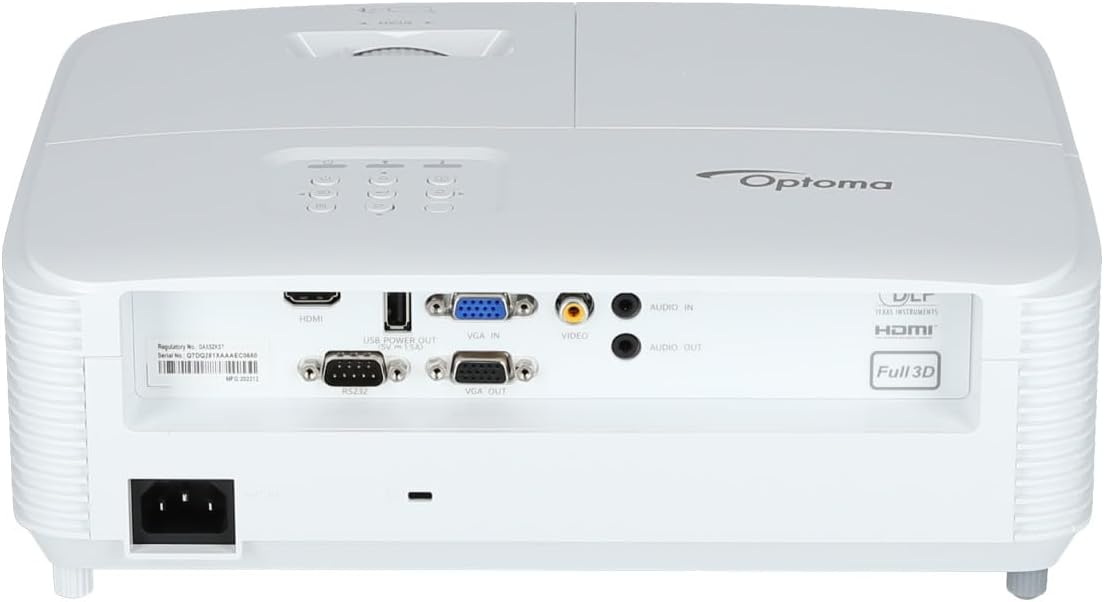
Figura 3.3: Wara view of the Optoma X309ST projector. This image highlights the various connectivity ports including HDMI, VGA In, VGA Out, USB Power Out, Audio In, Audio Out, Video (RCA Composite), and the RS-232 control port, along with the power input.
Panel tal-Kontroll
The control panel on the top of the projector allows for basic operation without the remote control. It includes buttons for:
- Qawwa: Ixgħel jew jitfi l-proġekter.
- Menu: Jaċċessa l-menù tal-wiri fuq l-iskrin (OSD).
- Vleġeġ tan-Navigazzjoni: Użat biex tinnaviga fl-għażliet tal-menù u taġġusta s-settings.
- Sors: Selects the input source (HDMI, VGA, etc.).
- Sinkronizza mill-ġdid: Optimizes the image for analog sources.
4. Setup
4.1 Pożizzjonament tal-Proġettur
The Optoma X309ST is a short-throw projector, designed to project large images from a short distance. Place the projector on a stable, flat surface or mount it securely. Ensure the projection surface (screen or wall) is flat and clear of obstructions.
- For optimal image quality, position the projector perpendicular to the screen.
- Maintain adequate ventilation space around the projector (at least 30 cm / 12 inches).
4.2 Qawwa tal-Konnessjoni
- Connect the power cord to the AC inlet on the rear of the projector.
- Ipplaggja t-tarf l-ieħor tal-korda tad-dawl fi żbokk elettriku ertjat.
- The power LED on the projector will illuminate, indicating standby mode.
4.3 Konnessjoni tas-Sorsi tal-Input
The projector supports various input sources. Choose the appropriate cable for your device.
- HDMI: For digital video and audio. Connect an HDMI cable from your source device (e.g., laptop, Blu-ray player) to the HDMI port on the projector.
- VGA: For analog video. Connect a VGA cable from your computer to the VGA IN port on the projector. For audio, connect a 3.5mm audio cable from your computer's audio output to the AUDIO IN port.
- RCA Composite Video: For standard definition analog video. Connect an RCA composite video cable (yellow connector) to the VIDEO port. For audio, connect RCA audio cables (red/white) to the AUDIO IN ports.
- Qawwa USB: This port provides 5V power for external devices like streaming sticks, but does not transmit data.
5. It-Tħaddim tal-Proġettur
5.1 Tixgħel/Jitfi
- Biex Tixgħel: Press the Power button on the control panel or remote control. The power LED will change from red (standby) to blue (on).
- Biex Tifi: Press the Power button twice. The first press will display a confirmation message; press again to confirm shutdown. The power LED will return to red.
Nota: Allow the projector to cool down for a few minutes after powering off before unplugging it or moving it.
5.2 Selecting an Input Source
Agħfas il- Sors button on the control panel or remote control repeatedly to cycle through available input sources (HDMI, VGA, Video). Alternatively, use the dedicated input buttons on the remote control.
5.3 Aġġustament tal-Immaġni
- Fokus: Dawwar iċ-ċirku tal-fokus fuq il-lenti sakemm l-immaġni tidher qawwija u ċara.
- Zoom: Rotate the zoom ring on the lens to adjust the image size without moving the projector.
- Korrezzjoni Keystone: If the image appears trapezoidal, use the Keystone Correction function in the OSD menu to square the image. Access via the Menu buttuna.
5.4 Menù tal-Wiri fuq l-Iskrin (OSD)
Agħfas il- Menu button to access the OSD. Use the navigation arrows to browse categories and options. Press Daħħal or the right arrow to select an option, and the left arrow or Menu again to go back or exit.
Is-settings komuni tal-OSD jinkludu:
- Settings tal-Immaġni: Brightness, Contrast, Color, Aspect Ratio, Picture Mode.
- Issettjar tal-wiri: Keystone, Overscan, Wall Color.
- Setup Settings: Language, Auto Power Off, High Altitude Mode.
- Lamp Settings: Lamp Hours, Lamp Mode (Bright, Eco).
6. Manutenzjoni
Manutenzjoni regolari tiżgura prestazzjoni ottimali u testendi l-ħajja tal-proġettazzjoni tiegħek.
6.1 Tindif tal-Proġettur
- Barra: Uża drapp ratba u mingħajr ħelu dampened with a mild, non-abrasive cleaner. Do not spray cleaner directly onto the projector.
- Lenti: Use a lens cleaning cloth or lens paper with a specialized lens cleaning solution. Avoid touching the lens surface with your fingers.
- Gradilji tal-ventilazzjoni: Use a soft brush or a vacuum cleaner with a brush attachment to remove dust from the ventilation grilles. Ensure the projector is powered off and unplugged before cleaning.
6.2 Lamp Sostituzzjoni
WARNING: Projector lamps operate at high temperatures and pressures. Allow the projector to cool completely before attempting lamp replacement. Refer to the full service manual for detailed lamp struzzjonijiet ta’ sostituzzjoni jew ikkuntattja persunal tas-servizz kwalifikat.
Il-lamp life can vary depending on usage and lamp mode. A warning message will appear on screen when the lamp is nearing the end of its life. Only use genuine Optoma replacement lamps.
6.3 Tindif/Sostituzzjoni tal-Filtru tal-Arja
The Optoma X309ST projector is designed with a sealed optical engine, which typically means it does not have user-serviceable air filters that require regular cleaning or replacement. However, ensure the ventilation grilles remain clear of dust and debris as described in section 6.1.
7 Issolvi l-problemi
Jekk tiltaqa' ma' problemi bil-proġettur tiegħek, irreferi għall-problemi u s-soluzzjonijiet komuni li ġejjin:
| Problema | Kawża Possibbli | Soluzzjoni |
|---|---|---|
| L-ebda immaġni fuq l-iskrin. |
|
|
| L-immaġni hija mċajpra. |
|
|
| L-immaġni hija trapezojdali. |
|
|
| Projector overheats or shuts down. |
|
|
If the problem persists after trying these solutions, please contact Optoma customer support.
8. Speċifikazzjonijiet
| Karatteristika | Dettall |
|---|---|
| Numru tal-Mudell | E9PD7DQ01EZ1 |
| Luminożità | 3700 lumens ANSI |
| Riżoluzzjoni Nattiva | XGA (1024 x 768) |
| Tarmi Proporzjon | 0.617:1 Short Throw |
| Teknoloġija tal-Konnettività | HDMI, USB, VGA |
| Inputs | HDMI, VGA, RCA Composite Video, Analog Audio (3.5mm) |
| Outputs | VGA Out (Loop-Through), Analog Audio (3.5mm) |
| Karatteristiċi Speċjali | USB Power Output, Built-In 10-Watt Speaker, RS-232 Controllable, IR Remote Control Included, Full 3D content support |
| Piż tal-oġġett | 6.61 liri (madwar 3 kg) |
| Dimensjonijiet tal-Prodott (L x W x H) | 15.42 x 10.35 x 13.52 pulzieri (madwar 39.17 x 26.29 x 34.34 ċm) |
| Użi Rakkomandati | Business presentations, Education, Multimedia, Full 3D content |
9. Garanzija u Appoġġ
9.1 Informazzjoni dwar Garanzija
Your Optoma X309ST projector comes with a standard manufacturer's warranty. Please refer to the warranty card included in your product packaging for specific terms, conditions, and duration. Keep your proof of purchase for warranty claims.
The product includes 1 year technical support as part of the purchase.
9.2 Appoġġ għall-Klijent
For technical assistance, troubleshooting beyond this manual, or warranty inquiries, please contact Optoma customer support. Visit the official Optoma website for the most up-to-date contact information, FAQs, and driver downloads.
Tista' ssib aktar informazzjoni u riżorsi ta' appoġġ fuq Optoma Store on Amazon or the official Optoma websit.


