1. Introduzzjoni
Thank you for choosing the QUMOX 1080P HD USB Computer Webcam. This manual provides essential information for setting up, operating, maintaining, and troubleshooting your webcam. Please read these instructions carefully to ensure optimal performance and longevity of your device.
2. Prodott Aktarview
The QUMOX 1080P HD USB Computer Webcam is designed for high-definition video communication, streaming, and recording. It features a plug-and-play design, a built-in noise-reduction microphone, and wide compatibility with various operating systems and applications.
Karatteristiċi ewlenin:
- Riżoluzzjoni Full HD 1080p: Delivers clear and sharp video at 1920x1080P.
- Plug and Play: No additional drivers or software required for installation.
- Built-in Noise Reduction Microphone: Captures clear audio by filtering out background noise.
- 110-Degree Wide-Angle Lens: Jipprovdi qasam wiesa' ta' view for video conferencing and streaming.
- Korrezzjoni Awtomatika ta' Dawl Baxx: Enhances video quality in dim lighting conditions.
- Versatile Mounting Clip: Allows for flexible placement on monitors, laptops, or flat surfaces.
Komponenti tal-Prodott:
The QUMOX webcam consists of the main camera unit, an integrated mounting clip, and a 1.8-meter (6-foot) USB power cable.

Figura 2.1: In-naħa ta' quddiem view of the QUMOX 1080P HD USB Computer Webcam. This image displays the webcam with its integrated mounting clip, showing the lens and the 'HD 1080P' marking on the front panel.

Figura 2.2: Quddiem view of the QUMOX 1080P HD USB Computer Webcam. This image provides a direct view tal- webcam's front, highlighting the lens and the 'HD 1080P' label.
3. Istruzzjonijiet ta' Setup
The QUMOX webcam is designed for simple plug-and-play operation, requiring no driver installation on most compatible systems.
3.1 Rekwiżiti tas-Sistema
- Windows 7/8/10 jew aktar tard
- MacOS 10.6 jew aktar
- Chrome OS 29.0.1547 jew ogħla
- Android V5.0 jew aktar
3.2 Installazzjoni Fiżika
- Pożizzjona l Webcam: Open the flexible mounting clip and place the webkamera fuq il-monitor tal-kompjuter tiegħek, l-iskrin tal-laptop, jew wiċċ ċatt. Aġġusta l-klipp biex iżżomm il-kamera sew webcam f'postha.
- Qabbad mal-Kompjuter: Insert the USB connector of the webcam f'port USB disponibbli fuq il-kompjuter tiegħek.
- Rikonoxximent Awtomatiku: Your operating system should automatically detect and configure the webcam. This process typically takes a few moments. No additional software or drivers are usually needed.
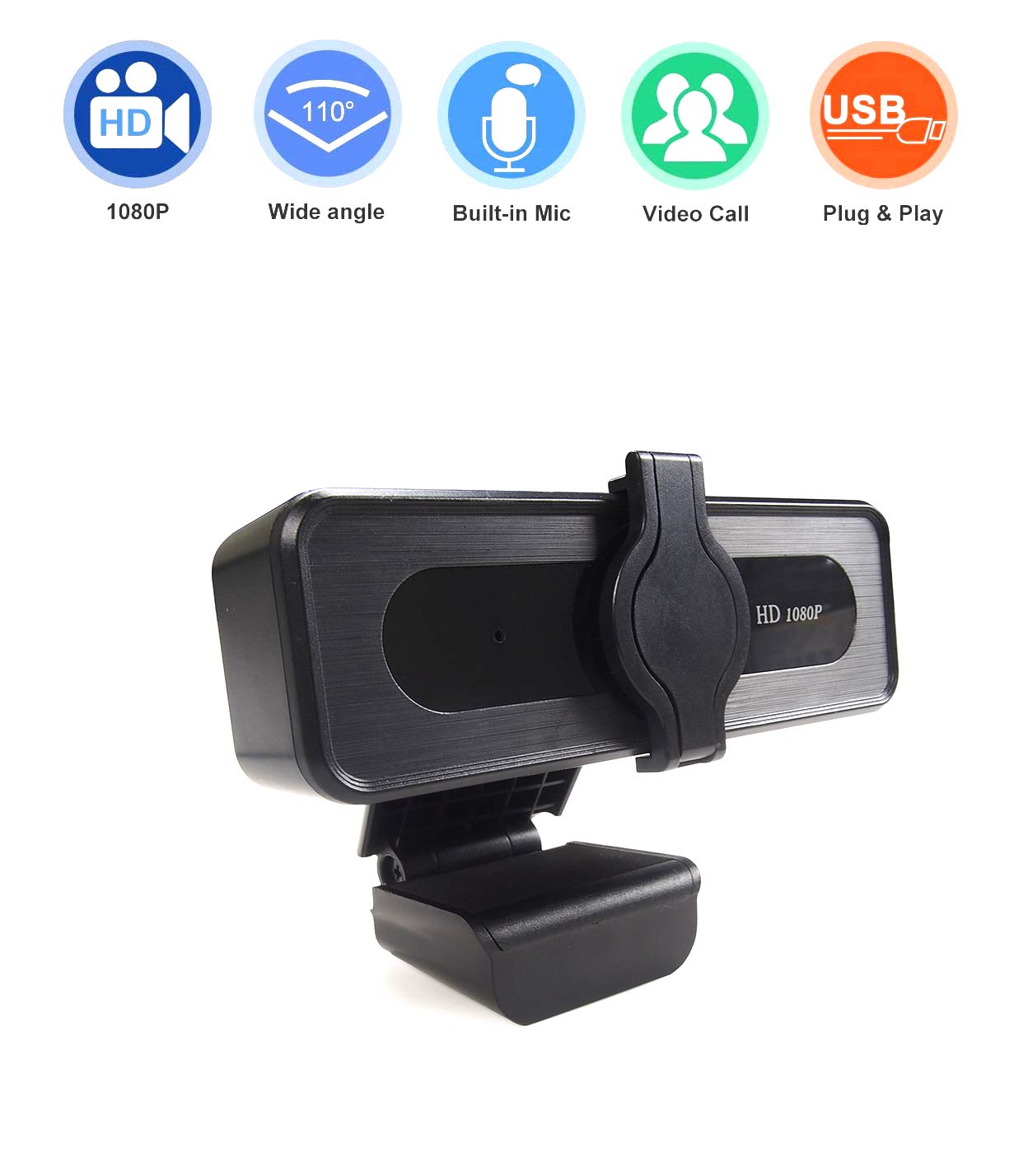
Figura 3.1: Ġenb view of the QUMOX webcam demonstrating its flexible mounting clip. This image illustrates how the clip can be adjusted to secure the webcam on various surfaces.
4. Istruzzjonijiet Operattivi
Once installed, your QUMOX webcam is ready for use with various video communication and streaming applications.
4.1 L-użu ma' applikazzjonijiet
- Tnedija tal-Applikazzjoni: Open your preferred video conferencing, streaming, or recording software (e.g., Skype, Zoom, YouTube, OBS, Facetime).
- Agħżel Webcam: In the application's settings (usually under 'Audio & Video' or 'Camera'), select the QUMOX webcam as your primary video and audio input device. The webcam will typically appear as 'USB Camera' or similar.
- Start Communication: Begin your video call, stream, or recording. The webcam's indicator light (if present) may illuminate when in use.
4.2 Microphone Functionality
The built-in omnidirectional microphone automatically reduces background noise, providing clear audio for your communications. Ensure the QUMOX webcam's microphone is selected as the audio input device in your application settings for optimal performance.

Figura 4.1: Graphic illustrating the extensive compatibility of the QUMOX webcam with various platforms and applications. This image shows icons for YouTube, Twitch, Facebook LIVE, Skype, Xbox One, and OBS, along with text indicating compatibility with Windows, Mac OS, Chrome OS, and Android 5.
5. Manutenzjoni
Proper care ensures the longevity and performance of your QUMOX webcam.
- Tindif tal-Lenti: Gently wipe the camera lens with a soft, lint-free cloth. For stubborn smudges, use a small amount of lens cleaning solution applied to the cloth, not directly to the lens.
- Tindif tal-ġisem: Uża drapp artab u niexef biex tnaddaf il-qafas tal- webcam. Avoid using harsh chemicals or abrasive materials.
- Ħażna: Meta ma tkunx qed tużaha għal perjodi twal, aħżenha webAħżen f'post nadif u niexef 'il bogħod minn temperaturi estremi.
- Evita l-Ħsara: Waqqax il- webcam or expose it to excessive moisture.
6 Issolvi l-problemi
If you encounter issues with your QUMOX webcam, irreferi għas-soluzzjonijiet komuni li ġejjin:
- WebKamera Mhux Rilevata:
- Kun żgur li l-kejbil tal-USB huwa mdaħħal sew fiż-żewġ webil-kamera u l-kompjuter tiegħek.
- Ipprova ipplaggja webcam f'port USB differenti.
- Ibda mill-ġdid il-kompjuter tiegħek.
- Iċċekkja l-maniġer tal-apparat tas-sistema operattiva tiegħek (Windows) jew l-Informazzjoni tas-Sistema (Mac) biex tara jekk webIl-kamera hija elenkata.
- Ebda Output tal-Vidjo:
- Ivverifika li l- webcam is selected as the video input device in your application's settings.
- Kun żgur li l-ebda applikazzjoni oħra ma qed tuża bħalissa l- webcam, as some systems only allow one application to access it at a time.
- Check privacy settings in your operating system to ensure applications have permission to access the camera.
- L-ebda Input tal-Awdjo (Mikrofonu):
- Confirm that the QUMOX webcam's microphone is selected as the audio input device in your application's settings and your operating system's sound settings.
- Iċċekkja l-livelli tal-volum tal-mikrofonu fis-settings tas-sistema tiegħek.
- Ensure privacy settings allow applications to access the microphone.
- Kwalità Fqira tal-Vidjo:
- Żgura li jkun hemm dawl adegwat fl-ambjent tiegħek.
- Naddaf il- weblenti tal-kam kif deskritt fit-taqsima tal-Manutenzjoni.
- Check your internet connection speed if experiencing lag or pixelation during online calls.
7. Speċifikazzjonijiet
| Karatteristika | Speċifikazzjoni |
|---|---|
| Brand | QUMOX |
| Numru tal-Mudell | QXWC002 |
| Riżoluzzjoni | 1080p (Full HD) |
| Qasam ta View | 110 grad |
| Tip ta 'Focus | Fokus fiss |
| Mikrofonu | Built-in, Omnidirectional with Noise Reduction |
| Konnettività | USB 2.0 |
| Tul tal-Cable | 1.8 metru (6 pied) |
| Karatteristiċi Speċjali | Low Light Correction, Plug and Play |
| Apparati Kompatibbli | Laptop, Kompjuter Personali |
| Pjattaforma tal-Ħardwer | Mac, PC, Laptop |
| Dimensjonijiet tal-Prodott | 17 x 11 x 5 ċm |
| Piż tal-oġġett | 160 g |
8. Garanzija u Appoġġ
Għal informazzjoni dwar il-garanzija u appoġġ tekniku, jekk jogħġbok irreferi għad-dokumentazzjoni pprovduta fil-ħin tax-xiri jew ikkuntattja lill-bejjiegħ tiegħek. Żomm il-prova tax-xiri tiegħek għal kwalunkwe talba ta' garanzija.