Introduzzjoni
The NVIDIA SHIELD Remote is designed to enhance your SHIELD TV experience with advanced features for intuitive control. This manual provides comprehensive instructions for setting up, operating, and maintaining your remote.
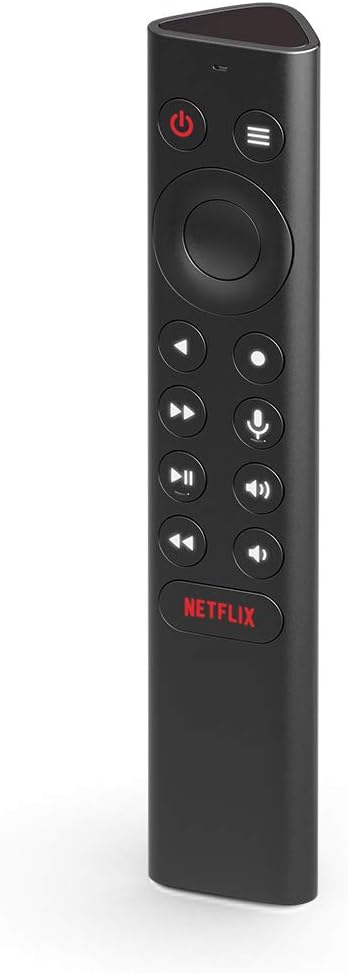
Quddiem view of the NVIDIA SHIELD Remote, showcasing id-disinn eleganti tiegħu u d-dispożizzjoni tal-buttuni.
X'inhu Inkluż
Your NVIDIA SHIELD Remote package includes the following items:
- NVIDIA SHIELD Remote
- 2 Batteriji AAA (installati minn qabel jew inklużi separatament)

The retail packaging for the NVIDIA SHIELD Remote, indicating the product inside.

Ġenb view of the NVIDIA SHIELD Remote box, highlighting the "WHAT'S INSIDE" section.
Karatteristiċi
The NVIDIA SHIELD Remote offers a range of features designed for convenience and enhanced control:
- Tiftix bil-Vuċi: Integrated microphone for Google Assistant and voice control.
- Motion-Activated Backlit Buttons: Buttons illuminate automatically when the remote is picked up, ideal for low-light environments.
- IR Blaster: Control your home theater devices, including TV volume, power, and input source.
- Customizable Menu Button: A three-way user-customizable button for quick access to favorite apps, AI upscaling, mute, and more.
- Buttuni ddedikati: Includes specific buttons for power, volume, fast-forward, rewind, and play/pause.
- Konnettività Bluetooth: Connects wirelessly to your SHIELD TV, allowing control even when the device is out of sight.
- Remote Locator: Use the SHIELD remote app to locate a misplaced remote.
- Standard AAA Batteries: Uses easily replaceable AAA batteries.

Back of the NVIDIA SHIELD Remote box, detailing key features such as voice control, backlit buttons, and IR blaster.
Setup
1. Installazzjoni tal-batterija
The NVIDIA SHIELD Remote requires two AAA batteries. These are typically included with your purchase.
- Sib l-għatu tal-kompartiment tal-batterija fuq wara tar-remote.
- Żerżaq l-għatu 'l isfel biex tiftaħ il-kompartiment.
- Daħħal żewġ batteriji AAA, waqt li tiżgura li t-terminali pożittivi (+) u negattivi (-) ikunu allinjati sew mal-indikaturi ġewwa l-kompartiment.
- Żerżaq l-għatu tal-kompartiment tal-batterija lura f'postu sakemm tikklikkja sew.
2. Pairing with SHIELD TV
The remote connects to your SHIELD TV via Bluetooth. Ensure your SHIELD TV is powered on and connected to a display.
- On your SHIELD TV, navigate to Settings.
- Agħżel Remoti u Aċċessorji.
- Agħżel Żid Aċċessorju.
- The SHIELD TV will begin searching for nearby Bluetooth devices.
- On the NVIDIA SHIELD Remote, press and hold the Agħżel button (center of the directional pad) and the Lura button (left of the directional pad) simultaneously for approximately 5 seconds until the remote's LED indicator begins to flash.
- Once "NVIDIA SHIELD Remote" appears on your SHIELD TV screen, select it to complete the pairing process.
- If pairing issues occur, try resetting the remote by holding down the Lura u Dar buttons while inserting the batteries, then re-attempt pairing.
3. IR Blaster Setup (Optional)
The IR blaster allows the SHIELD Remote to control your TV or AV receiver's power, volume, and input. This is configured through your SHIELD TV settings.
- On your SHIELD TV, go to Settings.
- Agħżel Wiri u Ħoss.
- Agħżel Kontroll tal-qawwa or Kontroll tal-volum (depending on what you want to configure).
- Follow the on-screen prompts to select your TV or AV receiver brand and test the IR functions.
It-tħaddim tar-Remote
Iffamiljarizza ruħek mal-buttuni u l-funzjonijiet tagħhom:
- Buttuna tal-Qawwa: Turns your SHIELD TV on or off.
- Kuxxinett Direzzjonali (D-Pad): Innaviga l-menus u agħżel l-oġġetti.
- Agħżel Buttuna: Jikkonferma l-għażla.
- Buttuna Lura: Terġa' lura għall-iskrin ta' qabel.
- Buttuna tad-dar: Returns to the SHIELD TV home screen.
- Buttuni tal-Volum: Adjusts the volume of your SHIELD TV or connected IR device.
- Buttuna Play/Pause: Jikkontrolla l-plejbek tal-midja.
- Fast-Forward/Rewind Buttons: Skips forward or backward in media.
- Buttuna tal-mikrofonu: Activates Google Assistant for voice commands and search.
- Customizable Menu Button: Performs a user-defined action (see Customization section).
- Buttuna Netflix: Launches the Netflix application directly.
Kontroll tal-Vuċi
Agħfas u żomm il- Buttuna tal-mikrofonu to activate Google Assistant. Speak clearly into the remote to search for content, control smart home devices, get information, and more.
Personalizzazzjoni
The NVIDIA SHIELD Remote features a highly customizable menu button, allowing you to assign up to three different actions based on how you press it:
- Stampa Unika: Agħfas u rilaxx malajr.
- Press doppju: Żewġ presses mgħaġġla wara xulxin.
- Stampa Twila: Agħfas u żomm il-buttuna.
To customize the menu button:
- On your SHIELD TV, go to Settings.
- Agħżel Remoti u Aċċessorji.
- Agħżel tiegħek SHIELD Remote.
- Agħżel Customize Menu Button.
- From the options, assign desired actions for single, double, and long presses. Options include launching apps, enabling AI upscaling, muting sound, taking screenshots, and more.

An illustration of the customization options available for the SHIELD Remote, including launching apps, AI upscaling, and quick settings.
Manutenzjoni
To ensure the longevity and optimal performance of your NVIDIA SHIELD Remote, follow these maintenance guidelines:
- Tindif: Use a soft, dry, lint-free cloth to clean the remote. Do not use liquid cleaners, aerosols, or abrasive solvents.
- Sostituzzjoni tal-batterija: Replace batteries when the remote's performance degrades or the SHIELD TV indicates low battery. Always use new AAA batteries.
- Ħażna: Aħżen il-kontroll remot f'post frisk u niexef 'il bogħod mix-xemx diretta u minn temperaturi estremi.
- Evita Likwidi: Tesponix il-kontroll remot għall-ilma jew likwidi oħra.
- Immaniġġja b'Kura: Evita li twaqqa’ l-kontroll remot jew li tissottomettih għal impatti qawwija.
Issolvi l-problemi
| Problema | Soluzzjoni |
|---|---|
| Ir-remote mhux qed jirrispondi. |
|
| Buttons not lighting up. |
|
| Il-kmandi tal-vuċi mhux qed jaħdmu. |
|
| IR control (TV/AVR volume/power) not working. |
|
| Remote locator not working. |
|
Speċifikazzjonijiet
| Attribut | Dettall |
|---|---|
| Numru tal-Mudell | 930-13700-2500-100 |
| Dimensjonijiet (L x W x H) | 6.5 x 1.57 x 1.57 pulzieri |
| Piż | 4.8 uqija |
| Sors tal-Enerġija | 2 x batteriji AAA (inklużi) |
| Konnettività | Bluetooth, IR Blaster |
| Apparati Kompatibbli | NVIDIA SHIELD TV (2015/2017/2019 models) |
| Kulur | Iswed |
| Manifattur | NVIDIA |
| Pajjiż ta' Oriġini | Korea, Repubblika ta |
Informazzjoni dwar Garanzija
NVIDIA provides a limited warranty for the SHIELD Remote. For detailed information regarding warranty terms, conditions, and duration, please refer to the official NVIDIA website or the warranty card included with your product. You can typically find this information at nvidia.com/warranty.
Appoġġ
For further assistance, technical support, or to access frequently asked questions, please visit the official NVIDIA SHIELD support page:
- NVIDIA SHIELD Support: nvidia.com/shield
- Forums Online: Engage with the NVIDIA community for tips and solutions.
- Ikkuntattja l-Appoġġ: Information for direct contact with NVIDIA customer service can be found on their support websit.


