1. Introduzzjoni
This manual provides essential information for the safe and effective use of your SpeechiTouch UHD 86-inch Interactive Capacitive Android Screen. Please read it thoroughly before operating the device and retain it for future reference.
The SpeechiTouch UHD 86-inch screen is an advanced interactive display featuring a capacitive touch interface integrated directly into the glass, offering a sleek design and precise touch response. Powered by a robust Android core, it ensures immediate responsiveness and smooth operation of applications.
Karatteristiċi ewlenin:
- Glass Only Technology: Capacitive touch embedded in the glass for a flat, modern design and superior touch precision.
- Powerful Android Core: Ensures immediate response upon startup and during application use, with no latency for applications available in the SpeechiStore.
- Ultra-Precise Touch: Ideal for creative tasks requiring detailed drawing and expression.
- Appoġġ tal-istilus attiv: Recognizes 1024 pressure points for detailed creation and shaping of ideas.
- Konnettività Komprensiva: Easily accessible ports and support for Optional PC Slot (OPS) for extended functionality.
2. Setup
2.1 Spakkjar u Spezzjoni
Carefully unpack the interactive screen and all accessories. Inspect for any signs of damage during transit. Report any damage to your supplier immediately.
2.2 Mounting the Screen
Ensure the mounting surface or stand is capable of supporting the weight of the 86-inch interactive screen. Follow the instructions provided with your specific wall mount or mobile stand for secure installation.
2.3 Konnessjoni tal-Periferali
The screen offers various connectivity options. Refer to the connection panel for available ports.

Immaġni: Wara u ġenb view of the SpeechiTouch interactive screen, highlighting the comprehensive input and output ports including HDMI, USB, LAN, and VGA.
- Konnessjoni tal-Enerġija: Connect the power cable to the screen and a grounded power outlet.
- HDMI/DisplayPort: For external video sources, connect an HDMI or DisplayPort cable.
- USB: Connect USB devices such as keyboards, mice, or external storage.
- LAN: For wired network connectivity. The screen also supports Wi-Fi.
- Slott tal-OPS: If using an optional Windows PC module, install it into the dedicated OPS slot.
2.4 Qawwa Inizjali
Press the power button on the screen or remote control. The screen will boot into the Android operating system. Follow any on-screen prompts for initial setup, including language selection and network configuration.
3. Operating the SpeechiTouch Screen
3.1 Navigazzjoni Bażika
The SpeechiTouch screen operates like a large Android tablet. Use your fingers or the active stylus for navigation.

Image: The SpeechiTouch interactive screen showing its Android home interface, with a digital stylus interacting with the display.
- Ġesti mess: Tektek biex tagħżel, skrolla biex tiskrollja, aqbad biex tagħmel zoom.
- Skrin tad-dar: Access applications, settings, and input sources.
- SpeechiStore: Download and install compatible applications.
3.2 Using the Active Stylus
The active stylus provides enhanced precision for writing and drawing.

Image: A user actively drawing and annotating on the SpeechiTouch screen with the provided stylus, demonstrating its precision for creative work.
- Sensittività għall-Pressjoni: The stylus recognizes 1024 pressure points, allowing for varied line thickness and opacity in drawing applications.
- Iċċarġjar: Ensure the stylus is charged for optimal performance. A dedicated charging dock may be included or available separately.

Image: Two active styluses are shown in their charging dock, connected by a USB cable, indicating they are ready for use or recharging.
3.3 Interactive Whiteboard Functionality
Utilize the built-in whiteboard application for brainstorming, presentations, and collaborative work.
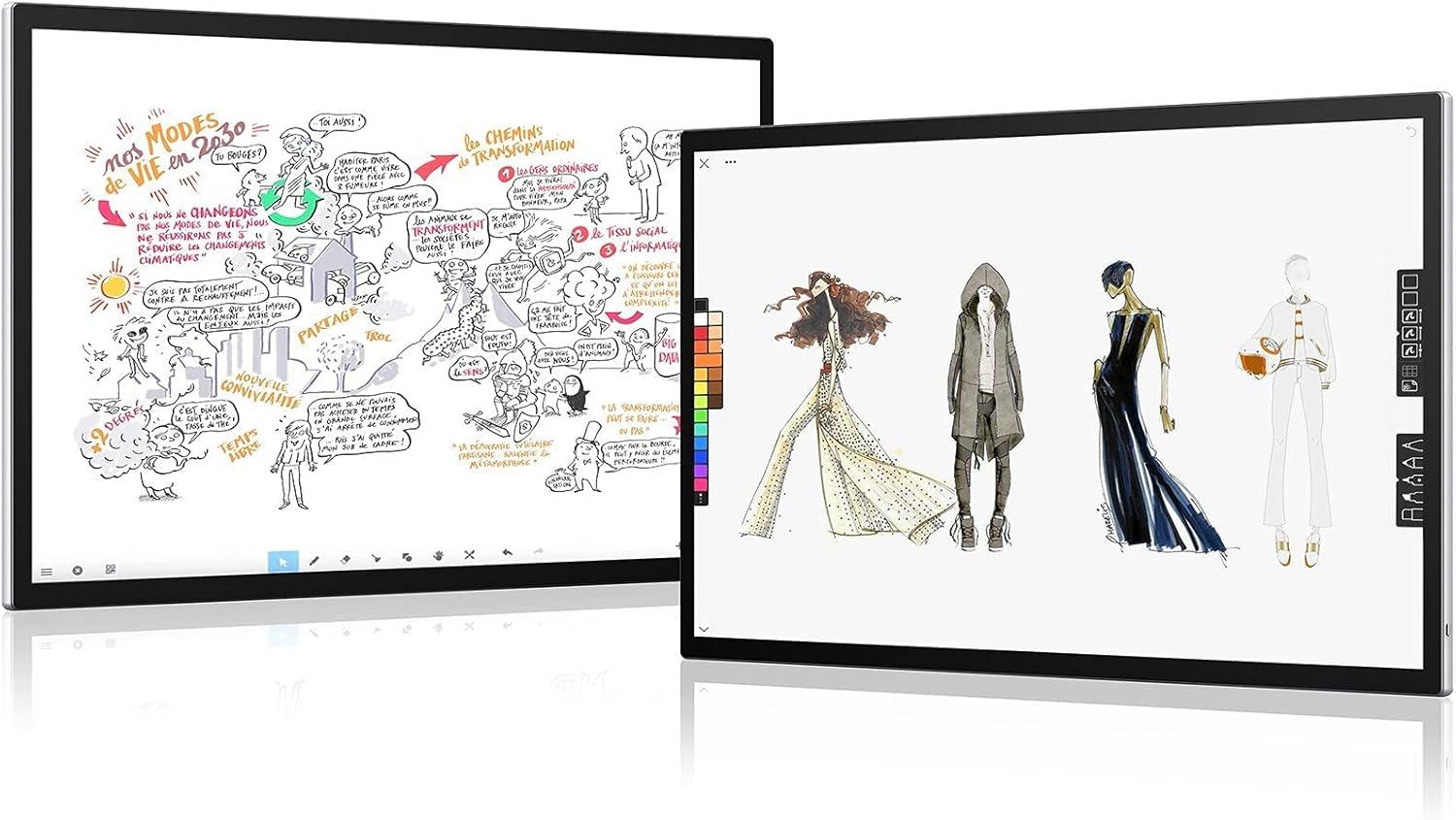
Image: Two SpeechiTouch interactive screens are displayed, each showing different creative drawings and diagrams, illustrating their use in collaborative and artistic environments.
- Għodod tat-tpinġija: Select various pens, colors, and shapes.
- Annotazzjoni: Annotate over documents, images, or web paġni.
- Iffrankar u Qsim: Save your work locally or share it via network connections or QR code.
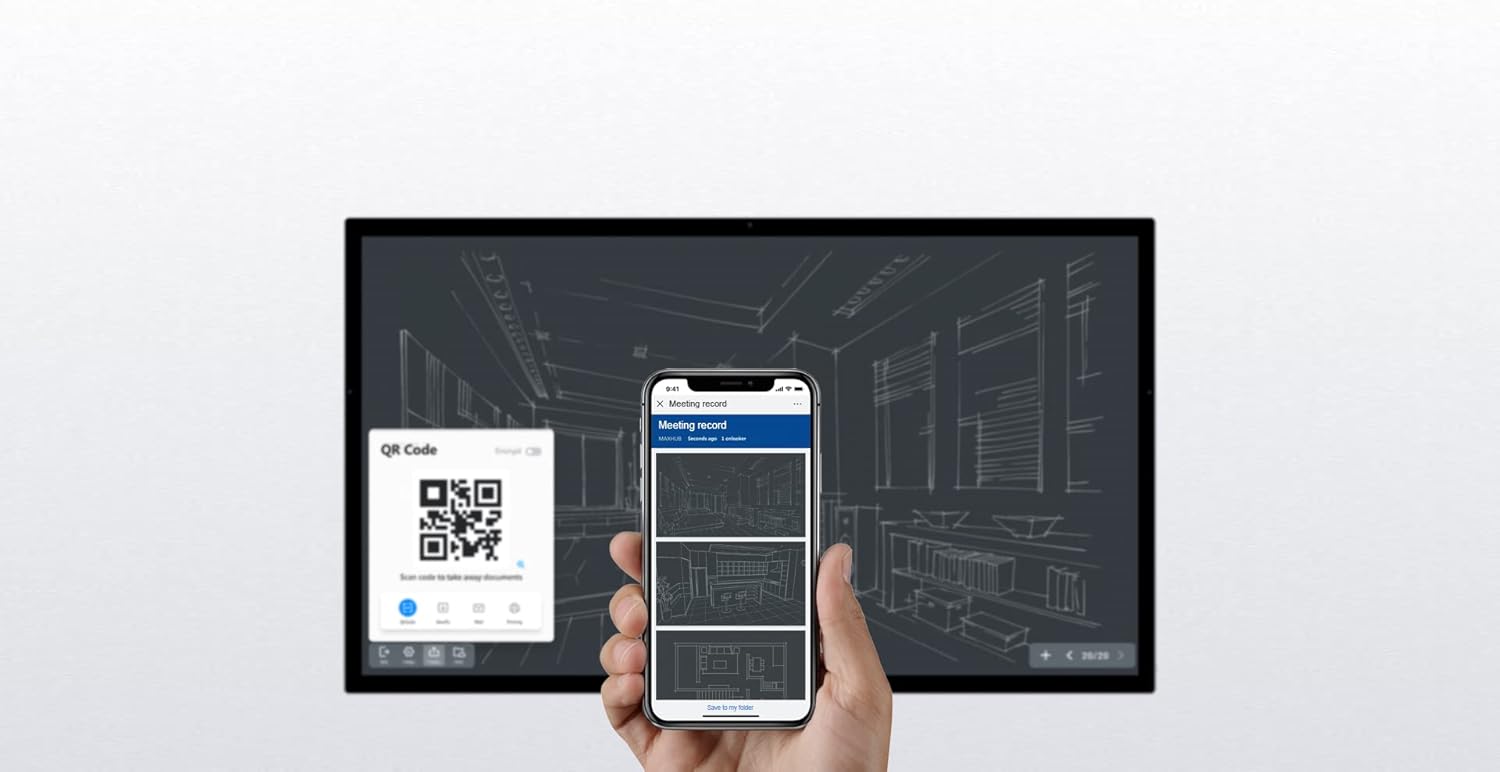
Image: A smartphone is shown scanning a QR code displayed on the SpeechiTouch screen, demonstrating a feature for easily sharing documents or content from the screen to a mobile device.
4. Manutenzjoni
4.1 Tindif tal-Iskrin
To maintain optimal display quality and touch responsiveness:
- Always power off the screen before cleaning.
- Uża drapp artab u mingħajr suf, ftit imxarrabampMaħsul bl-ilma jew b'tindif tal-iskrin li ma jobrox.
- Do not use harsh chemicals, alcohol, or abrasive materials, as these can damage the screen surface.
- Avoid spraying liquid directly onto the screen.
4.2 Aġġornamenti tas-Software
Regularly check for and install software updates to ensure your screen has the latest features, security patches, and performance improvements. Updates can typically be found in the system settings under "About Device" or "Software Update."
4.3 Kura tal-Istilus
Keep the active stylus charged and stored in a safe place when not in use. Avoid dropping the stylus or exposing it to extreme temperatures.
5 Issolvi l-problemi
This section addresses common issues you might encounter with your SpeechiTouch screen.
5.1 Ebda Qawwa
- Ensure the power cable is securely connected to both the screen and a working power outlet.
- Iċċekkja jekk is-sokit tal-enerġija hux qed jaħdem billi tqabbad apparat ieħor.
- Verify the power button on the screen or remote control is pressed correctly.
5.2 Ebda Rispons ta' Mess
- Restart the screen.
- Ensure the screen surface is clean and free from obstructions.
- If using an external PC, ensure the USB touch cable is connected from the screen to the PC.
5.3 Image Issues (No Picture, Distorted Image)
- If using an external source, check the HDMI/DisplayPort cable connection.
- Ensure the correct input source is selected on the screen.
- Adjust display settings (resolution, refresh rate) on the connected external device.
5.4 Kwistjonijiet ta' Konnettività tal-Wi-Fi
- Check if Wi-Fi is enabled in the screen's settings.
- Ensure the Wi-Fi network is operational and within range.
- Restart your Wi-Fi router and the interactive screen.
6. Speċifikazzjonijiet
| Karatteristika | Dettall |
|---|---|
| Brand | Speechi |
| Mudell | SpeechiTouch UHD 86 |
| Daqs tal-Iskrin | 86 Pulzier |
| Sistema Operattiva | Android |
| Teknoloġija tal-Konnettività | Wi-Fi |
| Portijiet HDMI totali | 4 |
| Apparati Kompatibbli | Tablet (referring to its touch interface nature) |
| Touch Teknoloġija | Capacitive, Glass Only |
| Stylus Pressure Points | 1024 |
| ASIN | B08DL1391R |
7. Garanzija u Appoġġ
For warranty information, please refer to the documentation provided at the time of purchase or contact your Speechi dealer. Speechi is committed to providing high-quality products and support.
For technical assistance, troubleshooting beyond this manual, or service requests, please contact Speechi customer support through their official webis-sit jew l-informazzjoni ta' kuntatt ipprovduta mal-prodott tiegħek.


