1. Prodott Aktarview
The Geoyeao 15.6" 1080p Portable Monitor (Model EVP-301) is designed to extend your visual workspace, offering a Full HD 1920x1080p IPS display with HDR support and a 60Hz refresh rate. Its compact and lightweight design makes it suitable for various applications, including laptops, gaming consoles, and mobile devices.
Karatteristiċi ewlenin:
- 15.6-inch Full HD (1920x1080p) IPS Display: Provides clear images with wide 178-degree viewangoli.
- HDR Mode & FreeSync: Enhances picture quality with improved contrast and smoother visuals.
- Għażliet ta' Konnettività Multipli: Features Mini HDMI and dual USB-C ports for versatile device connections.
- Low Blue Light Modes: Includes 4 modes to reduce eye strain during extended use.
- Disinn portabbli: Slim and lightweight for easy transport.
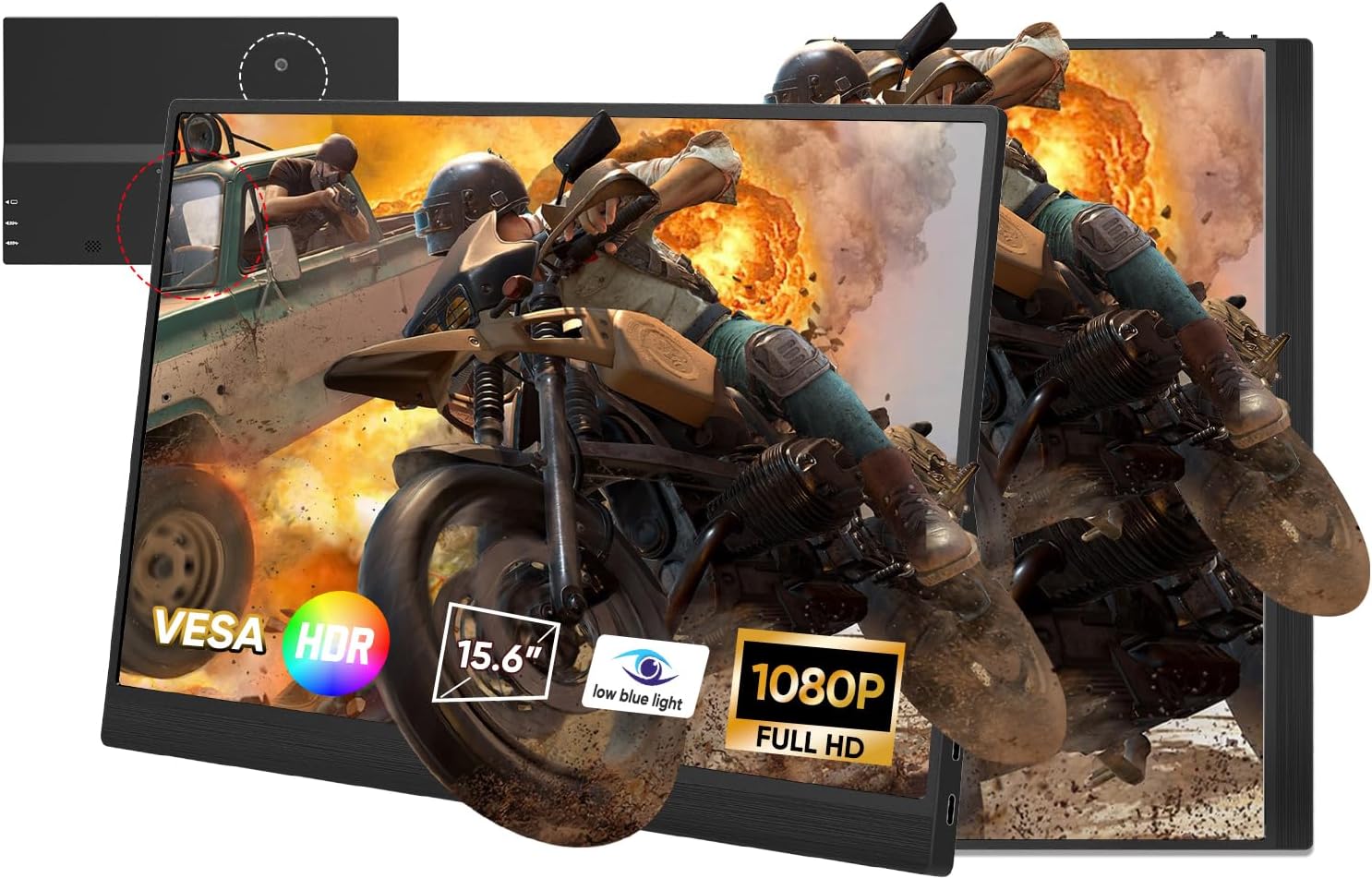
Image 1.1: Geoyeao 15.6" Portable Monitor highlighting its key display features.

Image 1.2: Monitor dimensions and port layout diagram.
2. Kontenut tal-Pakkett
Jekk jogħġbok iċċekkja l-pakkett għall-oġġetti li ġejjin:
- Geoyeao 15.6" Portable Monitor (EVP-301)
- Smart Cover / Stand
- Kejbil Mini HDMI għal HDMI
- USB-C to USB-C Cable (for video and power)
- USB-A to USB-C Cable (for power)
- Adapter tal-Enerġija
- Manwal għall-Utent
3. Setup u Konnessjoni
This section details how to connect your Geoyeao portable monitor to various devices.
3.1 Connecting to a Laptop/PC (USB-C)
- Kun żgur li l-port USB-C tal-laptop tiegħek jappoġġja l-Modalità Alternattiva DisplayPort (DP Alt Mode).
- Connect one end of the USB-C to USB-C cable to your laptop's USB-C port.
- Connect the other end of the USB-C to USB-C cable to the monitor's USB-C (Video Inputs) port.
- If the monitor does not power on or requires additional power, connect the power adapter to the monitor's USB-C (Charging) port using the USB-A to USB-C cable.
3.2 Konnessjoni ma' Laptop/PC (HDMI)
- Connect one end of the Mini HDMI to HDMI cable to the monitor's Micro HDMI port.
- Connect the other end of the Mini HDMI to HDMI cable to your laptop's/PC's HDMI port.
- Connect the power adapter to the monitor's USB-C (Charging) port using the USB-A to USB-C cable to provide power.
3.3 Connecting to a Smartphone (USB-C)
- Ensure your smartphone's USB-C port supports DisplayPort Alternate Mode (DP Alt Mode).
- Connect one end of the USB-C to USB-C cable to your smartphone's USB-C port.
- Connect the other end of the USB-C to USB-C cable to the monitor's USB-C (Video Inputs) port.
- If the monitor does not power on or requires additional power, connect the power adapter to the monitor's USB-C (Charging) port using the USB-A to USB-C cable.
3.4 Connecting to Gaming Consoles (PS4, Xbox, Switch)
- Connect one end of the Mini HDMI to HDMI cable to the monitor's Micro HDMI port.
- Connect the other end of the Mini HDMI to HDMI cable to your gaming console's HDMI output.
- Connect the power adapter to the monitor's USB-C (Charging) port using the USB-A to USB-C cable to provide power.
- For Nintendo Switch, an additional dock or adapter may be required if direct USB-C video output is not supported.

Image 3.1: Connecting devices via Dual USB-C and Micro HDMI.

Image 3.2: Compatibility with various mobile phones, laptops, and game consoles.
4. Istruzzjonijiet Operattivi
This section explains how to use the monitor's controls and adjust settings.
4.1 Power On/Off
Agħfas u żomm il- Qawwa mixgħul/mitfi button (refer to Image 1.2) for a few seconds to turn the monitor on or off.
4.2 Navigazzjoni tal-Menu
The monitor features a menu button for adjusting various display settings. The menu button is located on the front of the monitor for easy access.
- Agħfas il- Buttuna tal-menu to open the On-Screen Display (OSD) menu.
- Use the volume up/down buttons (often integrated with the menu button or adjacent) to navigate through menu options.
- Agħfas il- Buttuna tal-menu again to select an option or confirm a setting.
- To exit the OSD menu, navigate to the 'Exit' option or wait for the menu to time out.
4.3 Settings tal-wiri
Fil-menù tal-OSD, tista' taġġusta settings bħal:
- Luminożità/Kuntrast: Aġġusta l-luminanza ġenerali u d-differenza bejn iż-żoni mdawla u dawk mudlama.
- Temperatura tal-Kulur: Select from preset color temperatures or customize RGB values.
- Sors tad-dħul: Manually select between USB-C and Micro HDMI inputs.
- Modalità HDR: Enable or disable High Dynamic Range.
- Dawl Blu Baxx: Choose from 4 different modes to reduce blue light emission.
- Rotazzjoni: For vertical display, navigate to Menu > Display > Rotation to adjust the screen orientation when connected to laptops. For mobile phones, the screen orientation typically follows phone settings.
4.4 Using the Smart Cover/Stand
The included smart cover can be folded to act as a stand, supporting the monitor in both horizontal and vertical orientations. The monitor also features a hole for a pen, which can serve as an additional stand option.
5 Issolvi l-problemi
If you encounter issues with your monitor, please refer to the following common solutions:
- Ebda Sinjal:
- Kun żgur li l-kejbils kollha huma konnessi sew.
- Verify the input source selected on the monitor matches your device's connection.
- Confirm your device's USB-C port supports DP Alt Mode if using USB-C for video.
- Try connecting to another device to rule out source issues.
- Ebda Qawwa:
- Ensure the power adapter is correctly connected to the monitor's USB-C (Charging) port and a power outlet.
- If powering via USB-C from a laptop, ensure the laptop provides sufficient power. Try using the dedicated power adapter.
- Skrin li jteptep:
- Check cable connections for looseness.
- Ensure the monitor is receiving adequate power.
- Ipprova kejbil differenti.
- Incorrect Resolution/Display:
- Adjust display settings on your connected device (e.g., laptop display settings).
- Ensure the monitor's resolution is set to 1920x1080p in your device's display settings.
- Ebda Awdjo:
- Check the volume settings on both the monitor and your connected device.
- Ensure external speakers or headphones are properly connected to the 3.5mm audio jack.
6. Speċifikazzjonijiet
| Karatteristika | Speċifikazzjoni |
|---|---|
| Brand | GEOYEAO |
| Numru tal-Mudell | EVP-301 |
| Daqs tal-Iskrin | 15.6 Pulzier |
| Tip ta 'Wiri | IPS |
| Riżoluzzjoni | 1920 x 1080 (Full HD) |
| Riffriskar Rata | 60 Hz |
| Ħin ta' Rispons | 5 millisekondi |
| Proporzjon ta' l-aspett | 16:9 |
| ViewIng Angolu | 178 Grad |
| Kopertura Gamut tal-Kulur | 72% |
| Konnettività | 2x USB-C (1x Video/Power, 1x Charging), 1x Micro HDMI, 1x 3.5mm Headphone Jack |
| Karatteristiċi Speċjali | HDR, Portable, Low Blue Light, FreeSync |
| Kulur | Iswed |
7. Manutenzjoni
To ensure the longevity and optimal performance of your Geoyeao portable monitor, follow these maintenance guidelines:
- Tindif tal-Iskrin: Uża drapp ratba u mingħajr ħelu ftit dampened with water or a screen-cleaning solution. Avoid harsh chemicals, abrasive cleaners, or direct spraying onto the screen.
- Tindif tas-Casing: Imsaħ il-parti ta' ġewwa tal-monitorasinNaddaf b'ċarruta ratba u niexfa.
- Ħażna: When not in use, store the monitor in its smart cover to protect the screen from scratches and dust. Avoid placing heavy objects on top of the monitor.
- Immaniġġjar: Immaniġġja l-monitor b'attenzjoni. Evita li twaqqgħu jew li tissottomettih għal impatti qawwija.
- Ambjent: Żomm il-monitor 'il bogħod minn temperaturi estremi, dawl tax-xemx dirett, u umdità għolja.
8. Garanzija u Appoġġ
For warranty information and customer support, please refer to the documentation included with your purchase or visit the official Geoyeao websit. Żomm l-irċevuta tax-xiri tiegħek bħala prova tax-xiri għal talbiet ta' garanzija.


