1. Introduzzjoni
The FORTINET FortiWiFi-61F is a compact, all-in-one network security appliance designed to provide comprehensive threat protection and secure Wi-Fi connectivity for small to medium-sized businesses and remote offices. This device integrates multiple security functions, including firewall, VPN, intrusion prevention, and web filtering, along with high-performance wireless capabilities. This manual provides essential information for the proper installation, configuration, and maintenance of your FortiWiFi-61F appliance.
2. Informazzjoni dwar is-Sigurtà
- Sors tal-Enerġija: Use only the power adapter supplied with the device. Ensure the power outlet meets the device's voltage rekwiżiti.
- Ventilazzjoni: Timblokkax il-fetħiet tal-ventilazzjoni. Kun żgur li jkun hemm fluss tal-arja adegwat madwar l-apparat biex tevita li jisħon iżżejjed.
- Ambjent: Operate the device in a dry, well-ventilated area, away from direct sunlight, heat sources, and excessive moisture.
- Pjazzament: Place the device on a stable, flat surface. Avoid placing it near strong electromagnetic fields.
- Servizzi: Tippruvax tiftaħ jew issewwi l-apparat int stess. Irreferi għal kull manutenzjoni f'idejn persunal kwalifikat.
3. Kontenut tal-Pakkett
Ivverifika li l-pakkett tiegħek fih l-oġġetti li ġejjin:
- FORTINET FortiWiFi-61F Network Security Appliance
- Adapter tal-Enerġija
- Cable Ethernet
- Gwida ta' Bidu Mgħaġġel (jekk inkluża)
4. Hardware Matulview
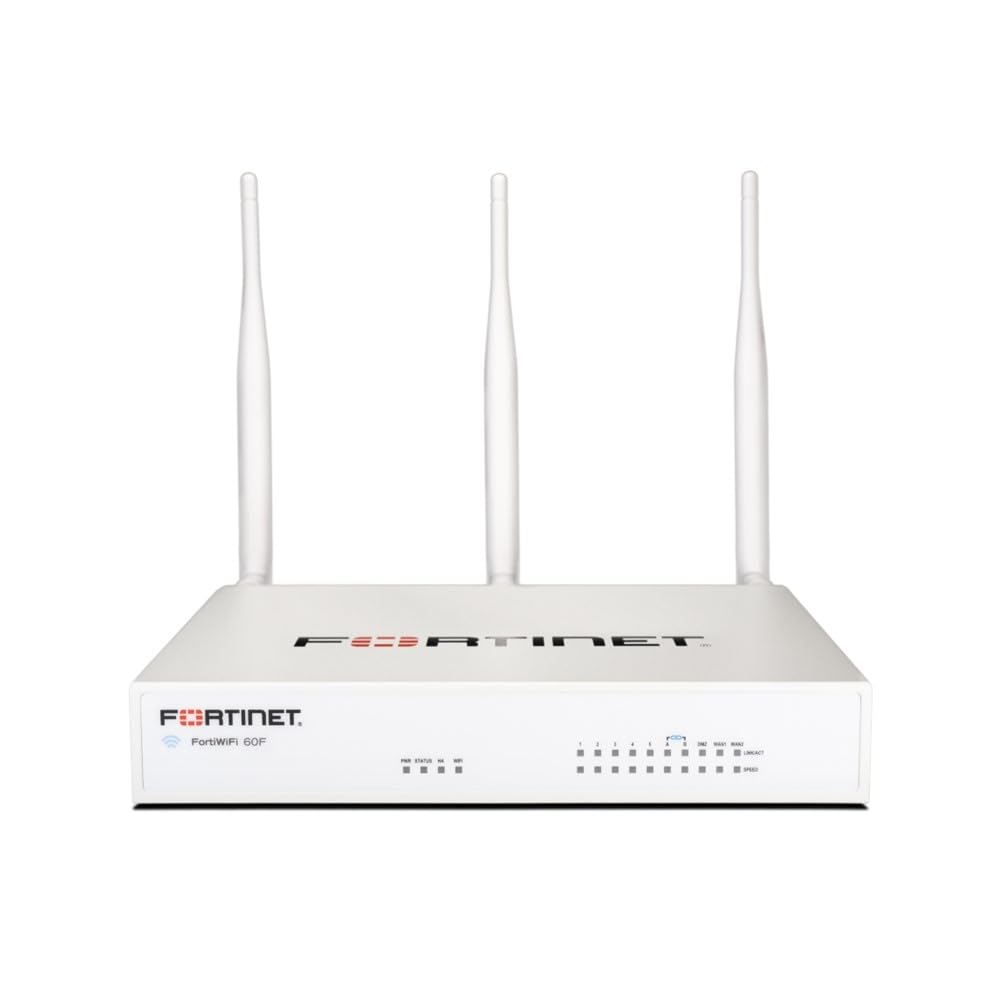
Immaġni: Quddiem view of the FortiWiFi-61F appliance, illustrating its compact design and front panel indicators.
Indikaturi tal-Panew ta' Quddiem
- LED tal-qawwa: Jindika l-istatus tal-enerġija.
- LED tal-Istatus: Jindika l-istatus operattiv tas-sistema.
- WAN/LAN LEDs: Indicate link activity and speed for respective ports.
- Wi-Fi LED: Jindika attività tan-netwerk mingħajr fili.
Portijiet u Buttuni tal-Panel ta' Wara
- Input ta' Enerġija: Jikkonnettja mal-adapter tal-enerġija pprovdut.
- Portijiet WAN: Connect to your Internet service provider's modem.
- Portijiet LAN: Connect to local network devices (computers, switches).
- Portijiet USB: For connecting external devices (e.g., 3G/4G modem, storage).
- Port tal-Console: For direct command-line interface access.
- Buttuna Irrisettja: Used to restore factory default settings (requires a paperclip or similar tool).
5. Setup
5.1 Konnessjoni Fiżika
- Qabbad mal-Enerġija: Plug the power adapter into the FortiWiFi-61F's power input and then into a power outlet. The Power LED should illuminate.
- Qabbad mal-Internet: Connect an Ethernet cable from your ISP's modem to the WAN port on the FortiWiFi-61F.
- Connect to Local Network: Connect an Ethernet cable from one of the LAN ports on the FortiWiFi-61F to your computer or a network switch.
5.2 Aċċess għall-Konfigurazzjoni Inizjali
Biex taċċessa l- webinterface ta' ġestjoni bbażata fuq:
- Kun żgur li l-kompjuter tiegħek huwa kkonfigurat biex jikseb indirizz IP awtomatikament (DHCP).
- Iftaħ a web browser u daħħal l-indirizz IP awtomatiku:
192.168.1.99(or as specified in your Quick Start Guide). - Log in using the default username
adminand no password (leave blank). You will be prompted to create a new password immediately.
5.3 Konfigurazzjoni Bażika tan-Netwerk
Follow the on-screen wizard for initial setup, which typically includes:
- Tibdil tal-password awtomatika tal-amministratur.
- Configuring WAN interface settings (DHCP, Static IP, PPPoE).
- Setting up basic Wi-Fi network (SSID, security key).
6. Operating the FortiWiFi-61F
Once configured, the FortiWiFi-61F operates as your network's security gateway and wireless access point. You can manage its features through the web- interface ibbażat.
6.1 WebInterface ta 'Ġestjoni bbażata fuq
The FortiWiFi-61F's web interface provides access to all configuration and monitoring options. Key areas include:
- Dashboard: Fuqview tal-istatus tas-sistema, l-attività tan-netwerk, u l-avvenimenti tas-sigurtà.
- Netwerk: Configuration for interfaces, routing, DHCP, and DNS.
- Policy & Objects: Firewall policies, virtual IPs, and security profiles.
- Sigurtà Profiles: Antivirus, web filtering, application control, and intrusion prevention.
- WiFi & Switch Controller: Management of wireless networks and switch ports.
- Sistema: Firmware updates, administrators, logging, and system settings.
6.2 Netwerk bla fili (Wi-Fi)
The FortiWiFi-61F supports 802.11ac dual-band wireless connectivity. You can configure multiple SSIDs (Wi-Fi networks) with different security settings and VLANs to segment wireless traffic.
7. Manutenzjoni
- Aġġornamenti tal-Firmware: Regularly check for and install the latest firmware from the Fortinet support portal to ensure optimal performance and security.
- Backup tal-Konfigurazzjoni: Periodically back up your device configuration. This allows for quick restoration in case of issues or device replacement.
- Tindif Fiżiku: Keep the device free from dust. Use a soft, dry cloth to clean the exterior. Do not use liquid cleaners.
- Monitoraġġ: Regolarment mill-ġdidview system logs and security reports within the web interface to identify potential issues or threats.
8 Issolvi l-problemi
8.1 Ebda Qawwa
- Kun żgur li l-adapter tal-enerġija huwa konness sew kemm mal-apparat kif ukoll ma' sokit tal-enerġija li jaħdem.
- Ivverifika li s-sokit tal-enerġija jaħdem billi tqabbad apparat ieħor.
- Iċċekkja l-adapter tal-enerġija għal xi ħsara viżibbli.
8.2 Ebda Aċċess għall-Internet
- Check if your ISP modem is working correctly.
- Ensure the Ethernet cable from the modem is connected to the correct WAN port on the FortiWiFi-61F.
- Verify WAN interface settings in the web interface (e.g., DHCP client receiving an IP address).
- Restart both the modem and the FortiWiFi-61F.
8.3 Kwistjonijiet ta' Konnettività tal-Wi-Fi
- Ensure the Wi-Fi LED on the device is active.
- Verify the SSID and password on your wireless devices match the configuration on the FortiWiFi-61F.
- Check wireless settings in the web interface, including channel and power levels.
- Try moving closer to the device to rule out signal strength issues.
8.4 Ir-restawr ta' Defaults tal-Fabbrika
If you encounter persistent issues or forget your password, you can restore the device to its factory default settings:
- With the device powered on, use a paperclip or similar pointed object to press and hold the Reset button for approximately 10 seconds.
- Itlaq il-buttuna. L-apparat jerġa' jibda bis-settings default tal-fabbrika.
- You will need to reconfigure the device from scratch after a factory reset.
9. Speċifikazzjonijiet
| Karatteristika | Deskrizzjoni |
|---|---|
| Brand | FORTINET |
| Isem tal-Mudell | FWF-61F |
| Serje | FWF-61F |
| Tip bla fili | 802.11ac |
| Klassi ta' Banda ta' Frekwenza | Doppju-Band |
| Teknoloġija tal-Konnettività | Wi-Fi |
| Tip ta' Antenna | Intern |
| Sistema Operattiva | Proprietary Fortinet Operating System |
| Karatteristika Speċjali | WPS |
| Użi Rakkomandati | Sigurtà |
| Apparati Kompatibbli | Kompjuter Personali |
10. Garanzija u Appoġġ
For detailed warranty information, please refer to the warranty card included with your product or visit the official FORTINET website. Technical support and additional resources, including updated documentation and firmware, are available through the FORTINET support portal. Please have your product serial number ready when contacting support.
FORTINET Official Websit: www.fortinet.com


