Introduzzjoni
This manual provides detailed instructions for the Rapoo E9100M Multimode Wireless Keyboard. Designed for versatility and portability, this ultra-slim keyboard features a durable aluminum base and offers seamless connectivity across multiple devices using 2.4 GHz wireless, Bluetooth 3.0, and Bluetooth 4.0 (Smart) technologies. Its energy-saving features ensure a battery life of up to 12 months, minimizing the need for frequent battery replacement.
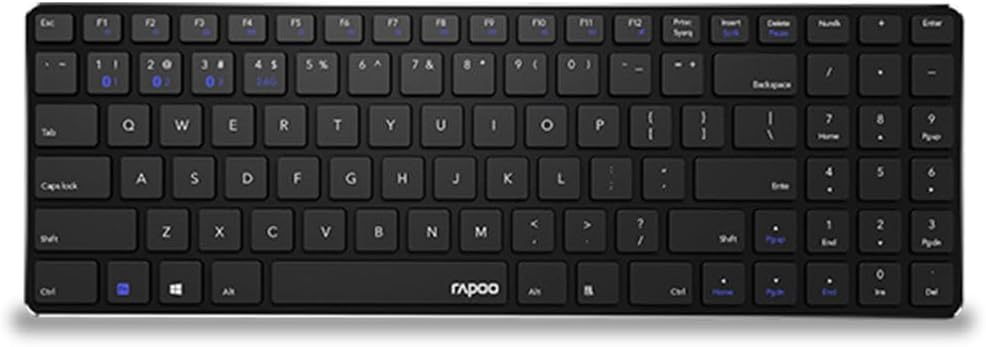
Image: Rapoo E9100M Multimode Wireless Keyboard, showcasing its full QWERTY US layout and slim profile.
Kontenut tal-Pakkett
- Rapoo E9100M Multimode Wireless Keyboard
- Riċevitur USB
- Gwida Quick Start
Karatteristiċi tal-Prodott
- Konnettività Wireless Multimodali: Connect via Bluetooth 3.0, 4.0, and 2.4 GHz.
- Medda operattiva: Up to 10 meters with 360-degree coverage.
- Konnessjoni b'ħafna Apparat: Qabbad ma' apparati multipli simultanjament.
- Disinn Ultra-Slim: Compact 4.9 mm profile.
- Hotkeys Multimedjali: Fn shortcuts for quick access to media functions.

Immaġni: Dettaljata view of the keyboard's key mechanism, highlighting its slim design and key structure.
Setup
1. Installazzjoni tal-batterija
The keyboard requires 2 Lithium-ion batteries. Open the battery compartment on the underside of the keyboard and insert the batteries, ensuring correct polarity.
2. Konnessjoni permezz ta' Wireless ta' 2.4 GHz
- Locate the USB receiver, usually stored in the battery compartment or a dedicated slot on the keyboard.
- Ipplaggja r-riċevitur USB f'port USB disponibbli fuq il-kompjuter tiegħek.
- Ixgħel it-tastiera billi tuża s-swiċċ tal-enerġija. It-tastiera għandha tikkonnettja awtomatikament mar-riċevitur.
- The 2.4G indicator light (often labeled '1' or '2' on the keyboard) will illuminate briefly to confirm connection.
3. Konnessjoni permezz tal-Bluetooth
The E9100M supports Bluetooth 3.0 and 4.0 (Smart) for connecting to multiple devices.
- Ixgħel it-tastiera.
- Agħfas u żomm il- Fn ċavetta u waħda miċ-ċwievet tal-Bluetooth (eż., F1, F2, jew F3, indicated by Bluetooth icons) for 3-5 seconds until the corresponding indicator light starts blinking rapidly. This indicates the keyboard is in pairing mode.
- Fuq l-apparat tiegħek (kompjuter, tablet, smartphone), mur fis-settings tal-Bluetooth u fittex apparati ġodda.
- Agħżel "Rapoo E9100M" mil-lista ta' apparati disponibbli.
- Follow any on-screen prompts to complete the pairing process. The indicator light will stop blinking and remain solid for a few seconds once connected.
- Repeat for additional Bluetooth devices, assigning each to a different Bluetooth channel (e.g., F1 for device 1, F2 for device 2).
Istruzzjonijiet Operattivi
Qlib bejn Apparati Konnessi
To switch between connected devices (2.4 GHz, Bluetooth 1, Bluetooth 2, etc.), simply press the corresponding Fn key in combination with the designated F-key (e.g., Fn + F1 for Bluetooth 1, Fn + F2 for Bluetooth 2, or a dedicated 2.4G key).
Multimedia Hotkeys (Fn Functions)
The keyboard features multimedia hotkeys accessible by pressing the Fn key in combination with the F-keys (F1-F12). Refer to the key legends for specific functions such as volume control, media playback, and more.
Modalità Iffrankar tal-Enerġija
The keyboard automatically enters power-saving mode after a period of inactivity. Press any key to wake it up.
Manutenzjoni
Tindif
To clean the keyboard, use a soft, lint-free cloth slightly dampened with water or a mild cleaning solution. Avoid excessive moisture. Do not use abrasive cleaners or solvents.
Kura tal-batterija
If the keyboard will not be used for an extended period, it is recommended to remove the batteries to prevent leakage.
Issolvi l-problemi
It-Tastiera Mhux Tirrispondi
- Kun żgur li t-tastiera tkun mixgħula.
- Iċċekkja l-livelli tal-batterija u ibdel jekk meħtieġ.
- For 2.4 GHz connection, ensure the USB receiver is securely plugged in and try a different USB port.
- For Bluetooth connection, ensure Bluetooth is enabled on your device and the keyboard is paired correctly. Try re-pairing the keyboard.
- Move the keyboard closer to the receiver/device to rule out range issues.
Dewmien jew Skonnettjar
- Ensure there are no strong electromagnetic interferences nearby (e.g., Wi-Fi routers, other wireless devices).
- Try switching to a different wireless channel if available (for Bluetooth, try re-pairing).
Speċifikazzjonijiet
| Karatteristika | Dettall |
|---|---|
| Brand | Rapoo |
| Numru tal-Mudell | RP E9100M UI-B |
| Teknoloġija tal-Konnettività | Bluetooth 3.0, Bluetooth 4.0 (Smart), 2.4 GHz Wireless |
| Kompatibilità tas-Sistema Operattiva | Windows 10, Windows 7, Windows 8, Windows Vista, Windows XP |
| Apparati Kompatibbli | Laptop, PC, Tablet, Smartphone |
| Deskrizzjoni tat-Tastiera | QWERTY |
| Numru ta' Ċwievet | 104 |
| Kulur | Iswed |
| Karatteristika Speċjali | Multimedia Hotkeys, Ultra-slim Design |
| Sors tal-Enerġija | 2 x Lithium-ion Batteries (required) |
| Dimensjonijiet (L x W x H) | Approximately 10L x 10W x 10H millimeters (Note: Dimensions provided in source may be generic) |
Garanzija u Appoġġ
For warranty information and technical support, please refer to the warranty card included with your product or visit the official Rapoo websit. Żomm il-prova tax-xiri tiegħek għal talbiet ta' garanzija.
Rapoo Uffiċjali Websit: www.rapoo.com


