Introduzzjoni
This manual provides essential information for the proper setup, operation, and maintenance of your Fujitsu FI-7140 Color Duplex Scanner. Please read these instructions carefully before using the device to ensure optimal performance and longevity.

Quddiem view of the Fujitsu FI-7140 scanner with the document feeder open and a document loaded, ready for scanning.
Setup
1. Unpacking and Physical Placement
- Oħroġ l-iskaner u l-aċċessorji kollha mill-imballaġġ bir-reqqa.
- Poġġi l-iskaner fuq wiċċ stabbli u ċatt bi spazju adegwat għat-tmigħ u l-ħruġ tad-dokumenti.
- Extend the input and output trays as needed to accommodate documents.
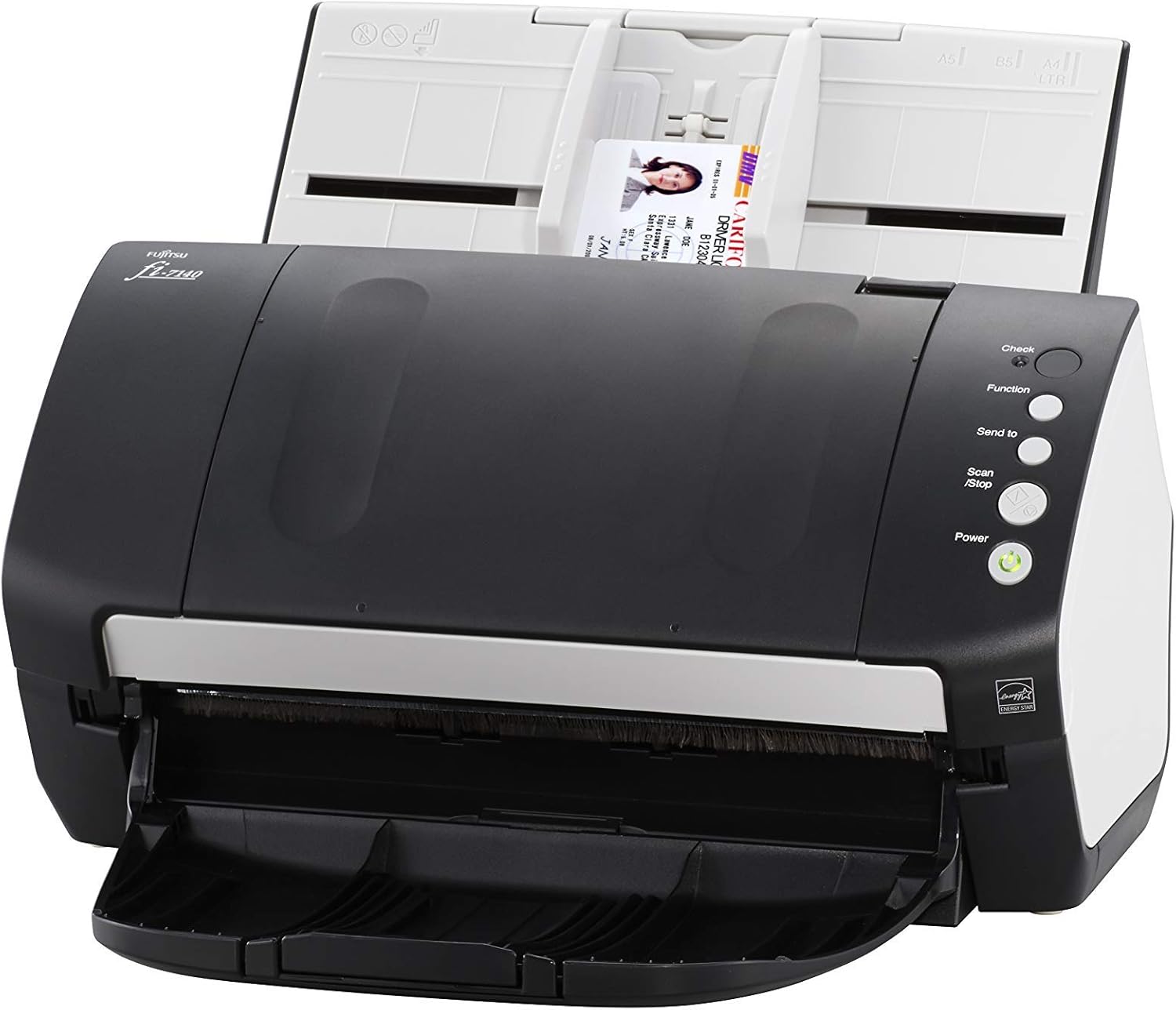
The Fujitsu FI-7140 scanner showing the extended output tray, ready to receive scanned documents.
2. Konnessjoni tal-Iskaner
- Qabbad l-adapter tal-enerġija mal-iskaner u ma' sokit tal-enerġija.
- Qabbad il-kejbil USB mill-iskaner ma' port USB disponibbli fuq il-kompjuter tiegħek.
3. Installazzjoni tas-softwer
- Insert the provided installation CD/DVD into your computer's drive, or download the latest drivers and software (including PaperStream IP) from the official Fujitsu support websit.
- Follow the on-screen instructions to complete the software installation. PaperStream IP is a TWAIN compliant driver that offers powerful image cleanup tools.
Istruzzjonijiet Operattivi
1. Tagħbija ta' Dokumenti
- Open the document feeder cover and adjust the side guides to match the width of your documents.
- Load documents into the automatic document feeder (ADF). The scanner supports mixed paper sizes and weights, eliminating the need for pre-sorting.
- The ADF has a standard sheet capacity of 80 pages.
- The scanner also supports scanning of plastic and embossed cards.

A document being fed into the Fujitsu FI-7140 scanner's automatic document feeder, illustrating the scanning process.
2. Initiating a Scan
- Ensure the scanner is powered on (green light on the Power button).
- On your computer, open the scanning software (e.g., PaperStream Capture or other compatible application).
- Agħżel il-professjonist tal-iskannjar mixtieq tiegħekfile or adjust settings such as color mode (color, grayscale, monochrome), resolution (up to 600 dpi optical), and output destination.
- Press the 'Scan/Stop' button on the scanner or initiate the scan from the software interface. The scanner operates at 40 pages per minute (ppm) and performs duplex scanning.
3. Utilizing Software Features
- PaperStream IP includes tools to remove colored and decorated backgrounds, automatically remove blank pages, and improve Optical Character Recognition (OCR) accuracy for searchable PDFs.
- Review scanned images within the software and make any necessary adjustments or corrections before saving.
Manutenzjoni
1. Proċeduri tat-Tindif
- Regularly clean the scanner's rollers and glass surfaces to prevent dust and debris from affecting scan quality.
- Uża ċarruta ratba u mingħajr ħelu dampened with a mild, non-abrasive cleaner. Avoid spraying cleaner directly onto the scanner.
- Irreferi għall-istruzzjonijiet dettaljati tat-tindif fil-manwal sħiħ tal-utent għal komponenti speċifiċi.
2. Sostituzzjoni tar-Roller
- Over time, the feed rollers may wear out, leading to paper feeding issues.
- Consult the full user manual for instructions on how to inspect and replace the rollers. Replacement kits are available from authorized Fujitsu dealers.
Issolvi l-problemi
Kwistjonijiet Komuni u Soluzzjonijiet:
- Ġammijiet tal-karti: If a paper jam occurs, carefully open the scanner covers and remove any jammed paper. Ensure documents are loaded correctly and the side guides are adjusted.
- Kwalità Fqira tal-Iskennjar: Clean the scanner's glass and rollers. Ensure the original documents are clean and flat. Adjust scanning settings (e.g., resolution, brightness) in the software.
- Skaner Mhux Individwat: Verify that the USB cable is securely connected to both the scanner and the computer. Check that the scanner's power is on. Reinstall the scanner drivers if necessary.
- Żbalji tas-Software: Ensure your scanning software and drivers are up to date. Restart the software and/or your computer.
For more detailed troubleshooting steps, refer to the comprehensive troubleshooting guide available in the full user manual or on the Fujitsu support websit.
Speċifikazzjonijiet
| Isem tal-Mudell | FI-7140 |
| Tip ta' Skaner | Document, Color Duplex |
| Veloċità tal-Iskanjar | 40 ppm (pages per minute) in color, grayscale, and monochrome |
| Kapaċità tal-Feeder Awtomatiku tad-Dokumenti (ADF) | 80 paġna |
| Riżoluzzjoni Ottika | Sa 600 dpi |
| Teknoloġija tal-Konnettività | USB |
| Dimensjonijiet tal-Prodott | 11.8 x 6.7 x 6.4 pulzieri |
| Piż tal-oġġett | 10.88 liri |
| Wattage | 36 watt |
| Daqs Massimu tal-Midja | A4 |
| Rekwiżiti Minimi tas-Sistema | Windows 7 |
Garanzija u Appoġġ
Informazzjoni dwar Garanzija
This product is covered by the Amazon Renewed Guarantee. If you are not satisfied with your purchase, renewed products are eligible for replacement or refund under the Amazon Renewed Guarantee. Please refer to the Amazon Renewed program terms and conditions for full details.
Appoġġ Tekniku
For technical assistance, driver downloads, or further product information, please visit the official Fujitsu support website or contact their customer service. Keep your product model and serial number handy when seeking support.


