1. Introduzzjoni
Welcome to the user manual for your Orbic Journey V Verizon Postpaid 4G LTE Flip Phone. This guide provides essential information on setting up, operating, maintaining, and troubleshooting your device. The Orbic Journey V is a compact and reliable flip phone designed for clear communication and essential smart features, running on the KaiOS operating system and supporting 4G LTE connectivity.
Please read this manual thoroughly to ensure proper use and to maximize the performance and longevity of your phone.
2. Setup
2.1. Tneħħija tal-kaxxa u l-Kontenut tal-Pakkett
Upon opening your Orbic Journey V package, verify that all components are present:
- Orbic Journey V Flip Phone
- Batterija tal-jone tal-litju rikarikabbli
- Ċarġer tal
2.2. Installazzjoni tal-batterija
- Sib l-għatu tal-batterija fuq wara tat-telefon.
- Gently pry open the battery cover using the designated notch.
- Allinja l-kuntatti tad-deheb tal-batterija mat-terminals ġewwa l-kompartiment tal-batterija.
- Agħfas il-batterija 'l isfel sew sakemm tikklikkja f'postha.
- Replace the battery cover, ensuring it is securely latched.
2.3. Installazzjoni ta' SIM Card
Your Orbic Journey V requires a Nano-SIM card for cellular service. Ensure the phone is powered off before inserting or removing the SIM card.
- Remove the battery cover and the battery as described in Section 2.2.
- Locate the SIM card slot, typically near the battery compartment.
- Insert the Nano-SIM card into the slot with the gold contacts facing down and the notched corner aligned with the slot's guide.
- Gently push the SIM card until it locks into place.
- Erġa' installa l-batterija u l-għatu tal-batterija.
2.4. L-Ewwel Tixgħel u l-Iċċarġjar
To power on your phone for the first time, press and hold the Power/End Call button until the screen illuminates. It is recommended to fully charge the phone before first use.
- Connect the charger to the phone's charging port.
- Ipplaggja l-ċarġer fi żbokk elettriku standard.
- L-indikatur tal-iċċarġjar se jidher fuq l-iskrin.
- Ladarba tkun iċċarġjata kompletament, skonnettja l-ċarġer.
3. Kif Tħaddem it-Telefon Tiegħek
3.1. Phone Layout and Keys
Familiarize yourself with the physical components and buttons of your Orbic Journey V.
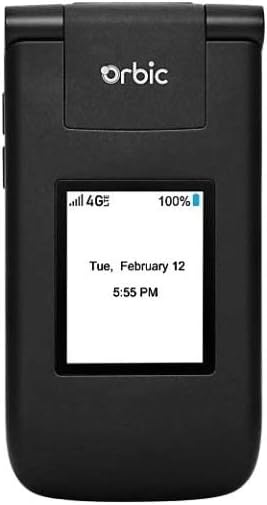
Figura 3.1: Quddiem view of the Orbic Journey V, closed. The external display shows signal strength, battery level, and the current time and date.

Figure 3.2: Orbic Journey V in open position, revealing the main screen and the full alphanumeric keypad with navigation buttons.

Figura 3.3: Wara view of the Orbic Journey V, highlighting the main camera lens and the Verizon branding.
- Display Estern: Shows time, date, notifications, and caller ID when the phone is closed.
- Wiri Intern: Main screen for navigating menus, viewing content, and interacting with applications.
- Navigation Key (D-Pad): Użat biex tiċċaqlaq fil-menus u tagħżel l-għażliet.
- Center Select Key: Jikkonferma l-għażla.
- Ċavetta Sejħa/Ibgħat: Jibda t-telefonati u jwieġeb it-telefonati li deħlin.
- Tmiem is-Sejħa/Ċavetta tal-Enerġija: Ends calls, returns to the home screen, and powers the phone on/off.
- Ċavetta Lura/Ċar: Jirritorna għall-iskrin preċedenti jew iħassar il-karattri.
- Ċwievet tal-Volum: Adjusts call volume, media volume, and ringer volume.
- Ċavetta tal-Kamera: Quick access to the camera function.
3.2. Navigazzjoni Bażika
The Orbic Journey V operates on KaiOS. Use the Navigation Key to scroll through menu options and the Center Select Key to open applications or confirm actions.
- From the home screen, press the Navigation Key (up, down, left, right) to access shortcuts or navigate the main menu.
- Press the Center Select Key to open the main application menu.
- Press the Back/Clear key to go back to the previous screen.
3.3. Tagħmel u Riċeviment Sejħiet
- Biex Tagħmel Sejħa: Enter the phone number using the keypad and press the Call/Send key. Alternatively, navigate to Contacts, select a contact, and press the Call/Send key.
- Biex Twieġeb Sejħa: Meta t-telefon idoqq, agħfas il-buttuna Sejħa/Ibgħat.
- Biex Intemm Sejħa: Agħfas il-buttuna Tmiem is-Sejħa/Itfi.
3.4. Tibgħat u Tirċievi Messaġġi
- Biex Tibgħat Messaġġ: From the main menu, select 'Messages'. Choose 'New Message', enter the recipient's number or select from contacts, type your message using the keypad, and press 'Send'.
- To Receive a Message: New messages will typically display a notification on the screen. Navigate to the 'Messages' application to view inbox tiegħek.
3.5. Użu tal-kamera
The Orbic Journey V is equipped with front and rear cameras. The rear camera is located on the upper-right back of the phone.
- Biex Tiftaħ il-Kamera: Press the dedicated Camera key or navigate to the 'Camera' application from the main menu.
- Biex Ħu Ritratt: Frame your shot on the screen and press the Center Select key to capture the image.
- Viewing Ritratti: Access your photos through the 'Gallery' application.
3.6. Connectivity (Bluetooth, Wi-Fi)
Your phone supports Bluetooth and Wi-Fi for wireless connectivity.
- Bluetooth: Go to 'Settings' > 'Network & Connectivity' > 'Bluetooth'. Turn Bluetooth on, and the phone will search for available devices. Select a device to pair.
- Wi-Fi: Go to 'Settings' > 'Network & Connectivity' > 'Wi-Fi'. Turn Wi-Fi on, select an available network, and enter the password if required.
4. Manutenzjoni
4.1. Tindif tat-Telefon Tiegħek
To keep your phone in optimal condition, clean it regularly:
- Uża drapp artab u mingħajr suf biex timsaħ l-iskrin u l-qafas.
- Evita li tuża kimiċi ħarxa, prodotti tat-tindif li joborxu, jew sprejs tal-ajrusol.
- Kun żgur li t-telefon ikun mitfi u skonnettjat qabel ma tnaddaf.
4.2. Kura tal-batterija
Kura xierqa tal-batterija tista' testendi l-ħajja tagħha:
- Evita temperaturi estremi.
- Tħallix it-telefon jiċċarġja għal perjodi twal wisq wara li jkun mimli.
- If the phone will not be used for an extended period, store it with a partial charge (around 50%).
4.3. Aġġornamenti tas-Software
Regular software updates provide new features, security enhancements, and bug fixes.
- Qabbad it-telefon tiegħek mal-Wi-Fi.
- Go to 'Settings' > 'Device' > 'Software Update'.
- Segwi l-istruzzjonijiet fuq l-iskrin biex tiċċekkja u tinstalla kwalunkwe aġġornament disponibbli.
5 Issolvi l-problemi
This section addresses common issues you might encounter with your Orbic Journey V.
5.1. It-Telefon Mhux Mixgħul
- Kun żgur li l-batterija hija installata u ċċarġjata sew. Qabbad il-ċarġer u stenna ftit minuti qabel ma tipprova tixgħelha.
- Try removing and reinserting the battery, then attempt to power on again.
5.2. Kwalità Fqira ta' Sejħa jew Ebda Sinjal
- Check your location for network coverage. Move to an area with better signal.
- Kun żgur li l-karta SIM tiegħek hija mdaħħla sew.
- Ibda mill-ġdid it-telefon.
- Verify that your account with Verizon is active and in good standing.
5.3. Il-Batterija Tiskula Malajr
- Agħlaq l-applikazzjonijiet mhux użati li jkunu qed jaħdmu fl-isfond.
- Naqqas il-luminożità tal-iskrin.
- Turn off Wi-Fi, Bluetooth, or GPS when not in use.
- Check for and install any available software updates, as these often include battery optimizations.
5.4. Software or Navigation Issues
- If the phone is unresponsive, try a soft reset by removing and reinserting the battery.
- Kun żgur li s-softwer tat-telefon huwa aġġornat.
- Jekk il-problemi jippersistu, ikkunsidra li tagħmel reset tal-fabbrika (Nota: Dan se jħassar id-dejta kollha fuq it-telefon. Agħmel backup tal-informazzjoni importanti l-ewwel.). Navigate to 'Settings' > 'Device' > 'Reset Phone'.
6. Speċifikazzjonijiet
| Karatteristika | Dettall |
|---|---|
| Isem tal-Mudell | Vjaġġ Orbiku V |
| Brand | Orbiku |
| ASIN | B08971YYM1 |
| Sistema Operattiva | KaiOS |
| Trasportatur Wireless | Verizon |
| Teknoloġija Ċellulari | LTE |
| Teknoloġiji tal-Konnettività | Bluetooth, WiFi |
| Fattur tal-Formola | Flip |
| Kulur | Iswed |
| Daqs tal-Iskrin | 5.8 pulzieri (Daqs tal-wiri tal-iskrin wieqaf) |
| Riżoluzzjoni | 1520 x 720 |
| Karatteristiċi tal-Kamera | Quddiem, Wara |
| Awdjo Jack | L-ebda jack tal-headphones |
| Batteriji | 1 batterija tal-jone tal-litju (inkluża) |
| Piż tal-oġġett | 12.8 uqija |
| Dimensjonijiet tal-Pakkett | 5 x 3 x 3 pulzieri |
| Data L-Ewwel Disponibbli | 26 ta’ Mejju, 2020 |
7. Garanzija u Appoġġ
For warranty information and technical support regarding your Orbic Journey V phone, please refer to the documentation provided with your purchase or contact Orbic directly. You can also visit the official Orbic websit għal riżorsi ta' appoġġ.
For service-related inquiries, please contact your wireless carrier, Verizon.
- Manifattur: Orbiku
- Trasportatur bla fili: Verizon


