1. Introduzzjoni
This manual provides essential information for the safe and efficient use of your Terra Greenline 1009700 2405HA All-in-One PC. Please read this manual thoroughly before operating the device and retain it for future reference. This All-in-One PC integrates a computer and monitor into a single unit, offering a compact and streamlined computing experience.
2. Informazzjoni dwar is-Sigurtà
Osserva l-prekawzjonijiet ta' sigurtà li ġejjin biex tevita ħsara lill-apparat jew korriment lilek innifsek:
- Tesponix l-apparat għax-xita, umdità, jew temperaturi estremi.
- Kun żgur li jkollok ventilazzjoni xierqa; timblokkax il-fetħiet tal-ventilazzjoni.
- Uża biss l-adapter tal-enerġija fornut mal-apparat.
- Evita li tpoġġi oġġetti tqal fuq il-korda tad-dawl.
- Tippruvax tiżżarma jew issewwi l-apparat int stess. Irreferi għal kull manutenzjoni f'idejn persunal kwalifikat.
- Żomm l-apparat 'il bogħod minn kampi manjetiċi qawwija.
3. Kontenut tal-Pakkett
Ivverifika li l-oġġetti kollha huma preżenti fil-pakkett:
- Terra Greenline 1009700 2405HA All-in-One PC
- Adapter tal-Enerġija u Cable
- Keyboard (Standard)
- Ġurdien
- Gwida ta' Bidu Mgħaġġel (jekk inkluża)
4. Prodott Aktarview
Familiarize yourself with the components and ports of your All-in-One PC.
4.1 Quddiem View
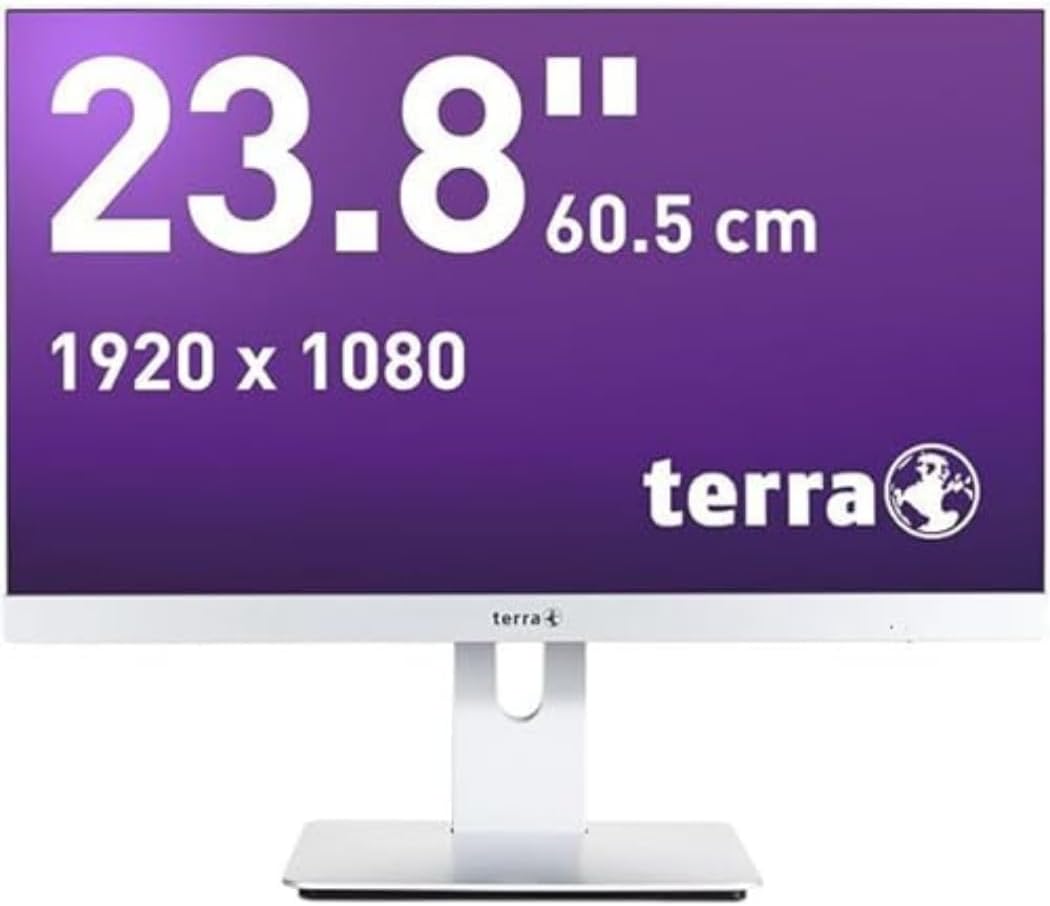
Figura 4.1: Quddiem view of the Terra Greenline 2405HA All-in-One PC. The display shows its 23.8-inch size, 60.5 cm diagonal, and 1920x1080 resolution. The Terra logo is visible on the bottom bezel.
4.2 Ġenb View u l-Portijiet

Figura 4.2: Ġenb view of the Terra Greenline 2405HA All-in-One PC, highlighting the accessible ports on the left side, typically including USB ports and possibly an SD card reader.
The specific arrangement and type of ports may vary slightly. Common ports include USB 3.0, USB 2.0, HDMI, DisplayPort, Ethernet, and audio jacks.
5. Setup
Segwi dawn il-passi għas-setup inizjali:
- Iftaħ il-PC mill-pakkett: Carefully remove the All-in-One PC and all accessories from the packaging.
- Position the PC: Place the PC on a stable, flat surface with adequate ventilation around the unit.
- Ikkonnettja l-Periferali: Connect the keyboard and mouse to the available USB ports.
- Qabbad l-Enerġija: Plug the power adapter into the DC-in port on the PC, then plug the power cable into a wall outlet.
- Qawwa Mixgħul: Agħfas il-buttuna tal-qawwa, li ġeneralment tinsab fuq il-ġenb jew il-bezel t'isfel tad-displej.
- Setup Inizjali: Follow the on-screen instructions to complete the Windows 10 Pro operating system setup, including language, network connection, and user account creation.
6. Istruzzjonijiet Operattivi
6.1 Power On/Off
- Biex Tixgħel: Agħfas il-buttuna tal-qawwa.
- Biex tagħlaq: Ikklikkja l-buttuna Start fil-Windows, imbagħad agħżel Power > Shut down.
- Biex terġa' tibda: Ikklikkja l-buttuna Start, imbagħad agħżel Power > Restart.
- Biex torqod: Click the Start button, then select Power > Sleep.
6.2 L-użu tal-Windows 10 Pro
Your PC comes pre-installed with Windows 10 Pro. Refer to Microsoft's official documentation for detailed instructions on using the operating system. Basic navigation includes:
- Start Menu: Access applications, settings, and power options.
- Taskbar: Quick access to running applications and system tray icons.
- File Explorer: Immaniġġja files u folders.
- Settings: Configure system preferences, network, and devices.
6.3 Konnettività tan-Netwerk
The PC supports Wi-Fi (802.11ac) and Ethernet connectivity.
- Wi-Fi: Click the network icon in the taskbar, select your Wi-Fi network, enter the password, and connect.
- Ethernet: Connect an Ethernet cable from your router/modem to the Ethernet port on the PC.
7. Manutenzjoni
7.1 Tindif
- Skrin: Uża drapp ratba u mingħajr ħelu ftit dampLaħlaħ bl-ilma jew b'tindif tal-iskrin. Tisprejjax likwidu direttament fuq l-iskrin.
- Casing: Imsaħ b'ċarruta ratba u niexfa. Evita prodotti tat-tindif li joborxu.
- Ventilazzjoni: Periodically clean dust from ventilation openings using compressed air to ensure proper airflow.
7.2 Aġġornamenti tas-Software
Regularly update your Windows operating system and drivers to ensure optimal performance and security. Access Windows Update via Settings > Update & Security > Windows Update.
8 Issolvi l-problemi
Jekk tiltaqa' ma' problemi, ipprova s-soluzzjonijiet li ġejjin:
- Ebda Qawwa: Ensure the power cable is securely connected to both the PC and the wall outlet. Test the outlet with another device.
- Ebda Display: Check power connection. If the PC powers on but no display, try restarting.
- Ebda Konnessjoni tal-Internet: Verify Wi-Fi connection or Ethernet cable. Restart your router/modem.
- Periferali Mhux Jaħdem: Ensure the keyboard/mouse is properly connected. Try a different USB port.
- System Slow: Close unnecessary applications. Check for background processes. Ensure sufficient free disk space.
- Kwistjonijiet tas-Sistema Operattiva: Use Windows troubleshooting tools or consider a system restore point.
9. Speċifikazzjonijiet
| Karatteristika | Speċifikazzjoni |
|---|---|
| Brand | Terra |
| Numru tal-Mudell | 1009700 |
| Serje | 1009700 |
| Sistema Operattiva | Windows 10 Pro |
| Brand tal-proċessur | Intel |
| Tip ta' proċessur | Core i5 |
| Numru ta' Cores | 6 |
| RAM | 8 GB |
| Daqs tal-Hard Drive | 500 GB |
| Hard Drive Interface | Ethernet (Note: This likely refers to network interface, not storage interface. Storage is typically SSD.) |
| Daqs tal-Iskrin | 23.8 Pulzier |
| Riżoluzzjoni tal-Iskrin | 1920 x 1080 |
| Marka taċ-Ċipset tal-Grafika | Intel |
| Deskrizzjoni tal-Kard Grafika | Integrata |
| Tip ta 'Teknoloġija mingħajr Fili | 802.11ac |
| Interface tal-Ħardwer | 802.11 ac/b/g/n |
| Karatteristiċi Speċjali | Mikrofonu |
| Dimensjonijiet tal-Prodott (L x W x H) | 50 x 540 x 518 millimetru |
| Piż tal-Prodott | 8 Kilogrammi |
10. Garanzija u Appoġġ
For warranty information and technical support, please refer to the documentation provided with your purchase or visit the official Terra websit. Żomm il-prova tax-xiri tiegħek għal talbiet ta' garanzija.


