1. Introduzzjoni
Dan il-manwal jipprovdi informazzjoni essenzjali għat-twaqqif, it-tħaddim u l-manutenzjoni tiegħek ViewSonic VX2776-SH 27-inch Full HD IPS monitor. Please read these instructions carefully before using the product.
Il- ViewSonic VX2776-SH monitor features a 27-inch (68.58 cm) Full HD (1920x1080) IPS display, offering vibrant colors and wide viewing angles. It includes SuperClear IPS Technology, a sleek frameless design, and a 75Hz refresh rate for smooth visuals. Eye-care technologies such as Flicker-Free and a Blue Light Filter are integrated to reduce eye strain. Connectivity options include HDMI and VGA inputs.

Figura 1: ViewSonic VX2776-SH Monitor Overview b'Karatteristiċi Ewlenin
2. Kontenut tal-Pakkett
Ivverifika li l-oġġetti kollha huma preżenti fil-pakkett:
- ViewSonic VX2776-SH Monitor x1
- 3-pin Power Plug (IEC C13 / CEE22) x1
- Cable HDMI (v1.4; Male-Male) x1
3. Istruzzjonijiet ta' Setup
3.1. Assemblea Stand
Biex tiġbor l-istand tal-monitor:
- Poġġi l-monitor b'wiċċu 'l isfel bir-reqqa fuq wiċċ artab u nadif biex tevita l-grif.
- Align the triangular base with the stand neck.
- Secure the base to the neck using the provided screw.
- Attach the assembled stand to the back of the monitor by aligning the mounting points and securing it firmly.
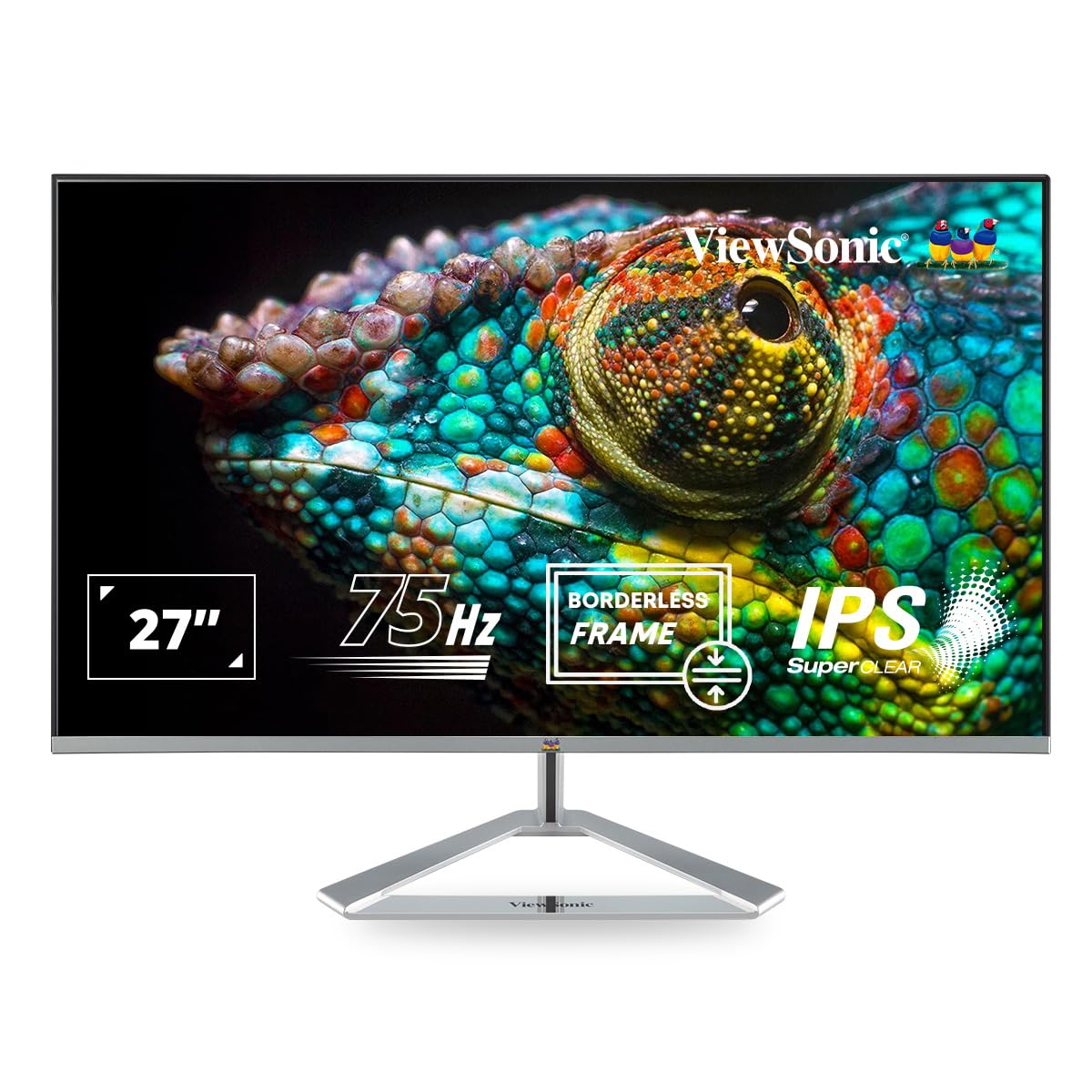
Figure 2: Monitor with Assembled Triangular Stand
3.2. Tqabbad il-Monitor
Kun żgur li l-monitor u l-kompjuter tiegħek huma mitfija qabel ma tagħmel xi konnessjonijiet.
- Konnessjoni tal-Enerġija: Qabbad il-kejbil tal-enerġija mad-dħul tal-enerġija tal-monitor u mbagħad ma' sokit tal-enerġija.
- Konnessjoni tal-vidjo: Connect one end of the HDMI cable (or VGA cable) to the corresponding port on your computer's graphics card and the other end to an HDMI or VGA input port on the monitor. The monitor supports dual HDMI inputs.
- Ħruġ tal-Awdjo (Mhux obbligatorju): If you are using external speakers or headphones, connect them to the monitor's audio out port.

Figure 3: Monitor Connectivity Ports (HDMI, VGA)
3.3. VESA Wall Mount (Optional)
The monitor is VESA mount compatible (100x100mm). To mount the monitor on a wall or monitor arm, remove the stand and attach the VESA-compatible bracket (not included) to the mounting holes on the back of the monitor.

Figure 4: VESA Mounting Area on Monitor Back
4. Istruzzjonijiet Operattivi
4.1. Power On/Off
Agħfas il-buttuna tal-qawwa li tinsab fin-naħa t'isfel tal-lemin tal-monitor biex tixgħelu jew titfih. Id-dawl indikatur tal-qawwa jixgħel meta l-monitor ikun mixgħul.
4.2. Menu tal-Wiri fuq l-Iskrin (OSD).
The OSD menu allows you to adjust various display settings. Use the buttons located on the bottom right of the monitor to navigate the menu:
- Agħfas buttuna biex tattiva l-menù tal-OSD.
- Use the navigation buttons to move through options.
- Agħfas il-buttuna tal-għażla biex tikkonferma għażla.
- Agħfas il-buttuna tal-ħruġ biex tagħlaq il-menù tal-OSD.
4.3. ViewSettings tal-Modalità
ViewMode provides optimized presets for different screen applications. These presets adjust gamma curve, color temperature, contrast, and brightness to enhance your viewing esperjenza.
- Logħba: Optimized for gaming visuals.
- Film: Imtejjeb għall-plejbek tal-vidjow.
- Web: Suitable for general web browsing.
- Test: Ideal for reading documents, reducing eye strain.
- Mono: Juri l-kontenut fi skala griża.

Figura 5: ViewMode Optimized Settings
4.4. Eye-Care Technology
The monitor incorporates eye-care features to promote comfortable viewing during extended use:
- Bla Flikkjar: Eliminates screen flickering, which can cause eye strain and fatigue.
- Filtru tad-Dawl Blu: Reduces harmful blue light emissions, helping to protect your eyes.

Figure 6: Flicker-Free Technology

Figure 7: Blue Light Filter
4.5. Mod Eko
Eco Mode helps reduce power consumption and prolong the monitor's lifespan. You can enable or disable this feature through the OSD menu.

Figure 8: Eco Mode Functionality
5. Manutenzjoni
To ensure optimal performance and longevity of your monitor:
- Tindif tal-Iskrin: Imsaħ l-iskrin bil-mod b'ċarruta ratba u mingħajr suf. Għal marki persistenti, dampNaddaf id-drapp b'deterġent tal-iskrin ħafif u mhux abrażiv. Tisprejjax id-deterġent direttament fuq l-iskrin.
- Tindif tas-Casing: Uża drapp artab u niexef biex tnaddaf il-monitor casing. Evita li tuża deterġenti qawwija jew prodotti tat-tindif li joborxu.
- Ventilazzjoni: Kun żgur li l-fetħiet tal-ventilazzjoni fuq il-monitor mhumiex imblukkati biex tevita li jisħon iżżejjed.
- Itfi: Dejjem itfi l-monitor meta ma jkunx qed jintuża għal perjodi twal.
6 Issolvi l-problemi
Jekk tiltaqa' ma' problemi bil-monitor tiegħek, irreferi għas-soluzzjonijiet komuni li ġejjin:
| Problema | Soluzzjoni Possibbli |
|---|---|
| L-ebda immaġni fuq l-iskrin |
|
| L-immaġni hija mċajpra jew distorta |
|
| L-ebda ħoss minn kelliema/headphones esterni |
|
| L-LED tal-qawwa tal-monitor huwa mitfi |
|
7. Speċifikazzjonijiet
| Karatteristika | Dettall |
|---|---|
| Numru tal-Mudell | VX2776-SH |
| Daqs tal-Iskrin | 27 pulzieri (68.58 ċm) |
| Tip ta' Panel | IPS |
| Riżoluzzjoni Nattiva | 1920 x 1080 (Full HD) |
| Riffriskar Rata | 75Hz |
| Proporzjon ta' l-aspett | 16:9 |
| Konnettività | 2x HDMI (v1.4), 1x VGA |
| Karatteristiċi tal-Kura tal-Għajnejn | Filtru tad-Dawl Blu mingħajr teptip |
| Kompatibbli VESA Mount | 100x100mm |
| Dimensjonijiet tal-Prodott (LxWxH) | 61.4 x 18.4 x 44.3 ċm |
| Piż tal-oġġett | 4 kg |
8. Garanzija u Appoġġ
For warranty information and technical support, please refer to the warranty card included with your product or visit the official ViewSonic websit. Tista 'wkoll tikkuntattja ViewSonic customer service for assistance with product registration, troubleshooting, and service inquiries.


