QUMOX Gamepad Bluetooth Wireless 6-axis Turbo Controller User Manual
Mudell: L376U
Introduzzjoni
This manual provides detailed instructions for the QUMOX Bluetooth Wireless Gamepad, Model L376U. This versatile controller is designed for use with multiple platforms, including Nintendo Switch, PlayStation 4 (PS4), iOS 13 and above, Android devices, and PC. It features Bluetooth wireless communication, a 6-axis gyroscope, dual motor vibration, a touch screen, a headphone jack, and integrated speakers, offering an enhanced gaming experience.
Please read this manual thoroughly before using the product to ensure proper operation and to maximize your gaming enjoyment.
Kontenut tal-Pakkett
Ivverifika li l-oġġetti kollha huma preżenti fil-pakkett:
- 1x QUMOX Wireless Controller (Model L376U)
- 1x USB Charging Cable (1.8m)
- 1x Manwal tal-Utent bl-Ingliż

Image: The retail packaging for the QUMOX Wireless Controller, showing the product box with branding and key features.
Prodott Overview
The QUMOX Wireless Gamepad is designed for comfort and precision. Below are images illustrating the controller's various angles and components.

Immaġni: Quddiem view of the QUMOX Wireless Controller, displaying the dual analog sticks, D-pad, action buttons, and central touchpad.
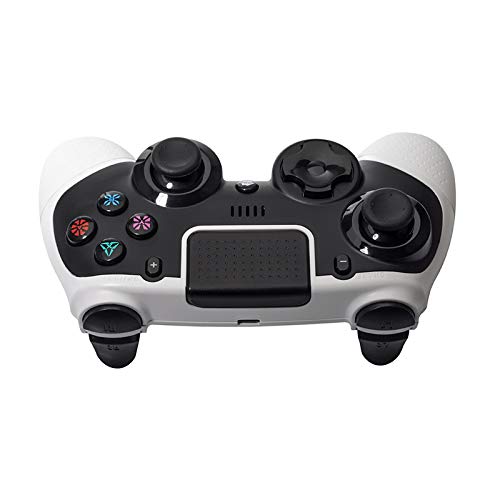
Immaġni: Fuq view of the QUMOX Wireless Controller, showing the shoulder buttons (L1, R1) and trigger buttons (L2, R2).
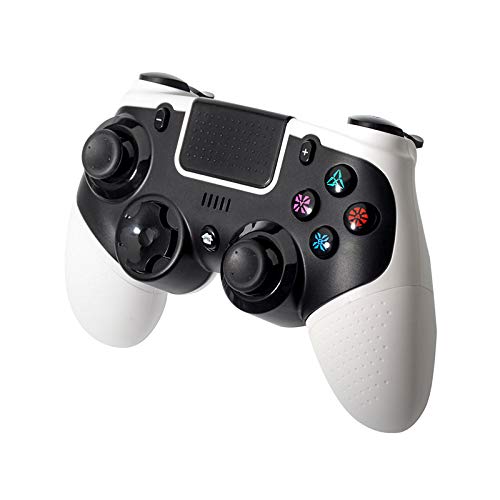
Image: Angled left view of the QUMOX Wireless Controller, highlighting the ergonomic grip and button layout from a side perspective.

Image: Angled right view of the QUMOX Wireless Controller, showing the ergonomic grip and button layout from the opposite side.
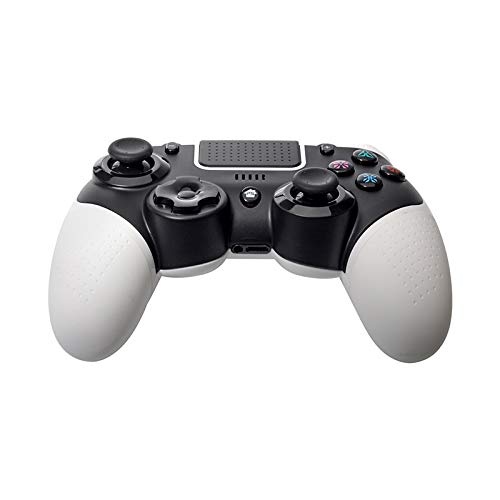
Immaġni: Taħt view of the QUMOX Wireless Controller, revealing the charging port and other underside details.
Karatteristiċi ewlenin:
- Kompatibilità Multi-Pjattaforma: Works with Nintendo Switch, PlayStation 4, iOS 13+, Android, and PC.
- Konnettività Bluetooth mingħajr fili: Ensures stable connection and strong anti-interference ability.
- 6-Axis Gyroscope Function: Jipprovdi kontroll preċiż tal-moviment għal-logħob appoġġjati.
- Vibrazzjoni b'Mutur Doppju: Enhances immersion with haptic feedback.
- Touchpad Integrat: Offers additional input options for compatible games.
- Headphone Jack & Speakers: For audio output directly from the controller.
- Disinn Ergonomiku: Comfortable for extended gaming sessions.
Setup u Tqabbil
The controller does not require specific driver installation; it can be used after successful pairing with your host device.
Iċċarġjar tal-Kontrollur:
Before first use, fully charge the controller. Connect the provided USB charging cable to the controller's charging port and the other end to a USB power source (e.g., console, PC, USB wall adapter). The indicator lights on the controller will show charging status and turn off or change color when fully charged.
Istruzzjonijiet ta' Tqabbil:
Specific pairing methods may vary slightly depending on the platform. Generally, ensure the controller is sufficiently charged before attempting to pair.
- Għas-Swiċċ tan-Nintendo:
- Mill-Menù HOME, agħżel "Kontrolluri" > "Ibdel il-Qabda/Ordni".
- On the controller, press and hold the SYNC button (usually a small button on the top or back) for a few seconds until the indicator lights begin to flash.
- Once paired, the player indicator light(s) on the controller will illuminate steadily.
- Għal PlayStation 4 (PS4):
- Ensure your PS4 is on.
- Connect the controller to the PS4 using the USB cable.
- Press the PS button on the controller. The controller should pair and the light bar will illuminate.
- You can then disconnect the USB cable for wireless play.
- For iOS (13+) / Android Devices:
- Enable Bluetooth on your iOS/Android device.
- Put the controller into pairing mode (often by holding a combination of buttons like SHARE + PS button, or a dedicated pairing button, refer to the controller's specific instructions if different). The indicator lights will flash rapidly.
- On your device, search for new Bluetooth devices and select "QUMOX Gamepad" or similar from the list.
- Ladarba tkun konnessa, id-dawl indikatur jibqa' mixgħul solidu.
- Għall-PC (Windows):
- For wired connection: Connect the controller to your PC using the USB cable. The PC should automatically detect and install necessary drivers.
- For Bluetooth connection (requires a Bluetooth adapter on PC):
- Go to "Settings" > "Devices" > "Bluetooth & other devices" on your PC.
- Ikklikkja "Żid Bluetooth jew apparat ieħor" > "Bluetooth".
- Put the controller into pairing mode (as described for iOS/Android).
- Select "QUMOX Gamepad" from the list of available devices.
Istruzzjonijiet Operattivi
This section details the primary functions and features of your QUMOX Wireless Gamepad.
Kontrolli Bażiċi:
- Sticks Analogiċi: Użat għall-moviment u l-kontroll tal-kamera.
- D-Pad: Għal input direzzjonali, navigazzjoni tal-menù.
- Action Buttons (X, O, Triangle, Square / A, B, X, Y): Wettaq azzjonijiet fil-logħba.
- Shoulder Buttons (L1, R1) & Trigger Buttons (L2, R2): For various in-game functions like aiming, shooting, or special abilities.
- PS/Home Button: Powers on the controller, accesses system menus.
- SHARE/SELECT Button: Used for sharing content or accessing specific in-game menus.
- OPTIONS/START Button: Pauses games or accesses game options.
Karatteristiċi Speċjali:
- Funzjoni Turbo:
The Turbo function allows for rapid, automatic pressing of a button. To activate:
- Press and hold the desired action button (e.g., X, O, Triangle, Square, L1, R1, L2, R2).
- While holding the action button, press the TURBO button (refer to controller diagram for location).
- Release both buttons. The selected button will now rapidly repeat its input when held down.
To deactivate Turbo for a specific button, repeat the process. To clear all Turbo settings, press and hold the TURBO button for 5 seconds.
- Ġiroskopju ta' 6 Assi:
The built-in 6-axis gyroscope provides motion sensing capabilities, allowing for intuitive control in games that support tilt or motion input. This feature is automatically active when supported by the connected platform and game.
- Vibrazzjoni b'Mutur Doppju:
The controller features dual motors for haptic feedback, providing immersive vibration effects during gameplay. Vibration intensity is typically controlled by the game or console settings.
- Touchpad:
The central touchpad functions as an additional input method, similar to a mouse or trackpad, in games and applications that utilize it. It also acts as a clickable button.
- Headphone Jack & Speakers:
Connect a standard 3.5mm headset to the headphone jack for in-game audio and voice chat. The integrated speaker provides additional audio cues in supported games.
Manutenzjoni
- Tindif: Uża drapp artab u niexef biex tnaddaf il-kontrollur. Għal ħmieġ iebes, nixxef ftit.ampLaħlaħ id-drapp bl-ilma. Evita li tuża kimiċi ħarxa jew materjali li joborxu.
- Ħażna: Aħżen il-kontrollur f'post frisk u niexef 'il bogħod mix-xemx diretta u minn temperaturi estremi.
- Kura tal-batterija: Biex ittawwal il-ħajja tal-batterija, evita li tiċċarġja l-kontrollur kompletament ta' spiss. Iċċarġjah regolarment, anke jekk ma tkunx qed tużah kontinwament.
- Evita Qtar: Ipproteġi l-kontrollur minn waqgħat u impatti, li jistgħu jagħmlu ħsara lill-komponenti interni.
Issolvi l-problemi
| Problema | Soluzzjoni Possibbli |
|---|---|
| Il-kontrollur ma jixgħelx. | Ensure the controller is fully charged. Connect it to a power source using the USB cable. |
| Ma tistax tqabbad mat-tagħmir. |
|
| Il-buttuni ma jirrispondux jew qed jieħdu dewmien. |
|
| Il-vibrazzjoni ma taħdimx. |
|
Speċifikazzjonijiet
| Karatteristika | Dettall |
|---|---|
| Numru tal-Mudell | L376U |
| Konnettività | Bluetooth Wireless |
| Kompatibilità | Nintendo Switch, PS4, iOS 13+, Android, PC |
| Karatteristiċi Speċjali | 6-axis Gyroscope, Dual Motor Vibration, Touchpad, Headphone Jack, Speakers, Turbo Function |
| Dimensjonijiet | 6.3 x 2.95 x 2.95 pulzieri |
| Piż | 12.7 uqija |
| Manifattur | QUMOX |
Garanzija u Appoġġ
QUMOX products are manufactured with quality and reliability in mind. For specific warranty information, please refer to the documentation included with your purchase or contact QUMOX customer support directly.
If you encounter any issues not covered in this manual, or require further assistance, please visit the official QUMOX website or contact their customer service department. Please have your model number (L376U) and purchase details ready when seeking support.