1. Introduzzjoni
This manual provides detailed instructions for the installation, operation, and maintenance of your Tonton 3MP Ultra HD Wireless Security Camera System with 8-Channel NVR Recorder. This system is designed for reliable surveillance, offering high-definition video recording and remote access capabilities.
The Tonton NVR supports up to 16 channels and is compatible with 4K, 8MP, 5MP, 4MP, 3MP, 2MP, and 1080P IP cameras. It features H.265 & H.264 compression technology, VGA & HDMI output (up to 4K), and supports various recording modes including full-time, scheduled, and motion detection. Remote viewing is available via a free app on smartphones, as well as software or web browsers on Mac and PC.
2. Kontenut tal-Pakkett
Jekk jogħġbok ivverifika li l-oġġetti kollha elenkati hawn taħt huma inklużi fil-pakkett tiegħek:
- 1 x Tonton 8-Channel NVR Recorder (1TB Hard Drive Pre-installed)
- 1 x USB Mouse
- 1 x Provvista tal-Enerġija għall-NVR
- 1 x Manwal tal-Utent (dan id-dokument)
Note: Security cameras are sold separately or as part of a complete kit. This NVR is designed to work with Tonton wireless IP cameras.
3. Setup tas-Sistema
3.1 Initial NVR Connection
- Qabbad l-NVR: Plug the provided power supply into the NVR's DC12V port and then into a power outlet.
- Qabbad id-Displej: Qabbad monitor mal-NVR billi tuża l-port HDMI jew VGA.
- Qabbad il-ġurdien: Ipplaggja l-maws USB f'wieħed mill-portijiet USB tal-NVR.
- Network Connection (Optional for initial setup, required for remote viewing): Connect an Ethernet cable from the NVR's NET port to your router for internet access.

Figure 3.1: Rear panel of the NVR with connection ports.
3.2 Camera Pairing (Plug and Play)
The Tonton wireless security camera system is designed for true plug-and-play operation. Cameras automatically connect to the NVR's dedicated WiFi network.
- Ixgħel il-Kameras: Connect each wireless camera to its respective power adapter and plug it into a power outlet.
- Konnessjoni Awtomatika: The cameras will automatically search for and connect to the NVR's internal WiFi network. Live video feeds should appear on your connected monitor within minutes.
- Wireless Repeater Function: Cameras can act as repeaters, extending the wireless range. They connect to the NVR's WiFi, not your home WiFi.

Figure 3.2: Wireless solution range and connectivity diagram.
3.3 mill-bogħod Viewing Setup
Biex view your camera feeds remotely, you need to connect the NVR to the internet and configure the mobile application or PC software.
- NVR Internet Connection: Ensure the NVR is connected to your router via an Ethernet cable.
- Niżżel l-App: Download the free Tonton security app from your smartphone's app store (iOS or Android).
- Żid Apparat: Open the app, create an account, and follow the on-screen instructions to add your NVR. This typically involves scanning a QR code displayed on the NVR's monitor interface.
- Softwer tal-PC/Mac: For desktop viewing, install the dedicated software from the Tonton support websit.
4. Istruzzjonijiet Operattivi
4.1 Modi ta' Reġistrazzjoni
The NVR comes with a pre-installed 1TB hard drive for automatic recording. You can configure the recording mode via the NVR's on-screen menu:
- Full-time Recording: Continuous recording 24/7.
- Schedule Time Recording: Issettja ħinijiet speċifiċi għar-reġistrazzjoni.
- Reġistrazzjoni ta 'Sejbien tal-Moviment: Recording starts only when motion is detected.
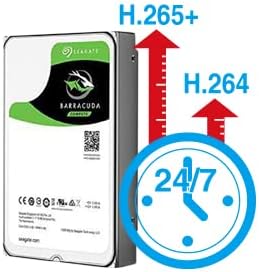
Figure 4.1: H.265+ compression for efficient storage.
4.2 Motion Detection and Email Alerts
The NVR supports motion detection and can send email alerts when motion is detected.
- Ikkonfigura s-Sejbien tal-Mozzjoni: Access the NVR's menu to define motion detection zones and sensitivity for each camera.
- Set Up Email Alerts: In the NVR's network settings, configure your email server details to enable email notifications. Any detected motion will trigger an email alert to your specified address.
4.3 Playback and Backup
Tista 'terġa'view irreġistrat footage directly from the NVR or remotely via the app/software.
- Daqq Lokali: Use the NVR's interface to search for recordings by time or event.
- Remote Playback: Access recorded videos through the mobile app or PC software.
- Backup USB: Connect a USB flash drive to the NVR's USB port to back up important video files.
5. Manutenzjoni
Manutenzjoni regolari tiżgura prestazzjoni ottimali u lonġevità tas-sistema tas-sigurtà tiegħek.
- Tagħmir Nadif: Periodically wipe the NVR and camera lenses with a soft, dry cloth. Avoid abrasive cleaners.
- Aġġornamenti tal-Firmware: Check the Tonton official website for any available firmware updates for your NVR and cameras. Follow instructions carefully for updates.
- Ġestjoni tal-Hard Drive: The 1TB HDD will overwrite older footage when full. Regularly back up critical recordings.
- Iċċekkja tal-Provvista tal-Enerġija: Ensure all power adapters are securely connected and free from damage.
6 Issolvi l-problemi
Din it-taqsima tindirizza kwistjonijiet komuni li tista’ tiltaqa’ magħhom.
- L-ebda Wirja tal-Vidjo:
- Check NVR power connection.
- Verify monitor connection (HDMI/VGA) and input source.
- Kun żgur li l-kameras huma mixgħula.
- Kameras Mhux Qed Jikkonnettjaw:
- Ensure cameras are within range of the NVR's wireless signal.
- Check camera power.
- If using an extension antenna, ensure it is properly installed.

Figure 6.1: Wireless extension antenna setup.
- Remote ViewMhux qed jaħdem:
- Confirm NVR is connected to the internet via Ethernet.
- Iċċekkja l-konnessjoni tal-internet tar-router tiegħek.
- Ensure the app/software is updated and the NVR is correctly added.
- Ebda Reġistrazzjoni:
- Verify the 1TB hard drive is detected and functioning.
- Check recording schedule and motion detection settings.
If issues persist, please contact Tonton technical support.
7. Speċifikazzjonijiet
| Brand | Tonton |
| Mudell | 8CH NVR Recorder (B082HC5GPC) |
| Teknoloġija tal-Konnettività | HDMI, USB, VGA, Wireless |
| Riżoluzzjoni tal-Qbid tal-Vidjo | Supports up to 4K 8MP/5MP/4MP/3MP/2MP 1080p |
| Karatteristika Speċjali | Wireless |
| Numru ta 'Kanali | 8 (NVR supports up to 16 channels) |
| Kapaċità tal-Ħżin tal-Memorja | HDD ta' 1TB (installat minn qabel) |
| Kulur | Iswed |
| Sors tal-Enerġija | Corded Elettriku |
| Apparati Kompatibbli | Cameras, Desktop, Smartphones, Tablets |
| Teknoloġija tad-Dawl Baxx | Viżjoni bil-lejl |
| Portijiet USB totali | 2 |
| Input tal-Vidjo | HDMI, USB, VGA |
| Manifattur | Tonton security |
| UPC | 740385275593 |
| ASIN | B082HC5GPC |
| Data L-Ewwel Disponibbli | 8 ta’ Diċembru 2019 |
8. Garanzija u Appoġġ
Your Tonton Security Camera System comes with a 1-Sena Garanzija mid-data tax-xiri.
For technical assistance, troubleshooting, or warranty claims, please contact Tonton Technical Support. Refer to the contact information provided on the Tonton official webis-sit jew id-dokumentazzjoni tax-xiri tiegħek.