1. Introduzzjoni
This manual provides instructions for the GAOMON S620 Graphics Tablet. The S620 is a compact and versatile pen tablet designed for digital drawing, painting, gaming, and online education. It features a battery-free pen with 8192 levels of pressure sensitivity and four customizable express keys, offering a natural and efficient creative experience across Windows, macOS, and Android devices.
Video 1.1: Introduction to the GAOMON S620 Drawing Tablet. This video provides a general overview tal-karatteristiċi u d-disinn tat-tablet.
2. Kontenut tal-Pakkett
Iċċekkja li l-oġġetti kollha elenkati hawn taħt huma inklużi fil-pakkett tiegħek:
- Pillola tal-Pinna GAOMON S620
- Battery-Free Pen (AP32)
- Mikro USB Cable
- Replacement Nibs (x8)
- Pinna Nib Clip
- Adapter tat-Tip Ċ għal USB
- Gwida Quick Start

Image 2.1: Contents of the GAOMON S620 package, including the tablet, pen, cables, and accessories.
3. Prodott Aktarview
3.1. GAOMON S620 Tablet
The GAOMON S620 features a 6.5 x 4-inch active working area, providing ample space for creative tasks. Its slim and lightweight design (8mm thick, 249g) ensures portability. The tablet includes four customizable express keys for enhanced workflow efficiency.

Immaġni 3.1: Minn fuq għal isfel view of the GAOMON S620 tablet, highlighting its active area and physical dimensions.

Immaġni 3.2: Dettaljata view of the GAOMON S620 tablet, showing its compact size, 8mm thickness, and 249g weight, emphasizing its portability.
3.2. Battery-Free Pen (AP32)
The included AP32 pen utilizes passive electromagnetic resonance (EMR) technology, eliminating the need for batteries or charging. It offers 8192 levels of pressure sensitivity and 60° tilt support, allowing for precise and natural stroke variations. The pen also features two customizable shortcut keys for quick access to functions.
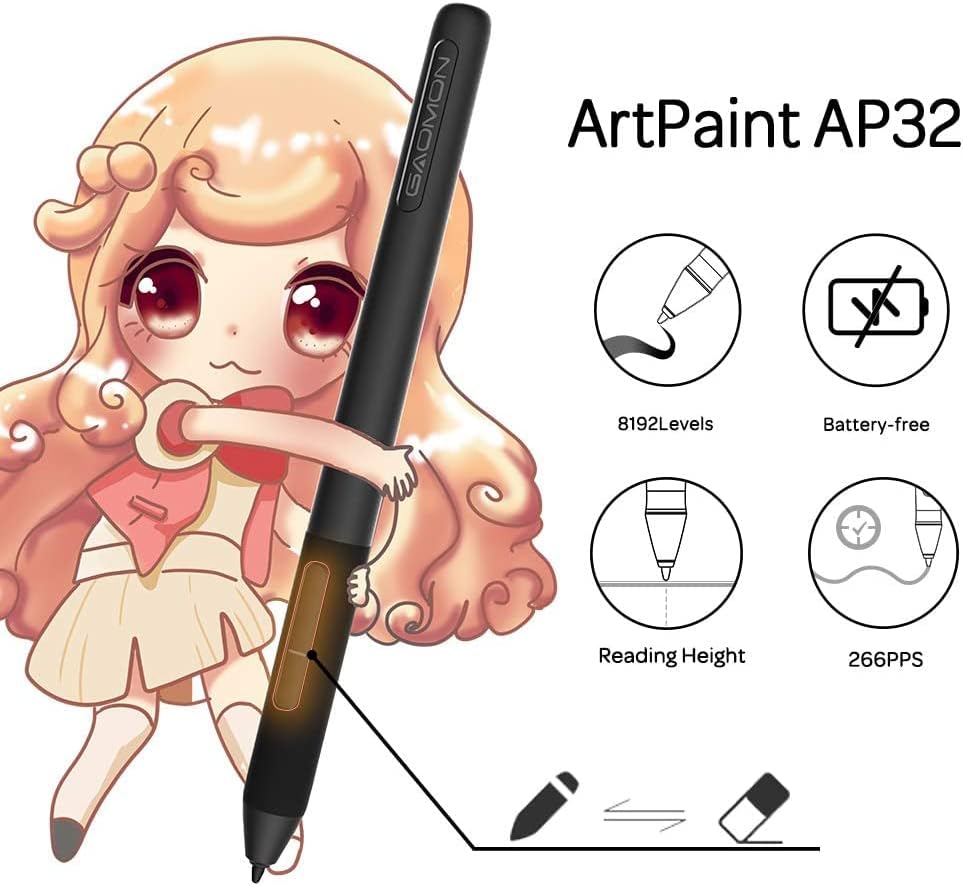
Image 3.3: The ArtPaint AP32 battery-free pen, highlighting its 8192 pressure levels, battery-free design, reading height, and 266 RPS report rate.

Image 3.4: Close-up of the AP32 pen, showing its two custom shortcut keys and key specifications like 8192 pressure levels, 60° tilt support, battery-free operation, and 266 PPS.
4. Setup
4.1. Driver Installation (Windows/macOS)
- Before installing the GAOMON driver, uninstall any existing tablet drivers from your computer to prevent conflicts.
- Close all drawing software and antivirus programs.
- Download the latest driver for the GAOMON S620 from the official GAOMON websit: www.gaomon.net/download/
- Segwi l-istruzzjonijiet fuq l-iskrin biex tlesti l-installazzjoni.
- Ibda mill-ġdid il-kompjuter tiegħek wara l-installazzjoni.
- Connect the S620 tablet to your computer using the provided Micro USB cable.
- Verify the tablet is recognized and functioning correctly in the GAOMON driver interface.
4.2. Konnessjoni ma' Apparati Android
The GAOMON S620 supports connection to Android phones and tablets (Android 6.0 or above) that have OTG (On-The-Go) functionality. No driver installation is required for Android devices.
- Ensure your Android device supports OTG function.
- Connect the S620 tablet to your Android device using the provided Micro USB cable and the appropriate Type-C to USB adapter.
- The tablet will be recognized automatically.
- If the tablet does not enter OTG mode, check your device's settings: Settings > Storage or Connectivity, then find the OTG connection or USB option and enable it. You may also need to press Button 1 + Button 3 on the tablet simultaneously for 3 seconds.
Video 4.1: Demonstrates how to connect the GAOMON S620 Graphic Tablet to an Android phone and begin drawing.
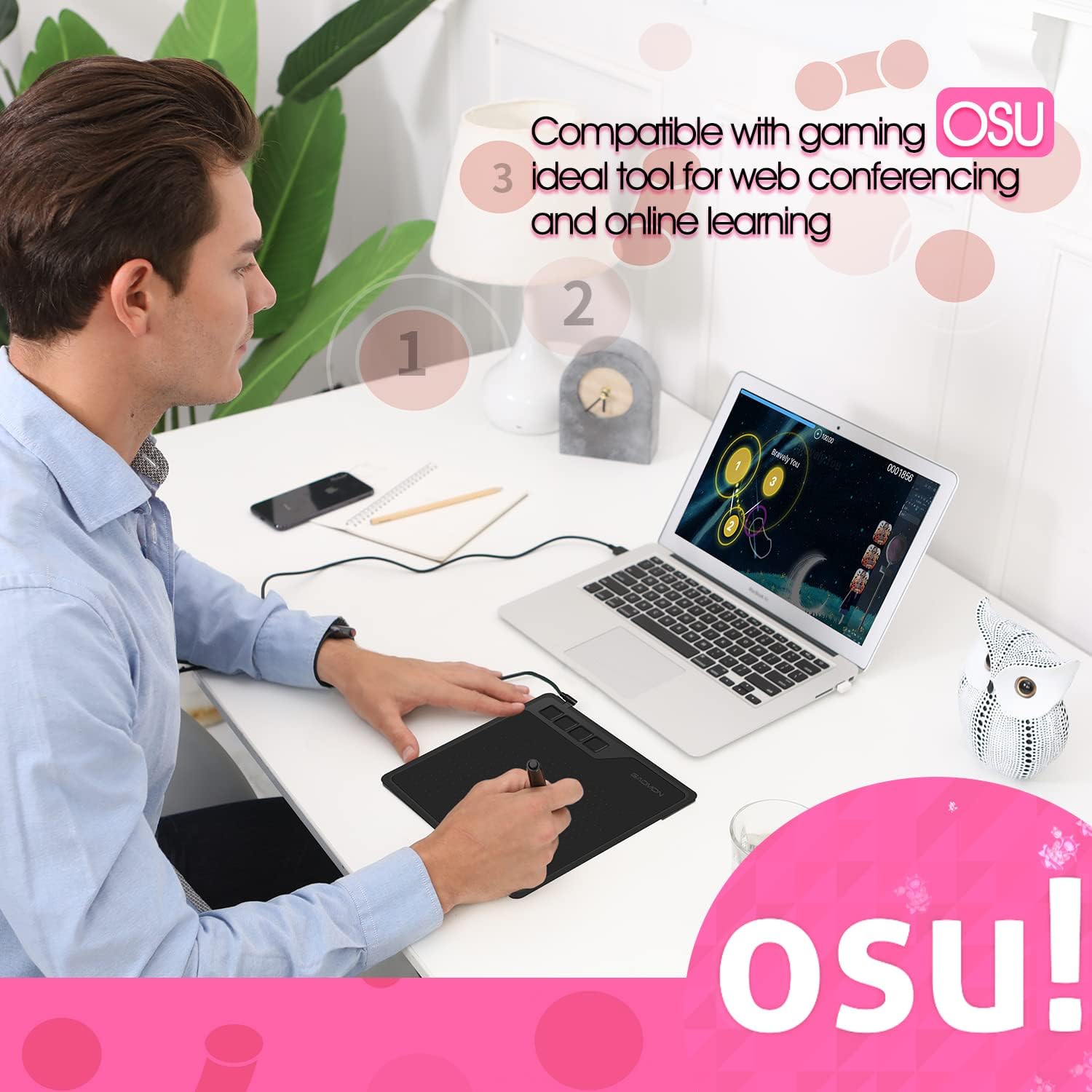
Image 4.1: The GAOMON S620 tablet connected to an Android phone, illustrating the mobile phone workspace area.
5. Istruzzjonijiet Operattivi
5.1. Użu Bażiku
- Hold the pen as you would a regular pencil.
- Move the pen across the tablet's active area to control the cursor on your screen.
- Press the pen tip onto the tablet surface to simulate a mouse click. The pressure applied will determine the thickness or opacity of lines in drawing software.
- The tablet's LED light indicator will show its status during operation.
5.2. Customizing Express Keys
The GAOMON S620 features four customizable express keys on the tablet and two on the pen. These keys can be configured to perform various functions, such as undo, redo, zoom, brush size adjustment, or specific software shortcuts.
- Open the GAOMON driver software on your computer.
- Navigate to the "Express Keys" or "Pen Buttons" section.
- Select each key and assign your desired function from the available options or create custom shortcuts.
- Click "Apply" or "OK" to save your settings.
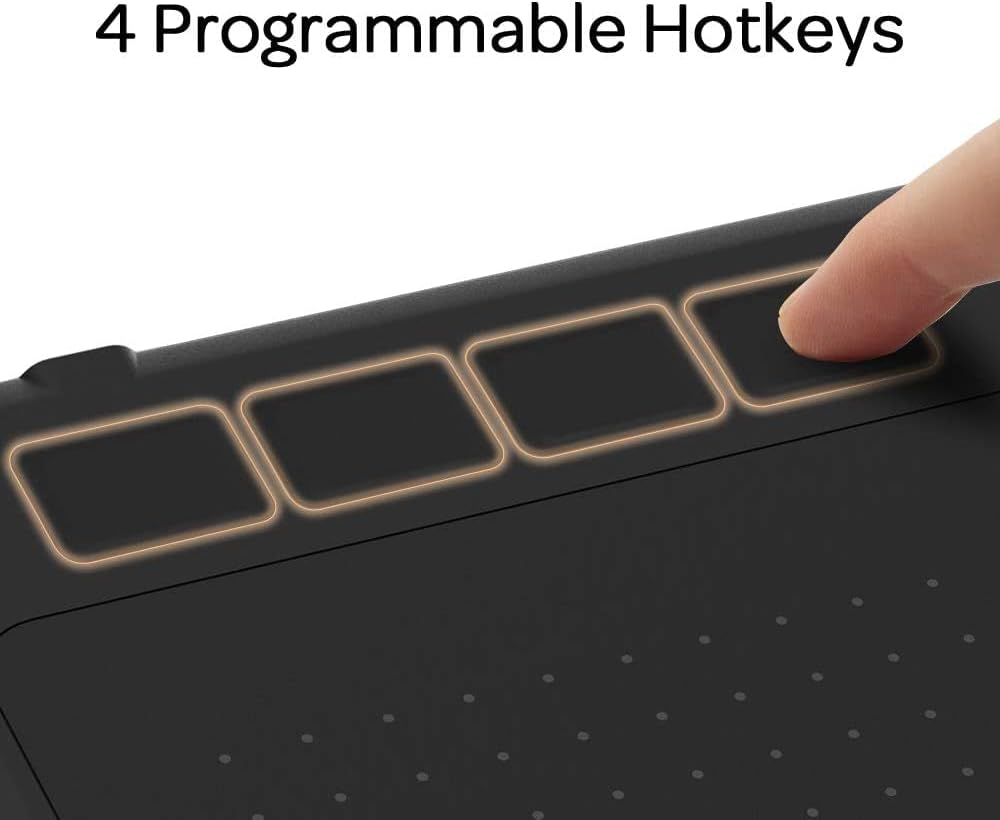
Image 5.1: Close-up of the GAOMON S620 tablet's four programmable shortcut keys.
5.3. Left-Handed Mode
The S620 can be configured for left-handed users. In the GAOMON driver software, you can rotate the tablet's working area by 180 degrees, allowing the express keys to be positioned on the right side for comfortable left-handed use.

Image 5.2: A user operating the GAOMON S620 tablet in left-handed mode, with the express keys on the right.
6. Manutenzjoni
- Żomm it-tablet u l-pinna nodfa billi timsaħhom b'ċarruta ratba u niexfa. Evita li tuża kimiċi ħarxa jew materjali li joborxu.
- Aħżen il-pillola f'post frisk u niexef 'il bogħod mix-xemx diretta u minn temperaturi estremi.
- Replace pen nibs when they become worn to ensure optimal performance. Use the provided nib clip for easy replacement.
- Avoid dropping the tablet or pen, as this can cause damage.
7 Issolvi l-problemi
7.1. No Pen Pressure / Pen Not Working
- Ensure the GAOMON driver is correctly installed and running. Reinstall the driver if necessary, following the steps in Section 4.1.
- Check if any other tablet drivers are installed and uninstall them.
- Verify the pen nib is securely inserted. Replace it if it is worn or damaged.
- Test the tablet with different software applications to isolate the issue.
7.2. Cursor Lag or Jitter
- Ensure the USB cable is securely connected to both the tablet and the computer/Android device.
- Ipprova qabbad it-tablet ma' port USB differenti.
- Agħlaq kwalunkwe applikazzjoni fl-isfond bla bżonn li tista' tkun qed tikkonsma r-riżorsi tas-sistema.
- Aġġorna s-sistema operattiva u s-sewwieqa tal-grafika tal-kompjuter tiegħek.
7.3. Android Device Not Recognizing Tablet
- Confirm your Android device supports OTG functionality.
- Check the OTG settings on your Android device (refer to Section 4.2).
- Ensure the adapter and cable are functioning correctly. Try a different adapter or cable if available.
8. Speċifikazzjonijiet
| Karatteristika | Dettall |
|---|---|
| Isem tal-Mudell | GAOMON S620 |
| Żona Attiva | 6.5 x 4 pulzier |
| Sensittività għall-Pressjoni | 8192 Livelli |
| Teknoloġija tal-pinna | Battery-Free Electromagnetic Resonance (EMR) |
| Rapport tar-Rata | 266 RPS (Reports Per Second) |
| Riżoluzzjoni | 5080 LPI (Linji Kull Pulzier) |
| Read Height | 10mm |
| Mejjel Appoġġ | 60° |
| Express Keys | 4 Ċwievet Personalizzabbli |
| Konnettività | Mikro USB |
| Kompatibilità tas-Sistema Operattiva | Windows 7/8/10 and above, macOS 10.12 and above, Android 6.0 and above (with OTG) |
| Dimensjonijiet (L x W) | 8.31" x 6.85" (211mm x 174mm) |
| Ħxuna | 8mm |
| Piż | 0.29 lbs (131g) |
9. Garanzija u Appoġġ
The GAOMON S620 Graphics Tablet comes with a 1-year warranty covering non-human-made damage. This warranty does not cover accidental damage or accidental missing accessories.
For technical support, driver downloads, or further assistance, please visit the official GAOMON websit: www.gaomon.net


