1. Introduzzjoni
This manual provides essential information for the proper setup, operation, and maintenance of your VIOTEK GNV34DB 34-inch Ultrawide Gaming Monitor. Please read this manual thoroughly before using the product to ensure optimal performance and longevity. Keep this manual for future reference.

Image: The VIOTEK GNV34DB monitor from a front-right angle, showcasing its curved display.
2. Kontenut tal-Pakkett
Verify that all items listed below are present and in good condition upon opening the package. If any items are missing or damaged, please contact customer support.
- VIOTEK GNV34DB 34-Inch Ultrawide Gaming Monitor
- Adapter AC
- Cable HDMI
- DisplayPort Cable
- Manwal għall-Utent (dan id-dokument)
3. Setup
3.1 Assemblaġġ tal-Istand
- Oħroġ il-monitor u l-komponenti tal-istand mill-imballaġġ bir-reqqa.
- Waħħal il-bażi tal-istand mal-għonq tal-istand billi tuża l-viti pprovduti.
- Secure the assembled stand to the back of the monitor. Ensure all connections are firm.
3.2 Immuntar VESA
The monitor supports VESA mounting (75x75mm) for alternative mounting solutions. Remove the stand before attaching a VESA-compatible mount.
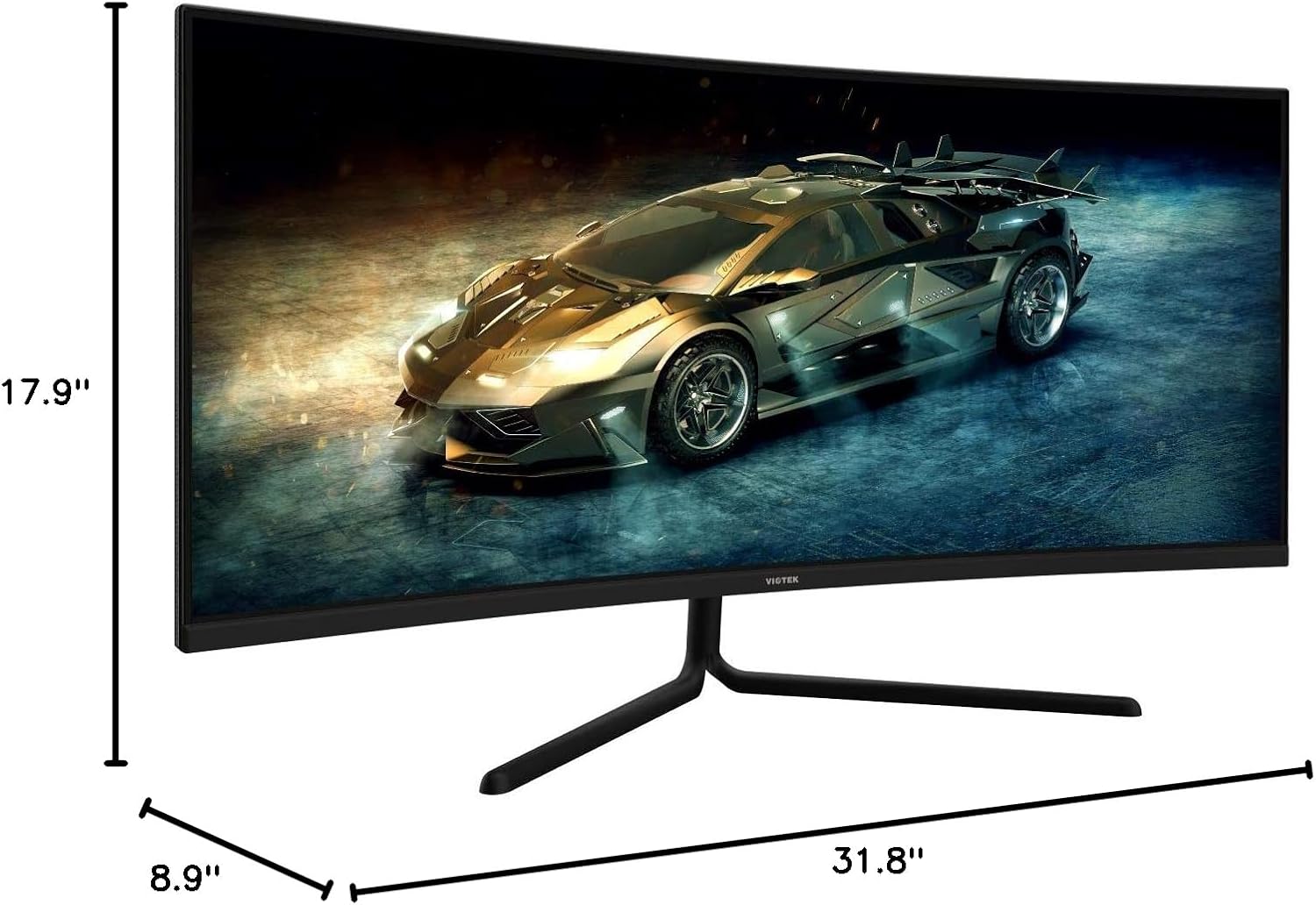
Image: Monitor dimensions are shown as 31.8 inches wide, 17.9 inches high, and 8.9 inches deep, indicating the physical size for placement and VESA compatibility.
3.3 Konnessjoni ma' Apparat
Connect your computer or other devices to the monitor using the appropriate ports. Ensure the monitor is powered off before making connections.
- DisplayPort (DP 1.2): For optimal performance, use the included DisplayPort cable to connect to your graphics card.
- HDMI (HDMI 1.4 / HDMI 2.0): Use an HDMI cable to connect to devices supporting HDMI output.
- 3.5mm Awdjo Out: Connect external speakers or headphones to this port for audio output.

Immaġni: In-naħa ta' wara view of the monitor highlighting the available input ports: DisplayPort 1.2, 3.5mm Audio Out, two HDMI 1.4 ports, and one HDMI 2.0 port.
4. Istruzzjonijiet Operattivi
4.1 Power On/Off
Agħfas il-buttuna tal-qawwa li tinsab fuq il-monitor biex tixgħelu jew titfih. Id-dawl indikatur tal-qawwa jixgħel meta l-monitor ikun attiv.
4.2 Menù tal-Wiri fuq l-Iskrin (OSD)
The OSD menu allows you to adjust various monitor settings. Use the control buttons (typically located on the back or bottom of the monitor) to navigate the menu.
- Luminożità/Kuntrast: Adjust display luminance and contrast levels.
- Settings tal-Kulur: Immodifika t-temperatura tal-kulur, il-gamma, u l-valuri individwali tal-RGB.
- Sors tad-dħul: Manually select the active input (DP, HDMI 1, HDMI 2, HDMI 3).
- Modalità Stampa: Select from preset display modes optimized for different content types (e.g., Standard, Movie, Game).
- Overdrive: Adjust response time for reduced motion blur.
4.3 Karatteristiċi ewlenin
- AMD FreeSync: This technology synchronizes the monitor's refresh rate with your graphics card's frame rate to eliminate screen tearing and stuttering during gaming. Enable FreeSync in the OSD menu and in your graphics card's control panel.

Image: A visual comparison demonstrating the effect of AMD FreeSync, showing a distorted image when FreeSync is off and a smooth image when FreeSync is on.
- GAMEPLUS: Activate on-screen crosshairs for enhanced aiming accuracy in games.

Image: A gaming scene on the monitor with three different GAMEPLUS crosshair options displayed at the bottom, indicating enhanced aiming features.
- FPS/RTS Optimization: Specific display modes designed to enhance visibility in First-Person Shooter (FPS) and Real-Time Strategy (RTS) games, often by adjusting gamma and contrast in dark areas.
- Kurvatura ta' 1500R: The monitor's 1500R curve provides a more immersive viewing experience by matching the natural curvature of the human eye, reducing eye strain and expanding the perceived field of view.

Immaġni: Ritratt minn fuq view of the curved monitor on a desk, illustrating the 1500R curvature and its benefit of providing full field of view kopertura.
- UWQHD (3440x1440) Resolution & 21:9 Aspect Ratio: Offers a wide workspace and immersive cinematic experience.

Image: The monitor displaying a vibrant game scene, with an overlay highlighting its 34-inch size, 21:9 aspect ratio, and 3440x1440p UWQHD resolution.
5. Speċifikazzjonijiet
| Karatteristika | Speċifikazzjoni |
|---|---|
| Daqs tal-Wiri | 34 Pulzier |
| Tip ta' Panel | Panel VA |
| Kurvatura | 1500R |
| Riżoluzzjoni | 3440x1440p (UWQHD) |
| Proporzjon ta' l-aspett | 21:9 |
| Riffriskar Rata | 100Hz |
| Ħin ta' Rispons | 6ms GTG (5ms Overdrive) |
| ViewIng Angolu | H178° / V178° |
| Wiri Kuluri | 16.7 Miljun |
| Gamut tal-Kulur | sRGB: 99%, NTSC: 85% |
| Proporzjon ta' Kuntrast | 3000:1 (Static), 1M:1 (Dynamic) |
| Luminożità | 300 cd/m² |
| Kompatibilità VESA | 75x75mm |
| Portijiet | 1x DP 1.2, 2x HDMI 1.4, 1x HDMI 2.0, 1x 3.5mm Audio Out |
| Aġġustament tal-Mejjel | -5° ~ 15° |
| Dimensjonijiet (bl-istand) | 31.8 x 17.9 x 8.9 pulzieri (808.65 x 454.19 x 225.58 mm) |
| Piż | 15.5 lbs (7.02 kg) |
6 Issolvi l-problemi
Jekk tiltaqa' ma' problemi bil-monitor tiegħek, irreferi għall-problemi u s-soluzzjonijiet komuni li ġejjin:
- Ebda Qawwa:
- Ensure the power cable is securely connected to the monitor and a working power outlet.
- Iċċekkja li l-adapter tal-enerġija qed jaħdem sew.
- Ebda Sinjal:
- Check that the video cable (DP or HDMI) is firmly connected to both the monitor and your computer.
- Agħżel is-sors tad-dħul korrett permezz tal-menù OSD.
- Ensure your computer's graphics card is properly installed and drivers are up to date.
- Skrin li jteptep:
- Ensure the video cable is not damaged and is properly connected.
- Aġġusta r-rata ta' aġġornament fis-settings tad-displej tal-kompjuter tiegħek.
- Disable or enable FreeSync in the OSD menu and graphics card settings to see if it resolves the issue.
- Pixels Mejta:
- Refer to the warranty section for information on Viotek's Zero-Tolerance Dead Pixel Policy.
7. Manutenzjoni
Follow these guidelines to maintain your monitor's performance and appearance:
- Tindif tal-Iskrin: Imsaħ l-iskrin bil-mod b'ċarruta ratba u mingħajr suf. Għal marki iebsa, uża soluzzjoni tat-tindif speċifika għall-monitor applikata fuq iċ-ċarruta, mhux direttament fuq l-iskrin.
- Tindif tas-Casing: Uża drapp artab u niexef biex tnaddaf il-parti ta' fuq tal-monitor.asing. Evita prodotti tat-tindif jew solventi li joborxu.
- Ventilazzjoni: Kun żgur li l-fetħiet tal-ventilazzjoni tal-monitor mhumiex imblukkati biex tevita li jisħon iżżejjed.
- Ħażna: Meta ma tkunx qed tużah għal perjodi twal, aħżen il-monitor f'post frisk u niexef, idealment fl-imballaġġ oriġinali tiegħu.
8. Garanzija u Appoġġ
Your VIOTEK GNV34DB monitor is covered by a Garanzija Limitata ta' 3 Snin. This warranty includes Viotek's Zero-Tolerance Dead Pixel Policy, ensuring that your display is free from dead pixels upon purchase.

Image: A graphic highlighting the 3-year warranty and Zero Dead Pixel policy for parts and labor.
For warranty claims, technical support, or any inquiries, please contact Viotek customer service. Details can typically be found on the official Viotek webis-sit jew permezz tad-dokumentazzjoni tax-xiri tiegħek.


