1. Introduzzjoni
The Mackie ProFX12v3 is a 12-channel professional analog mixer designed for versatile audio applications, including live sound, home recording, content creation, and live streaming. It features renowned Onyx mic preamps, a GigFX effects engine, and USB I/O capabilities for high-quality audio processing and recording.

Figura 1: Aktarview of the Mackie ProFX12v3 Mixer.
Il-karatteristiċi ewlenin jinkludu:
- 7 Onyx Mic Preamps: Offering up to 60dB of gain for ultra-low noise performance, ideal for high-gain microphones.
- GigFX Effects Engine: Provides 24 different FX options, including reverbs, delays, and choruses, for adding professional touches to your sound.
- 24-bit/192kHz 2x4 USB I/O: Enables high-resolution recording and allows for creating custom mixes for monitoring during playback.
- Single-Knob Compression: Simple control for managing dynamic range on individual channels.
- Blend Control: A dedicated knob to blend between your computer's output and a direct feed from the mixer, useful for overdubs.
Vidjo 1: Viżjoni ta' 360 grad view of the Mackie ProFX12v3 Professional Mixer, showcasinid-disinn u t-tqassim tiegħu.
2. Setup
2.1 Tneħħija tal-kaxxa u l-Kontenut
Upon unboxing your Mackie ProFX12v3 mixer, ensure all components are present:
- ProFXv3 Series, 12-Channel Professional Effects Mixer
- Korda tal-Enerġija
- Korda USB
- Gwida Quick Start
2.2 Konnessjoni tal-Enerġija
Connect the provided power cord to the mixer's power input on the rear panel and then to a suitable AC power outlet. Ensure the power switch is in the OFF position before connecting. Once connected, you can switch the mixer ON.
2.3 Konnessjoni USB
For computer integration, connect the USB cord from the mixer's rear USB port to an available USB port on your computer. You may need to download and install specific Mackie drivers from the official website for full functionality, especially for accessing all USB channels (e.g., 3 and 4) and ensuring optimal 24-bit/192kHz recording quality.

Figure 2: Rear panel connections for power and USB.
2.4 Konnessjonijiet tal-Input tal-Awdjo
Connect your microphones, instruments, and other audio sources to the appropriate input channels on the mixer. The ProFX12v3 features combo jacks for XLR and 1/4-inch inputs, as well as dedicated line inputs.
- Inputs XLR: For microphones. Activate +48V Phantom Power for condenser microphones using the dedicated button on the main section.
- 1/4-inch Inputs: For instruments (guitars, keyboards) or line-level devices.
- Hi-Z Inputs: Dedicated high-impedance inputs on select channels allow direct connection of guitars or basses without an external DI box.
3. It-tħaddim tal-Mixer
3.1 Channel Controls Overview
Each input channel on the ProFX12v3 features a comprehensive set of controls to shape your sound:
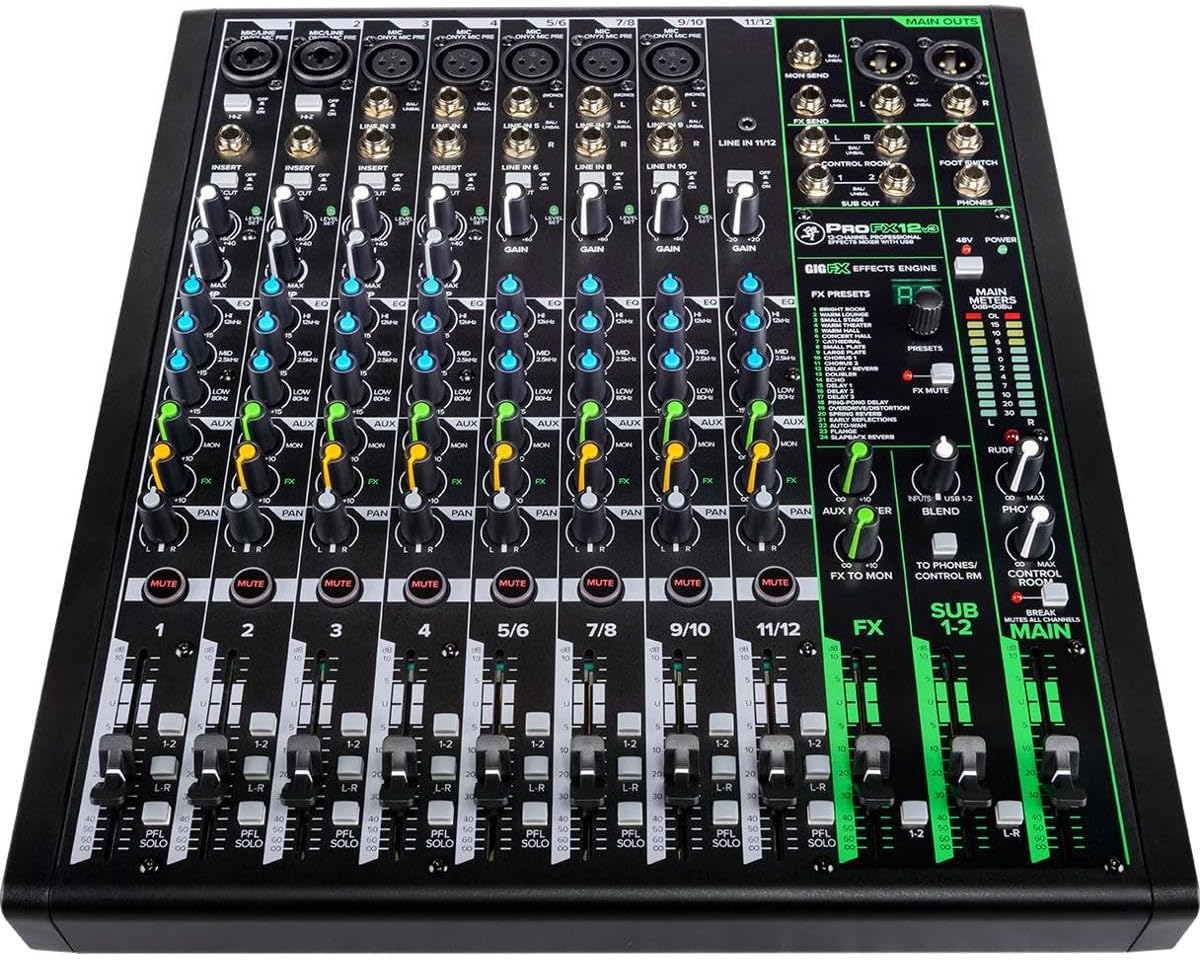
Figura 3: Dettaljat view of the mixer's control surface.
- Buttuna tal-Gwadan: Adjusts the input sensitivity for each channel. Set this to achieve a strong signal without clipping (indicated by the OL LED).
- Taqsima EQ: High, Mid, and Low frequency controls allow you to sculpt the tone of each input.
- Send Awżiljarju: Controls the amount of signal sent to the auxiliary output, often used for monitor mixes or external effects.
- Ibgħat FX: Controls the amount of signal sent to the internal GigFX effects engine.
- Pum Pan: Jippożizzjona s-sinjal tal-kanal fil-kamp stereo (mix-xellug għal-lemin).
- Buttuna Mute: Silences the channel's output.
- Solo Button (PFL): Isolates the channel's signal for monitoring through headphones without affecting the main mix.
- Level Fader: Adjusts the overall volume of the channel in the main mix.
3.2 GigFX Effects Engine
The GigFX effects engine offers 24 high-quality digital effects. Use the PRESETS knob to select an effect and the FX MASTER fader to control the overall level of the effects in the main mix. Individual channel FX sends allow you to apply effects selectively.

Figure 4: GigFX Effects Engine and Main Meters.
3.3 USB Audio Interface Operation
The 2x4 USB audio interface allows for flexible recording and monitoring:
- Reġistrazzjoni: Send the main mix or specific sub-mixes to your computer for recording in 24-bit/192kHz quality.
- Monitoraġġ: Use the BLEND knob to adjust the balance between the direct mixer signal and the USB return from your computer. This is crucial for zero-latency monitoring during overdubs.
3.4 Output Prinċipali u Monitoraġġ
The main mix is controlled by the MAIN faders and output via balanced XLR or 1/4-inch jacks. Monitor your mix using headphones connected to the PHONES jack, with its dedicated level control. The main meters provide visual feedback on your output levels, helping you avoid clipping.
Vidjo 2: Overview of the Mackie ProFX12v3's professional features and controls.
4. Manutenzjoni
To ensure the longevity and optimal performance of your Mackie ProFX12v3 mixer, follow these maintenance guidelines:
- Tindif: Regularly wipe the mixer's surface with a soft, dry cloth. Avoid using liquid cleaners or solvents, as they can damage the finish or internal components.
- Protezzjoni mit-Trab: Keep the mixer covered when not in use to prevent dust accumulation, which can affect faders and knobs.
- Ġestjoni tal-Kejbil: Ensure cables are neatly organized and not under tension to prevent damage to connectors and ports.
- Kundizzjonijiet Ambjentali: Operate the mixer in a dry, well-ventilated area away from extreme temperatures, humidity, and direct sunlight.
5 Issolvi l-problemi
If you encounter issues with your mixer, consider the following common troubleshooting steps:
- Ebda Qawwa: Ensure the power cord is securely connected to both the mixer and the outlet, and that the power switch is ON. Check the power outlet with another device.
- Ebda Ħsejjes tal-Ħsejjes: Verify that all level faders (channel, main, headphones) are up. Check all cable connections. Ensure mute buttons are disengaged. Confirm output routing in your DAW if using USB.
- Ħoss Mgħawġ: Reduce input gain on the affected channel. Check for clipping (OL LED). Ensure output levels are not exceeding the main meters.
- Kwistjonijiet ta' Konnessjoni USB: Reinstall Mackie USB drivers. Try a different USB port or cable. Ensure your DAW's audio settings are correctly configured to recognize the mixer.
- Effetti Mhux Jaħdmu: Check the FX send knob on the channel and the FX MASTER fader. Ensure the FX Mute button is not engaged.
6. Speċifikazzjonijiet
| Karatteristika | Dettall |
|---|---|
| Brand | Mackie |
| Mudell | ProFX12v3 |
| Numru ta 'Kanali | 12 |
| Piż tal-oġġett | 10.9 liri |
| Dimensjonijiet tal-Prodott | 13 x 14.8 x 4 pulzieri |
| Teknoloġija tal-Konnettività | USB |
| Interface tal-Ħardwer | 1/4-inch Audio, 3.5mm Audio, Headphone, USB |
| Voltage | 110 Volts |
| Tip ta' Materjal | Azzar |
| Isem tal-Kulur | Iswed |
| Data L-Ewwel Disponibbli | 15 ta’ Awwissu, 2019 |
7. Garanzija u Appoġġ
For detailed warranty information, technical support, or service inquiries, please refer to the official Mackie website or contact Mackie customer support directly. Keep your purchase receipt as proof of purchase for warranty claims.


