Introduzzjoni
This manual provides essential information for the setup, operation, and maintenance of your OREI Sony UBP-X800M2 Region Free 4K UHD Blu-ray Player. This player is designed for worldwide use, supporting all Blu-ray disc zones (A/B/C) and DVD regions (0-8), with a built-in NTSC↔PAL 4K HD converter. Enjoy stunning 4K UHD visuals, high-resolution audio including Dolby Atmos and DTS:X, and seamless access to streaming services via Wi-Fi or Ethernet.

Figura 1: Quddiem view of the OREI Sony UBP-X800M2 4K UHD Blu-ray Player.
Setup
1. Żpakkjar u Tqegħid
- Neħħi bir-reqqa l-komponenti kollha mill-imballaġġ.
- Place the player on a stable, level surface with adequate ventilation.
- Ensure no objects block the ventilation openings.
2. Konnessjoni mat-TV tiegħek
Connect the player to your TV using an HDMI cable for optimal 4K UHD video and audio.
- Qabbad tarf wieħed ta' kejbil HDMI mal- HDMI OUT port fuq wara tal-plejer Blu-ray.
- Qabbad it-tarf l-ieħor tal-kejbil HDMI ma 'input HDMI fuq it-TV tiegħek.
- If using an audio receiver, connect the player's HDMI OUT to the receiver's HDMI IN, then the receiver's HDMI OUT to the TV's HDMI IN.

Figure 2: Rear panel connections, showing HDMI, LAN, and audio outputs.
3. Konnessjoni tal-Enerġija
- Connect the AC power cord to the player's power input and then to a suitable electrical outlet.
4. Network Connection (Optional)
For streaming services and firmware updates, connect the player to your home network.
- Konnessjoni bil-fili: Connect an Ethernet cable from the player's LAN (100) port to your router or modem.
- Konnessjoni bla fili: Navigate to the network settings in the player's menu to connect to your Wi-Fi network.
5. Region Changing Instructions
This player supports all DVD regions (0-8) automatically. Blu-ray regions (A, B, C) are changed manually using the remote control.
- Turn the player ON u OPEN THE DISC TRAY.
- Once the tray is completely open, press the corresponding colored button on the remote to select the desired Blu-ray region:
- Żona A: Agħfas il- BUTTONI SAFAR fuq il-kontroll mill-bogħod.
- Żona B: Agħfas il- BUTTONI BLUE fuq il-kontroll mill-bogħod.
- Żona Ċ: Agħfas il- BOTON RED fuq il-kontroll mill-bogħod.
- Issa tista' tpoġġi d-diska tiegħek fit-trej u mbagħad tagħlaq it-trej.

Figure 3: Remote control with colored buttons for region selection.
Istruzzjonijiet Operattivi
1. Daqq tad-Diska
The player supports a wide range of disc formats, including 4K UHD Blu-ray, standard Blu-ray, Blu-ray 3D, DVD, CD, and Super Audio CD (SACD).
- Agħfas il- FTUĦ/MAGĦLUQ buttuna fuq il-plejer jew ir-remote biex tiftaħ it-trej tad-diska.
- Place the disc gently onto the tray with the label side facing up.
- Agħfas il- FTUĦ/MAGĦLUQ buttuna mill-ġdid biex tagħlaq it-trej.
- Il-plejer jibda d-daqq awtomatikament jew juri menu tad-diska.

Figura 4: Quddiem view tal-plejer bit-trej tad-diska miftuħ, lest biex iddaħħal id-diska.
2. Servizzi ta' Streaming
Access popular streaming services like Netflix and YouTube directly from the player's home menu.
- Ensure the player is connected to the internet (Wi-Fi or Ethernet).
- Mill-iskrin ewlieni, agħżel l-applikazzjoni tal-istriming mixtieqa.
- Log in with your account credentials to begin streaming.
3. Daqq tal-Midja USB
Daqq tal-midja files (audio, video, photos) from a USB storage device.
- Insert your USB device into the front USB port.
- Select the USB option from the player's home menu to browse and play your media.
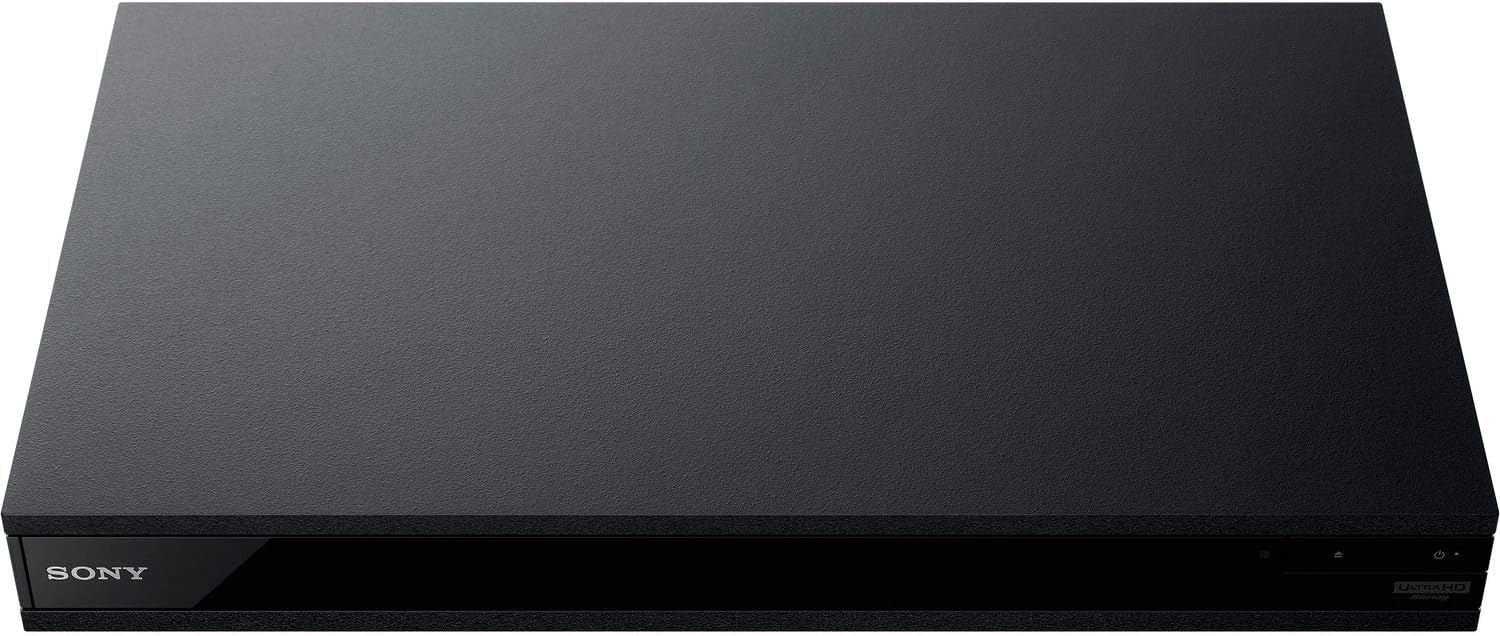
Figura 5: Quddiem view of the player with a USB drive inserted into the front port.
Manutenzjoni
1. Tindif tal-Plejer
- Imsaħ il-parti ta' barra tal-plejer b'ċarruta ratba u niexfa.
- Tużax prodotti tat-tindif li joborxu, xama', jew solventi.
- Kun żgur li l-fetħiet tal-ventilazzjoni jibqgħu nodfa mit-trab u l-fdalijiet.
2. Kura tad-Diska
- Immaniġġja d-diski mit-truf tagħhom biex tevita marki tas-swaba’ u grif.
- Naddaf id-diski b'ċarruta ratba u mingħajr suf, billi timsaħ miċ-ċentru 'l barra.
- Store discs in their cases away from direct sunlight and extreme temperatures.
3. Aġġornamenti tal-Firmware
Firmware updates can be done via the internet to ensure optimal performance and access to the latest features.
- Go to the home menu, then setup menu, and then to Software Update.
- Click on "Update Via Internet". If a new firmware is available, the player will automatically update.
- MA turn off the player while it is updating.
- MA perform firmware updates by USB unless instructed by OREI support.
Issolvi l-problemi
Kwistjonijiet Komuni
- Ebda Stampa/Ħoss:
- Check all HDMI and audio cable connections.
- Ensure the TV input is set to the correct HDMI port.
- Verify the player is powered on.
- Id-Diska Ma Tilgħabx:
- Kun żgur li d-diska hija nadifa u ħielsa mill-grif.
- Iċċekkja li d-diska ddaħħlet sew (bin-naħa tat-tikketta 'l fuq).
- For Blu-ray discs, confirm the player's region setting matches the disc's region (refer to "Region Changing Instructions" in the Setup section).
- Open the tray again and leave the disc in the tray. Once fully open, press the color button to select the region. Then close the tray.
- Region Code Error Message:
If you put in a disc before changing regions, you may get an error message indicating the wrong region. The player remembers this message. To remove that error, you need to reset the player.
- Agħfas il- HOME button on the remote with no disc inside to go to the home screen.
- Uża l-buttuni tal-vleġeġ fuq ir-remote biex tmur fir-rokna ta' fuq tal-lemin fejn jgħid Setup u agħfas DĦUL.
- Skrollja 'l isfel sa Irrisettjar fil-qiegħ tal-menù.
- Agħżel Irrisettja għall-issettjar default tal-Fabbrika.
- Skrollja 'l isfel u agħżel SETTINGS KOLLHA u agħfas DĦUL -> Agħfas Ibda Daħħal -> Close DĦUL.
- Itfi l-plejer u erġa' ixgħelu wara 30 sekonda.
- Select Language English and then select quick start mode OFF. You may need to activate network settings again.
- If you prefer not to connect the player to the internet, you may press the HOME button and go to the home screen. Now start from step 1 under "Region Changing Instructions" to change regions.
Speċifikazzjonijiet
| Brand | OREI |
| Isem tal-Mudell | Sony X800M2 (UBP-X800M2) |
| Dimensjonijiet tal-Prodott | 19 x 14.1 x 3.8 pulzieri |
| Piż tal-oġġett | 8.82 libbra (4000 Gramm) |
| Tip tal-Midja | Blu-Ray Disc, DVD, 4K UHD Blu-ray, Blu-ray 3D, CD, Super Audio CD |
| Riżoluzzjoni | 3840x2160 (4K UHD) |
| Teknoloġija tal-Konnettività | Ethernet, HDMI, USB, Wi-Fi |
| Tip ta' Konnettur | HDMI |
| Modalità tal-Ħruġ tal-Awdjo | Surround (Dolby Atmos, DTS:X, High-Resolution Audio) |
| Kulur | Iswed |
| Batteriji | 2 batteriji AAA meħtieġa (għall-remot) |
| Karatteristika Speċjali | Region Free (Blu-ray Zones A/B/C, DVD Regions 0-8), Built-in NTSC↔PAL 4K HD Converter |
Garanzija u Appoġġ
Informazzjoni dwar Garanzija
For specific warranty details, please refer to the warranty card included with your product or visit the official OREI websit. Żomm l-irċevuta tax-xiri tiegħek bħala prova tax-xiri.
Appoġġ għall-Klijent
If you encounter any issues or have questions regarding your OREI Sony UBP-X800M2 Blu-ray Player, please contact OREI customer support.
- Appoġġ onlajn: Żur il- OREI Store on Amazon għal FAQs u riżorsi ta' appoġġ.
- Assistenza Teknika: Contact OREI directly for technical support. (Specific contact details not provided in source data, please refer to product packaging or official websit).


