Introduzzjoni
The WD My Passport portable external hard drive provides reliable and convenient storage for your digital life. Designed for portability and ease of use, it allows you to store, organize, and share your photos, videos, music, and documents securely. This manual will guide you through the setup, operation, and maintenance of your My Passport drive.
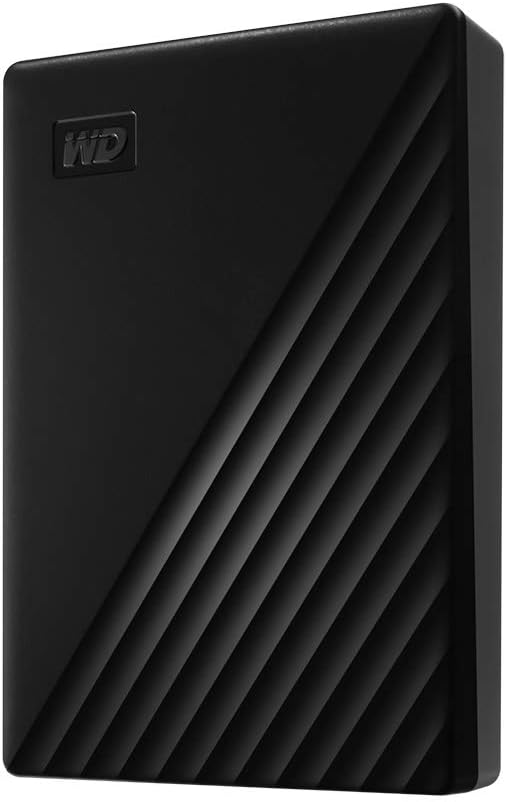
Image: The WD My Passport portable external hard drive in black, showcasing id-disinn eleganti tiegħu.
X'hemm fil-Kaxxa
Ivverifika li l-oġġetti kollha huma preżenti fil-pakkett:
- My Passport portable hard drive
- Kejbil SuperSpeed USB-A (5Gbps)
- Software for device management and backup with password protection (download and installation required)
- Gwida Quick Start
Setup
Qabbad id-Drive
- Locate an available USB port on your computer (USB 3.0 or USB 3.1/3.2 Gen 1 recommended for optimal performance).
- Connect the small end of the SuperSpeed USB-A cable to the USB port on your My Passport drive.
- Connect the larger end of the SuperSpeed USB-A cable to a USB port on your computer.
- The drive will be automatically detected by your operating system.

Image: The My Passport drive connected to a laptop, demonstrating its USB 3.2 Gen 1/USB 3.0 (5Gbps) compatibility.
Initial Software Installation (Optional but Recommended)
Your My Passport drive comes with software for device management, backup, and password protection. While the drive is plug-and-play for basic storage, installing the software enhances its capabilities.
- Open the My Passport drive from "My Computer" (Windows) or "Finder" (macOS).
- Locate and run the installer application (e.g., "WD Discovery.exe" for Windows or "WD Discovery.dmg" for macOS).
- Follow the on-screen instructions to complete the software installation. This software includes tools for backup and security.

Image: Illustration of the included backup software, which can be set to run automatically.
Tħaddim tas-Sewqan
Trasferiment Files
Once connected, your My Passport drive functions like any other external storage device. You can drag and drop files, copy and paste, or use your operating system's file management tools to transfer data.
- Ikkopjar Files: Agħżel il- files or folders you wish to transfer from your computer, right-click (or Ctrl-click on Mac) and select "Copy". Then, navigate to the My Passport drive, right-click in an empty area, and select "Paste".
- Dragging and Dropping: Open both the source folder on your computer and the My Passport drive folder. Drag the desired files or folders from the source to the My Passport drive.
Using Backup Software
The included software allows you to set up automatic backups of your important data. Refer to the software's help documentation for detailed instructions on configuring backup schedules and selecting specific files jew folders.
Password Protection and Hardware Encryption
For enhanced security, the My Passport drive supports 256-bit AES hardware encryption and password protection. This feature is managed through the installed WD software.
- Open the WD software application.
- Navigate to the security or password protection section.
- Follow the prompts to set a password for your drive. Remember this password, as it is crucial for accessing your encrypted data.

Image: Visual representation of password protection and 256-bit AES hardware encryption for the drive.
Social Media and Cloud Storage Integration
The WD software may offer features to connect to social media and cloud storage services, allowing you to easily import and back up content from these platforms to your My Passport drive. Consult the software's documentation for specific instructions on these integrations.

Image: A person interacting, with the My Passport drive visible, illustrating its "Social friendly" connectivity to social media and cloud storage.
Manutenzjoni
Tneħħija Sikura
Always safely eject the My Passport drive before disconnecting it from your computer to prevent data corruption.
- Windows: Click the "Safely Remove Hardware and Eject Media" icon in the system tray, then select your My Passport drive.
- macOS: Drag the My Passport drive icon from the desktop or Finder sidebar to the Trash icon, or right-click (or Ctrl-click) the drive icon and select "Eject".
Kura Fiżika
- Keep the drive in a clean, dry environment.
- Evita li tesponi d-drajv għal temperaturi estremi jew dawl tax-xemx dirett.
- Do not drop or subject the drive to strong impacts, as this can damage the internal components.
- Naddaf il-barra b'ċarruta ratba u niexfa. Tużax prodotti tat-tindif likwidi.

Image: The My Passport drive highlighting its slim design and compact dimensions (4.22" x 2.95"), fitting easily in the palm of a hand.
Issolvi l-problemi
Sewqan Mhux Rilevat
- Kun żgur li l-kejbil USB huwa konness sew kemm mad-drajv kif ukoll mal-kompjuter.
- Ipprova port USB differenti fuq il-kompjuter tiegħek.
- Try a different USB cable (if available).
- Ibda mill-ġdid il-kompjuter tiegħek.
- Check your computer's Disk Management (Windows) or Disk Utility (macOS) to see if the drive is recognized but not assigned a drive letter or mounted.
Veloċitajiet ta' Trasferiment Baxxi
- Kun żgur li int imqabbad ma' port USB 3.0 (jew ogħla) fuq il-kompjuter tiegħek. Il-portijiet USB 2.0 jirriżultaw f'veloċitajiet ferm aktar baxxi.
- Evita li tħaddem diversi applikazzjonijiet impenjattivi waqt perjodi twal ta' żmien file trasferimenti.
- Kun żgur li s-sewwieqa tal-kompjuter tiegħek huma aġġornati.
Insejt il-Password
If you forget your password for an encrypted drive, you may lose access to your data. WD software typically provides a password hint or recovery option during setup. If no recovery option was configured, data recovery may not be possible without the correct password.
Speċifikazzjonijiet
| Karatteristika | Dettall |
|---|---|
| Numru tal-Mudell | WDBPKJ0040BBK-WESN |
| Kapaċità tal-Ħażna Diġitali | 4 TB |
| Tip ta' Hard Drive | Hard Disk Mekkanika |
| Fattur tal-Formola tad-Disk Ribd | 2.5 Pulzier |
| Interface | USB 3.1 / USB 3.0 (compatible with USB 2.0) |
| Kulur | Iswed |
| Dimensjonijiet (LxWxH) | 4.22 x 2.95 x 0.75 pulzieri |
| Piż tal-oġġett | 7.4 uqija |
| Pjattaforma tal-Ħardwer | PC (also compatible with Mac after reformatting) |
| Encryption | Kriptaġġ tal-Ħardwer AES ta' 256-bit |
| Pajjiż ta' Oriġini | Tajlandja |
| Manifattur | Teknoloġiji Diġitali tal-Punent, Inc. |
Garanzija u Appoġġ
Garanzija Limitata
The WD My Passport drive comes with a 3-year limited warranty. Please retain your proof of purchase for warranty claims. For full terms and conditions, refer to the warranty information provided in the Quick Start Guide or visit the official WD support websit.

Image: An icon indicating a 3-year limited warranty for peace of mind.
Appoġġ għall-Klijent
For technical assistance, product registration, or to download the latest software and drivers, please visit the official Western Digital support websit:
You can also find FAQs and community forums on the support site.